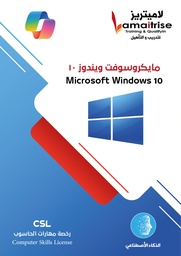
مايكروسوفت ويندوز 10
Microsoft Windows 10
Microsoft Windows 10
أساس قوي لاستخدام الحاسوب... ومهارات تواكب المستقبل
كتاب Microsoft Windows 10 هو كتاب عملي متكامل يهدف إلى تمكين الطالب من فهم الحاسوب واستخدام نظام Windows 10 بكفاءة وأمان، بدءًا من أساسيات علم الحاسوب ومكونات الجهاز، وصولًا إلى إدارة الملفات والإعدادات والتطبيقات والحماية، مع التعرف على استخدامات الذكاء الاصطناعي في Windows والصور والتصميم.
يتعلم الطالب من خلال الكتاب:
- أساسيات علم الحاسوب ومكونات الحاسوب.
- تشغيل الحاسوب وإعادة تشغيله وتسجيل الخروج.
- التعامل مع سطح المكتب والأيقونات وقائمة البدء وشريط المهام.
- تخصيص إعدادات Windows والحسابات واللغة والوقت.
- إدارة النوافذ ومحركات الأقراص.
- إنشاء وتنظيم وإعادة تسمية وحذف الملفات والمجلدات.
- استخدام سلة المحذوفات.
- استخدام تطبيقات Windows الأساسية مثل Microsoft Edge والآلة الحاسبة والتقويم وأدوات القص والملاحظات.
- أساسيات الحماية والأمان في Windows.
- اختصارات لوحة المفاتيح ومميزات Windows.
- استخدام الذكاء الاصطناعي في Windows والصور والتصميم.
تجربة تعلم تتجاوز الكتاب
يرتبط الكتاب بالمنصة التعليمية من خلال:
QR Codes شرح الدروس بالفيديو
شرح مرئي يساعد الطالب على فهم المهارات وتطبيقها خطوة بخطوة.
QR Codes للملفات العملية
الوصول المباشر إلى ملفات التدريب والتطبيق المرتبطة بالدروس.
مراجعة الكتاب السابق
موارد تساعد الطالب على استرجاع المهارات السابقة والاستعداد للمحتوى الجديد.
بنك أسئلة
للمراجعة والتدريب وقياس مستوى الاستيعاب.
خطط دراسية
لمساعدة المدرسة والمعلم على تنظيم تدريس محتوى الكتاب.
وحدة كاملة للذكاء الاصطناعي
للتعرف على استخدامات الذكاء الاصطناعي في Windows وبرامج Microsoft والصور والتصميم.
ماذا يميز الكتاب؟
لأنه لا يعتمد على الحفظ فقط، بل ينتقل بالطالب من:
التعرف → الفهم → التطبيق → التدريب → المراجعة → الاستخدام الذكي
ويمنحه أساسًا قويًا للانتقال إلى بقية كتب سلسلة Microsoft Office:
Word | PowerPoint | Excel | Internet and E-Mail
كتاب واحد... مهارات رقمية متعددة.
Microsoft Windows 10
تعلم أساسيات الحاسوب، أتقن Windows، وابدأ رحلتك نحو المهارات الرقمية الحديثة.
Microsoft Windows 10
الوصف التفصيلي للكتاب
Microsoft Windows 10 — من أساسيات الحاسوب إلى الاستخدام الذكي والآمن
يأتي كتاب Microsoft Windows 10 ضمن سلسلة Microsoft Office التعليمية، وهو كتاب عملي متكامل يهدف إلى تمكين المتعلم من فهم الحاسوب ونظام التشغيل Windows 10 واستخدامه بكفاءة وأمان، بدءًا من المفاهيم الأساسية للحاسوب، ووصولًا إلى إدارة الملفات والإعدادات والتطبيقات والحماية، مع التعرف على أحدث إمكانات الذكاء الاصطناعي المرتبطة ببيئة Windows.
صُمم الكتاب وفق منهج تدريجي يجمع بين المعرفة النظرية والتطبيق العملي، بحيث لا يكتفي المتعلم بالتعرف على المصطلحات والأدوات، بل يكتسب مهارات يستطيع تنفيذها بنفسه على الحاسوب.
ويُعد الكتاب أساسًا مهمًا للانتقال إلى دراسة برامج Microsoft Office مثل Word وPowerPoint وExcel، ولذلك يمكن للمدرسة اعتماد ترتيب الكتب في السلسلة وفق سياستها وخطتها الدراسية، دون أن يكون هناك ترتيب إلزامي بين الكتب.
ماذا سيتعلم الطالب؟
1. مقدمة في علم الحاسوب
يبدأ الطالب بفهم الأساس الذي يقوم عليه الحاسوب، فيتعرف على:
- مفهوم الحاسوب ووظيفته.
- أنواع الحواسيب.
- مجالات استخدام الحاسوب.
- مبدأ عمل الحاسوب.
- المكونات المادية Hardware.
- اللوحة الأم Motherboard.
- وحدات الإدخال Input Units.
- وحدة المعالجة المركزية CPU.
- الذاكرة Memory ووحدات قياسها.
- وحدات الإخراج Output Units.
- وحدات التخزين Storage Units.
- البرمجيات Software.
هذه الوحدة تمنح الطالب تصورًا واضحًا عن مكونات الحاسوب وكيف تتكامل معًا.
2. مدخل إلى Windows 10
ينتقل الطالب إلى التعرف على نظام التشغيل Windows 10، ومن ذلك:
- أهم ميزات Windows 10.
- إصدارات النظام.
- متطلبات تشغيل Windows 10.
3. تشغيل وإيقاف الحاسوب
يتعلم الطالب الإجراءات الصحيحة للتعامل مع جهاز الحاسوب عند بدء الاستخدام وإنهائه، ومنها:
- تشغيل الحاسوب.
- إعادة تشغيل الحاسوب.
- تسجيل الخروج.
4. التفاعل مع واجهة Windows 10
يتعلم الطالب كيفية التعامل مع أهم عناصر واجهة النظام، ومنها:
- سطح المكتب.
- الأيقونات.
- قائمة البدء.
- شريط المهام.
- تغيير الخلفية والألوان.
- تخصيص شاشة التأمين.
- تنظيم وفرز أيقونات سطح المكتب.
- التحكم في إعدادات قائمة البدء وشريط المهام.
5. إعدادات Windows 10
يتعرف الطالب على أهم الإعدادات التي تساعده على تخصيص الجهاز وإدارته، ومنها:
- إعدادات النظام.
- إعدادات الأجهزة.
- تخصيص مظهر Windows.
- إدارة التطبيقات.
- إعدادات الحسابات.
- إضافة مستخدم جديد.
- إعدادات اللغة والوقت.
- تعديل التاريخ والوقت.
- تغيير المنطقة والتنسيق الإقليمي.
- إضافة لغات لوحة المفاتيح.
- تغيير لغة عرض Windows.
- إعدادات التحديث والأمان.
6. التعامل مع النوافذ
يكتسب الطالب مهارات عملية في التحكم بالنوافذ، مثل:
- استخدام أزرار النافذة.
- تغيير حجم النافذة.
- تحريك النوافذ.
- عرض نافذتين في الشاشة.
- عرض النوافذ المفتوحة.
- التنقل بين النوافذ.
- تصغير النوافذ إلى شريط المهام.
- إظهار سطح المكتب.
7. محركات الأقراص
يتعلم الطالب أساسيات التعامل مع محركات الأقراص، ومنها:
- الوصول إلى محركات الأقراص.
- إعادة تسمية الأقراص المحلية.
- تنظيف الأقراص.
- تحسين محركات الأقراص وإلغاء التجزئة.
8. إدارة المجلدات والملفات
يتعلم الطالب تنظيم بياناته بطريقة صحيحة من خلال:
- إنشاء المجلدات والمجلدات الفرعية.
- إعادة تسمية المجلدات.
- حذف المجلدات.
- تخصيص المجلدات.
- إخفاء المجلدات.
- إظهار وإخفاء الملفات والمجلدات المخفية.
- تغيير أيقونة المجلد.
- إنشاء الملفات.
- إعادة تسمية الملفات.
- حذف الملفات وإخفاؤها.
9. سلة المحذوفات
يتعرف الطالب على كيفية التعامل مع العناصر المحذوفة، من خلال:
- استعادة العناصر المحذوفة.
- تفريغ سلة المحذوفات.
10. تطبيقات Windows 10 الأساسية
يتعرف الطالب على مجموعة من التطبيقات والأدوات المهمة، ومنها:
- الساعة والمنبه.
- الآلة الحاسبة.
- التقويم.
- الخرائط.
- Microsoft Edge.
- Microsoft Store.
- أدوات القص.
- Sticky Notes.
11. الحماية والأمان
يتعلم الطالب أساسيات حماية جهازه من التهديدات، ومنها:
- الوصول إلى Windows Security.
- التعرف على حماية الجهاز من الفيروسات والتهديدات.
- فهم أهمية الأمن الرقمي أثناء استخدام الحاسوب.
12. مميزات Windows 10 واختصارات لوحة المفاتيح
يتعرف الطالب على مجموعة من المميزات التي تساعده على استخدام Windows بكفاءة أكبر، إضافة إلى اختصارات لوحة المفاتيح التي توفر الوقت وتسرّع تنفيذ المهام اليومية.
13. الذكاء الاصطناعي في Windows
يربط الكتاب مهارات Windows بالتطور التقني الحديث من خلال وحدة مخصصة للذكاء الاصطناعي، يتعرف فيها الطالب على:
- استخدام Copilot في بيئة Windows.
- تطبيقات الذكاء الاصطناعي في الصور.
- استخدام الذكاء الاصطناعي في التصميم.
- توظيف أدوات الذكاء الاصطناعي بطريقة عملية في المهام الرقمية.
لماذا هذا الكتاب؟
لأن تعلم Windows لا ينبغي أن يقتصر على معرفة أسماء الأدوات، بل يجب أن يتحول إلى مهارة عملية قابلة للاستخدام.
لذلك بُني الكتاب وفق تسلسل تعليمي واضح:
يتعرف → يفهم → يطبق → يتدرب → يراجع → يوظف المهارة
ويجمع بين المهارات الأساسية التي يحتاجها الطالب في المدرسة والجامعة والعمل، وبين المهارات الحديثة المرتبطة بالأمان الرقمي والذكاء الاصطناعي.
تجربة تعليمية مرتبطة بالمنصة التعليمية
لا يتوقف التعلم عند صفحات الكتاب، بل يرتبط الكتاب بالمنصة التعليمية من خلال مجموعة من الموارد الرقمية المصممة لدعم الطالب والمعلم.
فيديوهات شرح الدروس
يحتوي الكتاب على باركودات QR مرتبطة بشرح الدروس بالفيديو على المنصة التعليمية، بحيث يستطيع الطالب الانتقال من الصفحة التي يدرسها مباشرة إلى شرح مرئي يساعده على فهم المهارة وتطبيقها.
ملفات التطبيق العملي
تتضمن الدروس باركودات للملفات العملية المرتبطة بالكتاب، ليتمكن الطالب من الوصول إلى الملفات المطلوبة للتطبيق والتدريب.
مراجعة الكتاب السابق
في بداية الكتاب توجد موارد مخصصة لـ مراجعة المهارات التي تم تعلمها في الكتاب السابق، مما يساعد على تهيئة الطالب للمهارات الجديدة وتقليل الفجوة بين مستويات التعلم.
وبما أن ترتيب كتب السلسلة يمكن أن يختلف حسب سياسة المدرسة وخطتها الدراسية، فإن هذه المراجعات تساعد المدرسة على بناء انتقال تعليمي أكثر مرونة.
بنك الأسئلة
يرتبط الكتاب ببنك أسئلة يساعد على:
- مراجعة الدروس.
- قياس مستوى الاستيعاب.
- الاستعداد للاختبارات.
- دعم المعلم في عملية التقويم.
الخطط الدراسية
تتوافر خطط دراسية تساعد المدرسة والمعلم على تنظيم تدريس محتوى الكتاب وتوزيع الدروس والمهارات بصورة عملية.
وحدة متكاملة للذكاء الاصطناعي
من أهم مميزات الكتاب مواكبة التطور التقني الحديث؛ إذ يتضمن وحدة كاملة حول استخدام الذكاء الاصطناعي في Windows وبرامج Microsoft.
والهدف ليس تقديم الذكاء الاصطناعي كمعلومة نظرية، وإنما تعريف الطالب بكيفية الاستفادة منه كأداة تساعده على التعلم والإنتاج والإبداع.
وهذا يجعل الكتاب لا يعلّم الطالب استخدام الحاسوب فقط، بل يساعده على الاستعداد لبيئة العمل الرقمية الحديثة.
المهارات التي يكتسبها الطالب
بنهاية دراسة الكتاب، يكون الطالب قادرًا على:
- فهم أساسيات علم الحاسوب.
- التعرف على مكونات الحاسوب ووظائفها.
- استخدام Windows 10 بطريقة صحيحة.
- التعامل مع سطح المكتب وقائمة البدء وشريط المهام.
- تخصيص إعدادات النظام.
- إدارة الحسابات واللغات والوقت.
- التعامل مع النوافذ بكفاءة.
- إدارة محركات الأقراص.
- تنظيم الملفات والمجلدات.
- استعادة الملفات المحذوفة وإدارة سلة المحذوفات.
- استخدام مجموعة من تطبيقات Windows الأساسية.
- التعرف على أدوات الحماية والأمان.
- استخدام اختصارات لوحة المفاتيح.
- التعرف على تطبيقات الذكاء الاصطناعي في Windows والصور والتصميم.
- الوصول إلى الشروحات والملفات التعليمية من خلال QR Codes.
- التدريب والمراجعة من خلال المنصة التعليمية وبنك الأسئلة.
قيمة الكتاب للمدرسة
يوفر الكتاب للمدرسة أكثر من محتوى ورقي؛ فهو يمثل جزءًا من منظومة تعليمية رقمية متكاملة تجمع بين:
الكتاب + الفيديو + التطبيق العملي + المراجعة + بنك الأسئلة + الخطة الدراسية + الذكاء الاصطناعي
وهذا يساعد المدرسة على تقديم تعليم حاسوب أكثر تفاعلية وتنظيمًا، ويمنح المعلم مصادر إضافية تساعده في الشرح والتطبيق والتقويم.
لمن يناسب الكتاب؟
يناسب الكتاب:
- طلاب المدارس.
- الطلاب الذين يدرسون أساسيات Windows.
- معامل الحاسوب المدرسية.
- برامج المهارات الرقمية.
- المراحل التعليمية التي تحتاج إلى تأسيس عملي في استخدام الحاسوب.
- المدارس التي ترغب في دمج الكتاب الورقي مع التعلم الرقمي.
لماذا Microsoft Windows 10 ضمن السلسلة؟
يمثل Windows البيئة الأساسية التي يتعامل معها الطالب قبل الانتقال إلى كثير من المهارات والبرامج الأخرى.
ومن خلال إتقان مهارات Windows، يصبح الطالب أكثر استعدادًا للتعامل مع:
- Microsoft Word.
- Microsoft PowerPoint.
- Microsoft Excel.
- Internet and E-Mail.
- التطبيقات التعليمية والرقمية المختلفة.
ولهذا يمكن للمدرسة وضع هذا الكتاب في بداية الخطة أو في أي موضع يتناسب مع سياستها التعليمية.
أكثر من كتاب... منظومة تعلم متكاملة
Microsoft Windows 10 ليس مجرد كتاب يشرح نظام تشغيل؛ بل هو مدخل عملي لبناء مهارات رقمية يحتاجها الطالب في الدراسة والحياة والعمل.
ومن خلال الجمع بين المحتوى التعليمي، والتطبيق العملي، والفيديوهات، وبنك الأسئلة، والخطط الدراسية، ومراجعة المهارات، والذكاء الاصطناعي، يحصل الطالب على تجربة تعلم تتجاوز حدود الكتاب التقليدي.
ابدأ من الأساس، أتقن Windows، واستعد لعالم العمل الرقمي.
كتب أخرى من نفس السلسلة
مايكروسوفت وورد
Microsoft Office Word
Microsoft Office Word
من الكتابة الأساسية إلى إنشاء المستندات الاحترافية
كتاب Microsoft Office Word هو كتاب عملي متكامل يعلّم الطالب استخدام Microsoft Word بطريقة تدريجية، تبدأ من إنشاء المستندات والكتابة والتحرير، ثم تنتقل إلى تنسيق النصوص والفقرات والجداول والصور والكائنات الرسومية، وصولًا إلى دمج المراسلات وإعداد المستندات للطباعة واستخدام الذكاء الاصطناعي.
ماذا سيتعلم الطالب؟
- إنشاء وحفظ وإدارة مستندات Word.
- الكتابة والتحرير والبحث والاستبدال.
- تنسيق النصوص والفقرات والأنماط.
- إنشاء الجداول وتنسيقها.
- إدراج الصور والأشكال والأيقونات.
- استخدام SmartArt والمخططات وWordArt.
- إدراج الرموز والمعادلات.
- استخدام ميزات Word الحديثة 2019–2024.
- ترجمة النصوص واستخدام القارئ الشامل.
- تنفيذ دمج المراسلات.
- إعداد الصفحات والخلفيات والحدود والرأس والتذييل.
- التدقيق الإملائي والنحوي وطباعة المستندات.
- استخدام الذكاء الاصطناعي في Microsoft Word.
تجربة تعلم تتجاوز الكتاب
يرتبط الكتاب بالمنصة التعليمية من خلال:
QR Codes لشرح الدروس بالفيديو
مشاهدة شرح عملي للمهارات خطوة بخطوة.
QR Codes لملفات التطبيق العملي
الوصول المباشر إلى الملفات المطلوبة للتدريب والتطبيق.
مراجعة الدروس السابقة
تهيئة الطالب واسترجاع المهارات السابقة قبل بدء المحتوى الجديد.
بنك أسئلة
للمراجعة والتدريب وقياس مستوى الاستيعاب.
خطط دراسية
لمساعدة المدرسة والمعلم على تنظيم تدريس محتوى الكتاب.
وحدة كاملة للذكاء الاصطناعي
للتعرف على أدوات الذكاء الاصطناعي واستخداماتها في Microsoft Word.
ماذا يميز الكتاب؟
يجمع بين:
المعرفة + التطبيق + الفيديو + الملفات العملية + المراجعة + التقويم + الذكاء الاصطناعي
ليتعلم الطالب Word كأداة للإنتاج وإنجاز المهام، وليس مجرد برنامج للكتابة.
من أول حرف... إلى مستند احترافي.
Microsoft Office Word
اكتب، نسّق، أبدع، وأنجز بذكاء.
Microsoft Office Word
الوصف التفصيلي للكتاب
Microsoft Office Word — من أساسيات الكتابة إلى إنتاج المستندات الاحترافية
يأتي كتاب Microsoft Office Word ضمن سلسلة Microsoft Office التعليمية، وهو كتاب عملي متكامل يهدف إلى تمكين المتعلم من استخدام Microsoft Word بكفاءة، والانتقال من مهارات الكتابة والتحرير الأساسية إلى إنشاء وتنسيق المستندات الاحترافية التي يحتاج إليها في الدراسة والعمل.
صُمم الكتاب وفق منهج تدريجي يجمع بين الشرح والتطبيق العملي والتمارين، بحيث لا يكتفي الطالب بمعرفة أدوات Word، بل يتعلم توظيفها لإنشاء مستندات منظمة وجذابة.
ماذا سيتعلم الطالب؟
الوحدة الأولى: استخدام Microsoft Word
- فتح برنامج Word والتعرف على بيئته.
- التعامل مع واجهة البرنامج.
- إغلاق البرنامج.
- التعرف على أحدث الميزات.
الوحدة الثانية: التعامل مع المستندات
- فتح وإغلاق المستندات.
- إنشاء مستندات جديدة.
- استخدام القوالب.
- حفظ المستندات وإدارتها.
الوحدة الثالثة: التعامل مع النصوص
- الكتابة داخل المستند.
- تحديد النصوص.
- النسخ والنقل والحذف.
- التراجع والإعادة.
- طرق عرض المستندات.
- إظهار علامات التنسيق.
- البحث والاستبدال.
الوحدة الرابعة: تنسيق النصوص والفقرات
يتعلم الطالب التحكم في:
- نوع وحجم ولون الخط.
- الغامق والمائل والتسطير.
- التنسيق المرتفع والمنخفض.
- محاذاة الفقرات.
- المسافات البادئة والتباعد.
- علامات الجدولة.
- التعداد النقطي والرقمي.
- الحدود والتظليل.
- الأنماط Styles.
- نسخ التنسيق.
الوحدة الخامسة: الجداول والكائنات
يتعلم الطالب إنشاء وتنسيق الجداول، وإضافة الصفوف والأعمدة ودمج الخلايا، بالإضافة إلى إدراج:
- الصور.
- الأشكال.
- الأيقونات.
- النماذج ثلاثية الأبعاد.
- لقطات الشاشة.
- SmartArt.
- المخططات.
- WordArt.
- مربعات النص.
- الرموز والأحرف الخاصة.
- المعادلات الرياضية.
الوحدة السادسة: الميزات الحديثة في Word 2019–2024
يتعرف الطالب على:
- تبويب الرسم.
- تحويل الحبر إلى أشكال.
- تحويل الكتابة بالحبر إلى معادلات.
- ترجمة النصوص.
- القارئ الشامل.
- أدوات تسهيل العثور على المستندات والتنقل خلالها.
الوحدة السابعة: دمج المراسلات
يتعلم الطالب استخدام Mail Merge لإنشاء مراسلات ومستندات متعددة اعتمادًا على بيانات منظمة، وهي مهارة مهمة في الأعمال الإدارية والمدرسية.
الوحدة الثامنة: إعداد المستند
يتعلم الطالب:
- إعداد الصفحة.
- خلفية الصفحة.
- العلامة المائية.
- لون الصفحة.
- حدود الصفحة.
- الرأس والتذييل.
- التدقيق الإملائي والنحوي.
- طباعة المستند.
الوحدة التاسعة: الذكاء الاصطناعي في Word
يتعرف الطالب على:
- أدوات الذكاء الاصطناعي في Word.
- الفرق بين Copilot في Windows وCopilot في Microsoft Word.
- مجالات استخدام الذكاء الاصطناعي في Word.
- الاستفادة من الذكاء الاصطناعي في تحسين المحتوى وزيادة الإنتاجية.
لماذا هذا الكتاب؟
لأن إتقان Word لا يعني معرفة أدوات الكتابة فقط، بل القدرة على إنتاج مستند متكامل ومنظم من البداية إلى النهاية.
ينتقل الكتاب بالطالب وفق مسار واضح:
يكتب → يحرر → ينسق → ينظم → يضيف العناصر → يجهز المستند → يطبع → يستخدم الذكاء الاصطناعي
وبذلك يتعلم الطالب استخدام Word كأداة للإنتاج، وليس مجرد برنامج للكتابة.
تجربة تعلم مرتبطة بالمنصة التعليمية
يتكامل الكتاب مع المنصة التعليمية من خلال موارد رقمية مرتبطة عبر QR Codes.
فيديوهات شرح الدروس
باركودات تنقل الطالب مباشرة إلى شرح الدروس بالفيديو، لمشاهدة خطوات تنفيذ المهارات عمليًا.
ملفات التطبيق العملي
باركودات للوصول إلى الملفات العملية المرتبطة بالدروس، ليتمكن الطالب من التطبيق والتدريب.
مراجعة الدروس السابقة
في بداية الكتاب توجد موارد لمراجعة المهارات التي تم تعلمها سابقًا، للمساعدة في تهيئة الطالب للمحتوى الجديد. ويمكن للمدرسة اختيار ترتيب كتب السلسلة وفق سياستها وخطتها الدراسية.
بنك الأسئلة
بنك أسئلة يساعد على المراجعة والتدريب وقياس مستوى الاستيعاب والاستعداد للاختبارات.
الخطط الدراسية
خطط تساعد المعلم والمدرسة على تنظيم توزيع الدروس والمهارات خلال الفصل الدراسي.
وحدة الذكاء الاصطناعي
يتضمن الكتاب وحدة كاملة للذكاء الاصطناعي تربط مهارات Word بالتقنيات الحديثة، وتعرّف الطالب بكيفية استخدام الذكاء الاصطناعي كأداة تساعده على التعلم والإنتاج وزيادة الكفاءة، مع أهمية مراجعة النتائج والتأكد من دقتها.
المهارات التي يكتسبها الطالب
بنهاية دراسة الكتاب، يكون الطالب قادرًا على:
- إنشاء وإدارة مستندات Word.
- الكتابة والتحرير والبحث والاستبدال.
- تنسيق النصوص والفقرات.
- استخدام الأنماط والتعداد والحدود والتظليل.
- إنشاء الجداول وتنسيقها.
- إدراج الصور والأشكال والأيقونات والمخططات.
- استخدام SmartArt وWordArt والرموز والمعادلات.
- الاستفادة من ميزات Word الحديثة.
- تنفيذ دمج المراسلات.
- إعداد الصفحات والرأس والتذييل.
- التدقيق الإملائي والنحوي.
- تجهيز المستندات للطباعة.
- استخدام أدوات الذكاء الاصطناعي في Word بصورة واعية وفعالة.
- الوصول إلى الشروحات والملفات العملية من خلال المنصة.
قيمة الكتاب للمدرسة
يوفر الكتاب أكثر من محتوى ورقي؛ فهو جزء من منظومة تعليمية متكاملة تجمع بين:
الكتاب + الفيديو + التطبيق العملي + المراجعة + بنك الأسئلة + الخطط الدراسية + الذكاء الاصطناعي
وهذا يمنح المعلم مصادر إضافية للشرح والتطبيق والتقويم، ويمنح الطالب فرصة للتعلم داخل الفصل وخارجه.
مناسب لخطط المدارس المختلفة
كتب سلسلة Microsoft Office ليست مرتبطة بترتيب إلزامي واحد، ويمكن للمدرسة اختيار ترتيب تدريسها وفق سياستها ومستوى طلابها وخطتها الدراسية.
أكثر من كتاب... منظومة تعلم متكاملة
Microsoft Office Word ليس مجرد كتاب لتعلم الكتابة، بل رحلة تعليمية تنتقل بالطالب من التعامل مع النصوص إلى إنتاج المستندات المنظمة والاحترافية، مع دعم الفيديو والملفات العملية وبنك الأسئلة والخطط الدراسية والذكاء الاصطناعي.
من أول حرف... إلى مستند احترافي.
كتب أخرى من نفس السلسلة
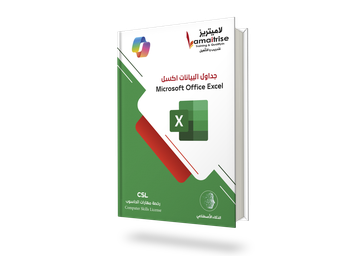
مايكروسوفت اكسل
Microsoft Office Excel
Microsoft Office Excel
نظّم بياناتك، احسبها، حلّلها، واعرضها بذكاء
كتاب عملي متكامل يعلّم الطالب استخدام Microsoft Excel، بدءًا من إنشاء المصنفات وإدخال البيانات وتنسيق الخلايا، وصولًا إلى المعادلات والدوال والمخططات والميزات الحديثة والذكاء الاصطناعي.
ماذا سيتعلم الطالب؟
- إنشاء المصنفات وحفظها وإدارتها.
- إدخال البيانات وتحريرها.
- تحديد الخلايا والنطاقات وتنظيمها.
- تنسيق الجداول والخلايا.
- استخدام الفرز والبحث والاستبدال.
- إدارة أوراق العمل والصفوف والأعمدة.
- استخدام المعادلات والمراجع النسبية والمطلقة.
- استخدام الدوال SUM وMAX وMIN وAVERAGE وCOUNT وIF.
- إنشاء المخططات البيانية.
- الاستفادة من ميزات Excel 2019–2024.
- إعداد أوراق العمل للطباعة.
- استخدام الذكاء الاصطناعي في Excel.
تجربة تعلم تتجاوز الكتاب
QR Codes لشرح الدروس بالفيديو — مشاهدة خطوات التطبيق عمليًا.
QR Codes لملفات التطبيق العملي — الوصول إلى ملفات Excel المستخدمة في التدريب.
مراجعة الدروس السابقة — تهيئة الطالب للمحتوى الجديد، بما يتناسب مع إمكانية تدريس كتب السلسلة بترتيب مختلف حسب سياسة المدرسة.
بنك أسئلة — للمراجعة والتدريب وقياس الاستيعاب.
خطط دراسية — لمساعدة المدرسة والمعلم على تنظيم تدريس المحتوى.
وحدة كاملة للذكاء الاصطناعي — للتعرف على أدوات الذكاء الاصطناعي واستخداماتها في Excel.
ماذا يميز الكتاب؟
يجمع بين:
البيانات + التنظيم + الحساب + التحليل + المخططات + التطبيق العملي + الفيديو + التقويم + الذكاء الاصطناعي
ليتعلم الطالب Excel كأداة عملية لتنظيم البيانات وتحليلها وعرض النتائج، وليس مجرد جدول للأرقام.
تعلّم Excel... ونظّم بياناتك، حلّلها، واعرضها بذكاء.
Microsoft Office Excel
تعلّم، طبّق، حلّل، وأبدع في عالم البيانات.
Microsoft Office Excel
الوصف التفصيلي للكتاب
Microsoft Office Excel — من تنظيم البيانات إلى التحليل واتخاذ القرار
كتاب Microsoft Office Excel هو كتاب عملي متكامل ضمن سلسلة Microsoft Office التعليمية، يهدف إلى تمكين المتعلم من التعامل مع البيانات والجداول الحسابية بطريقة منظمة، بدءًا من أساسيات البرنامج وإنشاء المصنفات وإدخال البيانات، وصولًا إلى المعادلات والدوال والمخططات والميزات الحديثة والذكاء الاصطناعي.
لا يقتصر الكتاب على تعليم الطالب كيفية إدخال الأرقام في الخلايا، بل ينقله تدريجيًا إلى مرحلة تنظيم البيانات، إجراء العمليات الحسابية، تحليل المعلومات، وتمثيل النتائج بصريًا.
ماذا سيتعلم الطالب؟
1. أساسيات برنامج Excel
يتعرف الطالب على البرنامج وبيئته، ويتعلم:
- فتح Excel والتعرف على مكونات نافذته.
- إغلاق البرنامج بطريقة صحيحة.
- فهم طبيعة برنامج جداول البيانات واستخداماته.
- التعرف على أحدث الميزات.
2. التعامل مع المصنفات
يتعلم الطالب إنشاء وإدارة ملفات Excel من خلال:
- فتح المصنفات.
- إغلاق المصنفات.
- إنشاء مصنف جديد بالقالب الافتراضي.
- استخدام القوالب المتوفرة.
- حفظ المصنفات.
3. التعامل مع الخلايا والبيانات
تمثل هذه الوحدة أساس العمل في Excel، ويتعلم فيها الطالب:
- تحديد الخلايا والنطاقات والصفوف والأعمدة.
- التنقل بين خلايا ورقة العمل.
- إدخال البيانات وتحريرها.
- إدخال أكثر من سطر داخل الخلية.
- إدخال البيانات في عدة خلايا.
- إنشاء الأرقام المتتالية وسلاسل البيانات.
- حذف محتويات الخلايا.
- تنسيق الخلايا.
- دمج الخلايا ومحاذاة النص.
- إضافة الحدود والألوان.
- تنسيق الأرقام.
- استخدام الأنماط.
- استخدام التنسيق الشرطي.
- نسخ تنسيق الخلايا.
- التراجع والإعادة.
- البحث والاستبدال.
- فرز البيانات.
وهذه المهارات تساعد الطالب على بناء جداول منظمة وسهلة القراءة والتعامل.
4. إدارة أوراق العمل والصفوف والأعمدة
يتعلم الطالب تنظيم المصنفات وإدارة محتوياتها من خلال:
- إضافة أوراق العمل.
- تحديد ونسخ ونقل الأوراق.
- حذف وإعادة تسمية الأوراق.
- تغيير لون تبويب الورقة.
- إخفاء وإظهار أوراق العمل.
- إدراج الصفوف والأعمدة وحذفها.
- التحكم في عرض الأعمدة وارتفاع الصفوف.
- إخفاء وإظهار الصفوف والأعمدة.
- تجميد عناوين الصفوف والأعمدة.
5. المعادلات والمراجع والدوال
ينتقل الطالب إلى مرحلة أكثر تقدمًا في استخدام Excel، ويتعلم:
- مكونات المعادلة.
- كتابة المعادلات.
- فهم رسائل الأخطاء.
- استخدام المراجع النسبية.
- استخدام المراجع المطلقة.
- دالة SUM للجمع.
- دالة MAX لأكبر قيمة.
- دالة MIN لأقل قيمة.
- دالة AVERAGE للمتوسط الحسابي.
- دالة COUNT للعد.
- الدالة الشرطية IF.
وهنا يبدأ الطالب باستخدام Excel كأداة للحساب والتحليل، وليس مجرد جدول لإدخال البيانات.
6. المخططات البيانية
يتعلم الطالب تحويل البيانات الرقمية إلى تمثيل بصري من خلال إنشاء المخططات، مما يساعده على:
- فهم البيانات بصورة أسرع.
- مقارنة القيم.
- عرض النتائج بطريقة واضحة.
- تقديم المعلومات بشكل أكثر جاذبية.
7. الميزات الحديثة في Excel 2019–2024
يتعرف الطالب على مجموعة من الميزات والتحديثات الحديثة في Excel، بما يشمل:
- الدوال الجديدة.
- المخططات الجديدة.
- التحسينات العامة في البرنامج.
وذلك لمساعدة الطالب على مواكبة الإصدارات الحديثة والاستفادة من إمكاناتها.
8. إعدادات المصنف
يتعلم الطالب تجهيز أوراق العمل بشكل مناسب للعرض والطباعة من خلال:
- تغيير هوامش ورقة العمل.
- تغيير اتجاه الصفحة.
- تغيير حجم صفحة الطباعة.
- ضبط حجم ورقة العمل لتتناسب مع المحتويات.
- إضافة رأس وتذييل الصفحة.
- إضافة الحقول إلى الرأس والتذييل.
- تكرار عناوين الصفوف أو الأعمدة في صفحات الطباعة.
9. الطباعة
يتعلم الطالب التحكم في عملية الطباعة، من خلال:
- معاينة ورقة العمل قبل الطباعة.
- طباعة أوراق عمل محددة.
- طباعة نطاق محدد من الخلايا.
10. استخدام الذكاء الاصطناعي في Excel
يختتم الكتاب بوحدة متخصصة في الذكاء الاصطناعي، يتعرف فيها الطالب على:
- أدوات الذكاء الاصطناعي في Excel.
- الفرق بين Copilot في Windows وCopilot في Microsoft Excel.
- مجالات استخدام الذكاء الاصطناعي في Excel.
- الاستفادة من الذكاء الاصطناعي في التعامل مع البيانات وتحليلها.
- زيادة الإنتاجية وتسهيل إنجاز المهام.
- مراجعة النتائج والتحقق منها قبل اعتمادها.
لماذا هذا الكتاب؟
لأن Excel ليس مجرد برنامج لكتابة الأرقام داخل جدول، بل أداة تساعد على تنظيم البيانات والحساب والتحليل وعرض النتائج.
لذلك ينتقل الكتاب بالطالب وفق مسار تعليمي واضح:
بيانات → تنظيم → حساب → تحليل → مخططات → نتائج → ذكاء اصطناعي
وهذا يجعل الطالب قادرًا على استخدام Excel في المواقف التعليمية والعملية المختلفة.
المهارات التي يكتسبها الطالب
بنهاية دراسة الكتاب، يكون الطالب قادرًا على:
- إنشاء المصنفات وإدارتها.
- إدخال البيانات وتحريرها.
- تنظيم الخلايا والنطاقات.
- تنسيق الجداول بطريقة احترافية.
- استخدام الفرز والبحث والاستبدال.
- إدارة أوراق العمل والصفوف والأعمدة.
- استخدام المعادلات الحسابية.
- استخدام المراجع النسبية والمطلقة.
- استخدام الدوال الأساسية.
- إنشاء المخططات البيانية.
- تجهيز أوراق العمل للطباعة.
- استخدام ميزات Excel الحديثة.
- توظيف الذكاء الاصطناعي في Excel.
- التعامل مع البيانات بطريقة أكثر تنظيمًا وكفاءة.
أين يمكن استخدام مهارات Excel؟
يمكن توظيف مهارات Excel في العديد من المجالات، مثل:
- الجداول الدراسية والدرجات.
- الميزانيات والحسابات.
- تنظيم البيانات.
- إعداد التقارير.
- تحليل النتائج.
- المشاريع المدرسية.
- البيانات المالية.
- العروض والتقارير الإدارية.
- تمثيل البيانات بالمخططات.
وهكذا يكتسب الطالب مهارة يمكن أن يستفيد منها في الدراسة والعمل مستقبلًا.
تجربة تعلم مرتبطة بالمنصة التعليمية
يرتبط الكتاب بالمنصة التعليمية من خلال موارد رقمية متكاملة باستخدام QR Codes.
فيديوهات شرح الدروس
باركودات داخل الكتاب تقود الطالب إلى شرح الدروس بالفيديو، لمشاهدة خطوات التطبيق عمليًا.
ملفات التطبيق العملي
باركودات توفر ملفات Excel المستخدمة في التدريب، ليتمكن الطالب من تطبيق المهارات مباشرة.
مراجعة الدروس السابقة
تتضمن بداية الكتاب موارد لمراجعة المهارات السابقة، مما يساعد الطالب على الاستعداد للمحتوى الجديد. ويمكن للمدرسة اختيار ترتيب كتب سلسلة Microsoft Office وفق سياستها التعليمية.
بنك الأسئلة
بنك أسئلة يساعد على المراجعة والتدريب وقياس مستوى فهم الطالب.
الخطط الدراسية
خطط تساعد المعلم والمدرسة على تنظيم توزيع الدروس والوحدات.
الذكاء الاصطناعي داخل Excel
يتضمن الكتاب وحدة كاملة حول الذكاء الاصطناعي، بحيث يتعرف الطالب على كيفية الاستفادة من الأدوات الحديثة في التعامل مع البيانات، مع التأكيد على أهمية مراجعة النتائج والتحقق منها.
والهدف هو الانتقال بالطالب من مجرد استخدام الأدوات التقليدية إلى فهم كيفية توظيف التقنيات الحديثة لزيادة الإنتاجية وتحسين طريقة العمل مع البيانات.
قيمة الكتاب للمدرسة
يجمع الكتاب بين المحتوى الورقي والموارد الرقمية في منظومة واحدة:
الكتاب + فيديوهات الشرح + ملفات التطبيق + مراجعة سابقة + بنك الأسئلة + الخطط الدراسية + الذكاء الاصطناعي
وهذا يوفر للمعلم محتوى جاهزًا للشرح والتطبيق والتقويم، ويمنح الطالب فرصة للتعلم والممارسة داخل المدرسة وخارجها.
أكثر من جدول... مهارة في التعامل مع البيانات
من خلال هذا الكتاب يتعلم الطالب كيف يحول البيانات الخام إلى معلومات منظمة يمكن حسابها وتحليلها وعرضها بطريقة واضحة.
تعلّم Excel... ونظّم بياناتك، حلّلها، واعرضها بذكاء.
كتب أخرى من نفس السلسلة
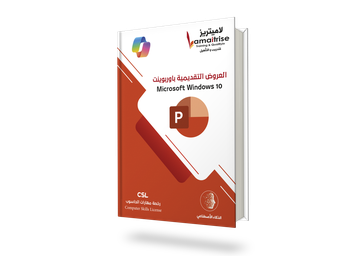
مايكروسوفت باوربوينت
Microsoft Office PowerPoint
Microsoft Office PowerPoint
حوّل أفكارك إلى عروض تقديمية جذابة ومؤثرة
كتاب عملي متكامل يعلّم الطالب إنشاء العروض التقديمية وتنظيمها وتصميمها، بدءًا من إنشاء الشرائح والكتابة وتنسيق النصوص، وصولًا إلى الصور والجداول والمخططات والفيديو والصوت والحركات والانتقالات والميزات الحديثة والذكاء الاصطناعي.
ماذا سيتعلم الطالب؟
- إنشاء العروض وحفظها وإدارتها.
- كتابة وتنسيق محتوى الشرائح.
- اختيار تخطيطات الشرائح وتنظيمها.
- إدراج الجداول والصور وSmartArt والمخططات.
- إدراج الفيديو والملفات الصوتية.
- تطبيق النُسق والتصاميم.
- استخدام طرق العرض المختلفة.
- إضافة الانتقالات والحركات.
- إنشاء الارتباطات التشعبية.
- استخدام النماذج ثلاثية الأبعاد وإزالة خلفية الصور.
- الرسم والكتابة بالحبر الرقمي.
- الاستفادة من ميزات PowerPoint 2019–2024.
- إعداد العرض وتقديمه وطباعته.
- استخدام الذكاء الاصطناعي في PowerPoint.
تجربة تعلم تتجاوز الكتاب
QR Codes لشرح الدروس بالفيديو — مشاهدة شرح عملي للمهارات خطوة بخطوة.
QR Codes لملفات التطبيق العملي — الوصول المباشر إلى ملفات التدريب والتطبيق.
مراجعة الدروس السابقة — تهيئة الطالب واسترجاع المهارات السابقة قبل المحتوى الجديد.
بنك أسئلة — للمراجعة والتدريب وقياس مستوى الاستيعاب.
خطط دراسية — لمساعدة المدرسة والمعلم على تنظيم تدريس المحتوى.
وحدة كاملة للذكاء الاصطناعي — للتعرف على أدوات الذكاء الاصطناعي واستخداماتها في PowerPoint.
ماذا يميز الكتاب؟
يجمع بين:
المعرفة + التصميم + التطبيق + الفيديو + الملفات العملية + المراجعة + التقويم + الذكاء الاصطناعي
ليتعلم الطالب PowerPoint كأداة للتواصل والعرض والإبداع، وليس مجرد برنامج لإنشاء الشرائح.
حوّل أفكارك إلى عروض... وقدّمها بثقة.
Microsoft Office PowerPoint
صمّم، تفاعل، اعرض، وأبدع بذكاء.
Microsoft Office PowerPoint
الوصف التفصيلي للكتاب
Microsoft Office PowerPoint — من الفكرة إلى عرض تقديمي مؤثر واحترافي
كتاب عملي متكامل يهدف إلى تمكين المتعلم من إنشاء العروض التقديمية وتنظيمها وتصميمها وتقديمها بصورة واضحة وجذابة، بدءًا من أساسيات البرنامج وإدارة الشرائح، وصولًا إلى الوسائط المتعددة والحركات والانتقالات والميزات الحديثة والذكاء الاصطناعي.
ماذا سيتعلم الطالب؟
الوحدة الأولى: أساسيات PowerPoint
- فتح البرنامج والتعرف على مكونات نافذته.
- فتح وإغلاق العروض.
- إنشاء عرض بالقالب الافتراضي أو القوالب الجاهزة.
- حفظ العرض وإدارة التغييرات.
- التعرف على أحدث الميزات.
الوحدة الثانية: التعامل مع العرض التقديمي
- تلميحات لإنشاء عرض فعال.
- إضافة النصوص وتحريرها.
- تنسيق النصوص.
- نسخ النصوص ونقلها.
- تنظيم محتوى العرض بصورة واضحة.
الوحدة الثالثة: الشرائح وإدارتها
- اختيار تخطيط الشريحة.
- إضافة الشرائح وتحديدها.
- نسخ الشرائح ونقلها.
- حذف شريحة أو عدة شرائح.
الوحدة الرابعة: إدراج الكائنات والوسائط
يتعلم الطالب إدراج:
- الجداول.
- الصور.
- SmartArt والمخططات التنظيمية.
- المخططات البيانية.
- الفيديو.
- الملفات الصوتية.
الوحدة الخامسة: النُسق والتصميم
يتعلم تطبيق النُسق على العرض أو على شرائح محددة، لإنشاء عروض متناسقة ومنظمة.
الوحدة السادسة: طرق عرض العروض
- العرض العادي.
- المخطط التفصيلي.
- فارز الشرائح.
- صفحة الملاحظات.
- عرض القراءة.
- التبديل بين طرق العرض.
الوحدة السابعة: الانتقالات والحركات والارتباطات
- تأثيرات الانتقال بين الشرائح.
- حركات النصوص والكائنات.
- إنشاء الارتباطات التشعبية بين الشرائح والكائنات.
- استخدام الصور للتنقل داخل العرض.
الوحدة الثامنة: الميزات الحديثة في PowerPoint 2019–2024
- تأثير التحويل التدريجي Morph.
- ميزات الصور وقلم تمييز النص.
- النماذج ثلاثية الأبعاد.
- إزالة خلفية الصور.
- التصدير بدقة 4K.
- ميزات تسجيل العرض.
- الرسم والكتابة بالحبر الرقمي.
- تأثيرات الحبر والممحاة والمسطرة الرقمية.
- المخططات القُمعية ومخططات الخرائط ثنائية الأبعاد.
- تحويل البيانات الجغرافية إلى مخططات لاكتشاف الاتجاهات والفرص.
الوحدة التاسعة: إعداد العرض والطباعة
- ملاحظات مقدم العرض.
- الرأس والتذييل.
- تشغيل العرض من البداية أو من الشريحة الحالية.
- طباعة العرض التقديمي.
الوحدة العاشرة: الذكاء الاصطناعي في PowerPoint
- أدوات الذكاء الاصطناعي في PowerPoint.
- الفرق بين Copilot في Windows وCopilot في Microsoft PowerPoint.
- مجالات استخدام الذكاء الاصطناعي في PowerPoint.
- الاستفادة من الذكاء الاصطناعي في تطوير الأفكار والمحتوى وزيادة الإنتاجية.
- مراجعة المخرجات والتأكد من جودتها.
لماذا هذا الكتاب؟
لأن العرض التقديمي الناجح لا يعتمد على وضع المعلومات في شرائح فقط، بل يحتاج إلى تنظيم الفكرة، واختيار التصميم المناسب، واستخدام الوسائط بطريقة ذكية، ثم تقديم المحتوى بصورة واضحة ومؤثرة.
ينتقل الكتاب بالطالب وفق مسار عملي:
فكرة → محتوى → شرائح → تصميم → وسائط → تفاعل → عرض → ذكاء اصطناعي
وبذلك يتعلم الطالب PowerPoint كأداة للتواصل والعرض والإبداع، وليس مجرد برنامج لإنشاء الشرائح.
تجربة تعلم مرتبطة بالمنصة التعليمية
يرتبط الكتاب بالمنصة التعليمية من خلال موارد رقمية متكاملة باستخدام QR Codes.
فيديوهات شرح الدروس
باركودات تقود الطالب إلى شرح الدروس بالفيديو لمشاهدة خطوات تنفيذ المهارات عمليًا.
ملفات التطبيق العملي
باركودات توفر ملفات التدريب والتطبيق المرتبطة بالدروس.
مراجعة الدروس السابقة
موارد في بداية الكتاب لمراجعة المهارات السابقة وتهيئة الطالب للمحتوى الجديد. ويمكن للمدرسة اختيار ترتيب كتب السلسلة وفق سياستها وخطتها الدراسية.
بنك الأسئلة
بنك أسئلة للمراجعة والتدريب وقياس الاستيعاب والاستعداد للاختبارات.
الخطط الدراسية
خطط تساعد المدرسة والمعلم على تنظيم توزيع الوحدات والدروس والمهارات.
وحدة الذكاء الاصطناعي
يتضمن الكتاب وحدة كاملة تربط PowerPoint بالتقنيات الحديثة، وتقدم للطالب فهمًا عمليًا لدور الذكاء الاصطناعي في إعداد العروض، بحيث يستخدمه كمساعد في التفكير والإنتاج مع مراجعة النتائج والتأكد من دقتها وجودتها.
المهارات التي يكتسبها الطالب
بنهاية دراسة الكتاب، يكون الطالب قادرًا على:
- إنشاء وإدارة العروض التقديمية.
- كتابة وتنسيق محتوى الشرائح.
- تنظيم الشرائح وتغيير تخطيطاتها.
- إدراج الجداول والصور والمخططات وSmartArt.
- إدراج الفيديو والصوت.
- تطبيق النُسق والتصاميم.
- استخدام طرق العرض المختلفة.
- إضافة الحركات والانتقالات.
- إنشاء ارتباطات تشعبية تفاعلية.
- استخدام النماذج ثلاثية الأبعاد وإزالة خلفية الصور.
- الاستفادة من أدوات الرسم والحبر الرقمي.
- استخدام ميزات PowerPoint الحديثة.
- إعداد العرض وتقديمه وطباعته.
- استخدام الذكاء الاصطناعي في PowerPoint.
- الوصول إلى الفيديوهات والملفات العملية من خلال المنصة.
قيمة الكتاب للمدرسة
يوفر الكتاب أكثر من محتوى ورقي؛ فهو جزء من منظومة تعليمية متكاملة تجمع بين:
الكتاب + الفيديو + التطبيق العملي + المراجعة + بنك الأسئلة + الخطط الدراسية + الذكاء الاصطناعي
وهذا يمنح المعلم موارد إضافية للشرح والتطبيق والتقويم، ويساعد الطالب على التعلم داخل الفصل وخارجه.
لماذا يحتاج الطالب إلى PowerPoint؟
يستخدم PowerPoint في تقديم المشروعات والأبحاث والتقارير، وعرض الأفكار والمعلومات بصريًا، وتنظيم البيانات، وتقديم المشاريع والإنجازات.
لذلك فإن إتقانه لا يضيف مهارة تقنية فقط، بل يساعد الطالب على تطوير مهارات العرض والتواصل وتنظيم الأفكار.
مناسب لسياسات المدارس المختلفة
كتب سلسلة Microsoft Office ليست مرتبطة بترتيب إلزامي واحد، ويمكن للمدرسة اختيار ترتيب تدريسها وفق سياستها ومستوى الطلاب وخطتها الدراسية.
أكثر من كتاب... منظومة تعلم متكاملة
Microsoft Office PowerPoint رحلة تعليمية تنقل الطالب من تنظيم الأفكار إلى تصميم عرض تفاعلي ومرئي، مع دعم الفيديوهات والملفات العملية وبنك الأسئلة والخطط الدراسية ووحدة الذكاء الاصطناعي.
حوّل أفكارك إلى عروض... وقدّمها بثقة.
كتب أخرى من نفس السلسلة
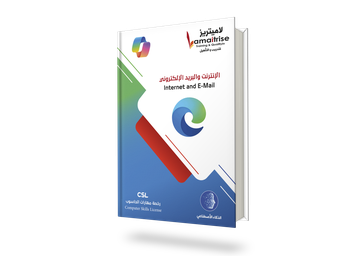
الإنترنت والبريد الإلكتروني
Internet and E-Mail
تعلّم الإنترنت والتواصل الرقمي بمهارات عملية
كتاب Internet and E-Mail هو كتاب تعليمي عملي يهدف إلى إكساب الطالب المهارات الأساسية لاستخدام الإنترنت، وتصفح المواقع، والبحث عن المعلومات، وإدارة البريد الإلكتروني، مع التركيز على الخصوصية والأمان والاستخدام المسؤول للتقنية.
كما يواكب الكتاب التطورات الحديثة من خلال وحدة متكاملة حول استخدام الذكاء الاصطناعي في الإنترنت والبريد الإلكتروني، والتعرف على إمكانات Copilot في Microsoft Edge والبريد الإلكتروني.
ماذا سيتعلم الطالب؟
🌐 الإنترنت
- مفهوم الإنترنت والشبكة العنكبوتية.
- أهم المصطلحات والتقنيات المرتبطة بالإنترنت.
- فوائد الإنترنت ومجالات استخدامه.
- أخلاقيات الاستخدام.
- أضرار الإنترنت وطرق الاستخدام الآمن.
🔎 تصفح الإنترنت
- استخدام Microsoft Edge.
- فتح وإدارة المواقع وعلامات التبويب.
- المفضلة والمحفوظات والتنزيلات.
- البحث على الإنترنت.
- إدارة إعدادات المتصفح.
- الخصوصية والأمان.
- التصفح الخاص InPrivate.
📧 البريد الإلكتروني
- إنشاء حساب بريد إلكتروني.
- إرسال واستقبال الرسائل.
- الرد وإعادة التوجيه.
- تنظيم الرسائل والمجلدات.
- إدارة جهات الاتصال.
- إنشاء توقيع إلكتروني.
- استخدام Gmail.
🤖 الذكاء الاصطناعي
- استخدام Copilot في Microsoft Edge.
- الاستفادة من الذكاء الاصطناعي في البحث.
- تلخيص وتنظيم المعلومات.
- تحسين كتابة البريد الإلكتروني.
- زيادة الإنتاجية باستخدام أدوات الذكاء الاصطناعي.
مميزات الكتاب
🎥 تعلم مرتبط بالمنصة
باركودات QR داخل الكتاب للوصول إلى فيديوهات شرح الدروس على المنصة التعليمية.
💻 تطبيق عملي
باركودات للوصول إلى الملفات العملية المرتبطة بالدروس.
🔄 مراجعة الدروس السابقة
مراجعة للمهارات السابقة في بداية الكتاب لمساعدة الطالب على الاستعداد للمحتوى الجديد.
📝 بنك أسئلة
أسئلة وتدريبات تساعد الطالب على المراجعة والاستعداد للتقييمات والاختبارات.
📅 خطط دراسية
خطط تساعد المعلم على تنظيم تدريس الكتاب وتوزيع محتواه على الحصص الدراسية.
🤖 مواكبة الذكاء الاصطناعي
وحدة متخصصة تساعد الطالب على فهم كيفية الاستفادة من الذكاء الاصطناعي في التصفح والبريد الإلكتروني.
النتيجة التعليمية
بنهاية الكتاب، لا يكون الطالب قد تعرّف على الإنترنت والبريد الإلكتروني نظريًا فقط، بل يكون قد اكتسب مهارات عملية تساعده على:
البحث → التصفح → التواصل → التنظيم → حماية الخصوصية → استخدام الذكاء الاصطناعي
Internet and E-Mail
كتاب يبني مهارات الطالب الرقمية للتعلم والتواصل والاستعداد للمستقبل.
الكتاب + المنصة + التطبيق العملي + الفيديو + التقييم + الذكاء الاصطناعي
ابدأ باستخدام الإنترنت بوعي... وتواصل بثقة وأمان.
كتاب Internet and E-Mail
مهارات الإنترنت والتواصل الرقمي في عصر الذكاء الاصطناعي
يأتي كتاب Internet and E-Mail ضمن سلسلة Microsoft Office ليمنح المتعلّم المهارات الأساسية والعملية التي يحتاجها للتعامل مع الإنترنت والبريد الإلكتروني بطريقة صحيحة وآمنة وفعّالة.
لا يقتصر الكتاب على تعريف الطالب بالإنترنت ومصطلحاته، بل ينتقل به تدريجيًا من فهم مفهوم الإنترنت وأهميته وأخلاقيات استخدامه، إلى البحث عن المعلومات وتصفح المواقع وإدارة المتصفح، ثم إلى إنشاء واستخدام البريد الإلكتروني، وصولًا إلى التعرف على تطبيقات الذكاء الاصطناعي التي أصبحت جزءًا مهمًا من تجربة التصفح والتواصل الرقمي.
وقد صُمم الكتاب ليجمع بين المعرفة والفهم والتطبيق والممارسة، بحيث لا يتعلم الطالب المصطلحات النظرية فقط، وإنما يكتسب مهارات يستطيع استخدامها في الدراسة والحياة اليومية والمستقبل المهني.
ماذا سيتعلم الطالب؟
🌐 الوحدة الأولى: الإنترنت – THE INTERNET
يبدأ الطالب بالتعرف على الإنترنت من الأساس، وفهم كيف تطورت هذه التقنية وأصبحت جزءًا أساسيًا من الحياة الحديثة.
يتعرف الطالب على:
- أهم المحطات التاريخية في تطور الإنترنت.
- مبادئ وأخلاقيات استخدام الإنترنت.
- مفهوم الإنترنت والشبكة العنكبوتية العالمية WWW.
- مفهوم لغة HTML.
- النص التشعبي والروابط Hyperlinks.
- مفهوم URL وعناوين المواقع.
- بروتوكولات HTTP وFTP.
- مزود خدمة الإنترنت ISP.
- المواقع الإلكترونية.
- متصفحات الإنترنت.
- محركات البحث.
- أهمية الإنترنت في التعليم والعمل والتواصل.
- فوائد الإنترنت ومجالات استخدامه.
- أضرار الإنترنت وسلبياته.
- طرق الحصول على خدمة الإنترنت.
ولا يكتفي الطالب بمعرفة كيفية استخدام الإنترنت، بل يتعلم أيضًا كيف يستخدمه بطريقة واعية ومسؤولة وآمنة.
🔎 الوحدة الثانية: تصفح الإنترنت
بعد فهم أساسيات الإنترنت، ينتقل الطالب إلى الاستخدام العملي من خلال التعرف على متصفحات الإنترنت والتعامل مع Microsoft Edge.
يتعلم الطالب:
- التعرف على متصفحات الإنترنت.
- فتح Microsoft Edge.
- التعرف على مكونات نافذة المتصفح.
- فتح المواقع والبحث عنها.
- فتح المواقع في علامات تبويب ونوافذ جديدة.
- تحديث صفحات الويب.
- استخدام أزرار السابق والأمام.
- إضافة المواقع إلى المفضلة.
- إدارة المفضلة.
- استخدام المحفوظات وإدارتها.
- إدارة التنزيلات.
- استخدام الملحقات.
- إنشاء وإدارة المجموعات.
- البحث داخل صفحات الويب.
- حفظ صفحات الإنترنت.
- طباعة صفحات الويب.
- البحث الفعّال على الإنترنت.
🔐 الخصوصية والأمان أثناء التصفح
من المهارات المهمة التي يركز عليها الكتاب تعليم الطالب كيفية التحكم في بيئة التصفح، وليس مجرد فتح المواقع.
يتعرف الطالب على إعدادات Microsoft Edge المتعلقة بـ:
- ملفات التعريف.
- الخصوصية والبحث والخدمات.
- مظهر المتصفح.
- إعدادات بدء التشغيل.
- أذونات المواقع.
- المتصفح الافتراضي.
- التنزيلات.
- أمان العائلة.
- اللغات.
- الطابعات.
- إعدادات النظام.
- الهاتف والأجهزة الأخرى.
- إعادة ضبط إعدادات المتصفح.
كما يتعلم استخدام التصفح الخاص InPrivate، وفهم أهميته في حماية الخصوصية أثناء استخدام الإنترنت.
وهذا يجعل الكتاب لا يعلّم الطالب كيف يتصفح الإنترنت فقط، بل كيف يتصفح الإنترنت بوعي وأمان.
📧 الوحدة الثالثة: البريد الإلكتروني – THE E-MAIL
يُعد البريد الإلكتروني من أهم وسائل التواصل الرقمي، لذلك يقدم الكتاب تدريبًا عمليًا متدرجًا يبدأ من إنشاء الحساب وينتهي بإدارة البريد والتواصل بطريقة منظمة.
يتعلم الطالب:
- مفهوم البريد الإلكتروني.
- أهم مميزات البريد الإلكتروني.
- فهم عنوان البريد الإلكتروني.
- إنشاء حساب بريد إلكتروني جديد باستخدام خدمات Microsoft.
- التعرف على مكونات نافذة البريد الإلكتروني.
- استعراض الرسائل الواردة.
- الرد على الرسائل.
- إعادة توجيه الرسائل.
- إرسال رسائل البريد الإلكتروني.
- استخدام أدوات التحكم بالرسائل.
- إنشاء المجلدات وتنظيم الرسائل.
- إدارة جهات الاتصال.
- إنشاء توقيع إلكتروني.
- مزامنة البريد الإلكتروني.
- التحكم في مظهر البريد الإلكتروني.
- التعرف على Gmail وإنشاء حساب جديد عليه.
ومن خلال هذه المهارات يصبح الطالب قادرًا على استخدام البريد الإلكتروني كوسيلة عملية للتواصل في الدراسة والعمل والحياة اليومية.
🤖 الوحدة الرابعة: استخدامات الذكاء الاصطناعي في الإنترنت والبريد الإلكتروني
مع التطور السريع للذكاء الاصطناعي، لم يعد استخدام الإنترنت والبريد الإلكتروني مقتصرًا على الأدوات التقليدية.
لذلك يختتم الكتاب بوحدة حديثة تعرّف الطالب على كيفية الاستفادة من الذكاء الاصطناعي في المهام الرقمية اليومية.
يتعرف الطالب على:
- استخدام Copilot في Microsoft Edge.
- الاستفادة من الذكاء الاصطناعي أثناء البحث على الإنترنت.
- استخدام الذكاء الاصطناعي للحصول على المعلومات وتلخيصها.
- الاستفادة من الذكاء الاصطناعي في تنظيم المعلومات.
- استخدام الذكاء الاصطناعي في كتابة وتحسين رسائل البريد الإلكتروني.
- التعرف على طرق زيادة الإنتاجية باستخدام أدوات الذكاء الاصطناعي.
وبذلك ينتقل الطالب من مجرد مستخدم للإنترنت إلى مستخدم يستطيع توظيف الأدوات الذكية لإنجاز المهام بصورة أكثر كفاءة.
🎯 المهارات التي يكتسبها الطالب
بنهاية الكتاب، يكون الطالب قادرًا على:
- فهم مفهوم الإنترنت ومكوناته الأساسية.
- معرفة أهم المصطلحات المرتبطة بالإنترنت.
- استخدام الإنترنت بطريقة أخلاقية ومسؤولة.
- البحث عن المعلومات باستخدام محركات البحث.
- استخدام Microsoft Edge بكفاءة.
- إدارة علامات التبويب والمواقع والمفضلة.
- إدارة المحفوظات والتنزيلات.
- التحكم في إعدادات المتصفح.
- استخدام أدوات الخصوصية والتصفح الخاص.
- إنشاء حساب بريد إلكتروني.
- إرسال واستقبال الرسائل الإلكترونية.
- الرد على الرسائل وإعادة توجيهها.
- تنظيم البريد الإلكتروني والمجلدات.
- إدارة جهات الاتصال.
- إنشاء توقيع إلكتروني.
- استخدام Gmail.
- الاستفادة من الذكاء الاصطناعي في التصفح والبحث.
- استخدام Copilot في المهام المتعلقة بالإنترنت والبريد الإلكتروني.
- التعامل مع التقنية بطريقة أكثر وعيًا وأمانًا.
⭐ لماذا هذا الكتاب؟
لأن امتلاك المهارات الرقمية اليوم لا يعني معرفة تشغيل الحاسوب والبرامج المكتبية فقط.
فالطالب يحتاج أيضًا إلى أن يعرف:
**كيف يبحث؟
كيف يتصفح؟
كيف يميّز استخدام الإنترنت الصحيح؟
كيف يتواصل إلكترونيًا؟
كيف يحافظ على خصوصيته؟
وكيف يستفيد من الذكاء الاصطناعي؟**
ولهذا تم تصميم الكتاب ليبني هذه المهارات بصورة تدريجية:
يفهم → يتصفح → يبحث → يتواصل → يحمي نفسه → يستخدم الذكاء الاصطناعي
📚 الكتاب مرتبط بالمنصة التعليمية
لا يأتي الكتاب منفصلًا عن العملية التعليمية، بل يرتبط بالمنصة التعليمية من خلال منظومة متكاملة تساعد الطالب على التعلم والتطبيق والمراجعة.
🎥 فيديوهات تعليمية
تتضمن صفحات الكتاب باركودات QR مرتبطة بشرح الدروس على المنصة التعليمية، بحيث يستطيع الطالب الانتقال من الشرح المكتوب إلى الشرح المرئي بسهولة.
اقرأ الدرس → امسح الباركود → شاهد الشرح → طبّق بنفسك.
💻 ملفات التطبيق العملي
يتضمن الكتاب باركودات للوصول إلى ملفات التطبيق العملي المرتبطة بالدروس، مما يساعد الطالب على الانتقال من المعرفة النظرية إلى الممارسة الفعلية.
🔄 مراجعة الدروس السابقة
في بداية الكتاب توجد مراجعة مرتبطة بما تم تعلمه في الكتب السابقة، حتى يستطيع الطالب استرجاع المهارات الأساسية قبل الانتقال إلى المهارات الجديدة.
وهذا يسمح للمدرسة بتدريس الكتب وفق سياستها وترتيبها المعتمد، دون أن يكون التعلم مقيدًا بترتيب واحد ثابت للسلسلة.
📝 بنك الأسئلة
يستفيد الطالب والمعلم من بنك أسئلة خاص بالكتاب يساعد على:
- مراجعة الدروس.
- قياس مستوى الفهم.
- التدريب قبل الاختبارات.
- تقييم المهارات المكتسبة.
- دعم المعلم في إعداد الأنشطة والتقييمات.
📅 الخطط الدراسية
يوفر الكتاب والمنصة دعمًا للمعلم من خلال خطط دراسية تساعد على تنظيم تدريس المحتوى وتوزيعه على الأسابيع والحصص الدراسية.
🏫 قيمة الكتاب للمدرسة
اعتماد كتاب Internet and E-Mail لا يعني إضافة كتاب جديد إلى المنهج فقط، بل يعني توفير منظومة تعليمية تساعد المدرسة على بناء مهارات رقمية يحتاجها الطالب داخل المدرسة وخارجها.
فالطالب يتعلم من خلال الكتاب:
المعرفة + التطبيق + الفيديو + الملفات العملية + التقييم + الذكاء الاصطناعي
وهذا يمنح المدرسة تجربة تعليمية أكثر تكاملًا من الاعتماد على المحتوى النظري وحده.
👨🏫 قيمة الكتاب للمعلم
يساعد الكتاب المعلم على تقديم مادة الإنترنت والبريد الإلكتروني بطريقة منظمة ومتدرجة، مع وجود:
- شرح واضح للدروس.
- تدريبات وتطبيقات.
- فيديوهات شرح على المنصة.
- ملفات عملية.
- بنك أسئلة.
- خطط دراسية.
- محتوى حديث عن الذكاء الاصطناعي.
وبذلك يستطيع المعلم التركيز على التدريب والتطبيق بدلًا من قضاء وقت طويل في إعداد جميع المواد من الصفر.
👨🎓 قيمة الكتاب للطالب
يحصل الطالب على تجربة تعليمية تجمع بين الكتاب والمنصة والتطبيق العملي.
فبدلًا من أن يقرأ الطالب عن الإنترنت والبريد الإلكتروني فقط، يستطيع أن:
يقرأ → يشاهد → يطبق → يراجع → يختبر → يستخدم المهارة فعليًا.
وهذا يساعد على تحويل المهارة الرقمية من معلومة محفوظة إلى ممارسة حقيقية.
🚀 أكثر من كتاب للإنترنت والبريد الإلكتروني
صُمم Internet and E-Mail ليكون بوابة الطالب إلى عالم التواصل والبحث الرقمي الحديث.
فهو يبدأ من السؤال:
ما هو الإنترنت؟
ثم ينتقل إلى:
كيف أستخدمه؟
ثم:
كيف أبحث وأتصفح بأمان؟
ثم:
كيف أتواصل عبر البريد الإلكتروني؟
وأخيرًا:
كيف أستفيد من الذكاء الاصطناعي في هذه المهام؟
وهذا التسلسل يجعل الكتاب مناسبًا لبناء مهارات رقمية عملية يحتاجها الطالب في الدراسة والحياة والمستقبل المهني.
🌐 من مستخدم للإنترنت... إلى مستخدم رقمي واعٍ
الهدف من الكتاب ليس أن يعرف الطالب أسماء الأدوات فقط، وإنما أن يمتلك القدرة على استخدامها بكفاءة ووعي وأمان.
**تعلّم الإنترنت.
أتقن التصفح.
طوّر مهارات التواصل.
احمِ خصوصيتك.
واستخدم الذكاء الاصطناعي بذكاء.**
مناسب لـ
- المدارس.
- الطلاب في المراحل الدراسية المختلفة.
- معامل الحاسوب.
- برامج المهارات الرقمية.
- حصص الإنترنت والتواصل الإلكتروني.
- التدريب الأساسي على البريد الإلكتروني.
- البرامج التعليمية التي تهدف إلى إعداد الطالب للعصر الرقمي.
كتاب Internet and E-Mail
من أساسيات الإنترنت... إلى التواصل الرقمي والذكاء الاصطناعي
كتاب + منصة تعليمية + فيديوهات + ملفات عملية + بنك أسئلة + خطط دراسية + ذكاء اصطناعي
مهارات رقمية يحتاجها الطالب اليوم... ويحتاجها أكثر في المستقبل.
كتب أخرى من نفس السلسلة
مايكروسوفت ويندوز 10 (إنجليزي)
Microsoft Windows 10
Microsoft Windows 10
A strong foundation for computer use… and skills for the future
The book Microsoft Windows 10 is a comprehensive practical resource designed to help students understand computers and use Windows 10 efficiently and securely, from computer basics and components to file management, settings, applications, security, and AI.
What will the student learn?
- Basics of computer science and hardware components.
- Start, restart, and log off.
- Work with desktop, icons, Start menu, and taskbar.
- Customize Windows settings, accounts, language, and time.
- Manage windows and drives.
- Create, organize, rename, and delete files/folders.
- Use the Recycle Bin.
- Use Windows apps like Edge, Calculator, Calendar, Snipping Tool, and Notes.
- Basics of Windows security and protection.
- Keyboard shortcuts and Windows features.
- Use AI in Windows, images, and design.
Learning Experience Beyond the Book
- QR Codes for video lessons — visual step-by-step guidance.
- QR Codes for practice files — direct access to training files.
- Review of previous books — recall prior skills before new content.
- Question Bank — for review and assessment.
- Study Plans — to help teachers organize teaching.
- Dedicated AI unit — to explore AI in Windows, Microsoft apps, images, and design.
What makes the book unique?
It moves students from:
Recognition → Understanding → Application → Practice → Review → Smart Use
Providing a strong foundation to transition into other Microsoft Office books:
Word | PowerPoint | Excel | Internet and E-Mail
One book… multiple digital skills.
Microsoft Windows 10
Learn computer basics, master Windows, and begin your journey toward modern digital skills.
Microsoft Windows 10
Detailed Description of the Book
Microsoft Windows 10 — From Computer Fundamentals to Smart and Secure Use
Microsoft Windows 10 is part of the Microsoft Office educational series. It is a comprehensive practical book designed to enable learners to understand computers and the Windows 10 operating system and use them efficiently and securely, starting with basic computer concepts and progressing to file management, settings, applications, and security, while introducing the latest AI capabilities associated with the Windows environment.
The book follows a gradual approach that combines theoretical knowledge and practical application, so learners do not simply become familiar with terminology and tools but acquire skills they can perform independently on a computer.
The book also serves as an important foundation for moving on to Microsoft Office programs such as Word, PowerPoint, and Excel. Therefore, schools can arrange the books in the series according to their own policies and study plans without being required to follow one fixed sequence.
What Will Students Learn?
1. Introduction to Computer Science
Students begin by understanding the foundation on which computers operate and learn about:
- The concept and function of a computer.
- Types of computers.
- Areas of computer use.
- How computers work.
- Hardware components.
- The Motherboard.
- Input Units.
- The Central Processing Unit (CPU).
- Memory and its units of measurement.
- Output Units.
- Storage Units.
- Software.
This unit gives students a clear understanding of computer components and how they work together.
2. Introduction to Windows 10
Students move on to Windows 10 and learn about:
- Key features of Windows 10.
- Editions of the operating system.
- Windows 10 system requirements.
3. Starting and Shutting Down the Computer
Students learn the correct procedures for using a computer when starting and ending a session, including:
- Turning on the computer.
- Restarting the computer.
- Signing out.
4. Interacting with the Windows 10 Interface
Students learn how to work with the main elements of the operating system interface, including:
- Desktop.
- Icons.
- Start menu.
- Taskbar.
- Changing the background and colors.
- Customizing the lock screen.
- Organizing and sorting desktop icons.
- Controlling Start menu and Taskbar settings.
5. Windows 10 Settings
Students explore key settings that help them customize and manage the computer, including:
- System settings.
- Device settings.
- Personalizing the Windows appearance.
- Managing apps.
- Account settings.
- Adding a new user.
- Language and time settings.
- Changing the date and time.
- Changing the region and regional format.
- Adding keyboard languages.
- Changing the Windows display language.
- Update and security settings.
6. Working with Windows
Students develop practical skills for controlling windows, such as:
- Using window buttons.
- Resizing windows.
- Moving windows.
- Displaying two windows on the screen.
- Viewing open windows.
- Switching between windows.
- Minimizing windows to the Taskbar.
- Showing the desktop.
7. Disk Drives
Students learn the basics of working with disk drives, including:
- Accessing disk drives.
- Renaming local drives.
- Cleaning drives.
- Optimizing drives and defragmenting them.
8. Managing Folders and Files
Students learn to organize their data properly by:
- Creating folders and subfolders.
- Renaming folders.
- Deleting folders.
- Customizing folders.
- Hiding folders.
- Showing and hiding hidden files and folders.
- Changing a folder icon.
- Creating files.
- Renaming files.
- Deleting and hiding files.
9. Recycle Bin
Students learn how to manage deleted items by:
- Restoring deleted items.
- Emptying the Recycle Bin.
10. Essential Windows 10 Applications
Students explore a range of important applications and tools, including:
- Clock and Alarm.
- Calculator.
- Calendar.
- Maps.
- Microsoft Edge.
- Microsoft Store.
- Snipping Tools.
- Sticky Notes.
11. Protection and Security
Students learn the basics of protecting their computer from threats, including:
- Accessing Windows Security.
- Understanding protection against viruses and threats.
- Understanding the importance of digital security when using a computer.
12. Windows 10 Features and Keyboard Shortcuts
Students explore features that help them use Windows more efficiently, in addition to keyboard shortcuts that save time and speed up everyday tasks.
13. Artificial Intelligence in Windows
The book connects Windows skills with modern technological developments through a dedicated artificial intelligence unit in which students learn about:
- Using Copilot in the Windows environment.
- AI applications for images.
- Using AI in design.
- Applying AI tools practically to digital tasks.
Why This Book?
Learning Windows should not be limited to knowing the names of tools; it should develop into a practical, usable skill.
Therefore, the book follows a clear learning sequence:
Explore → Understand → Apply → Practice → Review → Use the Skill
It combines essential skills students need at school, university, and work with modern skills related to digital security and artificial intelligence.
A Learning Experience Connected to the Educational Platform
Learning does not stop at the pages of the book. The book connects to the educational platform through a range of digital resources designed to support both students and teachers.
Lesson Instructional Videos
The book contains QR Codes linked to video explanations of lessons on the educational platform, allowing students to move directly from the page they are studying to a visual explanation that helps them understand and apply the skill.
Practical Application Files
Lessons include QR Codes for practical files associated with the book, enabling students to access the files required for application and practice.
Previous Book Review
At the beginning of the book, resources are provided to review the skills learned in the previous book, helping prepare students for new skills and reduce the gap between learning levels.
Because the order of the series can vary according to school policy and study plans, these reviews help schools create a more flexible learning progression.
Question Bank
The book connects to a question bank that supports:
- Reviewing lessons.
- Measuring understanding.
- Preparing for tests.
- Supporting teachers in assessment.
Study Plans
Study plans are available to help schools and teachers organize the teaching of the book's content and distribute lessons and skills in a practical way.
An Integrated Artificial Intelligence Unit
One of the book's key features is its alignment with modern technological development. It includes a complete unit on using artificial intelligence in Windows and Microsoft programs.
The goal is not to present AI as theoretical information, but to introduce students to how they can use it as a tool that supports learning, productivity, and creativity.
This makes the book more than a guide to using computers; it also helps students prepare for the modern digital workplace.
Skills Students Will Gain
By the end of the book, students will be able to:
- Understand the fundamentals of computer science.
- Identify computer components and their functions.
- Use Windows 10 correctly.
- Work with the Desktop, Start menu, and Taskbar.
- Customize system settings.
- Manage accounts, languages, and time settings.
- Work efficiently with windows.
- Manage disk drives.
- Organize files and folders.
- Restore deleted files and manage the Recycle Bin.
- Use a range of essential Windows applications.
- Identify security and protection tools.
- Use keyboard shortcuts.
- Explore AI applications in Windows, images, and design.
- Access instructional videos and educational files through QR Codes.
- Practice and review through the educational platform and question bank.
Value of the Book for Schools
The book provides schools with more than printed content; it represents part of an integrated digital educational system that combines:
Book + Video + Practical Application + Review + Question Bank + Study Plan + Artificial Intelligence
This helps schools provide more interactive and organized computer education while giving teachers additional resources for instruction, practice, and assessment.
Who Is This Book For?
The book is suitable for:
- School students.
- Students learning Windows fundamentals.
- School computer laboratories.
- Digital skills programs.
- Educational levels that require practical foundations in computer use.
- Schools that want to integrate printed books with digital learning.
Why Is Microsoft Windows 10 Part of the Series?
Windows represents the primary environment students work with before moving on to many other skills and programs.
By mastering Windows skills, students become better prepared to work with:
- Microsoft Word.
- Microsoft PowerPoint.
- Microsoft Excel.
- Internet and E-Mail.
- Various educational and digital applications.
For this reason, schools can place this book at the beginning of their plan or at any point that fits their educational policy.
More Than a Book... An Integrated Learning System
Microsoft Windows 10 is not simply a book that explains an operating system. It is a practical gateway to building digital skills students need in education, life, and work.
By combining educational content, practical application, videos, a question bank, study plans, skill review, and artificial intelligence, students receive a learning experience that goes beyond the traditional textbook.
Start with the Fundamentals, Master Windows, and Prepare for the Digital Workplace.
كتب أخرى من نفس السلسلة
مايكروسوفت وورد (إنجليزي)
Microsoft Office Word
Microsoft Office Word
From basic writing to professional document creation
The book Microsoft Office Word is a comprehensive practical resource that teaches students how to use Word step by step, from creating documents and writing/editing to formatting text, paragraphs, tables, images, graphics, mail merge, printing, and AI.
What will the student learn?
- Create, save, and manage Word documents.
- Write, edit, search, and replace.
- Format text, paragraphs, and styles.
- Create and format tables.
- Insert images, shapes, and icons.
- Use SmartArt, charts, and WordArt.
- Insert symbols and equations.
- Use Word 2019–2024 features.
- Translate text and use Immersive Reader.
- Perform mail merge.
- Set up pages, backgrounds, borders, headers, and footers.
- Spell check, grammar check, and print documents.
- Use AI in Word.
Learning Experience Beyond the Book
- QR Codes for video lessons — step-by-step demonstrations.
- QR Codes for practice files — direct access to training files.
- Review of previous lessons — prepare students for new content.
- Question Bank — for review and assessment.
- Study Plans — to help teachers organize teaching.
- Dedicated AI unit — to explore AI tools in Word.
What makes the book unique?
It combines:
Knowledge + Practice + Video + Files + Review + Assessment + AI
Learn Word as a tool for productivity and task completion — not just for writing.
From the first letter… to a professional document.
Microsoft Office Word
Detailed Description of the Book
Microsoft Office Word — From Basic Writing to Professional Document Production
Microsoft Office Word is part of the Microsoft Office educational series. It is a comprehensive practical book designed to enable learners to use Microsoft Word efficiently and progress from basic writing and editing skills to creating and formatting professional documents needed in education and work.
The book is designed around a gradual approach that combines explanation, practical application, and exercises, so students do not simply learn Word tools but learn how to use them to create organized and attractive documents.
What Will Students Learn?
Unit One: Using Microsoft Word
- Open Word and become familiar with its environment.
- Work with the program interface.
- Close the program.
- Explore the latest features.
Unit Two: Working with Documents
- Open and close documents.
- Create new documents.
- Use templates.
- Save and manage documents.
Unit Three: Working with Text
- Type in a document.
- Select text.
- Copy, move, and delete text.
- Undo and redo.
- Use different document views.
- Show formatting marks.
- Find and replace.
Unit Four: Formatting Text and Paragraphs
Students learn to control:
- Font type, size, and color.
- Bold, italic, and underline.
- Superscript and subscript.
- Paragraph alignment.
- Indentation and spacing.
- Tab stops.
- Bulleted and numbered lists.
- Borders and shading.
- Styles.
- Copying formatting.
Unit Five: Tables and Objects
Students learn to create and format tables, add rows and columns, and merge cells, in addition to inserting:
- Pictures.
- Shapes.
- Icons.
- 3D models.
- Screenshots.
- SmartArt.
- Charts.
- WordArt.
- Text boxes.
- Symbols and special characters.
- Mathematical equations.
Unit Six: Modern Features in Word 2019–2024
Students explore:
- The Draw tab.
- Converting ink to shapes.
- Converting ink writing to equations.
- Translating text.
- Immersive Reader.
- Tools that make it easier to find and navigate documents.
Unit Seven: Mail Merge
Students learn to use Mail Merge to create multiple correspondence documents and other documents based on organized data, an important skill for administrative and school-related tasks.
Unit Eight: Document Setup
Students learn:
- Page setup.
- Page background.
- Watermarks.
- Page color.
- Page borders.
- Headers and footers.
- Spelling and grammar checking.
- Printing documents.
Unit Nine: Artificial Intelligence in Word
Students learn about:
- AI tools in Word.
- The difference between Copilot in Windows and Copilot in Microsoft Word.
- Areas where AI can be used in Word.
- Using AI to improve content and increase productivity.
Why This Book?
Mastering Word is not simply about knowing writing tools; it is about being able to produce a complete and organized document from beginning to end.
Therefore, the book takes students through a clear path:
Write → Edit → Format → Organize → Add Elements → Prepare the Document → Print → Use Artificial Intelligence
In this way, students learn to use Word as a production tool, not merely as a word-processing program.
A Learning Experience Connected to the Educational Platform
The book integrates with the educational platform through digital resources linked using QR Codes.
Lesson Instructional Videos
QR Codes take students directly to video explanations of lessons, allowing them to watch practical demonstrations of how to perform the skills.
Practical Application Files
QR Codes provide access to practical files associated with the lessons so students can apply and practice the skills.
Previous Lesson Review
At the beginning of the book, resources are provided to review previously learned skills and prepare students for the new content. Schools can choose the order of the series according to their educational policy and study plan.
Question Bank
A question bank supports review, practice, understanding assessment, and test preparation.
Study Plans
Plans help teachers and schools organize the distribution of lessons and skills throughout the academic term.
Artificial Intelligence Unit
The book includes a complete artificial intelligence unit connecting Word skills with modern technologies. It introduces students to using AI as a tool that supports learning and production and increases efficiency, while emphasizing the importance of reviewing results and verifying their accuracy.
Skills Students Will Gain
By the end of the book, students will be able to:
- Create and manage Word documents.
- Write, edit, find, and replace text.
- Format text and paragraphs.
- Use styles, lists, borders, and shading.
- Create and format tables.
- Insert pictures, shapes, icons, and charts.
- Use SmartArt, WordArt, symbols, and equations.
- Benefit from modern Word features.
- Perform Mail Merge.
- Set up pages, headers, and footers.
- Perform spelling and grammar checks.
- Prepare documents for printing.
- Use AI tools in Word consciously and effectively.
- Access explanations and practical files through the educational platform.
Value of the Book for Schools
The book provides more than printed content; it is part of an integrated educational system that combines:
Book + Video + Practical Application + Review + Question Bank + Study Plans + Artificial Intelligence
This provides teachers with additional resources for instruction, practice, and assessment, while giving students the opportunity to learn both inside and outside the classroom.
Suitable for Different School Plans
The books in the Microsoft Office series are not tied to one mandatory sequence. Schools can choose the order in which they teach them according to their educational policy, students' levels, and study plan.
More Than a Book... An Integrated Learning System
Microsoft Office Word is not simply a book for learning how to type. It is an educational journey that takes students from working with text to producing organized and professional documents, supported by videos, practical files, a question bank, study plans, and artificial intelligence.
From the First Letter... to a Professional Document.
كتب أخرى من نفس السلسلة
مايكروسوفت اكسل (إنجليزي)
Microsoft Office Excel
Microsoft Office Excel
Organize your data, calculate, analyze, and present intelligently
A comprehensive practical book that teaches students how to use Microsoft Excel, from creating workbooks and entering data to formatting cells, formulas, functions, charts, modern features, and artificial intelligence.
What will the student learn?
- Create, save, and manage workbooks.
- Enter and edit data.
- Select and organize cells and ranges.
- Format tables and cells.
- Use sorting, search, and replace.
- Manage worksheets, rows, and columns.
- Use formulas and relative/absolute references.
- Use functions: SUM, MAX, MIN, AVERAGE, COUNT, IF.
- Create charts.
- Utilize Excel 2019–2024 features.
- Prepare worksheets for printing.
- Use AI in Excel.
Learning Experience Beyond the Book
- QR Codes for video lessons — watch step-by-step demonstrations.
- QR Codes for practice files — access Excel files used in training.
- Review of previous lessons — prepare students for new content.
- Question Bank — for review and assessment.
- Study Plans — to help schools and teachers organize teaching.
- Dedicated AI unit — to explore AI tools in Excel.
What makes the book unique?
It combines:
Data + Organization + Calculation + Analysis + Charts + Practice + Video + Assessment + AI
Learn Excel as a practical tool for organizing, analyzing, and presenting data — not just a table of numbers.
Learn Excel… organize, analyze, and present intelligently.
Microsoft Office Excel
Detailed Description of the Book
Microsoft Office Excel — From Data Organization to Analysis and Decision-Making
Microsoft Office Excel is a comprehensive practical book within the Microsoft Office educational series. It aims to enable learners to work with data and spreadsheets in an organized way, starting with program fundamentals, workbook creation, and data entry, and progressing to formulas, functions, charts, modern features, and artificial intelligence.
The book does not simply teach students how to enter numbers into cells. Instead, it gradually takes them to the stage of organizing data, performing calculations, analyzing information, and presenting results visually.
What Will Students Learn?
1. Excel Fundamentals
Students become familiar with the program and its environment and learn how to:
- Open Excel and identify the components of its window.
- Close the program correctly.
- Understand the nature and uses of spreadsheet software.
- Explore the latest features.
2. Working with Workbooks
Students learn to create and manage Excel files by:
- Opening workbooks.
- Closing workbooks.
- Creating a new workbook using the default template.
- Using available templates.
- Saving workbooks.
3. Working with Cells and Data
This unit represents the foundation of working with Excel. Students learn how to:
- Select cells, ranges, rows, and columns.
- Navigate between cells in a worksheet.
- Enter and edit data.
- Enter multiple lines within a cell.
- Enter data into multiple cells.
- Create sequential numbers and data series.
- Delete cell contents.
- Format cells.
- Merge cells and align text.
- Add borders and colors.
- Format numbers.
- Use styles.
- Use conditional formatting.
- Copy cell formatting.
- Undo and redo actions.
- Find and replace.
- Sort data.
These skills help students build organized, easy-to-read tables and work with them effectively.
4. Managing Worksheets, Rows, and Columns
Students learn to organize workbooks and manage their contents by:
- Adding worksheets.
- Selecting, copying, and moving worksheets.
- Deleting and renaming worksheets.
- Changing worksheet tab colors.
- Hiding and showing worksheets.
- Inserting and deleting rows and columns.
- Controlling column width and row height.
- Hiding and showing rows and columns.
- Freezing row and column headings.
5. Formulas, References, and Functions
Students move to a more advanced stage of Excel use and learn:
- The components of a formula.
- Writing formulas.
- Understanding error messages.
- Using relative references.
- Using absolute references.
- The SUM function for addition.
- The MAX function for the highest value.
- The MIN function for the lowest value.
- The AVERAGE function for calculating the average.
- The COUNT function for counting.
- The IF conditional function.
At this stage, students begin using Excel as a tool for calculation and analysis, rather than simply as a table for entering data.
6. Charts
Students learn to transform numerical data into visual representations by creating charts, helping them to:
- Understand data more quickly.
- Compare values.
- Present results clearly.
- Make information more engaging.
7. Modern Features in Excel 2019–2024
Students explore a range of modern Excel features and updates, including:
- New functions.
- New charts.
- General program improvements.
This helps students keep up with modern versions and make use of their capabilities.
8. Workbook Setup
Students learn to prepare worksheets appropriately for display and printing by:
- Changing worksheet margins.
- Changing page orientation.
- Changing paper size.
- Adjusting the worksheet to fit its contents.
- Adding headers and footers.
- Adding fields to headers and footers.
- Repeating row or column headings on printed pages.
9. Printing
Students learn to control the printing process by:
- Previewing a worksheet before printing.
- Printing selected worksheets.
- Printing a selected range of cells.
10. Using Artificial Intelligence in Excel
The book concludes with a dedicated unit on artificial intelligence, where students learn about:
- AI tools in Excel.
- The difference between Copilot in Windows and Copilot in Microsoft Excel.
- Areas where AI can be used in Excel.
- Using AI to work with and analyze data.
- Increasing productivity and making tasks easier.
- Reviewing results and verifying them before relying on them.
Why This Book?
Excel is not merely a program for entering numbers into a table. It is a tool for organizing data, performing calculations, analyzing information, and presenting results.
Therefore, the book takes students through a clear learning path:
Data → Organization → Calculation → Analysis → Charts → Results → Artificial Intelligence
This enables students to use Excel in a variety of educational and practical situations.
Skills Students Will Gain
By the end of the book, students will be able to:
- Create and manage workbooks.
- Enter and edit data.
- Organize cells and ranges.
- Format tables professionally.
- Use sorting, find, and replace.
- Manage worksheets, rows, and columns.
- Use mathematical formulas.
- Use relative and absolute references.
- Use basic functions.
- Create charts.
- Prepare worksheets for printing.
- Use modern Excel features.
- Apply artificial intelligence in Excel.
- Work with data in a more organized and efficient way.
Where Can Excel Skills Be Used?
Excel skills can be applied in many areas, such as:
- Class schedules and grades.
- Budgets and calculations.
- Data organization.
- Report preparation.
- Results analysis.
- School projects.
- Financial data.
- Presentations and administrative reports.
- Data visualization through charts.
In this way, students acquire a skill they can benefit from in education and future employment.
A Learning Experience Connected to the Educational Platform
The book connects to the educational platform through integrated digital resources using QR Codes.
Lesson Instructional Videos
QR Codes inside the book direct students to video explanations of lessons, allowing them to watch practical application steps.
Practical Application Files
QR Codes provide Excel files used in training so students can apply the skills directly.
Previous Lesson Review
The beginning of the book includes resources for reviewing previously learned skills, helping students prepare for the new content. Schools can choose the order of the Microsoft Office series according to their educational policy.
Question Bank
A question bank supports review, practice, and measurement of students' understanding.
Study Plans
Plans help teachers and schools organize the distribution of lessons and units.
Artificial Intelligence Inside Excel
The book includes a complete unit on artificial intelligence so students can learn how to benefit from modern tools when working with data, while emphasizing the importance of reviewing and verifying results.
The goal is to move students beyond traditional tool use toward understanding how modern technologies can be employed to increase productivity and improve the way they work with data.
Value of the Book for Schools
The book combines printed content and digital resources in one integrated system:
Book + Instructional Videos + Practical Files + Previous Lesson Review + Question Bank + Study Plans + Artificial Intelligence
This provides teachers with ready-to-use content for instruction, practice, and assessment, while giving students opportunities to learn and practice both inside and outside school.
More Than a Spreadsheet... A Skill for Working with Data
Through this book, students learn how to transform raw data into organized information that can be calculated, analyzed, and presented clearly.
Learn Excel... Organize Your Data, Analyze It, and Present It Intelligently.
كتب أخرى من نفس السلسلة
مايكروسوفت باوربوينت (إنجليزي)
Microsoft Office PowerPoint
Microsoft Office PowerPoint
Turn your ideas into engaging and impactful presentations
A comprehensive practical book that teaches students how to create, organize, and design presentations, from slides and text formatting to images, tables, charts, video, audio, animations, transitions, modern features, and artificial intelligence.
What will the student learn?
- Create, save, and manage presentations.
- Write and format slide content.
- Choose and organize slide layouts.
- Insert tables, images, SmartArt, and charts.
- Insert video and audio files.
- Apply themes and designs.
- Use different views.
- Add transitions and animations.
- Create hyperlinks.
- Use 3D models and remove image backgrounds.
- Draw and write with digital ink.
- Utilize PowerPoint 2019–2024 features.
- Prepare, present, and print presentations.
- Use AI in PowerPoint.
Learning Experience Beyond the Book
- QR Codes for video lessons — step-by-step demonstrations.
- QR Codes for practice files — direct access to training files.
- Review of previous lessons — prepare students for new content.
- Question Bank — for review and assessment.
- Study Plans — to help teachers organize teaching.
- Dedicated AI unit — to explore AI tools in PowerPoint.
What makes the book unique?
It combines:
Knowledge + Design + Practice + Video + Files + Review + Assessment + AI
Learn PowerPoint as a tool for communication, presentation, and creativity — not just for making slides.
Turn ideas into presentations… and deliver with confidence.
Microsoft Office PowerPoint
Detailed Description of the Book
Microsoft Office PowerPoint — From Idea to an Engaging and Professional Presentation
A comprehensive practical book designed to enable learners to create, organize, design, and deliver presentations in a clear and engaging way, beginning with program fundamentals and slide management and progressing to multimedia, animations, transitions, modern features, and artificial intelligence.
What Will Students Learn?
Unit One: PowerPoint Fundamentals
- Open the program and identify the components of its window.
- Open and close presentations.
- Create a presentation using the default template or ready-made templates.
- Save presentations and manage changes.
- Explore the latest features.
Unit Two: Working with Presentations
- Tips for creating an effective presentation.
- Add and edit text.
- Format text.
- Copy and move text.
- Organize presentation content clearly.
Unit Three: Slides and Slide Management
- Choose a slide layout.
- Add and select slides.
- Copy and move slides.
- Delete one or more slides.
Unit Four: Inserting Objects and Media
Students learn to insert:
- Tables.
- Pictures.
- SmartArt and organizational charts.
- Charts.
- Video.
- Audio files.
Unit Five: Themes and Design
Students learn to apply themes to the entire presentation or selected slides to create consistent and well-organized presentations.
Unit Six: Presentation Views
- Normal view.
- Outline view.
- Slide Sorter view.
- Notes Page view.
- Reading view.
- Switching between views.
Unit Seven: Transitions, Animations, and Hyperlinks
- Transition effects between slides.
- Animations for text and objects.
- Creating hyperlinks between slides and objects.
- Using pictures for navigation within the presentation.
Unit Eight: Modern Features in PowerPoint 2019–2024
- Morph transition.
- Picture features and the Text Highlight Pen.
- 3D models.
- Removing picture backgrounds.
- Exporting in 4K resolution.
- Presentation recording features.
- Drawing and digital inking.
- Ink effects, eraser, and digital ruler.
- Funnel charts and 2D map charts.
- Converting geographic data into charts to discover trends and opportunities.
Unit Nine: Presentation Setup and Printing
- Presenter notes.
- Headers and footers.
- Starting the presentation from the beginning or from the current slide.
- Printing the presentation.
Unit Ten: Artificial Intelligence in PowerPoint
- AI tools in PowerPoint.
- The difference between Copilot in Windows and Copilot in Microsoft PowerPoint.
- Areas where AI can be used in PowerPoint.
- Using AI to develop ideas and content and increase productivity.
- Reviewing outputs and ensuring their quality.
Why This Book?
A successful presentation is not simply about placing information on slides. It requires organizing ideas, choosing an appropriate design, using media intelligently, and then presenting the content clearly and effectively.
The book takes students through a practical learning path:
Idea → Content → Slides → Design → Media → Interaction → Presentation → Artificial Intelligence
In this way, students learn PowerPoint as a tool for communication, presentation, and creativity, rather than simply as a program for creating slides.
A Learning Experience Connected to the Educational Platform
The book connects to the educational platform through integrated digital resources using QR Codes.
Lesson Instructional Videos
QR Codes direct students to video explanations of lessons so they can watch practical demonstrations of how to perform the skills.
Practical Application Files
QR Codes provide training and application files associated with the lessons.
Previous Lesson Review
Resources at the beginning of the book review previously learned skills and prepare students for the new content. Schools can choose the order of the series according to their educational policy and study plan.
Question Bank
A question bank supports review, practice, understanding assessment, and test preparation.
Study Plans
Plans help schools and teachers organize the distribution of units, lessons, and skills.
Artificial Intelligence Unit
The book includes a complete unit connecting PowerPoint with modern technologies. It provides students with a practical understanding of the role of artificial intelligence in preparing presentations, so they can use it as an assistant for thinking and production while reviewing results and ensuring their accuracy and quality.
Skills Students Will Gain
By the end of the book, students will be able to:
- Create and manage presentations.
- Write and format slide content.
- Organize slides and change their layouts.
- Insert tables, pictures, charts, and SmartArt.
- Insert video and audio.
- Apply themes and designs.
- Use different presentation views.
- Add animations and transitions.
- Create interactive hyperlinks.
- Use 3D models and remove picture backgrounds.
- Benefit from drawing and digital inking tools.
- Use modern PowerPoint features.
- Prepare, deliver, and print presentations.
- Use artificial intelligence in PowerPoint.
- Access videos and practical files through the educational platform.
Value of the Book for Schools
The book provides more than printed content; it is part of an integrated educational system that combines:
Book + Video + Practical Application + Review + Question Bank + Study Plans + Artificial Intelligence
This gives teachers additional resources for instruction, practice, and assessment, and helps students learn both inside and outside the classroom.
Why Do Students Need PowerPoint?
PowerPoint is used to present projects, research, and reports; communicate ideas and information visually; organize data; and present projects and achievements.
Therefore, mastering it provides more than a technical skill. It also helps students develop presentation, communication, and idea-organization skills.
Suitable for Different School Policies
The books in the Microsoft Office series are not tied to one mandatory sequence. Schools can choose the order in which they teach them according to their educational policy, students' levels, and study plan.
More Than a Book... An Integrated Learning System
Microsoft Office PowerPoint is an educational journey that takes students from organizing ideas to designing an interactive and visual presentation, supported by videos, practical files, a question bank, study plans, and an artificial intelligence unit.
Turn Your Ideas into Presentations... and Present Them with Confidence.
كتب أخرى من نفس السلسلة
الإنترنت والبريد الإلكتروني (إنجليزي)
Internet and E-Mail
Learn the Internet and Digital Communication with Practical Skills
The book Internet and E-Mail is a practical educational resource designed to equip students with essential skills for using the internet, browsing websites, searching for information, and managing email, with a focus on privacy, security, and responsible use of technology.
It also keeps pace with modern developments through a dedicated unit on using artificial intelligence in the internet and email, including learning about the capabilities of Copilot in Microsoft Edge and email.
What will the student learn?
🌐 Internet
- The concept of the internet and the World Wide Web.
- Key terms and technologies related to the internet.
- Benefits and areas of internet use.
- Ethics of use.
- Risks of the internet and safe practices.
🔎 Browsing the Internet
- Using Microsoft Edge.
- Opening and managing websites and tabs.
- Favorites, history, and downloads.
- Searching the internet.
- Managing browser settings.
- Privacy and security.
- InPrivate browsing.
- Creating an email account.
- Sending and receiving messages.
- Replying and forwarding.
- Organizing messages and folders.
- Managing contacts.
- Creating an email signature.
- Using Gmail.
🤖 Artificial Intelligence
- Using Copilot in Microsoft Edge.
- Leveraging AI in search.
- Summarizing and organizing information.
- Improving email writing.
- Boosting productivity with AI tools.
Book Features
🎥 Platform-linked learning
QR codes inside the book to access video lessons on the educational platform.
💻 Practical application
QR codes to access practice files related to lessons.
🔄 Review of previous lessons
Review of prior skills at the beginning of the book to prepare students for new content.
📝 Question Bank
Exercises and questions to help students review and prepare for assessments.
📅 Study Plans
Plans to help teachers organize teaching and distribute content across lessons.
🤖 AI Integration
A dedicated unit to help students understand how to use AI in browsing and email.
Learning Outcome
By the end of the book, students will not only understand the internet and email theoretically but will also gain practical skills to:
Search → Browse → Communicate → Organize → Protect Privacy → Use AI
Internet and E-Mail
A book that builds students’ digital skills for learning, communication, and future readiness.
Book + Platform + Practice + Video + Assessment + AI
Start using the internet wisely… and communicate with confidence and security.
Internet and E-Mail
Internet and Digital Communication Skills in the Age of Artificial Intelligence
The Internet and E-Mail book is part of the Microsoft Office series. It provides learners with the essential practical skills they need to use the Internet and email correctly, safely, and effectively.
The book does not simply introduce students to the Internet and its terminology. Instead, it gradually takes them from understanding the concept and importance of the Internet and the ethics of its use, through searching for information, browsing websites, and managing the browser, to creating and using email, and finally to exploring AI applications that have become an important part of the modern browsing and digital communication experience.
The book is designed to combine knowledge, understanding, application, and practice, so students do not merely learn theoretical terms but acquire skills they can use in education, daily life, and their future careers.
What Will Students Learn?
🌐 Unit One: THE INTERNET
Students begin by learning about the Internet from the ground up and understanding how this technology has evolved to become an essential part of modern life.
Students will learn about:
- The major milestones in the development of the Internet.
- Principles and ethics of Internet use.
- The concepts of the Internet and the World Wide Web (WWW).
- The concept of HTML.
- Hypertext and Hyperlinks.
- The concept of URLs and website addresses.
- HTTP and FTP protocols.
- Internet Service Providers (ISPs).
- Websites.
- Internet browsers.
- Search engines.
- The importance of the Internet in education, work, and communication.
- The benefits of the Internet and its areas of use.
- The risks and disadvantages of Internet use.
- Ways to obtain Internet service.
The book does not stop at teaching students how to use the Internet; it also teaches them how to use it consciously, responsibly, and safely.
🔎 Unit Two: Browsing the Internet
After understanding the fundamentals of the Internet, students move to practical use by learning about Internet browsers and working with Microsoft Edge.
Students will learn how to:
- Identify Internet browsers.
- Open Microsoft Edge.
- Identify the components of the browser window.
- Open and search for websites.
- Open websites in new tabs and windows.
- Refresh web pages.
- Use the Back and Forward buttons.
- Add websites to Favorites.
- Manage Favorites.
- Use and manage browsing history.
- Manage downloads.
- Use extensions.
- Create and manage collections.
- Search within web pages.
- Save web pages.
- Print web pages.
- Search effectively on the Internet.
🔐 Privacy and Security While Browsing
One of the important skills emphasized by the book is teaching students how to control their browsing environment rather than simply opening websites.
Students will learn about Microsoft Edge settings related to:
- Profiles.
- Privacy, search, and services.
- Browser appearance.
- Startup settings.
- Site permissions.
- Default browser.
- Downloads.
- Family Safety.
- Languages.
- Printers.
- System settings.
- Phone and other devices.
- Resetting browser settings.
Students also learn how to use InPrivate browsing and understand its importance in protecting privacy while using the Internet.
This makes the book teach students not only how to browse the Internet, but how to browse it consciously and securely.
📧 Unit Three: THE E-MAIL
Email is one of the most important means of digital communication. Therefore, the book provides gradual practical training that begins with creating an account and ends with managing email and communicating in an organized manner.
Students will learn:
- The concept of email.
- The key features of email.
- Understanding an email address.
- Creating a new email account using Microsoft services.
- Identifying the components of the email interface.
- Viewing incoming messages.
- Replying to messages.
- Forwarding messages.
- Sending email messages.
- Using message management tools.
- Creating folders and organizing messages.
- Managing contacts.
- Creating an email signature.
- Synchronizing email.
- Controlling the appearance of the email interface.
- Learning about Gmail and creating a new account.
Through these skills, students become able to use email as a practical means of communication in education, work, and daily life.
🤖 Unit Four: Applications of Artificial Intelligence in Internet and Email Use
With the rapid development of artificial intelligence, Internet and email use is no longer limited to traditional tools.
Therefore, the book concludes with a modern unit that introduces students to ways of benefiting from AI in everyday digital tasks.
Students will learn about:
- Using Copilot in Microsoft Edge.
- Using AI while searching the Internet.
- Using AI to obtain and summarize information.
- Using AI to organize information.
- Using AI to write and improve email messages.
- Learning ways to increase productivity using AI tools.
In this way, students move from being simply Internet users to users who can leverage intelligent tools to complete tasks more efficiently.
🎯 Skills Students Will Gain
By the end of the book, students will be able to:
- Understand the concept of the Internet and its basic components.
- Know the key terminology associated with the Internet.
- Use the Internet ethically and responsibly.
- Search for information using search engines.
- Use Microsoft Edge efficiently.
- Manage tabs, websites, and Favorites.
- Manage browsing history and downloads.
- Control browser settings.
- Use privacy tools and private browsing.
- Create an email account.
- Send and receive email messages.
- Reply to and forward messages.
- Organize email and folders.
- Manage contacts.
- Create an email signature.
- Use Gmail.
- Benefit from AI in browsing and searching.
- Use Copilot for Internet- and email-related tasks.
- Interact with technology more consciously and securely.
⭐ Why This Book?
Because digital skills today mean more than knowing how to operate a computer and office applications.
Students also need to know:
**How do I search?
How do I browse?
How do I recognize responsible Internet use?
How do I communicate electronically?
How do I protect my privacy?
And how do I benefit from artificial intelligence?**
For this reason, the book is designed to build these skills progressively:
Understand → Browse → Search → Communicate → Protect Yourself → Use AI
📚 The Book Is Connected to the Educational Platform
The book is not separate from the learning process. Instead, it connects to the educational platform through an integrated system that helps students learn, practice, and review.
🎥 Instructional Videos
The book includes QR Codes linked to lesson explanations on the educational platform, allowing students to move easily from written explanations to visual instruction.
Read the lesson → Scan the QR Code → Watch the explanation → Practice by yourself.
💻 Practical Application Files
The book includes QR Codes that provide access to practical application files associated with the lessons, helping students move from theoretical knowledge to hands-on practice.
🔄 Previous Lesson Review
At the beginning of the book, review resources are provided for skills learned in previous books, allowing students to recall essential skills before moving on to new ones.
This also allows schools to teach the books according to their own policies and chosen sequence without being restricted to a single fixed order for the series.
📝 Question Bank
Students and teachers can benefit from a dedicated question bank for the book, which helps with:
- Reviewing lessons.
- Measuring understanding.
- Practicing before tests.
- Assessing acquired skills.
- Supporting teachers in preparing activities and assessments.
📅 Study Plans
The book and platform support teachers through study plans that help organize instruction and distribute content across weeks and class periods.
🏫 Value of the Book for Schools
Adopting Internet and E-Mail does not simply mean adding another book to the curriculum. It means providing an educational system that helps schools build digital skills students need both inside and outside the classroom.
Through the book, students learn:
Knowledge + Practice + Video + Practical Files + Assessment + Artificial Intelligence
This gives schools a more integrated learning experience than relying on theoretical content alone.
👨🏫 Value of the Book for Teachers
The book helps teachers deliver Internet and email content in an organized and progressive way, with access to:
- Clear lesson explanations.
- Exercises and practical activities.
- Instructional videos on the platform.
- Practical files.
- A question bank.
- Study plans.
- Up-to-date content about artificial intelligence.
This allows teachers to focus on training and application rather than spending extensive time preparing all materials from scratch.
👨🎓 Value of the Book for Students
Students receive a learning experience that combines the book, platform, and practical application.
Instead of simply reading about the Internet and email, students can:
Read → Watch → Practice → Review → Test → Use the Skill in Real Life.
This helps transform a digital skill from memorized information into real-world practice.
🚀 More Than a Book About Internet and Email
Internet and E-Mail is designed to serve as a gateway to the world of modern communication and digital research.
It begins with the question:
What is the Internet?
Then moves to:
How do I use it?
Then:
How do I search and browse safely?
Then:
How do I communicate through email?
And finally:
How can I benefit from artificial intelligence in these tasks?
This sequence makes the book suitable for building practical digital skills students need in education, life, and their future careers.
🌐 From Internet User... to a Digitally Aware User
The goal of the book is not for students simply to know the names of tools, but to be able to use them efficiently, consciously, and safely.
**Learn the Internet.
Master browsing.
Develop communication skills.
Protect your privacy.
And use artificial intelligence intelligently.**
Suitable For
- Schools.
- Students at different educational levels.
- Computer laboratories.
- Digital skills programs.
- Internet and electronic communication classes.
- Basic email training.
- Educational programs designed to prepare students for the digital age.
Internet and E-Mail
From Internet Fundamentals... to Digital Communication and Artificial Intelligence
Book + Educational Platform + Videos + Practical Files + Question Bank + Study Plans + Artificial Intelligence
Digital skills students need today... and will need even more in the future.
كتب أخرى من نفس السلسلة
أساسيات الحاسوب – المستوى الأول
أساسيات الحاسوب – المستوى الأول
كتاب تعليمي عملي يأخذ الطالب في رحلة مبسطة تبدأ بالتعرف على الحاسوب ومكوناته، ثم تعلم أساسيات Windows، وصولًا إلى استخدام برنامج الرسام وتطبيق المهارات عمليًا.
من خلال 3 وحدات تعليمية يتعلم الطالب استخدام الفأرة ولوحة المفاتيح، التعامل مع سطح المكتب والنوافذ، تشغيل وإيقاف الحاسوب بطريقة صحيحة، إنشاء الرسومات وتعديلها وحفظها وطباعتها.
كتاب واحد... أساس قوي لبداية ناجحة في عالم الحاسوب.
كتاب أساسيات الحاسوب – المستوى الأول
البداية الصحيحة لعالم الحاسوب
كتاب أساسيات الحاسوب – المستوى الأول هو كتاب تعليمي عملي مصمم لتقديم الحاسوب للطالب بطريقة سهلة، تدريجية ومناسبة للمبتدئين، بحيث ينتقل الطالب من التعرف على الحاسوب ومكوناته إلى استخدامه والتعامل مع نظام Windows، ثم تطبيق ما تعلمه عمليًا من خلال برنامج الرسام.
يهدف الكتاب إلى بناء الأساس الصحيح للمهارات الرقمية لدى الطالب، من خلال دروس مبسطة وأنشطة عملية تساعده على الفهم والتطبيق، وليس الحفظ فقط.
ماذا سيتعلم الطالب؟
🖥️ الوحدة الأولى: أساسيات الحاسوب
يتعرف الطالب على الحاسوب ومكوناته الأساسية، ويتعلم كيفية استخدام أدوات الإدخال الرئيسية بطريقة صحيحة.
تشمل الوحدة:
- التعرف على الحاسوب ووظيفته.
- التعرف على مكونات الحاسوب الظاهرية.
- التعرف على الفأرة وأزرارها وطريقة استخدامها.
- التعرف على لوحة المفاتيح وأزرارها.
- اكتشاف أهم مجالات استخدام الحاسوب.
- تقويم شامل لما تعلمه الطالب.
🪟 الوحدة الثانية: أساسيات Windows
ينتقل الطالب من معرفة الحاسوب إلى التعامل الفعلي معه، ويتعلم أساسيات استخدام نظام Windows بطريقة آمنة وصحيحة.
يتعلم الطالب:
- الوضعيات السليمة والخاطئة عند استخدام الحاسوب.
- تشغيل الحاسوب.
- التعرف على شاشة البداية وسطح المكتب.
- تغيير خلفية سطح المكتب.
- فهم النوافذ والتعامل معها.
- استخدام أزرار التحكم بالنافذة.
- إطفاء الحاسوب بالطريقة الصحيحة.
- مراجعة وتقويم المهارات المكتسبة.
🎨 الوحدة الثالثة: برنامج الرسام
يبدأ الطالب هنا بالتطبيق والإبداع، حيث يتعلم استخدام برنامج الرسام لإنشاء الرسومات والتعامل مع العناصر المختلفة داخلها.
يتعلم الطالب:
- فتح برنامج الرسام والتعرف على مكوناته.
- تكبير منطقة الرسم.
- رسم الأشكال.
- حفظ الملفات.
- استخدام الممحاة وفرشاة الرسم.
- إضافة النصوص إلى الرسومات.
- نسخ ولصق الكائنات.
- تدوير الكائنات.
- طباعة الملفات.
- فتح الملفات المحفوظة.
- تطبيق وتقويم المهارات المكتسبة.
لماذا هذا الكتاب؟
لأن تعليم الحاسوب في المراحل الأولى لا ينبغي أن يقتصر على معرفة أسماء أجزاء الجهاز، بل يجب أن يساعد الطالب على استخدام الحاسوب بثقة وأمان وتحويل المعرفة إلى مهارة عملية.
لذلك تم بناء الكتاب وفق تسلسل تعليمي واضح:
يتعرف → يفهم → يطبق → يتدرب → يراجع ما تعلمه
وهذا يجعل الكتاب مناسبًا للطلاب الذين يبدأون رحلتهم الأولى في عالم الحاسوب، حتى وإن لم تكن لديهم خبرة سابقة.
المهارات التي يكتسبها الطالب
بنهاية الكتاب، يكون الطالب قد كوّن قاعدة أولية من المهارات الرقمية، من أهمها:
- معرفة مكونات الحاسوب الأساسية.
- استخدام الفأرة ولوحة المفاتيح.
- التعامل مع سطح المكتب.
- تشغيل وإيقاف الحاسوب بطريقة صحيحة.
- التعامل مع النوافذ الأساسية في Windows.
- تخصيص بعض إعدادات سطح المكتب.
- إنشاء الرسومات وتعديلها.
- حفظ الملفات وفتحها.
- نسخ ولصق العناصر.
- إضافة النصوص إلى الرسومات.
- طباعة الملفات.
- اتباع الوضعيات الصحيحة أثناء استخدام الحاسوب.
أكثر من كتاب... إنها أول خطوة نحو المهارات الرقمية
صُمم كتاب أساسيات الحاسوب – المستوى الأول ليكون نقطة الانطلاق التي يبني عليها الطالب مهاراته في المراحل اللاحقة.
فبدل أن يتعلم الطالب المفاهيم بشكل نظري فقط، يأخذ الكتاب بيده خطوة بخطوة من التعرف على الحاسوب إلى استخدامه ثم الإبداع من خلاله.
مناسب لـ:
الطلاب المبتدئين – المراحل الدراسية الأولى – حصص الحاسوب المدرسية – معامل الحاسوب – برامج تأسيس المهارات الرقمية.
ابدأ من الأساس... وابنِ مهاراتك الرقمية خطوة بخطوة.
كتب أخرى من نفس السلسلة
المستوى الثاني
أساسيات الحاسوب – المستوى الثاني
كتاب تعليمي عملي يطوّر مهارات الطالب في استخدام الحاسوب، وينقله إلى مرحلة جديدة من الفهم والتنظيم والإنتاج.
يتعرف الطالب على وحدات الإدخال والإخراج والوحدات المشتركة، ويتعلم تنظيم سطح المكتب والتحكم في أيقوناته، ثم ينتقل إلى الجانب الإبداعي من خلال برنامج الناشر لإنشاء بطاقات التهنئة، وشهادات التقدير، وبطاقات العمل، مع تعلم تعديلها وحفظها وطباعتها.
3 وحدات تعليمية | مفاهيم أساسية | مهارات Windows | تطبيقات إبداعية
تعلم الحاسوب... واستخدمه للإنتاج والإبداع.
كتاب أساسيات الحاسوب – المستوى الثاني
خطوة جديدة نحو إتقان المهارات الرقمية
يأتي كتاب أساسيات الحاسوب – المستوى الثاني امتدادًا لما اكتسبه الطالب في المستوى الأول، وينقله إلى مرحلة جديدة من التعلم تجمع بين الفهم، التنظيم، والتطبيق العملي.
يركز الكتاب على تطوير معرفة الطالب بمكونات الحاسوب، وتنمية قدرته على التعامل مع سطح المكتب وتنظيمه، ثم توظيف الحاسوب في إنشاء أعمال عملية ومفيدة من خلال برنامج الناشر.
وقد روعي في بناء المحتوى أن ينتقل الطالب تدريجيًا من المفاهيم الأساسية إلى المهارات التطبيقية، بحيث لا يكتفي بمعرفة المعلومة، بل يتعلم كيفية استخدامها وتنفيذها عمليًا.
ماذا سيتعلم الطالب؟
🖥️ الوحدة الأولى: أساسيات الحاسوب
يتوسع الطالب في هذه الوحدة في فهم طريقة تفاعل الحاسوب مع المستخدم، من خلال التعرف على أنواع وحدات الحاسوب ووظائفها.
يتعلم الطالب:
- مفهوم وحدات الإدخال.
- التعرف على نماذج مختلفة لوحدات الإدخال.
- مفهوم وحدات الإخراج.
- التعرف على نماذج مختلفة لوحدات الإخراج.
- التعرف على وحدات الإدخال والإخراج المشتركة.
- التمييز بين وظائف الوحدات المختلفة.
- تطبيق ما تعلمه من خلال التقويم.
🪟 الوحدة الثانية: أساسيات Windows
ينتقل الطالب إلى مستوى أكثر تقدمًا في التعامل مع سطح المكتب، ويتعلم كيفية تنظيم عناصره والتحكم في طريقة ظهورها.
تشمل المهارات:
- تكبير وتصغير أيقونات سطح المكتب.
- تحريك وترتيب الأيقونات.
- إخفاء وإظهار أيقونات سطح المكتب.
- فرز الأيقونات وتنظيمها.
- التعرف على شاشة التوقف.
- تطبيق المهارات من خلال التقويم.
وهذه المهارات تساعد الطالب على أن يصبح أكثر قدرة على تنظيم بيئة العمل الرقمية والتعامل معها بشكل عملي ومنظم.
📰 الوحدة الثالثة: برنامج الناشر
في هذه الوحدة يبدأ الطالب باستخدام الحاسوب كأداة للإبداع والإنتاج، من خلال التعرف على برنامج الناشر وإنشاء أعمال بسيطة يمكن استخدامها في الحياة المدرسية واليومية.
يتعلم الطالب:
- فتح برنامج الناشر والتعرف على طريقة استخدامه.
- إنشاء بطاقة تهنئة بعيد ميلاد.
- تعديل وإضافة البيانات إلى البطاقة.
- حفظ الأعمال.
- طباعة بطاقة التهنئة.
- إنشاء شهادة تقدير.
- إنشاء بطاقة عمل.
- مراجعة وتقييم المهارات المكتسبة.
مهارات عملية تتجاوز التعلم النظري
لا يقتصر الكتاب على تعريف الطالب بالمفاهيم، بل يمنحه فرصة لتطبيق ما تعلمه في أعمال حقيقية.
ففي نهاية المستوى، يصبح الطالب قادرًا على:
- التمييز بين وحدات الإدخال والإخراج والوحدات المشتركة.
- فهم وظيفة كل نوع من أنواع الوحدات.
- تنظيم سطح المكتب والتحكم في طريقة عرض الأيقونات.
- استخدام بعض خصائص نظام Windows.
- إنشاء بطاقات تهنئة وتعديلها.
- إنشاء شهادات تقدير.
- تصميم بطاقة عمل بسيطة.
- حفظ الأعمال الرقمية وطباعتها.
- استخدام الحاسوب كوسيلة للإنتاج والإبداع.
لماذا هذا الكتاب؟
لأن الطالب في هذه المرحلة يحتاج إلى الانتقال من معرفة الحاسوب إلى استخدام الحاسوب.
ولهذا يجمع الكتاب بين ثلاثة جوانب أساسية:
المعرفة → فهم المفاهيم والوظائف
المهارة → تنفيذ الخطوات عمليًا
الإبداع → إنتاج أعمال مفيدة باستخدام الحاسوب
وبهذا يصبح تعلم الحاسوب تجربة عملية تساعد الطالب على بناء مهارات رقمية يمكنه تطويرها في المستويات القادمة.
مناسب لـ
الطلاب الذين أنهوا المستوى التمهيدي في مهارات الحاسوب، والمراحل الدراسية الأولى، وحصص الحاسوب المدرسية، ومعامل الحاسوب والبرامج التعليمية لتنمية المهارات الرقمية.
من المعرفة إلى المهارة... ومن المهارة إلى الإبداع
كتاب أساسيات الحاسوب – المستوى الثاني
خطوة جديدة تساعد الطالب على فهم التقنية، وتنظيم بيئة عمله، واستخدام الحاسوب لإنجاز أعمال مفيدة وإبداعية.
كتب أخرى من نفس السلسلة
المستوى الثالث
أساسيات الحاسوب – المستوى الثالث
ينتقل الطالب في هذا المستوى إلى مرحلة أكثر تقدمًا، فيتعلم كيف يعمل الحاسوب، وكيف ينظم ملفاته، وكيف ينشئ ويحرر المستندات النصية.
يتعرف على وحدة المعالجة المركزية CPU وآلية عملها، والفرق بين البيانات والمعلومات، ووحدات التخزين والذاكرة وطرق قياسها.
ثم يتعلم التعامل مع شريط المهام وإدارة المجلدات، قبل أن ينتقل إلى التطبيق العملي في برنامج الدفتر، حيث يتعلم الكتابة والتحرير والبحث والاستبدال وتنسيق النصوص والفقرات وإدراج الصور والرسومات.
3 وحدات تعليمية | مفاهيم تقنية | إدارة الملفات | معالجة النصوص
افهم الحاسوب أكثر... واستخدمه بمهارة أكبر.
كتاب أساسيات الحاسوب – المستوى الثالث
من استخدام الحاسوب إلى فهمه وإنتاج المحتوى من خلاله
يأتي كتاب أساسيات الحاسوب – المستوى الثالث ليأخذ الطالب إلى مرحلة أكثر تقدمًا في رحلته التعليمية، حيث ينتقل من المهارات الأساسية إلى فهم مكونات الحاسوب الداخلية، وإدارة الملفات، ومعالجة النصوص وإنشاء المستندات.
يجمع الكتاب بين المفاهيم العلمية والتطبيق العملي، ويقدمها بطريقة متدرجة تساعد الطالب على فهم كيفية عمل الحاسوب، ثم توظيف هذه المعرفة في استخدام نظام التشغيل وإنجاز مهام عملية باستخدام برنامج الدفتر.
ماذا سيتعلم الطالب؟
⚙️ الوحدة الأولى: مكونات الحاسوب وآلية عمله
يتعرف الطالب في هذه الوحدة على مجموعة من المفاهيم التي تساعده على فهم ما يحدث داخل الحاسوب، وليس فقط كيفية استخدامه.
يتعلم الطالب:
- التعرف على وحدة المعالجة المركزية CPU.
- فهم آلية عمل وحدة المعالجة المركزية.
- التمييز بين البيانات والمعلومات وفهم الفرق بينهما.
- التعرف على وحدات التخزين.
- التعرف على أنواع وحدات التخزين.
- التعرف على وحدات الذاكرة وأنواعها.
- التعرف على وحدات قياس الذاكرة في الحاسوب.
- تطبيق المفاهيم من خلال أنشطة وتقويمات.
وهذه الوحدة تساعد الطالب على تكوين تصور أوضح عن طريقة معالجة الحاسوب للبيانات وتخزينها.
🗂️ الوحدة الثانية: نظام التشغيل وإدارة الملفات
ينتقل الطالب من فهم مكونات الحاسوب إلى تطوير مهاراته في استخدام نظام التشغيل وتنظيم بيئة العمل الرقمية.
يتعلم الطالب:
- التعرف على شريط المهام ومكوناته.
- تثبيت البرامج في شريط المهام.
- التحكم في إعدادات شريط المهام.
- إنشاء مجلدات جديدة.
- تغيير أيقونة المجلد.
- إعادة تسمية المجلدات.
- تنظيم الملفات والمجلدات بطريقة أفضل.
وبذلك يبدأ الطالب في اكتساب مهارة مهمة جدًا في استخدام الحاسوب وهي إدارة وتنظيم ملفاته الرقمية.
📝 الوحدة الثالثة: برنامج الدفتر
تأخذ هذه الوحدة الطالب إلى مرحلة جديدة من الاستخدام العملي للحاسوب، حيث يتعلم أساسيات إنشاء النصوص وتحريرها وتنسيقها باستخدام برنامج الدفتر.
يتعلم الطالب:
- فتح برنامج الدفتر والتعرف على مكوناته.
- إنشاء المستندات وحفظها.
- كتابة النصوص وتحديدها.
- نسخ النصوص ونقلها وحذفها.
- استخدام التراجع والإعادة.
- البحث داخل النصوص واستبدالها.
- تغيير حجم ونوع الخط.
- استخدام التنسيقات: غامق، مائل ومسطر.
- تطبيق التنسيق المرتفع والمنخفض.
- تغيير لون النص وخلفيته.
- تنسيق الفقرات.
- التحكم في المحاذاة والمسافات البادئة.
- التحكم في تباعد السطور.
- إنشاء التعداد النقطي والرقمي.
- إدراج الصور والرسومات.
- إدراج التاريخ والوقت.
ماذا يضيف هذا المستوى للطالب؟
في هذا المستوى يبدأ الطالب بتكوين مجموعة من المهارات الرقمية العملية التي يحتاجها في المراحل التعليمية القادمة.
بنهاية الكتاب، يكون الطالب قادرًا على:
- فهم الدور الأساسي لوحدة المعالجة المركزية.
- التمييز بين البيانات والمعلومات.
- فهم مفهوم التخزين والذاكرة.
- معرفة أنواع وحدات التخزين والذاكرة.
- فهم وحدات قياس الذاكرة.
- التعامل مع شريط المهام وإعداداته.
- إنشاء المجلدات وتنظيمها.
- إدارة الملفات بطريقة أكثر تنظيمًا.
- إنشاء مستندات نصية.
- تحرير النصوص وتنسيقها.
- البحث والاستبدال داخل المستندات.
- إدراج الصور والرسومات.
- تنظيم النصوص والفقرات.
لماذا هذا الكتاب؟
لأن الطالب في هذه المرحلة يحتاج إلى أكثر من مجرد معرفة طريقة تشغيل البرامج؛ بل يحتاج إلى فهم أساسيات التقنية واكتساب مهارات عملية يمكن البناء عليها مستقبلًا.
لذلك يعتمد الكتاب على ثلاثة مسارات متكاملة:
افهم كيف يعمل الحاسوب
⬇️
تعلم كيف تدير وتنظم ملفاتك
⬇️
استخدم الحاسوب لإنشاء وتحرير المحتوى
وهذا يجعل المستوى الثالث مرحلة مهمة في بناء المهارات الرقمية للطالب، ويمهد له الانتقال إلى تطبيقات وبرامج أكثر تقدمًا في المستويات القادمة.
التعلم بالتدرج والتطبيق
تم تنظيم المحتوى بطريقة تبدأ بالمفاهيم الأساسية ثم تنتقل إلى التطبيق، مع وجود تطبيقات وتقويمات تساعد الطالب على مراجعة ما تعلمه وقياس مدى اكتسابه للمهارات.
مناسب لـ:
الطلاب الذين أتموا المستويات السابقة، والمراحل الدراسية التي تبدأ فيها مهارات الحاسوب بالانتقال من الاستخدام الأساسي إلى فهم مكونات الحاسوب وإدارة الملفات ومعالجة النصوص.
افهم التقنية... نظّم ملفاتك... وأنشئ محتواك
كتاب أساسيات الحاسوب – المستوى الثالث
خطوة جديدة في بناء طالب أكثر فهمًا للتقنية، وأكثر قدرة على استخدامها في التعلم والإنتاج.
كتب أخرى من نفس السلسلة
المستوى الرابع
أساسيات الحاسوب – المستوى الرابع
ينقل هذا الكتاب الطالب إلى مرحلة متقدمة من تعلم الحاسوب، من خلال دراسة أساسيات التخزين والبرمجيات، واستخدام Windows 10، وإنشاء وتنسيق المستندات باستخدام Microsoft Word 2021.
والأهم أن الكتاب مرتبط بالمنصة التعليمية؛ حيث يحتوي كل درس على رمز QR يقود الطالب إلى شرح الدرس بالفيديو، بالإضافة إلى ملفات تطبيق عملية تساعده على تنفيذ المهارات التي تعلمها.
يتعلم الطالب:
💻 أساسيات التخزين والبرمجيات
🪟 Windows 10 وإدارة الملفات والمجلدات
📝 Microsoft Word 2021 وإنشاء المستندات وتنسيقها
🎥 شرح مرئي لكل درس عبر المنصة
📂 ملفات تطبيق عملية للتدريب
اقرأ الدرس → شاهد الشرح → طبّق بنفسك → أتقن المهارة.
كتاب واحد... وتجربة تعليمية متكاملة.
كتاب أساسيات الحاسوب – المستوى الرابع
كتابك... ومنصة تعليمية ترافقك في كل درس
يمثل كتاب أساسيات الحاسوب – المستوى الرابع مرحلة جديدة في رحلة تعلم الطالب، حيث ينتقل من المهارات الأساسية إلى التعامل مع نظام التشغيل وإدارة الملفات وإنتاج المستندات باستخدام Microsoft Word 2021.
ولأن التعلم لا يتوقف عند صفحات الكتاب، تم ربط هذا المستوى بالـ منصة التعليمية؛ حيث يحتوي كل درس على رمز QR يمكن للطالب مسحه للوصول مباشرة إلى شرح الدرس بالفيديو على المنصة، بالإضافة إلى ملفات تطبيق عملية تساعده على تنفيذ ما تعلمه خطوة بخطوة.
وبذلك يجمع الكتاب بين الشرح في الكتاب، والتوضيح بالفيديو، والتطبيق العملي في تجربة تعليمية واحدة.
ماذا سيتعلم الطالب؟
💻 الوحدة الأولى: أساسيات الحاسوب
يتعرف الطالب على مجموعة من المفاهيم التي تساعده على فهم مكونات البيئة الرقمية وطريقة عمل الحاسوب.
يتعلم:
- مفهوم وحدات التخزين.
- أنواع وحدات التخزين.
- مفهوم البرمجيات.
- أهمية البرمجيات ودورها في تشغيل الحاسوب.
- تطبيق ما تعلمه من خلال التمارين.
🪟 الوحدة الثانية: Windows 10
يتوسع الطالب في استخدام نظام التشغيل، وينتقل إلى مهارات أكثر تقدمًا في التعامل مع سطح المكتب والملفات والمجلدات والنوافذ.
يتعلم الطالب:
- التعرف على أحدث ميزات Windows 10.
- التعرف على إصدارات Windows 10 ومتطلباته.
- التعامل مع سطح المكتب ومكوناته.
- تغيير ألوان وخلفية سطح المكتب وشاشة التأمين.
- التحكم في رموز سطح المكتب وفرزها.
- التعرف على أنواع الأيقونات.
- التعامل مع قائمة البدء وإعداداتها.
- إنشاء المجلدات والمجلدات الفرعية.
- إعادة تسمية المجلدات وحذفها.
- تخصيص المجلدات.
- إخفاء وإظهار الملفات والمجلدات.
- تغيير أيقونة المجلد.
- إنشاء الملفات وإدارتها.
- إعادة تسمية الملفات وحذفها وإخفاؤها.
- التعامل مع النوافذ والتحكم في حجمها وحركتها.
- عرض أكثر من نافذة في الشاشة.
- التنقل بين النوافذ المفتوحة.
- تصغير النوافذ إلى شريط المهام.
- الوصول السريع إلى سطح المكتب.
وهذه المهارات تمنح الطالب قدرة أكبر على تنظيم بيئة العمل الرقمية وإدارة ملفاته واستخدام نظام التشغيل بكفاءة.
📝 الوحدة الثالثة: Microsoft Word 2021
ينتقل الطالب إلى واحدة من أهم المهارات الرقمية العملية: إنشاء المستندات وتحريرها وتنسيقها باستخدام Microsoft Word 2021.
يتعلم الطالب:
- التعرف على برنامج Word وأحدث ميزاته.
- فتح البرنامج وإغلاقه.
- فتح المستندات وإغلاقها.
- إنشاء مستندات جديدة.
- استخدام القوالب الجاهزة.
- حفظ المستندات.
- كتابة النصوص وتحديدها.
- نسخ النصوص ونقلها وحذفها.
- استخدام التراجع والإعادة.
- التعامل مع طرق عرض المستندات.
- تغيير نوع وحجم الخط.
- تطبيق التنسيقات المختلفة.
- تغيير لون الخط وحالة الأحرف.
- تنسيق الفقرات ومحاذاتها.
- التحكم في التباعد بين الفقرات والسطور.
- إضافة حدود وتظليل للفقرات.
- نسخ التنسيق.
- تطبيق المهارات من خلال التمارين العملية.
📱 الكتاب + الفيديو + التطبيق
أحد أهم ما يميز هذا المستوى هو أن الطالب لا يعتمد على الكتاب وحده.
لكل درس رحلة تعليمية متكاملة:
📖 اقرأ الشرح في الكتاب
⬇️
📱 امسح رمز QR الموجود في الدرس
⬇️
🎥 شاهد شرح الدرس على المنصة التعليمية
⬇️
💻 استخدم الملف التطبيقي وطبّق بنفسك
⬇️
✅ أتقن المهارة
وهذا يحول الكتاب من مجرد مصدر للمعلومات إلى بوابة للتعلم التفاعلي والتطبيق العملي.
ماذا يكتسب الطالب؟
بنهاية المستوى، يكون الطالب قد طور مجموعة مهمة من المهارات الرقمية، منها:
- فهم أساسيات التخزين والبرمجيات.
- استخدام Windows بكفاءة أكبر.
- تنظيم سطح المكتب والأيقونات.
- إنشاء وإدارة الملفات والمجلدات.
- التحكم في النوافذ المفتوحة.
- إنشاء المستندات النصية وحفظها.
- تحرير النصوص وتنسيقها.
- تنسيق الفقرات بطريقة منظمة.
- استخدام القوالب في Word.
- تطبيق المهارات الرقمية من خلال ملفات عملية.
- التعلم من الفيديو والكتاب معًا.
لماذا هذا الكتاب مختلف؟
لأن الطالب لا يتعلم المهارة بطريقة واحدة.
فهو يستطيع قراءة الخطوات، ومشاهدة الشرح، ثم تطبيق المهارة بنفسه.
وهذا يراعي اختلاف أساليب التعلم لدى الطلاب، ويساعد على تحويل المعلومات الموجودة في الكتاب إلى مهارات عملية قابلة للتطبيق.
تجربة تعليمية متكاملة
كتاب تعليمي + فيديوهات شرح + ملفات تطبيق عملية + منصة تعليمية
كل ذلك يعمل معًا لمساعدة الطالب على التعلم داخل المدرسة وخارجها.
مناسب لـ:
الطلاب في المرحلة الدراسية المستهدفة، ومعامل الحاسوب، وحصص تقنية المعلومات، والمدارس التي تبحث عن منهج يجمع بين الكتاب الورقي والتعليم الرقمي والتطبيق العملي.
تعلّمها في الكتاب... شاهدها على المنصة... وطبّقها بنفسك.
أساسيات الحاسوب – المستوى الرابع
خطوة جديدة نحو تعلم رقمي أكثر تفاعلًا وتطبيقًا.
كتب أخرى من نفس السلسلة
المستوى الخامس
أساسيات الحاسوب – المستوى الخامس
مستوى متقدم يجمع بين Windows 10 وMicrosoft Word وMicrosoft Excel والذكاء الاصطناعي، مع تجربة تعلم مرتبطة بالمنصة التعليمية.
يتعلم الطالب إدارة محركات الأقراص وحسابات المستخدمين، وإنشاء مستندات متقدمة في Word، والتعامل مع الخلايا والبيانات في Excel، ثم يتعرف على تطبيقات الذكاء الاصطناعي وCopilot واستخداماته في الصور والتصميم.
تجربة تعليمية متكاملة:
📖 شرح الدرس في الكتاب
🎥 فيديو شرح عبر QR Code
💻 ملفات تطبيق عملي
🔄 مراجعة المستوى السابق للطلاب الجدد
التحق بالصف متأخرًا؟ لا مشكلة.
يمنحك الكتاب إمكانية مراجعة المستوى السابق عبر فيديوهات مرتبطة بالباركود، لتساعدك على سد الفجوة ومتابعة زملائك بثقة.
تعلّم • شاهد • طبّق • طوّر مهاراتك
كتاب أساسيات الحاسوب – المستوى الخامس
مهارات رقمية متقدمة... مع طريق أسهل للطالب الجديد
يمثل كتاب أساسيات الحاسوب – المستوى الخامس مرحلة متقدمة في رحلة تعلم الطالب، حيث ينتقل من المهارات الأساسية في استخدام الحاسوب إلى إدارة النظام، وإنتاج المستندات المتقدمة، والتعامل مع جداول البيانات، والتعرف على تطبيقات الذكاء الاصطناعي.
ولا يقتصر التعلم في هذا المستوى على الكتاب الورقي؛ فالكتاب مرتبط بالمنصة التعليمية من خلال رموز QR تتيح للطالب الوصول إلى شروحات الفيديو وملفات التطبيق العملي المرتبطة بالدروس.
🎯 ميزة مصممة للطلاب الجدد
من أهم ما يميز هذا المستوى وجود قسم خاص في بداية الكتاب لمراجعة المستوى السابق.
فإذا التحق طالب جديد بالمدرسة ولم يدرس المستوى الرابع، يستطيع مسح رموز QR الموجودة في بداية الكتاب والوصول إلى فيديوهات تشرح أهم دروس المستوى السابق.
وبذلك يستطيع الطالب مراجعة المهارات التي فاتته واللحاق بزملائه تدريجيًا، بدل أن يشعر بأنه متأخر أو غير قادر على متابعة الدروس.
طالب جديد؟ لا مشكلة... ابدأ من هنا وواصل مع زملائك.
ماذا سيتعلم الطالب؟
🪟 الوحدة الأولى: Windows 10
يتعلم الطالب مهارات أكثر تقدمًا في إدارة نظام التشغيل والعناية بالبيئة الرقمية.
يتعلم:
- التعامل مع محركات الأقراص.
- الوصول إلى محركات الأقراص.
- إعادة تسمية الأقراص المحلية.
- تنظيف الأقراص.
- تحسين محركات الأقراص وإلغاء التجزئة.
- استخدام سلة المحذوفات.
- استعادة العناصر المحذوفة.
- تفريغ سلة المحذوفات.
- إدارة حسابات المستخدمين.
- إضافة مستخدم جديد إلى جهاز الكمبيوتر.
- تطبيق المهارات من خلال التمارين.
📝 الوحدة الثانية: Microsoft Word
ينتقل الطالب إلى مستوى أكثر تقدمًا في إعداد المستندات، ويتعلم مجموعة من الأدوات التي تساعده على إنشاء مستندات منظمة وغنية بالمحتوى.
يتعلم:
- استخدام التعداد النقطي والرقمي.
- استخدام الأنماط وتطبيقها.
- إنشاء أنماط جديدة وتعديلها.
- إنشاء الجداول وتنسيقها.
- إضافة الصفوف والأعمدة وحذفها.
- دمج الخلايا وتقسيمها.
- إدخال النصوص والصور داخل الجداول.
- إدراج الصور والتحكم بها.
- إدراج الأشكال والرسومات.
- إدراج لقطات الشاشة.
- استخدام SmartArt.
- تطبيق المهارات من خلال التمارين.
📊 الوحدة الثالثة: Microsoft Excel
لأول مرة في السلسلة ينتقل الطالب إلى عالم جداول البيانات، ويتعرف على أساسيات Excel بطريقة عملية ومتدرجة.
يتعلم الطالب:
- التعرف على برنامج Excel ومكوناته.
- فتح البرنامج وإغلاقه.
- إنشاء المصنفات وفتحها وحفظها.
- التعامل مع الخلايا والنطاقات.
- تحديد الخلايا والصفوف والأعمدة.
- التنقل بين الخلايا.
- إدخال البيانات وتحريرها.
- إدخال أكثر من سطر داخل الخلية.
- إدخال البيانات في عدة خلايا.
- إنشاء الأرقام المتتالية.
- إنشاء سلاسل البيانات.
- حذف محتويات الخلايا.
- تطبيق المهارات من خلال التمارين.
وهذه المهارات تمثل بداية مهمة في بناء قدرة الطالب على تنظيم البيانات والتعامل مع الجداول بطريقة رقمية.
🤖 الوحدة الرابعة: الذكاء الاصطناعي
يختتم الكتاب بوحدة حديثة تفتح للطالب نافذة على عالم الذكاء الاصطناعي وتطبيقاته في الحاسوب.
يتعرف الطالب على:
- مفهوم واستخدامات الذكاء الاصطناعي في Windows.
- تطبيق Copilot في Windows 10 و11.
- استخدامات الذكاء الاصطناعي في الصور والتصميم.
- تطبيق ما تعلمه من خلال التمارين.
وبذلك لا يكتفي الطالب بتعلم مهارات الحاسوب التقليدية، بل يبدأ أيضًا في التعرف على التقنيات التي تشكل مستقبل العمل والتعليم.
الكتاب ليس وحده... التعلم يمتد إلى المنصة
صُمم هذا المستوى ليعمل كجزء من منظومة تعليمية متكاملة:
📖 الكتاب
شرح منظم للمفاهيم والخطوات.
📱 رمز QR داخل الكتاب
وصول مباشر إلى المحتوى الرقمي المرتبط بالدرس.
🎥 فيديوهات تعليمية
شرح مرئي يساعد الطالب على فهم الخطوات ومتابعتها.
💻 ملفات تطبيق عملي
ملفات جاهزة تساعد الطالب على تنفيذ المهارات بنفسه.
🔄 مراجعة المستوى السابق
محتوى يساعد الطالب الجديد على تعويض ما فاته.
تجربة تعلم متدرجة لكل طالب
من أهم التحديات التي تواجه المدارس انتقال الطلاب أو التحاق طلاب جدد بالصف أن بعضهم قد لا يكون درس المحتوى السابق.
لذلك يوفر هذا الكتاب حلًا عمليًا:
الطالب الجديد → يراجع المستوى السابق → يشاهد الشروحات → يطبق المهارات → يلتحق بزملائه → يكمل المستوى الحالي
وهذا يساعد المدرسة على تقليل الفجوة بين الطلاب ويمنح الطالب الجديد فرصة أفضل للاندماج في الدروس دون الشعور بالإحباط.
ماذا يكتسب الطالب؟
بنهاية المستوى الخامس، يكون الطالب قد طور مهارات في:
- إدارة محركات الأقراص والملفات.
- التعامل مع حسابات المستخدمين.
- استخدام أدوات متقدمة في Word.
- إنشاء وتنسيق الجداول والمستندات.
- إدراج الصور والأشكال وSmartArt.
- التعامل مع أساسيات Excel.
- إدخال البيانات وتنظيمها.
- التعامل مع الخلايا والنطاقات.
- إنشاء سلاسل البيانات.
- التعرف على استخدامات الذكاء الاصطناعي.
- استخدام Copilot والتعرف على تطبيقاته.
- استخدام الذكاء الاصطناعي في الصور والتصميم.
- التعلم من الفيديو والتطبيق العملي باستخدام المنصة.
لماذا هذا الكتاب مختلف؟
لأنه لا ينظر إلى الطالب على أنه مجرد قارئ للكتاب، بل كـ متعلم رقمي يستطيع أن:
يقرأ → يشاهد → يطبق → يراجع → يتطور
ومع وجود محتوى للمراجعة في بداية الكتاب، يستطيع الطالب الجديد أيضًا أن يجد طريقه إلى المستوى المطلوب دون أن يشعر بأنه بدأ من نقطة متأخرة.
كتاب متقدم... ومنصة تساند الطالب في كل خطوة.
أساسيات الحاسوب – المستوى الخامس
من مهارات الحاسوب إلى الإنتاج الرقمي والبيانات والذكاء الاصطناعي.
كتب أخرى من نفس السلسلة
المستوى السادس
أساسيات الحاسوب – المستوى السادس
مستوى متقدم يجمع بين Windows 10 وMicrosoft Word وMicrosoft Excel والذكاء الاصطناعي، ويهدف إلى تطوير مهارات الطالب في استخدام التطبيقات المكتبية وتنظيم البيانات وتوظيف الأدوات الحديثة.
يتعلم الطالب استخدام تطبيقات Windows وإعداداته، وإنشاء مستندات متقدمة في Word، وتنسيق البيانات وإدارتها في Excel، ثم ينتقل إلى وحدة متخصصة في استخدام الذكاء الاصطناعي داخل Microsoft Word والتعرف على الفرق بين Copilot في Windows وCopilot في Word.
تجربة تعليمية متكاملة:
📖 شرح داخل الكتاب
🎥 فيديوهات تعليمية عبر QR Code
💻 ملفات تطبيق عملي
🔄 مراجعة المستوى الخامس للطلاب الجدد
🤖 تطبيقات الذكاء الاصطناعي في Word
تعلّم الأدوات... طبّقها... ثم استخدم الذكاء الاصطناعي لتنجز بشكل أفضل.
كتاب أساسيات الحاسوب – المستوى السادس
مهارات رقمية متقدمة... والذكاء الاصطناعي يصبح أداة للتعلم والإنتاج
يمثل كتاب أساسيات الحاسوب – المستوى السادس مرحلة متقدمة في رحلة الطالب الرقمية، حيث ينتقل من تعلم الأدوات المكتبية إلى استخدامها بكفاءة أكبر، وتنظيم البيانات، وتوظيف الذكاء الاصطناعي في إنجاز المهام.
يجمع الكتاب بين مهارات Windows، وMicrosoft Word، وMicrosoft Excel، ثم يختتم بوحدة متخصصة في استخدام أدوات الذكاء الاصطناعي داخل Microsoft Word.
وكما هو الحال في المستويات المتقدمة، يرتبط الكتاب بالمنصة التعليمية من خلال رموز QR داخل الكتاب، التي تتيح للطالب الوصول إلى شروحات الفيديو وملفات التطبيق العملي.
🎯 يبدأ الطالب من مستواه الحقيقي
يحتوي الكتاب في بدايته على قسم خاص لمراجعة المستوى الخامس.
فإذا انضم طالب جديد إلى الصف ولم يدرس المستوى السابق، يمكنه مسح رموز QR والوصول إلى الفيديوهات الخاصة بالدروس السابقة، ومراجعة المهارات الأساسية التي يحتاج إليها.
وهكذا لا يبدأ الطالب وهو يشعر بأنه متأخر عن زملائه، بل يحصل على مسار سريع لاستدراك ما فاته والاندماج مع المستوى الحالي.
طالب جديد؟ راجع المستوى السابق... ثم انطلق مع زملائك.
ماذا سيتعلم الطالب؟
🪟 الوحدة الأولى: تطبيقات Windows 10
يتعرف الطالب على مجموعة من التطبيقات الأساسية المدمجة في Windows، ويتعلم كيفية استخدامها والاستفادة منها في حياته اليومية والدراسية.
يتعلم:
- استخدام الساعة والمنبه.
- استخدام الآلة الحاسبة.
- استخدام التقويم.
- تشغيل الموسيقى باستخدام Groove Music.
- تشغيل الفيديو باستخدام Movies & TV.
- استخدام الخرائط.
- تصفح الإنترنت باستخدام Microsoft Edge.
- استخدام Microsoft Store.
- التقاط أجزاء من الشاشة باستخدام أداة القص.
- استخدام Sticky Notes لتدوين الملاحظات.
- استخدام تطبيق الطقس.
- استخدام Windows Media Player.
- ضبط التاريخ والوقت.
- تغيير المنطقة والتنسيق الإقليمي.
- تغيير لغة عرض Windows.
- إضافة لغات لوحة المفاتيح.
- التحكم في إعدادات التطبيقات.
وهذه المهارات تساعد الطالب على الاستفادة من أدوات الحاسوب اليومية بدل استخدامه في نطاق محدود.
📝 الوحدة الثانية: Microsoft Word
يرتقي الطالب في هذه الوحدة إلى مستوى أكثر تقدمًا في إعداد المستندات، ويتعلم أدوات تساعده على إنشاء محتوى أكثر تنظيمًا واحترافية.
يتعلم:
- إدراج المخططات البيانية.
- إنشاء WordArt واستخدامه.
- إدراج مربعات النص.
- إدراج الرموز والأحرف الخاصة.
- إدراج المعادلات الرياضية.
- استخدام البحث داخل المستند.
- استخدام الاستبدال.
- تطبيق المهارات من خلال التمارين.
وبذلك يصبح الطالب أكثر قدرة على إعداد مستندات مناسبة للدراسة والمشاريع والعروض والمحتوى المكتوب.
📊 الوحدة الثالثة: Microsoft Excel
يتوسع الطالب في استخدام Excel، وينتقل من إدخال البيانات الأساسي إلى تنظيمها وتنسيقها وإدارتها بطريقة أكثر احترافية.
يتعلم الطالب:
تنسيق الخلايا
- دمج الخلايا.
- محاذاة النصوص.
- إضافة حدود الخلايا.
- استخدام أنماط الخلايا.
- تنسيق الأرقام.
- التنسيق الرقمي التلقائي.
- استخدام التنسيق الشرطي.
- تنسيق محتويات الخلايا.
- تغيير نوع وحجم الخط.
- تطبيق الغامق والمائل والتسطير.
- تغيير ألوان الخط والخلفية.
- نسخ تنسيق الخلايا.
إدارة البيانات وأوراق العمل
- التراجع والإعادة.
- البحث والاستبدال.
- فرز البيانات.
- إضافة أوراق عمل.
- تحديد أوراق العمل.
- نسخ ونقل أوراق العمل.
- حذف وإعادة تسمية أوراق العمل.
- تغيير لون تبويب ورقة العمل.
- إخفاء وإظهار أوراق العمل.
- التعامل مع الصفوف والأعمدة.
- إدراج وحذف الصفوف والأعمدة.
- التحكم في عرض الأعمدة وارتفاع الصفوف.
- إخفاء وإظهار الصفوف والأعمدة.
- تجميد عناوين الصفوف والأعمدة.
هذه المهارات تمنح الطالب أساسًا قويًا في تنظيم البيانات وعرضها بطريقة واضحة وسهلة القراءة.
🤖 الوحدة الرابعة: الذكاء الاصطناعي في Microsoft Word
من استخدام الذكاء الاصطناعي... إلى توظيفه في العمل
تعد هذه الوحدة من أهم الإضافات في المستوى السادس، حيث يبدأ الطالب بالتعرف على كيفية استخدام أدوات الذكاء الاصطناعي داخل بيئة العمل المكتبية.
يتعلم الطالب:
- التعرف على أدوات الذكاء الاصطناعي المستخدمة في Word.
- فهم الفرق بين Copilot في Windows 10 و11 وCopilot داخل Microsoft Word.
- التعرف على مجالات استخدام الذكاء الاصطناعي في Word.
- فهم كيف يمكن للذكاء الاصطناعي المساعدة في إنجاز المهام وتحسين الإنتاجية وجودة المحتوى.
- تطبيق ما تعلمه من خلال التمارين.
وهنا ينتقل الطالب من سؤال:
"ما هو الذكاء الاصطناعي؟"
إلى سؤال أكثر أهمية:
"كيف أستخدم الذكاء الاصطناعي لإنجاز عملي بشكل أفضل؟"
📱 الكتاب والمنصة والتطبيق العملي
صُمم المستوى السادس ليكون تجربة تعليمية متكاملة، وليس مجرد كتاب ورقي.
لكل درس مسار تعلم واضح:
📖 الشرح في الكتاب
⬇️
📱 مسح QR Code
⬇️
🎥 مشاهدة شرح الدرس على المنصة
⬇️
💻 فتح ملف التطبيق العملي
⬇️
✏️ تنفيذ المهارة بنفسك
كما يستطيع الطالب الجديد الاستفادة من فيديوهات مراجعة المستوى الخامس الموجودة في بداية الكتاب.
ماذا يكتسب الطالب؟
بنهاية المستوى السادس، يكون الطالب قد طور مهارات في:
- استخدام تطبيقات Windows الأساسية.
- تخصيص إعدادات اللغة والتاريخ والوقت.
- استخدام أدوات Windows اليومية.
- إنشاء مستندات أكثر تقدمًا في Word.
- إدراج المخططات والرموز والمعادلات.
- البحث والاستبدال داخل المستندات.
- تنسيق البيانات والخلايا في Excel.
- استخدام التنسيق الشرطي.
- فرز البيانات وتنظيمها.
- إدارة أوراق العمل والصفوف والأعمدة.
- تجميد العناوين وتنظيم الجداول.
- فهم استخدامات الذكاء الاصطناعي في Word.
- التمييز بين Copilot في Windows وCopilot في Word.
- التعرف على طرق توظيف الذكاء الاصطناعي في زيادة الإنتاجية.
- التعلم من الفيديو والتطبيق العملي عبر المنصة.
لماذا هذا المستوى مختلف؟
لأنه يجمع بين المهارات الرقمية التقليدية والتقنيات الحديثة.
فالطالب لا يتعلم Windows وWord وExcel فقط، بل يبدأ أيضًا في فهم الطريقة التي يمكن بها للذكاء الاصطناعي أن يصبح مساعدًا في التعلم والعمل والإنتاج.
مسار الطالب في هذا المستوى:
استخدم الأدوات → أنجز المهام → نظّم البيانات → استخدم الذكاء الاصطناعي → زِد إنتاجيتك
كتاب + منصة + تطبيق عملي + ذكاء اصطناعي
أساسيات الحاسوب – المستوى السادس
مرحلة جديدة ينتقل فيها الطالب من استخدام الأدوات الرقمية إلى توظيفها بذكاء.
كتب أخرى من نفس السلسلة
المستوى السابع
أساسيات الحاسوب – المستوى السابع
مستوى متقدم يطوّر مهارات الطالب في Windows 10 وMicrosoft Word وMicrosoft Excel وMicrosoft PowerPoint، مع التركيز على الأمن الرقمي، وتحليل البيانات باستخدام المعادلات والدوال، وإنشاء العروض التقديمية، والتعرف على استخدام الذكاء الاصطناعي في Microsoft Excel.
ويتميز الكتاب بتكامل التعلم الورقي مع المنصة التعليمية من خلال رموز QR للوصول إلى الشروحات المرئية وملفات التطبيق العملي، بالإضافة إلى قسم خاص في بداية الكتاب لمراجعة دروس المستوى السادس لمساعدة الطلاب الجدد على استدراك المهارات السابقة.
يتعلم الطالب:
🔐 الأمن والحماية في Windows
📝 مهارات متقدمة في Word
📊 المعادلات والدوال في Excel
🎤 إنشاء العروض التقديمية في PowerPoint
🤖 استخدام الذكاء الاصطناعي في Excel
🎥 التعلم بالفيديو عبر المنصة
💻 التطبيق العملي باستخدام الملفات المرفقة
من استخدام البرامج... إلى الإنتاج والتحليل والعرض الذكي.
كتاب أساسيات الحاسوب – المستوى السابع
من المهارات الرقمية المتقدمة إلى التحليل والإنتاج الذكي
يمثل كتاب أساسيات الحاسوب – المستوى السابع مرحلة متقدمة في رحلة الطالب الرقمية، حيث ينتقل من إتقان استخدام التطبيقات المكتبية إلى تحليل البيانات، وإنشاء العروض التقديمية، وإدارة المستندات باحترافية، والتعرف على مفاهيم الأمن الرقمي، وتوظيف الذكاء الاصطناعي في Microsoft Excel.
يجمع الكتاب بين Windows 10 وMicrosoft Word وMicrosoft Excel وMicrosoft PowerPoint، ويضيف إليها وحدة متخصصة في استخدام الذكاء الاصطناعي داخل Excel.
وكجزء من منظومة التعلم المتكاملة للمستويات المتقدمة، يرتبط الكتاب بالمنصة التعليمية من خلال رموز QR تتيح للطالب الوصول إلى الشروحات المرئية وملفات التطبيق العملي.
📚 لم يدرس الطالب المستوى السابق؟
لا مشكلة.
يحتوي الكتاب في بدايته على قسم خاص بـ مراجعة دروس المستوى السادس، حيث يستطيع الطالب الوصول إلى الدروس السابقة من خلال رموز QR.
وبذلك يستطيع الطالب الجديد:
- مراجعة المهارات التي لم يدرسها.
- مشاهدة الشروحات السابقة.
- سد الفجوات التعليمية.
- الاستعداد للانتقال إلى دروس المستوى السابع.
لأن الطالب الجديد يحتاج إلى فرصة للحاق بزملائه، وليس إلى الشعور بأنه متأخر عنهم.
🪟 الوحدة الأولى: Windows 10
الاستخدام الآمن يبدأ من معرفة النظام وحمايته
يتعرف الطالب على مجموعة من أهم مميزات Windows 10، ثم ينتقل إلى جانب مهم من المهارات الرقمية وهو الأمن والحماية.
يتعلم الطالب:
أهم مميزات Windows 10
- قائمة ابدأ المحسنة.
- مركز الإجراءات والإشعارات.
- الجدول الزمني وعرض المهام.
- سطح المكتب الافتراضي.
- الحافظة وتسهيل عمليات النسخ واللصق.
- التعرف على أسباب الاعتماد على Windows 10.
الأمن والحماية
يتعرف الطالب على:
- Windows Security.
- الحماية من الفيروسات والتهديدات.
- حماية الحسابات.
- جدار الحماية وأمان الشبكة.
- التحكم في التطبيقات والمستعرض.
- أمان الجهاز.
- أداء الجهاز وحمايته.
- خيارات العائلة.
وبذلك لا يتعلم الطالب كيف يستخدم الحاسوب فقط، بل كيف يستخدمه بطريقة أكثر أمانًا ووعيًا.
📝 الوحدة الثانية: Microsoft Word
من كتابة المستند إلى إنتاج مستند احترافي
ينتقل الطالب في هذه الوحدة إلى مجموعة من المهارات المتقدمة في Word، والتي تساعده على إعداد مستندات مناسبة للاستخدام الدراسي والعملي.
يتعلم:
- دمج المراسلات.
- إعداد الصفحة.
- تغيير خلفية الصفحة.
- إضافة العلامة المائية.
- إضافة حدود للصفحات.
- إنشاء رأس وتذييل للصفحة.
- التدقيق الإملائي والنحوي.
- إعداد المستند للطباعة.
- استخدام أدوات الرسم.
- تحويل الرسم بالحبر إلى شكل.
- تحويل الكتابة بالحبر إلى معادلة.
- ترجمة النصوص إلى لغات مختلفة.
- استخدام القارئ الشامل.
- تسهيل العثور على المستندات والتنقل بينها.
والنتيجة؟
يصبح الطالب قادرًا على إنشاء مستندات أكثر تنظيمًا واحترافية وجاهزية للطباعة والمشاركة.
📊 الوحدة الثالثة: Microsoft Excel
من إدخال البيانات إلى الحساب والتحليل
في هذه الوحدة يبدأ الطالب بالتعامل مع واحدة من أهم المهارات في Excel: المعادلات والدوال.
يتعلم:
المعادلات
- مكونات المعادلة.
- كتابة المعادلات.
- فهم رسائل الخطأ والتعامل معها.
الدوال الأساسية
يتدرب الطالب على استخدام:
- SUM للجمع.
- MAX لاستخراج أعلى قيمة.
- MIN لاستخراج أقل قيمة.
- AVERAGE لحساب المتوسط.
- IF لتنفيذ العمليات الشرطية.
ومن خلال هذه المهارات يبدأ الطالب في الانتقال من مجرد إدخال الأرقام إلى استخدام Excel لإجراء الحسابات واستخراج المعلومات من البيانات.
🎤 الوحدة الرابعة: Microsoft PowerPoint
تعلّم كيف تعرض أفكارك
لأول مرة في السلسلة، يدخل الطالب إلى عالم العروض التقديمية من خلال Microsoft PowerPoint.
يتعلم الطالب:
- فتح PowerPoint.
- التعرف على مكونات البرنامج.
- فتح العروض الموجودة.
- إنشاء عرض جديد.
- استخدام القوالب الجاهزة.
- حفظ العروض التقديمية.
- حفظ العرض باسم مختلف.
- تغيير نوع أو موقع حفظ الملف.
- التعامل مع التغييرات في العرض.
وتساعد هذه المهارات الطالب على تحويل المعلومات والأفكار إلى عروض مرئية يمكن تقديمها أمام الآخرين.
🤖 الوحدة الخامسة: الذكاء الاصطناعي في Microsoft Excel
عندما تصبح البيانات أكثر ذكاءً
تأتي هذه الوحدة لتأخذ الطالب خطوة جديدة في عالم الذكاء الاصطناعي، حيث ينتقل من التعرف على الذكاء الاصطناعي في Word في المستوى السابق إلى التعرف على كيفية توظيفه مع البيانات داخل Excel.
يتعلم الطالب:
- أدوات استخدام الذكاء الاصطناعي في Excel.
- الفرق بين Copilot في Windows وCopilot داخل Microsoft Excel.
- مجالات استخدام الذكاء الاصطناعي في Excel.
- كيف يمكن للذكاء الاصطناعي أن يساعد في التعامل مع البيانات وتحليلها.
- استخدام الذكاء الاصطناعي بهدف تسهيل العمل وزيادة الإنتاجية.
- تطبيق ما تعلمه من خلال التمارين.
وهنا يتغير دور Excel:
بيانات → تحليل → نتائج → مساعدة بالذكاء الاصطناعي
📱 الكتاب لا يعمل وحده... المنصة تكمل التجربة
تم تصميم المستوى السابع ليجمع بين الكتاب الورقي والتعلم الرقمي والتطبيق العملي.
فداخل الكتاب توجد رموز QR تقود الطالب إلى محتوى إضافي على المنصة التعليمية.
🎥 فيديوهات تعليمية
يشاهد الطالب شرح الدرس خطوة بخطوة.
💻 ملفات تطبيق عملي
يصل الطالب إلى الملفات التي يحتاج إليها لتنفيذ المهارات التي تعلمها.
🔄 مراجعة المستوى السابق
يمكن للطالب الجديد العودة إلى دروس المستوى السادس من خلال الفيديوهات الموجودة في بداية الكتاب.
📖 الكتاب
يقدم المفاهيم والخطوات المنظمة التي يستطيع الطالب الرجوع إليها أثناء الدراسة والتطبيق.
🎯 ماذا سيكتسب الطالب في نهاية المستوى السابع؟
بنهاية هذا المستوى، يكون الطالب قد طور مجموعة واسعة من المهارات، منها:
- التعامل مع Windows 10 بوعي وأمان.
- التعرف على أدوات الحماية والأمن في النظام.
- إنشاء مستندات متقدمة باستخدام Word.
- إعداد المستندات للطباعة.
- استخدام التدقيق الإملائي والترجمة وأدوات Word الحديثة.
- استخدام المعادلات والدوال الأساسية في Excel.
- إجراء العمليات الحسابية وتحليل البيانات الأساسية.
- استخدام الدوال الشرطية.
- إنشاء وإدارة العروض التقديمية في PowerPoint.
- تقديم المعلومات بصورة مرئية.
- التعرف على استخدام الذكاء الاصطناعي في Excel.
- فهم الفرق بين Copilot في Windows وCopilot في Excel.
- استخدام التعلم بالفيديو والتطبيق العملي عبر المنصة.
🚀 لماذا المستوى السابع مهم؟
لأن الطالب هنا لا يتعلم برنامجًا واحدًا أو مهارة منفردة.
بل يبدأ في بناء منظومة متكاملة من المهارات:
🔐 أمان رقمي
⬇️
📝 إنتاج مستندات
⬇️
📊 تحليل بيانات
⬇️
🎤 تقديم المعلومات
⬇️
🤖 استخدام الذكاء الاصطناعي
وهذا يجعل المستوى السابع مرحلة مهمة في انتقال الطالب من المستخدم العادي للحاسوب إلى المستخدم الرقمي الأكثر قدرة على الإنتاج والتحليل والتقديم.
📚 تجربة تعليمية متكاملة
كتاب + منصة تعليمية + فيديوهات + ملفات تطبيق عملي + مراجعة للمستوى السابق + ذكاء اصطناعي
أساسيات الحاسوب – المستوى السابع
تعلّم كيف تستخدم التقنية... ثم تعلّم كيف تستخدمها بذكاء.
كتب أخرى من نفس السلسلة
المستوى الثامن
أساسيات الحاسوب – المستوى الثامن
مستوى متقدم يجمع بين Microsoft Excel وMicrosoft PowerPoint والإنترنت والذكاء الاصطناعي.
يتعلم الطالب إنشاء المخططات البيانية وإعداد جداول البيانات للطباعة، ثم ينتقل إلى تصميم عروض PowerPoint وإدراج الصور والجداول والمخططات والفيديو والصوت وتطبيق الانتقالات والحركات.
كما يتعرف على أساسيات الإنترنت وأخلاقيات استخدامه ومفاهيمه الأساسية، ويتعلم استخدام Microsoft Edge، ثم يختتم رحلته بالتعرف على استخدام الذكاء الاصطناعي في PowerPoint.
ويتميز الكتاب بتكامله مع المنصة التعليمية من خلال QR Codes للشروحات المرئية وملفات التطبيق العملي، إضافة إلى مراجعة دروس المستوى السابع لمساعدة الطلاب الجدد على استدراك ما فاتهم.
من البيانات إلى العرض... ومن الإنترنت إلى الذكاء الاصطناعي.
المستوى الثامن — مهارات رقمية للاستعداد للدراسة والعمل في العصر الرقمي.
📘 كتاب أساسيات الحاسوب – المستوى الثامن
من مهارات الحاسوب إلى الإنتاج الرقمي والتواصل الذكي
يمثل كتاب أساسيات الحاسوب – المستوى الثامن مرحلة متقدمة ومتكاملة في رحلة الطالب الرقمية، حيث ينتقل المتعلم من إتقان المهارات الأساسية والمتقدمة في البرامج المكتبية إلى تحليل البيانات بصريًا، وتصميم العروض التقديمية، واستخدام الإنترنت بوعي وأمان، وتوظيف الذكاء الاصطناعي في إنتاج العروض.
يجمع الكتاب بين Microsoft Excel وMicrosoft PowerPoint والإنترنت والذكاء الاصطناعي، مع ربط التعلم داخل الكتاب بالمنصة التعليمية من خلال رموز QR التي تتيح للطالب الوصول إلى الشروحات المرئية وملفات التطبيق العملي.
🔄 يبدأ الطالب من حيث انتهى
يحتوي الكتاب في بدايته على قسم خاص بـ مراجعة دروس المستوى السابع.
وهذه الميزة مهمة خصوصًا للطلاب الجدد؛ فإذا التحق طالب جديد بالمستوى الثامن دون أن يدرس المستوى السابع، يستطيع الرجوع إلى الدروس السابقة من خلال رموز QR ومشاهدة الشروحات التي يحتاج إليها.
وبذلك يحصل الطالب على فرصة لـ:
مراجعة المهارات السابقة.
سد الفجوات التعليمية.
فهم المهارات التي يعتمد عليها المستوى الحالي.
اللحاق بزملائه دون الشعور بأنه متأخر.
لا يحتاج الطالب الجديد إلى البدء من الصفر... بل يستطيع العودة إلى المستوى الذي يحتاجه.
📊 الوحدة الأولى: Microsoft Excel
حوّل البيانات إلى معلومات يمكن فهمها
في هذه الوحدة ينتقل الطالب إلى مرحلة أكثر تقدمًا في استخدام Excel، حيث يتعلم عرض البيانات بصريًا وتهيئة جداول البيانات للطباعة بشكل احترافي.
يتعلم الطالب:
📈 المخططات البيانية
إنشاء المخططات البيانية.
استخدام المخططات لعرض البيانات بصورة مرئية.
فهم أهمية تحويل الأرقام والبيانات إلى معلومات سهلة القراءة.
🖨️ إعداد المصنف والطباعة
تغيير هوامش ورقة العمل.
تغيير اتجاه الصفحة.
تغيير حجم صفحة الطباعة.
ضبط ورقة العمل لتتناسب مع المحتويات.
إضافة رأس وتذييل الصفحة.
إضافة الحقول إلى الرأس والتذييل.
إظهار وإخفاء خطوط الشبكة.
إظهار وإخفاء عناوين الأعمدة وأرقام الصفوف.
تكرار عناوين الصفوف والأعمدة في صفحات الطباعة.
معاينة ورقة العمل قبل الطباعة.
طباعة أوراق محددة.
طباعة نطاق محدد من الخلايا.
وهكذا يتعلم الطالب ليس فقط إدخال البيانات ومعالجتها، بل أيضًا عرضها وتجهيزها بالشكل المناسب للمشاركة والطباعة.
🎤 الوحدة الثانية: Microsoft PowerPoint
تعلّم كيف تصنع عرضًا... وكيف تقدمه بطريقة مؤثرة
تُعد هذه الوحدة من أهم الوحدات التطبيقية في المستوى الثامن، حيث يتوسع الطالب في استخدام PowerPoint لإنشاء عروض تقديمية أكثر تنظيمًا وجاذبية.
يتعلم الطالب:
🖥️ بناء العرض التقديمي
اختيار تخطيط الشرائح.
إضافة الشرائح.
تحديد الشرائح.
نسخ ونقل الشرائح.
حذف الشرائح.
إضافة رأس وتذييل.
🎨 تصميم العرض
تطبيق النُسق.
تطبيق نسق على شريحة واحدة أو عدة شرائح.
تنسيق النصوص.
تحرير ونسخ ونقل النصوص.
🧩 إدراج العناصر
يتعلم الطالب إدراج:
الجداول.
الصور.
SmartArt والمخططات التنظيمية.
المخططات البيانية.
ملفات الفيديو.
الملفات الصوتية.
✨ الحركة والتفاعل
إضافة تأثيرات الانتقال بين الشرائح.
إضافة الحركات للنصوص والكائنات.
استخدام طرق العرض المختلفة.
كما يتعلم الطالب نصائح لإنشاء عرض تقديمي فعال، ليصبح قادرًا على تقديم المعلومات بصورة أكثر وضوحًا وجاذبية.
🌐 الوحدة الثالثة: الإنترنت
ليس المهم أن تستخدم الإنترنت فقط... بل أن تعرف كيف تستخدمه بشكل صحيح
يتعرف الطالب على عالم الإنترنت بصورة منظمة، بدءًا من المفاهيم الأساسية ووصولًا إلى التصفح باستخدام Microsoft Edge.
يتعلم:
مبادئ وأخلاقيات استخدام الإنترنت.
مفهوم الإنترنت.
الشبكة العنكبوتية العالمية WWW.
HTML.
الروابط التشعبية.
URL.
FTP.
HTTP.
مزود خدمة الإنترنت ISP.
المواقع الإلكترونية.
متصفحات الويب.
محركات البحث.
أهمية الإنترنت.
فوائده واستخداماته.
أضراره وسلبياته.
طرق الحصول على خدمة الإنترنت.
أساسيات تصفح الإنترنت.
استخدام متصفحات الإنترنت.
استخدام Microsoft Edge.
والهدف هنا ليس تعليم الطالب "كيف يدخل الإنترنت" فقط، وإنما مساعدته على فهم البيئة الرقمية التي يستخدمها يوميًا والتعامل معها بوعي ومسؤولية.
🤖 الوحدة الرابعة: الذكاء الاصطناعي في PowerPoint
من تصميم العرض... إلى استخدام الذكاء الاصطناعي للمساعدة في تصميمه
يختتم الكتاب بوحدة حديثة ومهمة حول استخدام الذكاء الاصطناعي في Microsoft PowerPoint.
يتعرف الطالب على:
أدوات استخدام الذكاء الاصطناعي في PowerPoint.
الفرق بين Copilot في Windows وCopilot داخل PowerPoint.
مجالات استخدام الذكاء الاصطناعي في PowerPoint.
كيفية توظيف الذكاء الاصطناعي للمساعدة في تحسين العروض.
دور الذكاء الاصطناعي في تسهيل العمل وزيادة الإنتاجية.
وبذلك يصل الطالب إلى مرحلة جديدة:
فكرة → محتوى → تصميم → عرض تقديمي → مساعدة بالذكاء الاصطناعي
📱 الكتاب + المنصة + التطبيق العملي
من أهم ما يميز المستويات من الرابع وحتى الثامن أنها لا تعتمد على الكتاب الورقي وحده.
كل درس يمكن أن يكون له امتداد رقمي عبر المنصة التعليمية.
كيف يتعلم الطالب؟
📖 يقرأ الشرح في الكتاب
⬇️
📱 يمسح QR Code
⬇️
🎥 يشاهد شرح الدرس على المنصة
⬇️
💻 يحصل على ملف التطبيق العملي
⬇️
⌨️ يطبق بنفسه
⬇️
✅ يكتسب المهارة
وهذا يحول الكتاب من مصدر للمعلومات فقط إلى جزء من تجربة تعليمية رقمية متكاملة.
🎯 ماذا يكتسب الطالب بعد إكمال المستوى الثامن؟
بنهاية هذا المستوى يكون الطالب قد طور مهارات واسعة في:
📊 البيانات
إنشاء المخططات البيانية.
تنظيم البيانات وعرضها بصريًا.
إعداد جداول البيانات للطباعة.
🎤 العروض التقديمية
إنشاء عروض متكاملة.
تصميم الشرائح.
إدراج الصور والجداول والمخططات.
إدراج الفيديو والصوت.
استخدام SmartArt.
تطبيق الانتقالات والحركات.
استخدام طرق العرض المختلفة.
🌐 الإنترنت
فهم المفاهيم الأساسية للإنترنت.
استخدام محركات البحث والمتصفحات.
استخدام Microsoft Edge.
معرفة فوائد الإنترنت ومخاطره.
الالتزام بمبادئ وأخلاقيات استخدام الإنترنت.
🤖 الذكاء الاصطناعي
التعرف على أدوات الذكاء الاصطناعي في PowerPoint.
فهم الفرق بين Copilot في Windows وPowerPoint.
التعرف على مجالات توظيف الذكاء الاصطناعي في إنشاء وتحسين العروض.
🎥 التعلم الرقمي
الوصول إلى شروحات الفيديو عبر QR.
استخدام ملفات التطبيق العملي.
مراجعة مهارات المستوى السابق عند الحاجة.
🚀 المستوى الثامن... نهاية السلسلة وبداية المهارة
المميز في هذا المستوى أنه يجمع عددًا من المهارات التي يحتاج إليها الطالب في دراسته وحياته العملية:
📊 يحلل البيانات
🎤 يعرض المعلومات
🌐 يستخدم الإنترنت بوعي
🤖 يستفيد من الذكاء الاصطناعي
وبذلك لا تكون رحلة الطالب قد انتهت بمجرد تعلم استخدام الحاسوب، بل يصل إلى مرحلة يستطيع فيها إنتاج المعلومات وتنظيمها وعرضها والوصول إليها والاستفادة من التقنيات الحديثة لتطوير عمله.
🏆 رحلة الطالب عبر السلسلة
ويمكنك استخدام هذه الفكرة في الإعلان عن السلسلة كاملة:
المستوى 1
🖱️ أتعرف على الحاسوب وأتعلم استخدامه
المستوى 2
🎨 أتعلم استخدام البرامج وإنجاز أعمال بسيطة
المستوى 3
⌨️ أتعلم الكتابة وتنظيم الملفات والنصوص
المستوى 4
📝 أبدأ استخدام Word بشكل متقدم
المستوى 5
📊 أتعلم Excel وأتعرف على الذكاء الاصطناعي
المستوى 6
🤖 أستخدم الذكاء الاصطناعي مع Word
المستوى 7
📈 أحلل البيانات وأتعلم PowerPoint وأستخدم الذكاء الاصطناعي مع Excel
المستوى 8
🌐 أتعلم الإنترنت وأنتج عروضًا متقدمة وأوظف الذكاء الاصطناعي في PowerPoint
8 مستويات... رحلة واحدة لبناء مهارات رقمية متكاملة.
كتب أخرى من نفس السلسلة
أساسيات الحاسوب – المستوى الأول (إنجليزي)
Computer Basics – Level 1
A practical educational book that takes the student on a simplified journey starting with learning about the computer and its components, then learning Windows basics, and finally using Paint to apply skills hands-on.
Through 3 educational units, the student learns to use the mouse and keyboard, manage the desktop and windows, turn the computer on and off correctly, create and edit drawings, save them, and print them.
One book... a strong foundation for a successful start in the world of computers.
Computer Basics – Level 1
The Right Start to the World of Computers
Computer Basics – Level 1 is a practical educational book designed to introduce computers to students in a simple, gradual, and beginner-friendly way. It guides the student from learning about the computer and its components to using Windows, and finally applying what they learned through Paint.
The book aims to build the correct foundation of digital skills for the student through simplified lessons and hands-on activities that help with understanding and application, not just memorization.
What Will the Student Learn?
🖥️ Unit 1: Computer Basics
The student learns about the computer and its main components, and how to properly use the main input devices.
This unit includes:
- Understanding the computer and its function.
- Learning about visible computer components.
- Learning about the mouse, its buttons, and how to use it.
- Learning about the keyboard and its keys.
- Discovering the main fields of computer use.
- A comprehensive review of what the student has learned.
🪟 Unit 2: Windows Basics
The student moves from knowing the computer to actually using it, learning the basics of Windows in a safe and correct way.
The student learns:
- Correct and incorrect postures when using the computer.
- How to turn on the computer.
- Understanding the start screen and desktop.
- Changing the desktop background.
- Understanding windows and how to use them.
- Using window control buttons.
- Shutting down the computer properly.
- Reviewing and assessing acquired skills.
🎨 Unit 3: Paint Program
Here the student begins to apply and create, learning how to use Paint to make drawings and work with different elements.
The student learns:
- Opening Paint and understanding its components.
- Zooming in on the drawing area.
- Drawing shapes.
- Saving files.
- Using the eraser and brush.
- Adding text to drawings.
- Copying and pasting objects.
- Rotating objects.
- Printing files.
- Opening saved files.
- Applying and reviewing acquired skills.
Why This Book?
Because teaching computers at early stages should not be limited to naming parts of the device, but should help the student use the computer with confidence and safety, turning knowledge into practical skill.
That’s why the book is built on a clear educational sequence:
Discover → Understand → Apply → Practice → Review
This makes the book suitable for students starting their first journey into the world of computers, even if they have no prior experience.
Skills the Student Gains
By the end of the book, the student will have built a basic foundation of digital skills, including:
- Knowing the main computer components.
- Using the mouse and keyboard.
- Working with the desktop.
- Turning the computer on and off properly.
- Handling basic Windows windows.
- Customizing desktop settings.
- Creating and editing drawings.
- Saving and opening files.
- Copying and pasting elements.
- Adding text to drawings.
- Printing files.
- Following correct postures while using the computer.
More Than a Book... The First Step Toward Digital Skills
Computer Basics – Level 1 is designed to be the starting point on which the student builds skills in later stages.
Instead of learning concepts only theoretically, the book takes the student step by step from discovering the computer to using it, then creating with it.
Suitable For:
Beginner students – early school stages – computer classes – computer labs – digital skills foundation programs.
Start from the basics... and build your digital skills step by step.
كتب أخرى من نفس السلسلة
المستوى الثاني (إنجليزي)
Computer Basics – Level 2
A practical educational book that develops the student’s computer skills, moving them to a new stage of understanding, organization, and production.
The student learns about input, output, and combined units, organizes the desktop and manages icons, then moves to the creative side with Microsoft Publisher to create greeting cards, certificates of appreciation, and business cards, learning how to edit, save, and print them.
3 educational units | Basic concepts | Windows skills | Creative applications
Learn computers... and use them for production and creativity.
Computer Basics – Level 2
A New Step Toward Mastering Digital Skills
Computer Basics – Level 2 builds on what the student learned in Level 1, taking them to a new stage that combines understanding, organization, and practical application.
The book focuses on expanding the student’s knowledge of computer components, enhancing their ability to organize and manage the desktop, and then using the computer to create practical and useful projects through Microsoft Publisher.
The content is designed to gradually move the student from basic concepts to applied skills, ensuring they don’t just know the information but also learn how to use it in real tasks.
What Will the Student Learn?
🖥️ Unit 1: Computer Basics
The student expands their understanding of how the computer interacts with the user by learning about different types of computer units and their functions.
The student learns:
- The concept of input units.
- Different examples of input units.
- The concept of output units.
- Different examples of output units.
- Input/output combined units.
- Distinguishing between the functions of different units.
- Applying knowledge through assessments.
🪟 Unit 2: Windows Basics
The student advances to a higher level of desktop management, learning how to organize and control its elements.
Skills include:
- Enlarging and reducing desktop icons.
- Moving and arranging icons.
- Showing and hiding desktop icons.
- Sorting and organizing icons.
- Understanding the screensaver.
- Applying skills through assessments.
These skills help the student become more capable of organizing their digital workspace and managing it practically and efficiently.
📰 Unit 3: Microsoft Publisher
In this unit, the student begins using the computer as a tool for creativity and production, learning how to use Publisher to create simple projects useful in school and daily life.
The student learns:
- Opening Publisher and understanding how to use it.
- Creating a birthday greeting card.
- Editing and adding data to the card.
- Saving projects.
- Printing greeting cards.
- Creating a certificate of appreciation.
- Creating a business card.
- Reviewing and assessing acquired skills.
Practical Skills Beyond Theory
The book doesn’t stop at introducing concepts; it gives the student the chance to apply what they’ve learned in real projects.
By the end of this level, the student will be able to:
- Distinguish between input, output, and combined units.
- Understand the function of each type of unit.
- Organize the desktop and control icon display.
- Use Windows features effectively.
- Create and edit greeting cards.
- Create certificates of appreciation.
- Design simple business cards.
- Save and print digital projects.
- Use the computer as a tool for creativity and production.
Why This Book?
Because at this stage, the student needs to move from knowing the computer to using the computer.
That’s why the book combines three essential aspects:
Knowledge → Understanding concepts and functions
Skill → Performing steps practically
Creativity → Producing useful projects with the computer
This makes learning computers a practical experience that helps the student build digital skills they can develop in later levels.
Suitable For
Students who completed the introductory computer level, early school stages, computer classes, computer labs, and educational programs for digital skills development.
From Knowledge to Skill... From Skill to Creativity
Computer Basics – Level 2
A new step that helps the student understand technology, organize their workspace, and use the computer to create useful and creative projects.
كتب أخرى من نفس السلسلة
المستوى الثالث (إنجليزي)
Computer Basics – Level 3
At this level, the student advances further, learning how the computer works, how to organize files, and how to create and edit text documents.
The student learns about the CPU and how it works, the difference between data and information, storage and memory units, and measurement methods.
Then they learn to manage the taskbar and folders, before moving to practical application in Notepad, where they practice writing, editing, searching, replacing, and formatting text and paragraphs, as well as inserting images and drawings.
3 educational units | Technical concepts | File management | Text processing
Understand the computer better... and use it more skillfully.
Computer Basics – Level 3
From Using the Computer to Understanding It and Producing Content
Computer Basics – Level 3 takes the student to a more advanced stage in their learning journey, moving from basic skills to understanding internal computer components, managing files, processing text, and creating documents.
The book combines scientific concepts with practical application, presented in a gradual way that helps the student understand how the computer works, then apply this knowledge in using the operating system and completing tasks with Notepad.
What Will the Student Learn?
⚙️ Unit 1: Computer Components and How They Work
In this unit, the student learns concepts that help them understand what happens inside the computer, not just how to use it.
The student learns:
- Understanding the Central Processing Unit (CPU).
- How the CPU works.
- Distinguishing between data and information.
- Learning about storage units.
- Types of storage units.
- Learning about memory units and their types.
- Understanding memory measurement units.
- Applying concepts through activities and assessments.
This unit helps the student form a clearer picture of how the computer processes and stores data.
🗂️ Unit 2: Operating System and File Management
The student moves from understanding components to developing skills in using the operating system and organizing their digital workspace.
The student learns:
- Understanding the taskbar and its components.
- Pinning programs to the taskbar.
- Managing taskbar settings.
- Creating new folders.
- Changing folder icons.
- Renaming folders.
- Organizing files and folders more effectively.
This helps the student gain the important skill of managing and organizing digital files.
📝 Unit 3: Notepad Program
This unit introduces the student to creating and editing text documents using Notepad.
The student learns:
- Opening Notepad and understanding its components.
- Creating and saving documents.
- Writing and selecting text.
- Copying, moving, and deleting text.
- Using undo and redo.
- Searching and replacing text.
- Changing font size and type.
- Applying formatting: bold, italic, underline.
- Using superscript and subscript.
- Changing text color and background.
- Formatting paragraphs.
- Managing alignment and indentation.
- Adjusting line spacing.
- Creating bullet and numbered lists.
- Inserting images and drawings.
- Inserting date and time.
What Does This Level Add?
At this level, the student begins to build practical digital skills needed in future learning stages.
By the end of the book, the student will be able to:
- Understand the role of the CPU.
- Distinguish between data and information.
- Understand storage and memory concepts.
- Know types of storage and memory.
- Understand memory measurement units.
- Manage the taskbar and its settings.
- Create and organize folders.
- Manage files more effectively.
- Create text documents.
- Edit and format text.
- Search and replace within documents.
- Insert images and drawings.
- Organize text and paragraphs.
Why This Book?
Because at this stage, the student needs more than just knowing how to run programs; they need to understand technology basics and gain practical skills to build on later.
The book follows three integrated paths:
Understand how the computer works
⬇️
Learn how to manage and organize files
⬇️
Use the computer to create and edit content
This makes Level 3 an important stage in building digital skills, preparing the student for more advanced applications in future levels.
Gradual Learning and Application
The content is organized to start with basic concepts, then move to application, with activities and assessments to help the student review and measure their skills.
Suitable For:
Students who completed previous levels, and school stages where computer skills move from basic use to understanding components, managing files, and processing text.
Understand Technology... Organize Your Files... Create Your Content
Computer Basics – Level 3
A new step toward building a student who better understands technology and can use it for learning and production.
كتب أخرى من نفس السلسلة
المستوى الرابع (إنجليزي)
Computer Basics – Level 4
This book takes the student to a more advanced stage of computer learning, covering storage and software basics, using Windows 10, and creating and formatting documents with Microsoft Word 2021.
Most importantly, the book is linked to the educational platform; each lesson includes a QR code leading to video explanations, along with practical files to help students apply what they learn.
The student learns:
💻 Storage and software basics
🪟 Windows 10 and file/folder management
📝 Microsoft Word 2021 for creating and formatting documents
🎥 Video tutorials via QR codes
📂 Practical files for training
Read the lesson → Watch the tutorial → Apply it yourself → Master the skill.
One book... a complete learning experience.
Computer Basics – Level 4
Your Book... and a Learning Platform with Every Lesson
Computer Basics – Level 4 represents a new stage in the student’s learning journey, moving from basic skills to working with the operating system, file management, and document production using Microsoft Word 2021.
Since learning doesn’t stop at the book’s pages, this level is linked to the educational platform. Each lesson includes a QR code that the student can scan to access video explanations, along with practical application files to help them practice step by step.
Thus, the book combines written explanations, video demonstrations, and hands-on practice in one integrated learning experience.
What Will the Student Learn?
💻 Unit 1: Computer Basics
The student learns concepts that help them understand the digital environment and how the computer works.
The student learns:
- The concept of storage units.
- Types of storage units.
- The concept of software.
- The importance of software and its role in running the computer.
- Applying knowledge through exercises.
🪟 Unit 2: Windows 10
The student expands their use of the operating system, learning more advanced skills in handling the desktop, files, folders, and windows.
The student learns:
- Understanding the latest features of Windows 10.
- Learning about Windows 10 editions and requirements.
- Managing the desktop and its components.
- Changing desktop and lock screen colors and backgrounds.
- Managing desktop icons and sorting them.
- Understanding types of icons.
- Using the Start menu and its settings.
- Creating folders and subfolders.
- Renaming and deleting folders.
- Customizing folders.
- Showing and hiding files and folders.
- Changing folder icons.
- Creating and managing files.
- Renaming, deleting, and hiding files.
- Managing windows and resizing/moving them.
- Displaying multiple windows on the screen.
- Switching between open windows.
- Minimizing windows to the taskbar.
- Quick access to the desktop.
These skills give the student greater ability to organize their digital workspace, manage files, and use the operating system efficiently.
📝 Unit 3: Microsoft Word 2021
The student moves to one of the most important practical digital skills: creating, editing, and formatting documents using Microsoft Word 2021.
The student learns:
- Understanding Word and its latest features.
- Opening and closing the program.
- Opening and closing documents.
- Creating new documents.
- Using ready-made templates.
- Saving documents.
- Writing and selecting text.
- Copying, moving, and deleting text.
- Using undo and redo.
- Managing document views.
- Changing font type and size.
- Applying different formatting styles.
- Changing font color and case.
- Formatting and aligning paragraphs.
- Managing spacing between paragraphs and lines.
- Adding borders and shading to paragraphs.
- Copying formatting.
- Applying skills through practical exercises.
📱 Book + Video + Practice
One of the most important features of this level is that the student doesn’t rely on the book alone.
Each lesson is a complete learning journey:
📖 Read the explanation in the book
⬇️
📱 Scan the QR code in the lesson
⬇️
🎥 Watch the video explanation on the platform
⬇️
💻 Use the practice file and apply it yourself
⬇️
✅ Master the skill
This transforms the book from just a source of information into a gateway for interactive learning and practical application.
What Skills Will the Student Gain?
By the end of this level, the student will have developed important digital skills, including:
- Understanding storage and software basics.
- Using Windows more efficiently.
- Organizing the desktop and icons.
- Creating and managing files and folders.
- Managing open windows.
- Creating and saving text documents.
- Editing and formatting text.
- Formatting paragraphs in an organized way.
- Using templates in Word.
- Applying digital skills through practice files.
- Learning through both book and video.
Why Is This Book Different?
Because the student doesn’t learn skills in just one way.
They can read the steps, watch the explanation, and then apply the skill themselves.
This respects different learning styles and helps turn information into practical, applicable skills.
An Integrated Learning Experience
Educational book + Video tutorials + Practice files + Learning platform
All working together to help the student learn inside and outside the classroom.
Suitable For:
Students in the targeted school stage, computer labs, IT classes, and schools looking for a curriculum that combines printed books with digital learning and practical application.
Learn It in the Book... Watch It on the Platform... Apply It Yourself.
Computer Basics – Level 4
A new step toward more interactive and practical digital learning.
كتب أخرى من نفس السلسلة
المستوى الخامس (إنجليزي)
Computer Basics – Level 5
An advanced level combining Windows 10, Microsoft Word, Microsoft Excel, and Artificial Intelligence, with a learning experience connected to the educational platform.
The student learns to manage disk drives and user accounts, create advanced Word documents, work with cells and data in Excel, and explore AI applications and Copilot in images and design.
Integrated Learning Experience:
📖 Lesson explained in the book
🎥 Video tutorials via QR codes
💻 Practical files
🔄 Review of the previous level for new students
Joined the class late? No problem.
The book allows you to review the previous level through QR-linked videos, helping you close the gap and follow along confidently.
Learn • Watch • Apply • Develop your skills
Computer Basics – Level 5
Advanced Digital Skills... With an Easier Path for New Students
Computer Basics – Level 5 represents an advanced stage in the student’s learning journey, moving from basic computer skills to system management, advanced document production, working with spreadsheets, and exploring artificial intelligence applications.
Learning in this level is not limited to the printed book; it is connected to the educational platform through QR codes that allow students to access video tutorials and practical files related to the lessons.
🎯 A Feature Designed for New Students
One of the most important features of this level is the review section at the beginning of the book.
If a new student joins the class without having studied Level 4, they can scan the QR codes at the start of the book to access videos explaining the key lessons from the previous level.
This way, the student can review missed skills and catch up with classmates gradually, without feeling left behind.
New student? No problem... Start here and continue with your peers.
What Will the Student Learn?
🪟 Unit 1: Windows 10
The student learns more advanced skills in managing the operating system and maintaining the digital environment.
The student learns:
- Managing disk drives.
- Accessing disk drives.
- Renaming local drives.
- Cleaning disks.
- Optimizing and defragmenting drives.
- Using the Recycle Bin.
- Restoring deleted items.
- Emptying the Recycle Bin.
- Managing user accounts.
- Adding a new user to the computer.
- Applying skills through exercises.
📝 Unit 2: Microsoft Word
The student advances to a higher level in document preparation, learning tools that help create organized and content-rich documents.
The student learns:
- Using bullet and numbered lists.
- Using and applying styles.
- Creating and modifying new styles.
- Creating and formatting tables.
- Adding and deleting rows and columns.
- Merging and splitting cells.
- Inserting text and images into tables.
- Inserting and managing images.
- Inserting shapes and drawings.
- Inserting screenshots.
- Using SmartArt.
- Applying skills through exercises.
📊 Unit 3: Microsoft Excel
For the first time in the series, the student enters the world of spreadsheets, learning Excel basics in a practical and gradual way.
The student learns:
- Understanding Excel and its components.
- Opening and closing the program.
- Creating, opening, and saving workbooks.
- Working with cells and ranges.
- Selecting cells, rows, and columns.
- Navigating between cells.
- Entering and editing data.
- Entering multiple lines in a cell.
- Entering data into multiple cells.
- Creating sequential numbers.
- Creating data series.
- Deleting cell contents.
- Applying skills through exercises.
These skills mark an important beginning in building the student’s ability to organize data and work with tables digitally.
🤖 Unit 4: Artificial Intelligence
The book concludes with a modern unit introducing the student to the world of AI and its applications in computing.
The student learns:
- The concept and uses of AI in Windows.
- Copilot in Windows 10 and 11.
- AI applications in images and design.
- Applying knowledge through exercises.
Thus, the student not only learns traditional computer skills but also begins to explore technologies shaping the future of work and education.
The Book Is Not Alone... Learning Extends to the Platform
This level is designed as part of an integrated educational system:
📖 The Book
Organized explanations of concepts and steps.
📱 QR Codes in the Book
Direct access to digital content linked to each lesson.
🎥 Video Tutorials
Visual explanations to help students follow along.
💻 Practical Files
Ready-to-use files for hands-on practice.
🔄 Review of the Previous Level
Content to help new students catch up.
A Gradual Learning Experience for Every Student
One of the biggest challenges schools face is when new students join without having studied the previous content.
This book provides a practical solution:
New student → Reviews the previous level → Watches tutorials → Practices skills → Catches up → Completes the current level
This helps schools reduce gaps between students and gives new learners a better chance to integrate without frustration.
What Skills Will the Student Gain?
By the end of Level 5, the student will have developed skills in:
- Managing disk drives and files.
- Handling user accounts.
- Using advanced Word tools.
- Creating and formatting tables and documents.
- Inserting images, shapes, and SmartArt.
- Working with Excel basics.
- Entering and organizing data.
- Managing cells and ranges.
- Creating data series.
- Understanding AI applications.
- Using Copilot and exploring its features.
- Applying AI in images and design.
- Learning through video and practical files via the platform.
Why Is This Book Different?
Because it doesn’t treat the student as just a reader, but as a digital learner who can:
Read → Watch → Apply → Review → Improve
With review content at the beginning, even new students can find their way into the level without feeling they started late.
An Advanced Book... and a Platform Supporting the Student Every Step.
Computer Basics – Level 5
From computer skills to digital production, data management, and artificial intelligence.
كتب أخرى من نفس السلسلة
المستوى السادس (إنجليزي)
Computer Basics – Level 6
An advanced level combining Windows 10, Microsoft Word, Microsoft Excel, and Artificial Intelligence, aiming to develop student skills in office applications, data organization, and modern tools.
The student learns to use Windows applications and settings, create advanced Word documents, format and manage data in Excel, and then moves to a specialized unit on using AI in Microsoft Word, learning the difference between Copilot in Windows and Copilot in Word.
Integrated Learning Experience:
📖 Explanations in the book
🎥 Video tutorials via QR codes
💻 Practical files
🔄 Review of Level 5 for new students
🤖 AI applications in Word
Learn the tools... apply them... then use AI to work smarter.
Computer Basics – Level 6
Advanced Digital Skills... Where Artificial Intelligence Becomes a Tool for Learning and Production
Computer Basics – Level 6 represents an advanced stage in the student’s digital journey, moving from learning office tools to using them more efficiently, organizing data, and employing artificial intelligence to accomplish tasks.
The book combines skills in Windows, Microsoft Word, and Microsoft Excel, and concludes with a specialized unit on using AI tools within Microsoft Word.
As with other advanced levels, the book is linked to the educational platform through QR codes inside the book, giving students access to video tutorials and practical files.
🎯 Students Start From Their True Level
The book begins with a special section reviewing Level 5.
If a new student joins the class without having studied the previous level, they can scan the QR codes to access videos of earlier lessons and review the essential skills.
This way, the student doesn’t feel behind but instead gains a fast track to catch up and integrate with the current level.
New student? Review the previous level... then move forward with your peers.
What Will the Student Learn?
🪟 Unit 1: Windows 10 Applications
The student learns about essential built-in Windows applications and how to use them in daily and academic life.
The student learns:
- Using the clock and alarm.
- Using the calculator.
- Using the calendar.
- Playing music with Groove Music.
- Playing videos with Movies & TV.
- Using Maps.
- Browsing the internet with Microsoft Edge.
- Using Microsoft Store.
- Capturing screen parts with Snipping Tool.
- Using Sticky Notes.
- Using the Weather app.
- Using Windows Media Player.
- Adjusting date and time.
- Changing region and formats.
- Changing Windows display language.
- Adding keyboard languages.
- Managing app settings.
These skills help the student use everyday computer tools beyond limited tasks.
📝 Unit 2: Microsoft Word
The student advances to a higher level in document preparation, learning tools to create more organized and professional content.
The student learns:
- Inserting charts.
- Creating and using WordArt.
- Inserting text boxes.
- Inserting symbols and special characters.
- Inserting mathematical equations.
- Using search within documents.
- Using replace.
- Applying skills through exercises.
This makes the student more capable of preparing documents suitable for study, projects, presentations, and written content.
📊 Unit 3: Microsoft Excel
The student expands their use of Excel, moving from basic data entry to organizing, formatting, and managing data more professionally.
The student learns:
Cell Formatting
- Merging cells.
- Aligning text.
- Adding cell borders.
- Using cell styles.
- Formatting numbers.
- Automatic numeric formatting.
- Using conditional formatting.
- Formatting cell contents.
- Changing font type and size.
- Applying bold, italic, underline.
- Changing text and background colors.
- Copying cell formatting.
Data and Worksheet Management
- Undo and redo.
- Search and replace.
- Sorting data.
- Adding worksheets.
- Selecting worksheets.
- Copying and moving worksheets.
- Deleting and renaming worksheets.
- Changing worksheet tab colors.
- Hiding and showing worksheets.
- Managing rows and columns.
- Inserting and deleting rows and columns.
- Adjusting column width and row height.
- Hiding and showing rows and columns.
- Freezing row and column titles.
These skills give the student a strong foundation in organizing and presenting data clearly and effectively.
🤖 Unit 4: Artificial Intelligence in Microsoft Word
From Using AI... to Employing It in Work
This unit is one of the most important additions in Level 6, introducing the student to how to use AI tools within the office environment.
The student learns:
- Understanding AI tools in Word.
- The difference between Copilot in Windows 10/11 and Copilot in Word.
- AI applications in Word.
- How AI can help accomplish tasks, improve productivity, and enhance content quality.
- Applying knowledge through exercises.
Here, the student moves from asking:
“What is AI?”
to a more practical question:
“How can I use AI to do my work better?”
📱 Book + Platform + Practical Application
Level 6 is designed as a complete learning experience, not just a printed book.
Each lesson follows a clear learning path:
📖 Read the explanation in the book
⬇️
📱 Scan the QR code
⬇️
🎥 Watch the video tutorial on the platform
⬇️
💻 Open the practice file
⬇️
✏️ Apply the skill yourself
New students can also benefit from Level 5 review videos at the beginning of the book.
What Skills Will the Student Gain?
By the end of Level 6, the student will have developed skills in:
- Using essential Windows applications.
- Customizing language, date, and time settings.
- Using daily Windows tools.
- Creating advanced documents in Word.
- Inserting charts, symbols, and equations.
- Searching and replacing within documents.
- Formatting data and cells in Excel.
- Using conditional formatting.
- Sorting and organizing data.
- Managing worksheets, rows, and columns.
- Freezing titles and organizing tables.
- Understanding AI applications in Word.
- Distinguishing between Copilot in Windows and Copilot in Word.
- Using AI to improve productivity.
- Learning through video and practical files via the platform.
Why Is This Level Different?
Because it combines traditional digital skills with modern technologies.
The student doesn’t just learn Windows, Word, and Excel, but also begins to understand how AI can become a helper in learning, work, and production.
The Student’s Path in This Level:
Use tools → Complete tasks → Organize data → Use AI → Increase productivity
Book + Platform + Practical Application + Artificial Intelligence
Computer Basics – Level 6
A new stage where the student moves from using digital tools to employing them intelligently.
كتب أخرى من نفس السلسلة
المستوى السابع (إنجليزي)
Computer Basics – Level 7
An advanced level that develops student skills in Windows 10, Microsoft Word, Microsoft Excel, and Microsoft PowerPoint, focusing on digital security, data analysis with formulas and functions, creating presentations, and using AI in Excel.
The book integrates printed learning with the educational platform through QR codes for video tutorials and practical files, plus a special section at the beginning reviewing Level 6 to help new students catch up.
The student learns:
🔐 Security and protection in Windows
📝 Advanced Word skills
📊 Formulas and functions in Excel
🎤 Creating presentations in PowerPoint
🤖 Using AI in Excel
🎥 Video learning via the platform
💻 Practical application with attached files
From using programs... to production, analysis, and smart presentation.
Computer Basics – Level 7
From Advanced Digital Skills to Smart Analysis and Production
Computer Basics – Level 7 represents an advanced stage in the student’s digital journey, moving from mastering office applications to data analysis, creating presentations, managing documents professionally, learning digital security concepts, and employing artificial intelligence in Microsoft Excel.
The book combines Windows 10, Microsoft Word, Microsoft Excel, and Microsoft PowerPoint, and adds a specialized unit on using AI within Excel.
As part of the integrated learning system for advanced levels, the book is linked to the educational platform through QR codes, giving students access to video tutorials and practical files.
📚 Didn’t Study the Previous Level?
No problem.
The book begins with a special section reviewing Level 6, where students can access previous lessons through QR codes.
This allows new students to:
- Review missed skills.
- Watch earlier tutorials.
- Fill educational gaps.
- Prepare for Level 7 lessons.
Because new students need a chance to catch up with their peers, not feel left behind.
🪟 Unit 1: Windows 10
Safe Use Starts with Knowing the System and Protecting It
The student learns about key Windows 10 features, then moves to an important area of digital skills: security and protection.
The student learns:
Key Windows 10 Features
- Enhanced Start menu.
- Action Center and notifications.
- Timeline and Task View.
- Virtual desktops.
- Clipboard and easier copy-paste.
- Reasons for relying on Windows 10.
Security and Protection
The student learns about:
- Windows Security.
- Virus and threat protection.
- Account protection.
- Firewall and network security.
- App and browser control.
- Device security.
- Device performance and health.
- Family options.
Thus, the student learns not only how to use the computer, but how to use it safely and responsibly.
📝 Unit 2: Microsoft Word
From Writing Documents to Producing Professional Ones
The student advances to more advanced Word skills, helping them prepare documents suitable for academic and professional use.
The student learns:
- Mail merge.
- Page setup.
- Changing page background.
- Adding watermarks.
- Adding page borders.
- Creating headers and footers.
- Spell and grammar check.
- Preparing documents for printing.
- Using drawing tools.
- Converting ink drawings to shapes.
- Converting ink writing to equations.
- Translating text into different languages.
- Using Immersive Reader.
- Easier document search and navigation.
The result?
The student becomes capable of creating more organized, professional, and print-ready documents.
📊 Unit 3: Microsoft Excel
From Data Entry to Calculation and Analysis
The student begins working with one of Excel’s most important skills: formulas and functions.
The student learns:
Formulas
- Components of a formula.
- Writing formulas.
- Understanding and handling error messages.
Basic Functions
The student practices using:
- SUM for addition.
- MAX for the highest value.
- MIN for the lowest value.
- AVERAGE for averages.
- IF for conditional operations.
Through these skills, the student moves from simple data entry to using Excel for calculations and extracting insights from data.
🎤 Unit 4: Microsoft PowerPoint
Learn How to Present Your Ideas
For the first time in the series, the student enters the world of presentations with Microsoft PowerPoint.
The student learns:
- Opening PowerPoint.
- Understanding program components.
- Opening existing presentations.
- Creating new presentations.
- Using ready-made templates.
- Saving presentations.
- Saving presentations under different names.
- Changing file type or location.
- Managing presentation changes.
These skills help the student transform information and ideas into visual presentations to share with others.
🤖 Unit 5: Artificial Intelligence in Microsoft Excel
When Data Becomes Smarter
This unit takes the student further into AI, moving from learning AI in Word in the previous level to using it with data in Excel.
The student learns:
- AI tools in Excel.
- The difference between Copilot in Windows and Copilot in Excel.
- AI applications in Excel.
- How AI helps manage and analyze data.
- Using AI to simplify work and increase productivity.
- Applying knowledge through exercises.
Here, Excel changes its role:
Data → Analysis → Results → AI Assistance
📱 The Book Alone Isn’t Enough... The Platform Completes the Experience
Level 7 is designed to combine printed book, digital learning, and practical application.
Inside the book, QR codes lead students to additional content on the platform.
🎥 Video Tutorials
Step-by-step explanations.
💻 Practical Files
Files needed to practice skills.
🔄 Review of the Previous Level
Students can revisit Level 6 lessons through videos at the beginning of the book.
📖 The Book
Organized concepts and steps for study and practice.
🎯 What Skills Will the Student Gain by the End of Level 7?
By the end of this level, the student will have developed a wide range of skills, including:
- Using Windows 10 safely and responsibly.
- Understanding system security tools.
- Creating advanced Word documents.
- Preparing documents for printing.
- Using spell check, translation, and modern Word tools.
- Using formulas and basic functions in Excel.
- Performing calculations and analyzing basic data.
- Using conditional functions.
- Creating and managing PowerPoint presentations.
- Presenting information visually.
- Using AI in Excel.
- Understanding the difference between Copilot in Windows and Copilot in Excel.
- Learning through video and practical files via the platform.
🚀 Why Is Level 7 Important?
Because here, the student doesn’t just learn one program or a single skill.
They begin building an integrated set of skills:
🔐 Digital Security
⬇️
📝 Document Production
⬇️
📊 Data Analysis
⬇️
🎤 Presenting Information
⬇️
🤖 Using Artificial Intelligence
This makes Level 7 a key stage in moving the student from a regular computer user to a digital user capable of production, analysis, and presentation.
📚 An Integrated Learning Experience
Book + Educational Platform + Videos + Practical Files + Previous Level Review + Artificial Intelligence
Computer Basics – Level 7
Learn how to use technology... then learn how to use it smartly.
كتب أخرى من نفس السلسلة
المستوى الثامن (إنجليزي)
Computer Basics – Level 8
An advanced level combining Microsoft Excel, Microsoft PowerPoint, the Internet, and Artificial Intelligence.
The student learns to create charts and prepare spreadsheets for printing, then moves to designing PowerPoint presentations, inserting images, tables, charts, video, and audio, and applying transitions and animations.
They also learn internet basics, ethics, and concepts, using Microsoft Edge, before concluding with AI in PowerPoint.
The book is integrated with the educational platform through QR codes for video tutorials and practical files, plus a review of Level 7 lessons to help new students catch up.
From data to presentation... from the internet to AI.
Level 8 — Digital skills for study and work in the digital age.
Computer Basics – Level 8
From Computer Skills to Digital Production and Smart Communication
Computer Basics – Level 8 represents an advanced and comprehensive stage in the student’s digital journey, moving from mastering basic and advanced office skills to visual data analysis, presentation design, safe internet use, and employing artificial intelligence in creating presentations.
The book combines Microsoft Excel, Microsoft PowerPoint, the Internet, and Artificial Intelligence, linking learning inside the book with the educational platform through QR codes that give students access to video tutorials and practical files.
🔄 Students Start Where They Left Off
The book begins with a special section reviewing Level 7 lessons.
This feature is especially important for new students. If a student joins Level 8 without studying Level 7, they can revisit previous lessons through QR codes and watch the tutorials they need.
This allows students to:
- Review previous skills.
- Fill educational gaps.
- Understand the skills Level 8 builds upon.
- Catch up with classmates without feeling left behind.
📊 Unit 1: Microsoft Excel
Turn Data into Understandable Information
The student advances in Excel, learning how to present data visually and prepare spreadsheets for professional printing.
The student learns:
📈 Charts
- Creating charts.
- Using charts to present data visually.
- Understanding the importance of turning numbers into readable information.
🖨️ Workbook Setup and Printing
- Changing margins.
- Changing page orientation.
- Adjusting page size.
- Fitting content to the page.
- Adding headers and footers.
- Adding fields to headers and footers.
- Showing and hiding gridlines.
- Showing and hiding row and column headings.
- Repeating row and column titles on printed pages.
- Previewing before printing.
- Printing selected sheets.
- Printing specific ranges.
Thus, the student learns not only to enter and process data but also to present and prepare it for sharing and printing.
🎤 Unit 2: Microsoft PowerPoint
Learn How to Create and Deliver Effective Presentations
This unit expands the student’s skills in PowerPoint, teaching them how to create more organized and engaging presentations.
The student learns:
🖥️ Building the Presentation
- Choosing slide layouts.
- Adding slides.
- Selecting slides.
- Copying and moving slides.
- Deleting slides.
- Adding headers and footers.
🎨 Designing the Presentation
- Applying themes.
- Applying themes to one or multiple slides.
- Formatting text.
- Editing, copying, and moving text.
🧩 Inserting Elements
- Tables.
- Images.
- SmartArt and organizational charts.
- Charts.
- Videos.
- Audio files.
✨ Animation and Interaction
- Adding slide transitions.
- Adding animations to text and objects.
- Using different presentation views.
The student also learns tips for creating effective presentations, becoming capable of presenting information clearly and attractively.
🌐 Unit 3: The Internet
It’s Not Just About Using the Internet... It’s About Using It Correctly
The student learns about the internet in an organized way, from basic concepts to browsing with Microsoft Edge.
The student learns:
- Principles and ethics of internet use.
- The concept of the internet.
- The World Wide Web (WWW).
- HTML.
- Hyperlinks.
- URL.
- FTP.
- HTTP.
- Internet Service Providers (ISP).
- Websites.
- Web browsers.
- Search engines.
- Importance of the internet.
- Benefits and uses.
- Risks and drawbacks.
- Ways to access internet service.
- Basics of browsing.
- Using web browsers.
- Using Microsoft Edge.
The goal is not just teaching “how to go online,” but helping the student understand the digital environment they use daily and interact with it responsibly.
🤖 Unit 4: Artificial Intelligence in PowerPoint
From Designing Presentations... to Using AI to Improve Them
The book concludes with a modern unit on using AI in Microsoft PowerPoint.
The student learns:
- AI tools in PowerPoint.
- The difference between Copilot in Windows and Copilot in PowerPoint.
- AI applications in PowerPoint.
- How to use AI to improve presentations.
- The role of AI in simplifying work and increasing productivity.
Thus, the student reaches a new stage:
Idea → Content → Design → Presentation → AI Assistance
📱 Book + Platform + Practical Application
From Level 4 to Level 8, learning is not limited to the printed book.
Each lesson extends digitally through the educational platform.
How Does the Student Learn?
📖 Read the book
⬇️
📱 Scan the QR code
⬇️
🎥 Watch the video tutorial
⬇️
💻 Access the practice file
⬇️
⌨️ Apply it yourself
⬇️
✅ Gain the skill
This transforms the book from a source of information into part of a complete digital learning experience.
🎯 What Skills Will the Student Gain After Level 8?
By the end of this level, the student will have developed wide-ranging skills in:
📊 Data
- Creating charts.
- Organizing and presenting data visually.
- Preparing spreadsheets for printing.
🎤 Presentations
- Creating complete presentations.
- Designing slides.
- Inserting images, tables, and charts.
- Inserting video and audio.
- Using SmartArt.
- Applying transitions and animations.
- Using different presentation views.
🌐 Internet
- Understanding internet basics.
- Using search engines and browsers.
- Using Microsoft Edge.
- Knowing internet benefits and risks.
- Following internet ethics.
🤖 Artificial Intelligence
- Understanding AI tools in PowerPoint.
- Distinguishing between Copilot in Windows and PowerPoint.
- Exploring AI applications in creating and improving presentations.
🎥 Digital Learning
- Accessing video tutorials via QR codes.
- Using practice files.
- Reviewing previous skills when needed.
🚀 Level 8... The End of the Series and the Beginning of Digital Mastery
Level 8 combines skills students need for study and professional life:
📊 Analyze data
🎤 Present information
🌐 Use the internet responsibly
🤖 Employ artificial intelligence
Thus, the student doesn’t just finish learning how to use a computer, but reaches a stage where they can produce, organize, present, and leverage modern technologies to improve their work.
🏆 The Student’s Journey Through the Series
Level 1
🖱️ Learn about the computer and how to use it
Level 2
🎨 Learn to use programs and complete simple tasks
Level 3
⌨️ Learn typing, file management, and text editing
Level 4
📝 Begin using Word in an advanced way
Level 5
📊 Learn Excel and explore AI
Level 6
🤖 Use AI with Word
Level 7
📈 Analyze data, learn PowerPoint, and use AI with Excel
Level 8
🌐 Learn the internet, create advanced presentations, and employ AI in PowerPoint
8 Levels... One Journey to Build Complete Digital Skills.
كتب أخرى من نفس السلسلة
مايكروسوفت ويندوز 10
Microsoft Windows 10
Microsoft Windows 10
أساس قوي لاستخدام الحاسوب... ومهارات تواكب المستقبل
كتاب Microsoft Windows 10 هو كتاب عملي متكامل يهدف إلى تمكين الطالب من فهم الحاسوب واستخدام نظام Windows 10 بكفاءة وأمان، بدءًا من أساسيات علم الحاسوب ومكونات الجهاز، وصولًا إلى إدارة الملفات والإعدادات والتطبيقات والحماية، مع التعرف على استخدامات الذكاء الاصطناعي في Windows والصور والتصميم.
يتعلم الطالب من خلال الكتاب:
- أساسيات علم الحاسوب ومكونات الحاسوب.
- تشغيل الحاسوب وإعادة تشغيله وتسجيل الخروج.
- التعامل مع سطح المكتب والأيقونات وقائمة البدء وشريط المهام.
- تخصيص إعدادات Windows والحسابات واللغة والوقت.
- إدارة النوافذ ومحركات الأقراص.
- إنشاء وتنظيم وإعادة تسمية وحذف الملفات والمجلدات.
- استخدام سلة المحذوفات.
- استخدام تطبيقات Windows الأساسية مثل Microsoft Edge والآلة الحاسبة والتقويم وأدوات القص والملاحظات.
- أساسيات الحماية والأمان في Windows.
- اختصارات لوحة المفاتيح ومميزات Windows.
- استخدام الذكاء الاصطناعي في Windows والصور والتصميم.
تجربة تعلم تتجاوز الكتاب
يرتبط الكتاب بالمنصة التعليمية من خلال:
QR Codes شرح الدروس بالفيديو
شرح مرئي يساعد الطالب على فهم المهارات وتطبيقها خطوة بخطوة.
QR Codes للملفات العملية
الوصول المباشر إلى ملفات التدريب والتطبيق المرتبطة بالدروس.
مراجعة الكتاب السابق
موارد تساعد الطالب على استرجاع المهارات السابقة والاستعداد للمحتوى الجديد.
بنك أسئلة
للمراجعة والتدريب وقياس مستوى الاستيعاب.
خطط دراسية
لمساعدة المدرسة والمعلم على تنظيم تدريس محتوى الكتاب.
وحدة كاملة للذكاء الاصطناعي
للتعرف على استخدامات الذكاء الاصطناعي في Windows وبرامج Microsoft والصور والتصميم.
ماذا يميز الكتاب؟
لأنه لا يعتمد على الحفظ فقط، بل ينتقل بالطالب من:
التعرف → الفهم → التطبيق → التدريب → المراجعة → الاستخدام الذكي
ويمنحه أساسًا قويًا للانتقال إلى بقية كتب سلسلة Microsoft Office:
Word | PowerPoint | Excel | Internet and E-Mail
كتاب واحد... مهارات رقمية متعددة.
Microsoft Windows 10
تعلم أساسيات الحاسوب، أتقن Windows، وابدأ رحلتك نحو المهارات الرقمية الحديثة.
Microsoft Windows 10
الوصف التفصيلي للكتاب
Microsoft Windows 10 — من أساسيات الحاسوب إلى الاستخدام الذكي والآمن
يأتي كتاب Microsoft Windows 10 ضمن سلسلة Microsoft Office التعليمية، وهو كتاب عملي متكامل يهدف إلى تمكين المتعلم من فهم الحاسوب ونظام التشغيل Windows 10 واستخدامه بكفاءة وأمان، بدءًا من المفاهيم الأساسية للحاسوب، ووصولًا إلى إدارة الملفات والإعدادات والتطبيقات والحماية، مع التعرف على أحدث إمكانات الذكاء الاصطناعي المرتبطة ببيئة Windows.
صُمم الكتاب وفق منهج تدريجي يجمع بين المعرفة النظرية والتطبيق العملي، بحيث لا يكتفي المتعلم بالتعرف على المصطلحات والأدوات، بل يكتسب مهارات يستطيع تنفيذها بنفسه على الحاسوب.
ويُعد الكتاب أساسًا مهمًا للانتقال إلى دراسة برامج Microsoft Office مثل Word وPowerPoint وExcel، ولذلك يمكن للمدرسة اعتماد ترتيب الكتب في السلسلة وفق سياستها وخطتها الدراسية، دون أن يكون هناك ترتيب إلزامي بين الكتب.
ماذا سيتعلم الطالب؟
1. مقدمة في علم الحاسوب
يبدأ الطالب بفهم الأساس الذي يقوم عليه الحاسوب، فيتعرف على:
- مفهوم الحاسوب ووظيفته.
- أنواع الحواسيب.
- مجالات استخدام الحاسوب.
- مبدأ عمل الحاسوب.
- المكونات المادية Hardware.
- اللوحة الأم Motherboard.
- وحدات الإدخال Input Units.
- وحدة المعالجة المركزية CPU.
- الذاكرة Memory ووحدات قياسها.
- وحدات الإخراج Output Units.
- وحدات التخزين Storage Units.
- البرمجيات Software.
هذه الوحدة تمنح الطالب تصورًا واضحًا عن مكونات الحاسوب وكيف تتكامل معًا.
2. مدخل إلى Windows 10
ينتقل الطالب إلى التعرف على نظام التشغيل Windows 10، ومن ذلك:
- أهم ميزات Windows 10.
- إصدارات النظام.
- متطلبات تشغيل Windows 10.
3. تشغيل وإيقاف الحاسوب
يتعلم الطالب الإجراءات الصحيحة للتعامل مع جهاز الحاسوب عند بدء الاستخدام وإنهائه، ومنها:
- تشغيل الحاسوب.
- إعادة تشغيل الحاسوب.
- تسجيل الخروج.
4. التفاعل مع واجهة Windows 10
يتعلم الطالب كيفية التعامل مع أهم عناصر واجهة النظام، ومنها:
- سطح المكتب.
- الأيقونات.
- قائمة البدء.
- شريط المهام.
- تغيير الخلفية والألوان.
- تخصيص شاشة التأمين.
- تنظيم وفرز أيقونات سطح المكتب.
- التحكم في إعدادات قائمة البدء وشريط المهام.
5. إعدادات Windows 10
يتعرف الطالب على أهم الإعدادات التي تساعده على تخصيص الجهاز وإدارته، ومنها:
- إعدادات النظام.
- إعدادات الأجهزة.
- تخصيص مظهر Windows.
- إدارة التطبيقات.
- إعدادات الحسابات.
- إضافة مستخدم جديد.
- إعدادات اللغة والوقت.
- تعديل التاريخ والوقت.
- تغيير المنطقة والتنسيق الإقليمي.
- إضافة لغات لوحة المفاتيح.
- تغيير لغة عرض Windows.
- إعدادات التحديث والأمان.
6. التعامل مع النوافذ
يكتسب الطالب مهارات عملية في التحكم بالنوافذ، مثل:
- استخدام أزرار النافذة.
- تغيير حجم النافذة.
- تحريك النوافذ.
- عرض نافذتين في الشاشة.
- عرض النوافذ المفتوحة.
- التنقل بين النوافذ.
- تصغير النوافذ إلى شريط المهام.
- إظهار سطح المكتب.
7. محركات الأقراص
يتعلم الطالب أساسيات التعامل مع محركات الأقراص، ومنها:
- الوصول إلى محركات الأقراص.
- إعادة تسمية الأقراص المحلية.
- تنظيف الأقراص.
- تحسين محركات الأقراص وإلغاء التجزئة.
8. إدارة المجلدات والملفات
يتعلم الطالب تنظيم بياناته بطريقة صحيحة من خلال:
- إنشاء المجلدات والمجلدات الفرعية.
- إعادة تسمية المجلدات.
- حذف المجلدات.
- تخصيص المجلدات.
- إخفاء المجلدات.
- إظهار وإخفاء الملفات والمجلدات المخفية.
- تغيير أيقونة المجلد.
- إنشاء الملفات.
- إعادة تسمية الملفات.
- حذف الملفات وإخفاؤها.
9. سلة المحذوفات
يتعرف الطالب على كيفية التعامل مع العناصر المحذوفة، من خلال:
- استعادة العناصر المحذوفة.
- تفريغ سلة المحذوفات.
10. تطبيقات Windows 10 الأساسية
يتعرف الطالب على مجموعة من التطبيقات والأدوات المهمة، ومنها:
- الساعة والمنبه.
- الآلة الحاسبة.
- التقويم.
- الخرائط.
- Microsoft Edge.
- Microsoft Store.
- أدوات القص.
- Sticky Notes.
11. الحماية والأمان
يتعلم الطالب أساسيات حماية جهازه من التهديدات، ومنها:
- الوصول إلى Windows Security.
- التعرف على حماية الجهاز من الفيروسات والتهديدات.
- فهم أهمية الأمن الرقمي أثناء استخدام الحاسوب.
12. مميزات Windows 10 واختصارات لوحة المفاتيح
يتعرف الطالب على مجموعة من المميزات التي تساعده على استخدام Windows بكفاءة أكبر، إضافة إلى اختصارات لوحة المفاتيح التي توفر الوقت وتسرّع تنفيذ المهام اليومية.
13. الذكاء الاصطناعي في Windows
يربط الكتاب مهارات Windows بالتطور التقني الحديث من خلال وحدة مخصصة للذكاء الاصطناعي، يتعرف فيها الطالب على:
- استخدام Copilot في بيئة Windows.
- تطبيقات الذكاء الاصطناعي في الصور.
- استخدام الذكاء الاصطناعي في التصميم.
- توظيف أدوات الذكاء الاصطناعي بطريقة عملية في المهام الرقمية.
لماذا هذا الكتاب؟
لأن تعلم Windows لا ينبغي أن يقتصر على معرفة أسماء الأدوات، بل يجب أن يتحول إلى مهارة عملية قابلة للاستخدام.
لذلك بُني الكتاب وفق تسلسل تعليمي واضح:
يتعرف → يفهم → يطبق → يتدرب → يراجع → يوظف المهارة
ويجمع بين المهارات الأساسية التي يحتاجها الطالب في المدرسة والجامعة والعمل، وبين المهارات الحديثة المرتبطة بالأمان الرقمي والذكاء الاصطناعي.
تجربة تعليمية مرتبطة بالمنصة التعليمية
لا يتوقف التعلم عند صفحات الكتاب، بل يرتبط الكتاب بالمنصة التعليمية من خلال مجموعة من الموارد الرقمية المصممة لدعم الطالب والمعلم.
فيديوهات شرح الدروس
يحتوي الكتاب على باركودات QR مرتبطة بشرح الدروس بالفيديو على المنصة التعليمية، بحيث يستطيع الطالب الانتقال من الصفحة التي يدرسها مباشرة إلى شرح مرئي يساعده على فهم المهارة وتطبيقها.
ملفات التطبيق العملي
تتضمن الدروس باركودات للملفات العملية المرتبطة بالكتاب، ليتمكن الطالب من الوصول إلى الملفات المطلوبة للتطبيق والتدريب.
مراجعة الكتاب السابق
في بداية الكتاب توجد موارد مخصصة لـ مراجعة المهارات التي تم تعلمها في الكتاب السابق، مما يساعد على تهيئة الطالب للمهارات الجديدة وتقليل الفجوة بين مستويات التعلم.
وبما أن ترتيب كتب السلسلة يمكن أن يختلف حسب سياسة المدرسة وخطتها الدراسية، فإن هذه المراجعات تساعد المدرسة على بناء انتقال تعليمي أكثر مرونة.
بنك الأسئلة
يرتبط الكتاب ببنك أسئلة يساعد على:
- مراجعة الدروس.
- قياس مستوى الاستيعاب.
- الاستعداد للاختبارات.
- دعم المعلم في عملية التقويم.
الخطط الدراسية
تتوافر خطط دراسية تساعد المدرسة والمعلم على تنظيم تدريس محتوى الكتاب وتوزيع الدروس والمهارات بصورة عملية.
وحدة متكاملة للذكاء الاصطناعي
من أهم مميزات الكتاب مواكبة التطور التقني الحديث؛ إذ يتضمن وحدة كاملة حول استخدام الذكاء الاصطناعي في Windows وبرامج Microsoft.
والهدف ليس تقديم الذكاء الاصطناعي كمعلومة نظرية، وإنما تعريف الطالب بكيفية الاستفادة منه كأداة تساعده على التعلم والإنتاج والإبداع.
وهذا يجعل الكتاب لا يعلّم الطالب استخدام الحاسوب فقط، بل يساعده على الاستعداد لبيئة العمل الرقمية الحديثة.
المهارات التي يكتسبها الطالب
بنهاية دراسة الكتاب، يكون الطالب قادرًا على:
- فهم أساسيات علم الحاسوب.
- التعرف على مكونات الحاسوب ووظائفها.
- استخدام Windows 10 بطريقة صحيحة.
- التعامل مع سطح المكتب وقائمة البدء وشريط المهام.
- تخصيص إعدادات النظام.
- إدارة الحسابات واللغات والوقت.
- التعامل مع النوافذ بكفاءة.
- إدارة محركات الأقراص.
- تنظيم الملفات والمجلدات.
- استعادة الملفات المحذوفة وإدارة سلة المحذوفات.
- استخدام مجموعة من تطبيقات Windows الأساسية.
- التعرف على أدوات الحماية والأمان.
- استخدام اختصارات لوحة المفاتيح.
- التعرف على تطبيقات الذكاء الاصطناعي في Windows والصور والتصميم.
- الوصول إلى الشروحات والملفات التعليمية من خلال QR Codes.
- التدريب والمراجعة من خلال المنصة التعليمية وبنك الأسئلة.
قيمة الكتاب للمدرسة
يوفر الكتاب للمدرسة أكثر من محتوى ورقي؛ فهو يمثل جزءًا من منظومة تعليمية رقمية متكاملة تجمع بين:
الكتاب + الفيديو + التطبيق العملي + المراجعة + بنك الأسئلة + الخطة الدراسية + الذكاء الاصطناعي
وهذا يساعد المدرسة على تقديم تعليم حاسوب أكثر تفاعلية وتنظيمًا، ويمنح المعلم مصادر إضافية تساعده في الشرح والتطبيق والتقويم.
لمن يناسب الكتاب؟
يناسب الكتاب:
- طلاب المدارس.
- الطلاب الذين يدرسون أساسيات Windows.
- معامل الحاسوب المدرسية.
- برامج المهارات الرقمية.
- المراحل التعليمية التي تحتاج إلى تأسيس عملي في استخدام الحاسوب.
- المدارس التي ترغب في دمج الكتاب الورقي مع التعلم الرقمي.
لماذا Microsoft Windows 10 ضمن السلسلة؟
يمثل Windows البيئة الأساسية التي يتعامل معها الطالب قبل الانتقال إلى كثير من المهارات والبرامج الأخرى.
ومن خلال إتقان مهارات Windows، يصبح الطالب أكثر استعدادًا للتعامل مع:
- Microsoft Word.
- Microsoft PowerPoint.
- Microsoft Excel.
- Internet and E-Mail.
- التطبيقات التعليمية والرقمية المختلفة.
ولهذا يمكن للمدرسة وضع هذا الكتاب في بداية الخطة أو في أي موضع يتناسب مع سياستها التعليمية.
أكثر من كتاب... منظومة تعلم متكاملة
Microsoft Windows 10 ليس مجرد كتاب يشرح نظام تشغيل؛ بل هو مدخل عملي لبناء مهارات رقمية يحتاجها الطالب في الدراسة والحياة والعمل.
ومن خلال الجمع بين المحتوى التعليمي، والتطبيق العملي، والفيديوهات، وبنك الأسئلة، والخطط الدراسية، ومراجعة المهارات، والذكاء الاصطناعي، يحصل الطالب على تجربة تعلم تتجاوز حدود الكتاب التقليدي.
ابدأ من الأساس، أتقن Windows، واستعد لعالم العمل الرقمي.
كتب أخرى من نفس السلسلة
مايكروسوفت وورد
Microsoft Office Word
Microsoft Office Word
من الكتابة الأساسية إلى إنشاء المستندات الاحترافية
كتاب Microsoft Office Word هو كتاب عملي متكامل يعلّم الطالب استخدام Microsoft Word بطريقة تدريجية، تبدأ من إنشاء المستندات والكتابة والتحرير، ثم تنتقل إلى تنسيق النصوص والفقرات والجداول والصور والكائنات الرسومية، وصولًا إلى دمج المراسلات وإعداد المستندات للطباعة واستخدام الذكاء الاصطناعي.
ماذا سيتعلم الطالب؟
- إنشاء وحفظ وإدارة مستندات Word.
- الكتابة والتحرير والبحث والاستبدال.
- تنسيق النصوص والفقرات والأنماط.
- إنشاء الجداول وتنسيقها.
- إدراج الصور والأشكال والأيقونات.
- استخدام SmartArt والمخططات وWordArt.
- إدراج الرموز والمعادلات.
- استخدام ميزات Word الحديثة 2019–2024.
- ترجمة النصوص واستخدام القارئ الشامل.
- تنفيذ دمج المراسلات.
- إعداد الصفحات والخلفيات والحدود والرأس والتذييل.
- التدقيق الإملائي والنحوي وطباعة المستندات.
- استخدام الذكاء الاصطناعي في Microsoft Word.
تجربة تعلم تتجاوز الكتاب
يرتبط الكتاب بالمنصة التعليمية من خلال:
QR Codes لشرح الدروس بالفيديو
مشاهدة شرح عملي للمهارات خطوة بخطوة.
QR Codes لملفات التطبيق العملي
الوصول المباشر إلى الملفات المطلوبة للتدريب والتطبيق.
مراجعة الدروس السابقة
تهيئة الطالب واسترجاع المهارات السابقة قبل بدء المحتوى الجديد.
بنك أسئلة
للمراجعة والتدريب وقياس مستوى الاستيعاب.
خطط دراسية
لمساعدة المدرسة والمعلم على تنظيم تدريس محتوى الكتاب.
وحدة كاملة للذكاء الاصطناعي
للتعرف على أدوات الذكاء الاصطناعي واستخداماتها في Microsoft Word.
ماذا يميز الكتاب؟
يجمع بين:
المعرفة + التطبيق + الفيديو + الملفات العملية + المراجعة + التقويم + الذكاء الاصطناعي
ليتعلم الطالب Word كأداة للإنتاج وإنجاز المهام، وليس مجرد برنامج للكتابة.
من أول حرف... إلى مستند احترافي.
Microsoft Office Word
اكتب، نسّق، أبدع، وأنجز بذكاء.
Microsoft Office Word
الوصف التفصيلي للكتاب
Microsoft Office Word — من أساسيات الكتابة إلى إنتاج المستندات الاحترافية
يأتي كتاب Microsoft Office Word ضمن سلسلة Microsoft Office التعليمية، وهو كتاب عملي متكامل يهدف إلى تمكين المتعلم من استخدام Microsoft Word بكفاءة، والانتقال من مهارات الكتابة والتحرير الأساسية إلى إنشاء وتنسيق المستندات الاحترافية التي يحتاج إليها في الدراسة والعمل.
صُمم الكتاب وفق منهج تدريجي يجمع بين الشرح والتطبيق العملي والتمارين، بحيث لا يكتفي الطالب بمعرفة أدوات Word، بل يتعلم توظيفها لإنشاء مستندات منظمة وجذابة.
ماذا سيتعلم الطالب؟
الوحدة الأولى: استخدام Microsoft Word
- فتح برنامج Word والتعرف على بيئته.
- التعامل مع واجهة البرنامج.
- إغلاق البرنامج.
- التعرف على أحدث الميزات.
الوحدة الثانية: التعامل مع المستندات
- فتح وإغلاق المستندات.
- إنشاء مستندات جديدة.
- استخدام القوالب.
- حفظ المستندات وإدارتها.
الوحدة الثالثة: التعامل مع النصوص
- الكتابة داخل المستند.
- تحديد النصوص.
- النسخ والنقل والحذف.
- التراجع والإعادة.
- طرق عرض المستندات.
- إظهار علامات التنسيق.
- البحث والاستبدال.
الوحدة الرابعة: تنسيق النصوص والفقرات
يتعلم الطالب التحكم في:
- نوع وحجم ولون الخط.
- الغامق والمائل والتسطير.
- التنسيق المرتفع والمنخفض.
- محاذاة الفقرات.
- المسافات البادئة والتباعد.
- علامات الجدولة.
- التعداد النقطي والرقمي.
- الحدود والتظليل.
- الأنماط Styles.
- نسخ التنسيق.
الوحدة الخامسة: الجداول والكائنات
يتعلم الطالب إنشاء وتنسيق الجداول، وإضافة الصفوف والأعمدة ودمج الخلايا، بالإضافة إلى إدراج:
- الصور.
- الأشكال.
- الأيقونات.
- النماذج ثلاثية الأبعاد.
- لقطات الشاشة.
- SmartArt.
- المخططات.
- WordArt.
- مربعات النص.
- الرموز والأحرف الخاصة.
- المعادلات الرياضية.
الوحدة السادسة: الميزات الحديثة في Word 2019–2024
يتعرف الطالب على:
- تبويب الرسم.
- تحويل الحبر إلى أشكال.
- تحويل الكتابة بالحبر إلى معادلات.
- ترجمة النصوص.
- القارئ الشامل.
- أدوات تسهيل العثور على المستندات والتنقل خلالها.
الوحدة السابعة: دمج المراسلات
يتعلم الطالب استخدام Mail Merge لإنشاء مراسلات ومستندات متعددة اعتمادًا على بيانات منظمة، وهي مهارة مهمة في الأعمال الإدارية والمدرسية.
الوحدة الثامنة: إعداد المستند
يتعلم الطالب:
- إعداد الصفحة.
- خلفية الصفحة.
- العلامة المائية.
- لون الصفحة.
- حدود الصفحة.
- الرأس والتذييل.
- التدقيق الإملائي والنحوي.
- طباعة المستند.
الوحدة التاسعة: الذكاء الاصطناعي في Word
يتعرف الطالب على:
- أدوات الذكاء الاصطناعي في Word.
- الفرق بين Copilot في Windows وCopilot في Microsoft Word.
- مجالات استخدام الذكاء الاصطناعي في Word.
- الاستفادة من الذكاء الاصطناعي في تحسين المحتوى وزيادة الإنتاجية.
لماذا هذا الكتاب؟
لأن إتقان Word لا يعني معرفة أدوات الكتابة فقط، بل القدرة على إنتاج مستند متكامل ومنظم من البداية إلى النهاية.
ينتقل الكتاب بالطالب وفق مسار واضح:
يكتب → يحرر → ينسق → ينظم → يضيف العناصر → يجهز المستند → يطبع → يستخدم الذكاء الاصطناعي
وبذلك يتعلم الطالب استخدام Word كأداة للإنتاج، وليس مجرد برنامج للكتابة.
تجربة تعلم مرتبطة بالمنصة التعليمية
يتكامل الكتاب مع المنصة التعليمية من خلال موارد رقمية مرتبطة عبر QR Codes.
فيديوهات شرح الدروس
باركودات تنقل الطالب مباشرة إلى شرح الدروس بالفيديو، لمشاهدة خطوات تنفيذ المهارات عمليًا.
ملفات التطبيق العملي
باركودات للوصول إلى الملفات العملية المرتبطة بالدروس، ليتمكن الطالب من التطبيق والتدريب.
مراجعة الدروس السابقة
في بداية الكتاب توجد موارد لمراجعة المهارات التي تم تعلمها سابقًا، للمساعدة في تهيئة الطالب للمحتوى الجديد. ويمكن للمدرسة اختيار ترتيب كتب السلسلة وفق سياستها وخطتها الدراسية.
بنك الأسئلة
بنك أسئلة يساعد على المراجعة والتدريب وقياس مستوى الاستيعاب والاستعداد للاختبارات.
الخطط الدراسية
خطط تساعد المعلم والمدرسة على تنظيم توزيع الدروس والمهارات خلال الفصل الدراسي.
وحدة الذكاء الاصطناعي
يتضمن الكتاب وحدة كاملة للذكاء الاصطناعي تربط مهارات Word بالتقنيات الحديثة، وتعرّف الطالب بكيفية استخدام الذكاء الاصطناعي كأداة تساعده على التعلم والإنتاج وزيادة الكفاءة، مع أهمية مراجعة النتائج والتأكد من دقتها.
المهارات التي يكتسبها الطالب
بنهاية دراسة الكتاب، يكون الطالب قادرًا على:
- إنشاء وإدارة مستندات Word.
- الكتابة والتحرير والبحث والاستبدال.
- تنسيق النصوص والفقرات.
- استخدام الأنماط والتعداد والحدود والتظليل.
- إنشاء الجداول وتنسيقها.
- إدراج الصور والأشكال والأيقونات والمخططات.
- استخدام SmartArt وWordArt والرموز والمعادلات.
- الاستفادة من ميزات Word الحديثة.
- تنفيذ دمج المراسلات.
- إعداد الصفحات والرأس والتذييل.
- التدقيق الإملائي والنحوي.
- تجهيز المستندات للطباعة.
- استخدام أدوات الذكاء الاصطناعي في Word بصورة واعية وفعالة.
- الوصول إلى الشروحات والملفات العملية من خلال المنصة.
قيمة الكتاب للمدرسة
يوفر الكتاب أكثر من محتوى ورقي؛ فهو جزء من منظومة تعليمية متكاملة تجمع بين:
الكتاب + الفيديو + التطبيق العملي + المراجعة + بنك الأسئلة + الخطط الدراسية + الذكاء الاصطناعي
وهذا يمنح المعلم مصادر إضافية للشرح والتطبيق والتقويم، ويمنح الطالب فرصة للتعلم داخل الفصل وخارجه.
مناسب لخطط المدارس المختلفة
كتب سلسلة Microsoft Office ليست مرتبطة بترتيب إلزامي واحد، ويمكن للمدرسة اختيار ترتيب تدريسها وفق سياستها ومستوى طلابها وخطتها الدراسية.
أكثر من كتاب... منظومة تعلم متكاملة
Microsoft Office Word ليس مجرد كتاب لتعلم الكتابة، بل رحلة تعليمية تنتقل بالطالب من التعامل مع النصوص إلى إنتاج المستندات المنظمة والاحترافية، مع دعم الفيديو والملفات العملية وبنك الأسئلة والخطط الدراسية والذكاء الاصطناعي.
من أول حرف... إلى مستند احترافي.
كتب أخرى من نفس السلسلة
مايكروسوفت اكسل
Microsoft Office Excel
Microsoft Office Excel
نظّم بياناتك، احسبها، حلّلها، واعرضها بذكاء
كتاب عملي متكامل يعلّم الطالب استخدام Microsoft Excel، بدءًا من إنشاء المصنفات وإدخال البيانات وتنسيق الخلايا، وصولًا إلى المعادلات والدوال والمخططات والميزات الحديثة والذكاء الاصطناعي.
ماذا سيتعلم الطالب؟
- إنشاء المصنفات وحفظها وإدارتها.
- إدخال البيانات وتحريرها.
- تحديد الخلايا والنطاقات وتنظيمها.
- تنسيق الجداول والخلايا.
- استخدام الفرز والبحث والاستبدال.
- إدارة أوراق العمل والصفوف والأعمدة.
- استخدام المعادلات والمراجع النسبية والمطلقة.
- استخدام الدوال SUM وMAX وMIN وAVERAGE وCOUNT وIF.
- إنشاء المخططات البيانية.
- الاستفادة من ميزات Excel 2019–2024.
- إعداد أوراق العمل للطباعة.
- استخدام الذكاء الاصطناعي في Excel.
تجربة تعلم تتجاوز الكتاب
QR Codes لشرح الدروس بالفيديو — مشاهدة خطوات التطبيق عمليًا.
QR Codes لملفات التطبيق العملي — الوصول إلى ملفات Excel المستخدمة في التدريب.
مراجعة الدروس السابقة — تهيئة الطالب للمحتوى الجديد، بما يتناسب مع إمكانية تدريس كتب السلسلة بترتيب مختلف حسب سياسة المدرسة.
بنك أسئلة — للمراجعة والتدريب وقياس الاستيعاب.
خطط دراسية — لمساعدة المدرسة والمعلم على تنظيم تدريس المحتوى.
وحدة كاملة للذكاء الاصطناعي — للتعرف على أدوات الذكاء الاصطناعي واستخداماتها في Excel.
ماذا يميز الكتاب؟
يجمع بين:
البيانات + التنظيم + الحساب + التحليل + المخططات + التطبيق العملي + الفيديو + التقويم + الذكاء الاصطناعي
ليتعلم الطالب Excel كأداة عملية لتنظيم البيانات وتحليلها وعرض النتائج، وليس مجرد جدول للأرقام.
تعلّم Excel... ونظّم بياناتك، حلّلها، واعرضها بذكاء.
Microsoft Office Excel
تعلّم، طبّق، حلّل، وأبدع في عالم البيانات.
Microsoft Office Excel
الوصف التفصيلي للكتاب
Microsoft Office Excel — من تنظيم البيانات إلى التحليل واتخاذ القرار
كتاب Microsoft Office Excel هو كتاب عملي متكامل ضمن سلسلة Microsoft Office التعليمية، يهدف إلى تمكين المتعلم من التعامل مع البيانات والجداول الحسابية بطريقة منظمة، بدءًا من أساسيات البرنامج وإنشاء المصنفات وإدخال البيانات، وصولًا إلى المعادلات والدوال والمخططات والميزات الحديثة والذكاء الاصطناعي.
لا يقتصر الكتاب على تعليم الطالب كيفية إدخال الأرقام في الخلايا، بل ينقله تدريجيًا إلى مرحلة تنظيم البيانات، إجراء العمليات الحسابية، تحليل المعلومات، وتمثيل النتائج بصريًا.
ماذا سيتعلم الطالب؟
1. أساسيات برنامج Excel
يتعرف الطالب على البرنامج وبيئته، ويتعلم:
- فتح Excel والتعرف على مكونات نافذته.
- إغلاق البرنامج بطريقة صحيحة.
- فهم طبيعة برنامج جداول البيانات واستخداماته.
- التعرف على أحدث الميزات.
2. التعامل مع المصنفات
يتعلم الطالب إنشاء وإدارة ملفات Excel من خلال:
- فتح المصنفات.
- إغلاق المصنفات.
- إنشاء مصنف جديد بالقالب الافتراضي.
- استخدام القوالب المتوفرة.
- حفظ المصنفات.
3. التعامل مع الخلايا والبيانات
تمثل هذه الوحدة أساس العمل في Excel، ويتعلم فيها الطالب:
- تحديد الخلايا والنطاقات والصفوف والأعمدة.
- التنقل بين خلايا ورقة العمل.
- إدخال البيانات وتحريرها.
- إدخال أكثر من سطر داخل الخلية.
- إدخال البيانات في عدة خلايا.
- إنشاء الأرقام المتتالية وسلاسل البيانات.
- حذف محتويات الخلايا.
- تنسيق الخلايا.
- دمج الخلايا ومحاذاة النص.
- إضافة الحدود والألوان.
- تنسيق الأرقام.
- استخدام الأنماط.
- استخدام التنسيق الشرطي.
- نسخ تنسيق الخلايا.
- التراجع والإعادة.
- البحث والاستبدال.
- فرز البيانات.
وهذه المهارات تساعد الطالب على بناء جداول منظمة وسهلة القراءة والتعامل.
4. إدارة أوراق العمل والصفوف والأعمدة
يتعلم الطالب تنظيم المصنفات وإدارة محتوياتها من خلال:
- إضافة أوراق العمل.
- تحديد ونسخ ونقل الأوراق.
- حذف وإعادة تسمية الأوراق.
- تغيير لون تبويب الورقة.
- إخفاء وإظهار أوراق العمل.
- إدراج الصفوف والأعمدة وحذفها.
- التحكم في عرض الأعمدة وارتفاع الصفوف.
- إخفاء وإظهار الصفوف والأعمدة.
- تجميد عناوين الصفوف والأعمدة.
5. المعادلات والمراجع والدوال
ينتقل الطالب إلى مرحلة أكثر تقدمًا في استخدام Excel، ويتعلم:
- مكونات المعادلة.
- كتابة المعادلات.
- فهم رسائل الأخطاء.
- استخدام المراجع النسبية.
- استخدام المراجع المطلقة.
- دالة SUM للجمع.
- دالة MAX لأكبر قيمة.
- دالة MIN لأقل قيمة.
- دالة AVERAGE للمتوسط الحسابي.
- دالة COUNT للعد.
- الدالة الشرطية IF.
وهنا يبدأ الطالب باستخدام Excel كأداة للحساب والتحليل، وليس مجرد جدول لإدخال البيانات.
6. المخططات البيانية
يتعلم الطالب تحويل البيانات الرقمية إلى تمثيل بصري من خلال إنشاء المخططات، مما يساعده على:
- فهم البيانات بصورة أسرع.
- مقارنة القيم.
- عرض النتائج بطريقة واضحة.
- تقديم المعلومات بشكل أكثر جاذبية.
7. الميزات الحديثة في Excel 2019–2024
يتعرف الطالب على مجموعة من الميزات والتحديثات الحديثة في Excel، بما يشمل:
- الدوال الجديدة.
- المخططات الجديدة.
- التحسينات العامة في البرنامج.
وذلك لمساعدة الطالب على مواكبة الإصدارات الحديثة والاستفادة من إمكاناتها.
8. إعدادات المصنف
يتعلم الطالب تجهيز أوراق العمل بشكل مناسب للعرض والطباعة من خلال:
- تغيير هوامش ورقة العمل.
- تغيير اتجاه الصفحة.
- تغيير حجم صفحة الطباعة.
- ضبط حجم ورقة العمل لتتناسب مع المحتويات.
- إضافة رأس وتذييل الصفحة.
- إضافة الحقول إلى الرأس والتذييل.
- تكرار عناوين الصفوف أو الأعمدة في صفحات الطباعة.
9. الطباعة
يتعلم الطالب التحكم في عملية الطباعة، من خلال:
- معاينة ورقة العمل قبل الطباعة.
- طباعة أوراق عمل محددة.
- طباعة نطاق محدد من الخلايا.
10. استخدام الذكاء الاصطناعي في Excel
يختتم الكتاب بوحدة متخصصة في الذكاء الاصطناعي، يتعرف فيها الطالب على:
- أدوات الذكاء الاصطناعي في Excel.
- الفرق بين Copilot في Windows وCopilot في Microsoft Excel.
- مجالات استخدام الذكاء الاصطناعي في Excel.
- الاستفادة من الذكاء الاصطناعي في التعامل مع البيانات وتحليلها.
- زيادة الإنتاجية وتسهيل إنجاز المهام.
- مراجعة النتائج والتحقق منها قبل اعتمادها.
لماذا هذا الكتاب؟
لأن Excel ليس مجرد برنامج لكتابة الأرقام داخل جدول، بل أداة تساعد على تنظيم البيانات والحساب والتحليل وعرض النتائج.
لذلك ينتقل الكتاب بالطالب وفق مسار تعليمي واضح:
بيانات → تنظيم → حساب → تحليل → مخططات → نتائج → ذكاء اصطناعي
وهذا يجعل الطالب قادرًا على استخدام Excel في المواقف التعليمية والعملية المختلفة.
المهارات التي يكتسبها الطالب
بنهاية دراسة الكتاب، يكون الطالب قادرًا على:
- إنشاء المصنفات وإدارتها.
- إدخال البيانات وتحريرها.
- تنظيم الخلايا والنطاقات.
- تنسيق الجداول بطريقة احترافية.
- استخدام الفرز والبحث والاستبدال.
- إدارة أوراق العمل والصفوف والأعمدة.
- استخدام المعادلات الحسابية.
- استخدام المراجع النسبية والمطلقة.
- استخدام الدوال الأساسية.
- إنشاء المخططات البيانية.
- تجهيز أوراق العمل للطباعة.
- استخدام ميزات Excel الحديثة.
- توظيف الذكاء الاصطناعي في Excel.
- التعامل مع البيانات بطريقة أكثر تنظيمًا وكفاءة.
أين يمكن استخدام مهارات Excel؟
يمكن توظيف مهارات Excel في العديد من المجالات، مثل:
- الجداول الدراسية والدرجات.
- الميزانيات والحسابات.
- تنظيم البيانات.
- إعداد التقارير.
- تحليل النتائج.
- المشاريع المدرسية.
- البيانات المالية.
- العروض والتقارير الإدارية.
- تمثيل البيانات بالمخططات.
وهكذا يكتسب الطالب مهارة يمكن أن يستفيد منها في الدراسة والعمل مستقبلًا.
تجربة تعلم مرتبطة بالمنصة التعليمية
يرتبط الكتاب بالمنصة التعليمية من خلال موارد رقمية متكاملة باستخدام QR Codes.
فيديوهات شرح الدروس
باركودات داخل الكتاب تقود الطالب إلى شرح الدروس بالفيديو، لمشاهدة خطوات التطبيق عمليًا.
ملفات التطبيق العملي
باركودات توفر ملفات Excel المستخدمة في التدريب، ليتمكن الطالب من تطبيق المهارات مباشرة.
مراجعة الدروس السابقة
تتضمن بداية الكتاب موارد لمراجعة المهارات السابقة، مما يساعد الطالب على الاستعداد للمحتوى الجديد. ويمكن للمدرسة اختيار ترتيب كتب سلسلة Microsoft Office وفق سياستها التعليمية.
بنك الأسئلة
بنك أسئلة يساعد على المراجعة والتدريب وقياس مستوى فهم الطالب.
الخطط الدراسية
خطط تساعد المعلم والمدرسة على تنظيم توزيع الدروس والوحدات.
الذكاء الاصطناعي داخل Excel
يتضمن الكتاب وحدة كاملة حول الذكاء الاصطناعي، بحيث يتعرف الطالب على كيفية الاستفادة من الأدوات الحديثة في التعامل مع البيانات، مع التأكيد على أهمية مراجعة النتائج والتحقق منها.
والهدف هو الانتقال بالطالب من مجرد استخدام الأدوات التقليدية إلى فهم كيفية توظيف التقنيات الحديثة لزيادة الإنتاجية وتحسين طريقة العمل مع البيانات.
قيمة الكتاب للمدرسة
يجمع الكتاب بين المحتوى الورقي والموارد الرقمية في منظومة واحدة:
الكتاب + فيديوهات الشرح + ملفات التطبيق + مراجعة سابقة + بنك الأسئلة + الخطط الدراسية + الذكاء الاصطناعي
وهذا يوفر للمعلم محتوى جاهزًا للشرح والتطبيق والتقويم، ويمنح الطالب فرصة للتعلم والممارسة داخل المدرسة وخارجها.
أكثر من جدول... مهارة في التعامل مع البيانات
من خلال هذا الكتاب يتعلم الطالب كيف يحول البيانات الخام إلى معلومات منظمة يمكن حسابها وتحليلها وعرضها بطريقة واضحة.
تعلّم Excel... ونظّم بياناتك، حلّلها، واعرضها بذكاء.
كتب أخرى من نفس السلسلة
مايكروسوفت باوربوينت
Microsoft Office PowerPoint
Microsoft Office PowerPoint
حوّل أفكارك إلى عروض تقديمية جذابة ومؤثرة
كتاب عملي متكامل يعلّم الطالب إنشاء العروض التقديمية وتنظيمها وتصميمها، بدءًا من إنشاء الشرائح والكتابة وتنسيق النصوص، وصولًا إلى الصور والجداول والمخططات والفيديو والصوت والحركات والانتقالات والميزات الحديثة والذكاء الاصطناعي.
ماذا سيتعلم الطالب؟
- إنشاء العروض وحفظها وإدارتها.
- كتابة وتنسيق محتوى الشرائح.
- اختيار تخطيطات الشرائح وتنظيمها.
- إدراج الجداول والصور وSmartArt والمخططات.
- إدراج الفيديو والملفات الصوتية.
- تطبيق النُسق والتصاميم.
- استخدام طرق العرض المختلفة.
- إضافة الانتقالات والحركات.
- إنشاء الارتباطات التشعبية.
- استخدام النماذج ثلاثية الأبعاد وإزالة خلفية الصور.
- الرسم والكتابة بالحبر الرقمي.
- الاستفادة من ميزات PowerPoint 2019–2024.
- إعداد العرض وتقديمه وطباعته.
- استخدام الذكاء الاصطناعي في PowerPoint.
تجربة تعلم تتجاوز الكتاب
QR Codes لشرح الدروس بالفيديو — مشاهدة شرح عملي للمهارات خطوة بخطوة.
QR Codes لملفات التطبيق العملي — الوصول المباشر إلى ملفات التدريب والتطبيق.
مراجعة الدروس السابقة — تهيئة الطالب واسترجاع المهارات السابقة قبل المحتوى الجديد.
بنك أسئلة — للمراجعة والتدريب وقياس مستوى الاستيعاب.
خطط دراسية — لمساعدة المدرسة والمعلم على تنظيم تدريس المحتوى.
وحدة كاملة للذكاء الاصطناعي — للتعرف على أدوات الذكاء الاصطناعي واستخداماتها في PowerPoint.
ماذا يميز الكتاب؟
يجمع بين:
المعرفة + التصميم + التطبيق + الفيديو + الملفات العملية + المراجعة + التقويم + الذكاء الاصطناعي
ليتعلم الطالب PowerPoint كأداة للتواصل والعرض والإبداع، وليس مجرد برنامج لإنشاء الشرائح.
حوّل أفكارك إلى عروض... وقدّمها بثقة.
Microsoft Office PowerPoint
صمّم، تفاعل، اعرض، وأبدع بذكاء.
Microsoft Office PowerPoint
الوصف التفصيلي للكتاب
Microsoft Office PowerPoint — من الفكرة إلى عرض تقديمي مؤثر واحترافي
كتاب عملي متكامل يهدف إلى تمكين المتعلم من إنشاء العروض التقديمية وتنظيمها وتصميمها وتقديمها بصورة واضحة وجذابة، بدءًا من أساسيات البرنامج وإدارة الشرائح، وصولًا إلى الوسائط المتعددة والحركات والانتقالات والميزات الحديثة والذكاء الاصطناعي.
ماذا سيتعلم الطالب؟
الوحدة الأولى: أساسيات PowerPoint
- فتح البرنامج والتعرف على مكونات نافذته.
- فتح وإغلاق العروض.
- إنشاء عرض بالقالب الافتراضي أو القوالب الجاهزة.
- حفظ العرض وإدارة التغييرات.
- التعرف على أحدث الميزات.
الوحدة الثانية: التعامل مع العرض التقديمي
- تلميحات لإنشاء عرض فعال.
- إضافة النصوص وتحريرها.
- تنسيق النصوص.
- نسخ النصوص ونقلها.
- تنظيم محتوى العرض بصورة واضحة.
الوحدة الثالثة: الشرائح وإدارتها
- اختيار تخطيط الشريحة.
- إضافة الشرائح وتحديدها.
- نسخ الشرائح ونقلها.
- حذف شريحة أو عدة شرائح.
الوحدة الرابعة: إدراج الكائنات والوسائط
يتعلم الطالب إدراج:
- الجداول.
- الصور.
- SmartArt والمخططات التنظيمية.
- المخططات البيانية.
- الفيديو.
- الملفات الصوتية.
الوحدة الخامسة: النُسق والتصميم
يتعلم تطبيق النُسق على العرض أو على شرائح محددة، لإنشاء عروض متناسقة ومنظمة.
الوحدة السادسة: طرق عرض العروض
- العرض العادي.
- المخطط التفصيلي.
- فارز الشرائح.
- صفحة الملاحظات.
- عرض القراءة.
- التبديل بين طرق العرض.
الوحدة السابعة: الانتقالات والحركات والارتباطات
- تأثيرات الانتقال بين الشرائح.
- حركات النصوص والكائنات.
- إنشاء الارتباطات التشعبية بين الشرائح والكائنات.
- استخدام الصور للتنقل داخل العرض.
الوحدة الثامنة: الميزات الحديثة في PowerPoint 2019–2024
- تأثير التحويل التدريجي Morph.
- ميزات الصور وقلم تمييز النص.
- النماذج ثلاثية الأبعاد.
- إزالة خلفية الصور.
- التصدير بدقة 4K.
- ميزات تسجيل العرض.
- الرسم والكتابة بالحبر الرقمي.
- تأثيرات الحبر والممحاة والمسطرة الرقمية.
- المخططات القُمعية ومخططات الخرائط ثنائية الأبعاد.
- تحويل البيانات الجغرافية إلى مخططات لاكتشاف الاتجاهات والفرص.
الوحدة التاسعة: إعداد العرض والطباعة
- ملاحظات مقدم العرض.
- الرأس والتذييل.
- تشغيل العرض من البداية أو من الشريحة الحالية.
- طباعة العرض التقديمي.
الوحدة العاشرة: الذكاء الاصطناعي في PowerPoint
- أدوات الذكاء الاصطناعي في PowerPoint.
- الفرق بين Copilot في Windows وCopilot في Microsoft PowerPoint.
- مجالات استخدام الذكاء الاصطناعي في PowerPoint.
- الاستفادة من الذكاء الاصطناعي في تطوير الأفكار والمحتوى وزيادة الإنتاجية.
- مراجعة المخرجات والتأكد من جودتها.
لماذا هذا الكتاب؟
لأن العرض التقديمي الناجح لا يعتمد على وضع المعلومات في شرائح فقط، بل يحتاج إلى تنظيم الفكرة، واختيار التصميم المناسب، واستخدام الوسائط بطريقة ذكية، ثم تقديم المحتوى بصورة واضحة ومؤثرة.
ينتقل الكتاب بالطالب وفق مسار عملي:
فكرة → محتوى → شرائح → تصميم → وسائط → تفاعل → عرض → ذكاء اصطناعي
وبذلك يتعلم الطالب PowerPoint كأداة للتواصل والعرض والإبداع، وليس مجرد برنامج لإنشاء الشرائح.
تجربة تعلم مرتبطة بالمنصة التعليمية
يرتبط الكتاب بالمنصة التعليمية من خلال موارد رقمية متكاملة باستخدام QR Codes.
فيديوهات شرح الدروس
باركودات تقود الطالب إلى شرح الدروس بالفيديو لمشاهدة خطوات تنفيذ المهارات عمليًا.
ملفات التطبيق العملي
باركودات توفر ملفات التدريب والتطبيق المرتبطة بالدروس.
مراجعة الدروس السابقة
موارد في بداية الكتاب لمراجعة المهارات السابقة وتهيئة الطالب للمحتوى الجديد. ويمكن للمدرسة اختيار ترتيب كتب السلسلة وفق سياستها وخطتها الدراسية.
بنك الأسئلة
بنك أسئلة للمراجعة والتدريب وقياس الاستيعاب والاستعداد للاختبارات.
الخطط الدراسية
خطط تساعد المدرسة والمعلم على تنظيم توزيع الوحدات والدروس والمهارات.
وحدة الذكاء الاصطناعي
يتضمن الكتاب وحدة كاملة تربط PowerPoint بالتقنيات الحديثة، وتقدم للطالب فهمًا عمليًا لدور الذكاء الاصطناعي في إعداد العروض، بحيث يستخدمه كمساعد في التفكير والإنتاج مع مراجعة النتائج والتأكد من دقتها وجودتها.
المهارات التي يكتسبها الطالب
بنهاية دراسة الكتاب، يكون الطالب قادرًا على:
- إنشاء وإدارة العروض التقديمية.
- كتابة وتنسيق محتوى الشرائح.
- تنظيم الشرائح وتغيير تخطيطاتها.
- إدراج الجداول والصور والمخططات وSmartArt.
- إدراج الفيديو والصوت.
- تطبيق النُسق والتصاميم.
- استخدام طرق العرض المختلفة.
- إضافة الحركات والانتقالات.
- إنشاء ارتباطات تشعبية تفاعلية.
- استخدام النماذج ثلاثية الأبعاد وإزالة خلفية الصور.
- الاستفادة من أدوات الرسم والحبر الرقمي.
- استخدام ميزات PowerPoint الحديثة.
- إعداد العرض وتقديمه وطباعته.
- استخدام الذكاء الاصطناعي في PowerPoint.
- الوصول إلى الفيديوهات والملفات العملية من خلال المنصة.
قيمة الكتاب للمدرسة
يوفر الكتاب أكثر من محتوى ورقي؛ فهو جزء من منظومة تعليمية متكاملة تجمع بين:
الكتاب + الفيديو + التطبيق العملي + المراجعة + بنك الأسئلة + الخطط الدراسية + الذكاء الاصطناعي
وهذا يمنح المعلم موارد إضافية للشرح والتطبيق والتقويم، ويساعد الطالب على التعلم داخل الفصل وخارجه.
لماذا يحتاج الطالب إلى PowerPoint؟
يستخدم PowerPoint في تقديم المشروعات والأبحاث والتقارير، وعرض الأفكار والمعلومات بصريًا، وتنظيم البيانات، وتقديم المشاريع والإنجازات.
لذلك فإن إتقانه لا يضيف مهارة تقنية فقط، بل يساعد الطالب على تطوير مهارات العرض والتواصل وتنظيم الأفكار.
مناسب لسياسات المدارس المختلفة
كتب سلسلة Microsoft Office ليست مرتبطة بترتيب إلزامي واحد، ويمكن للمدرسة اختيار ترتيب تدريسها وفق سياستها ومستوى الطلاب وخطتها الدراسية.
أكثر من كتاب... منظومة تعلم متكاملة
Microsoft Office PowerPoint رحلة تعليمية تنقل الطالب من تنظيم الأفكار إلى تصميم عرض تفاعلي ومرئي، مع دعم الفيديوهات والملفات العملية وبنك الأسئلة والخطط الدراسية ووحدة الذكاء الاصطناعي.
حوّل أفكارك إلى عروض... وقدّمها بثقة.
كتب أخرى من نفس السلسلة
الإنترنت والبريد الإلكتروني
Internet and E-Mail
تعلّم الإنترنت والتواصل الرقمي بمهارات عملية
كتاب Internet and E-Mail هو كتاب تعليمي عملي يهدف إلى إكساب الطالب المهارات الأساسية لاستخدام الإنترنت، وتصفح المواقع، والبحث عن المعلومات، وإدارة البريد الإلكتروني، مع التركيز على الخصوصية والأمان والاستخدام المسؤول للتقنية.
كما يواكب الكتاب التطورات الحديثة من خلال وحدة متكاملة حول استخدام الذكاء الاصطناعي في الإنترنت والبريد الإلكتروني، والتعرف على إمكانات Copilot في Microsoft Edge والبريد الإلكتروني.
ماذا سيتعلم الطالب؟
🌐 الإنترنت
- مفهوم الإنترنت والشبكة العنكبوتية.
- أهم المصطلحات والتقنيات المرتبطة بالإنترنت.
- فوائد الإنترنت ومجالات استخدامه.
- أخلاقيات الاستخدام.
- أضرار الإنترنت وطرق الاستخدام الآمن.
🔎 تصفح الإنترنت
- استخدام Microsoft Edge.
- فتح وإدارة المواقع وعلامات التبويب.
- المفضلة والمحفوظات والتنزيلات.
- البحث على الإنترنت.
- إدارة إعدادات المتصفح.
- الخصوصية والأمان.
- التصفح الخاص InPrivate.
📧 البريد الإلكتروني
- إنشاء حساب بريد إلكتروني.
- إرسال واستقبال الرسائل.
- الرد وإعادة التوجيه.
- تنظيم الرسائل والمجلدات.
- إدارة جهات الاتصال.
- إنشاء توقيع إلكتروني.
- استخدام Gmail.
🤖 الذكاء الاصطناعي
- استخدام Copilot في Microsoft Edge.
- الاستفادة من الذكاء الاصطناعي في البحث.
- تلخيص وتنظيم المعلومات.
- تحسين كتابة البريد الإلكتروني.
- زيادة الإنتاجية باستخدام أدوات الذكاء الاصطناعي.
مميزات الكتاب
🎥 تعلم مرتبط بالمنصة
باركودات QR داخل الكتاب للوصول إلى فيديوهات شرح الدروس على المنصة التعليمية.
💻 تطبيق عملي
باركودات للوصول إلى الملفات العملية المرتبطة بالدروس.
🔄 مراجعة الدروس السابقة
مراجعة للمهارات السابقة في بداية الكتاب لمساعدة الطالب على الاستعداد للمحتوى الجديد.
📝 بنك أسئلة
أسئلة وتدريبات تساعد الطالب على المراجعة والاستعداد للتقييمات والاختبارات.
📅 خطط دراسية
خطط تساعد المعلم على تنظيم تدريس الكتاب وتوزيع محتواه على الحصص الدراسية.
🤖 مواكبة الذكاء الاصطناعي
وحدة متخصصة تساعد الطالب على فهم كيفية الاستفادة من الذكاء الاصطناعي في التصفح والبريد الإلكتروني.
النتيجة التعليمية
بنهاية الكتاب، لا يكون الطالب قد تعرّف على الإنترنت والبريد الإلكتروني نظريًا فقط، بل يكون قد اكتسب مهارات عملية تساعده على:
البحث → التصفح → التواصل → التنظيم → حماية الخصوصية → استخدام الذكاء الاصطناعي
Internet and E-Mail
كتاب يبني مهارات الطالب الرقمية للتعلم والتواصل والاستعداد للمستقبل.
الكتاب + المنصة + التطبيق العملي + الفيديو + التقييم + الذكاء الاصطناعي
ابدأ باستخدام الإنترنت بوعي... وتواصل بثقة وأمان.
كتاب Internet and E-Mail
مهارات الإنترنت والتواصل الرقمي في عصر الذكاء الاصطناعي
يأتي كتاب Internet and E-Mail ضمن سلسلة Microsoft Office ليمنح المتعلّم المهارات الأساسية والعملية التي يحتاجها للتعامل مع الإنترنت والبريد الإلكتروني بطريقة صحيحة وآمنة وفعّالة.
لا يقتصر الكتاب على تعريف الطالب بالإنترنت ومصطلحاته، بل ينتقل به تدريجيًا من فهم مفهوم الإنترنت وأهميته وأخلاقيات استخدامه، إلى البحث عن المعلومات وتصفح المواقع وإدارة المتصفح، ثم إلى إنشاء واستخدام البريد الإلكتروني، وصولًا إلى التعرف على تطبيقات الذكاء الاصطناعي التي أصبحت جزءًا مهمًا من تجربة التصفح والتواصل الرقمي.
وقد صُمم الكتاب ليجمع بين المعرفة والفهم والتطبيق والممارسة، بحيث لا يتعلم الطالب المصطلحات النظرية فقط، وإنما يكتسب مهارات يستطيع استخدامها في الدراسة والحياة اليومية والمستقبل المهني.
ماذا سيتعلم الطالب؟
🌐 الوحدة الأولى: الإنترنت – THE INTERNET
يبدأ الطالب بالتعرف على الإنترنت من الأساس، وفهم كيف تطورت هذه التقنية وأصبحت جزءًا أساسيًا من الحياة الحديثة.
يتعرف الطالب على:
- أهم المحطات التاريخية في تطور الإنترنت.
- مبادئ وأخلاقيات استخدام الإنترنت.
- مفهوم الإنترنت والشبكة العنكبوتية العالمية WWW.
- مفهوم لغة HTML.
- النص التشعبي والروابط Hyperlinks.
- مفهوم URL وعناوين المواقع.
- بروتوكولات HTTP وFTP.
- مزود خدمة الإنترنت ISP.
- المواقع الإلكترونية.
- متصفحات الإنترنت.
- محركات البحث.
- أهمية الإنترنت في التعليم والعمل والتواصل.
- فوائد الإنترنت ومجالات استخدامه.
- أضرار الإنترنت وسلبياته.
- طرق الحصول على خدمة الإنترنت.
ولا يكتفي الطالب بمعرفة كيفية استخدام الإنترنت، بل يتعلم أيضًا كيف يستخدمه بطريقة واعية ومسؤولة وآمنة.
🔎 الوحدة الثانية: تصفح الإنترنت
بعد فهم أساسيات الإنترنت، ينتقل الطالب إلى الاستخدام العملي من خلال التعرف على متصفحات الإنترنت والتعامل مع Microsoft Edge.
يتعلم الطالب:
- التعرف على متصفحات الإنترنت.
- فتح Microsoft Edge.
- التعرف على مكونات نافذة المتصفح.
- فتح المواقع والبحث عنها.
- فتح المواقع في علامات تبويب ونوافذ جديدة.
- تحديث صفحات الويب.
- استخدام أزرار السابق والأمام.
- إضافة المواقع إلى المفضلة.
- إدارة المفضلة.
- استخدام المحفوظات وإدارتها.
- إدارة التنزيلات.
- استخدام الملحقات.
- إنشاء وإدارة المجموعات.
- البحث داخل صفحات الويب.
- حفظ صفحات الإنترنت.
- طباعة صفحات الويب.
- البحث الفعّال على الإنترنت.
🔐 الخصوصية والأمان أثناء التصفح
من المهارات المهمة التي يركز عليها الكتاب تعليم الطالب كيفية التحكم في بيئة التصفح، وليس مجرد فتح المواقع.
يتعرف الطالب على إعدادات Microsoft Edge المتعلقة بـ:
- ملفات التعريف.
- الخصوصية والبحث والخدمات.
- مظهر المتصفح.
- إعدادات بدء التشغيل.
- أذونات المواقع.
- المتصفح الافتراضي.
- التنزيلات.
- أمان العائلة.
- اللغات.
- الطابعات.
- إعدادات النظام.
- الهاتف والأجهزة الأخرى.
- إعادة ضبط إعدادات المتصفح.
كما يتعلم استخدام التصفح الخاص InPrivate، وفهم أهميته في حماية الخصوصية أثناء استخدام الإنترنت.
وهذا يجعل الكتاب لا يعلّم الطالب كيف يتصفح الإنترنت فقط، بل كيف يتصفح الإنترنت بوعي وأمان.
📧 الوحدة الثالثة: البريد الإلكتروني – THE E-MAIL
يُعد البريد الإلكتروني من أهم وسائل التواصل الرقمي، لذلك يقدم الكتاب تدريبًا عمليًا متدرجًا يبدأ من إنشاء الحساب وينتهي بإدارة البريد والتواصل بطريقة منظمة.
يتعلم الطالب:
- مفهوم البريد الإلكتروني.
- أهم مميزات البريد الإلكتروني.
- فهم عنوان البريد الإلكتروني.
- إنشاء حساب بريد إلكتروني جديد باستخدام خدمات Microsoft.
- التعرف على مكونات نافذة البريد الإلكتروني.
- استعراض الرسائل الواردة.
- الرد على الرسائل.
- إعادة توجيه الرسائل.
- إرسال رسائل البريد الإلكتروني.
- استخدام أدوات التحكم بالرسائل.
- إنشاء المجلدات وتنظيم الرسائل.
- إدارة جهات الاتصال.
- إنشاء توقيع إلكتروني.
- مزامنة البريد الإلكتروني.
- التحكم في مظهر البريد الإلكتروني.
- التعرف على Gmail وإنشاء حساب جديد عليه.
ومن خلال هذه المهارات يصبح الطالب قادرًا على استخدام البريد الإلكتروني كوسيلة عملية للتواصل في الدراسة والعمل والحياة اليومية.
🤖 الوحدة الرابعة: استخدامات الذكاء الاصطناعي في الإنترنت والبريد الإلكتروني
مع التطور السريع للذكاء الاصطناعي، لم يعد استخدام الإنترنت والبريد الإلكتروني مقتصرًا على الأدوات التقليدية.
لذلك يختتم الكتاب بوحدة حديثة تعرّف الطالب على كيفية الاستفادة من الذكاء الاصطناعي في المهام الرقمية اليومية.
يتعرف الطالب على:
- استخدام Copilot في Microsoft Edge.
- الاستفادة من الذكاء الاصطناعي أثناء البحث على الإنترنت.
- استخدام الذكاء الاصطناعي للحصول على المعلومات وتلخيصها.
- الاستفادة من الذكاء الاصطناعي في تنظيم المعلومات.
- استخدام الذكاء الاصطناعي في كتابة وتحسين رسائل البريد الإلكتروني.
- التعرف على طرق زيادة الإنتاجية باستخدام أدوات الذكاء الاصطناعي.
وبذلك ينتقل الطالب من مجرد مستخدم للإنترنت إلى مستخدم يستطيع توظيف الأدوات الذكية لإنجاز المهام بصورة أكثر كفاءة.
🎯 المهارات التي يكتسبها الطالب
بنهاية الكتاب، يكون الطالب قادرًا على:
- فهم مفهوم الإنترنت ومكوناته الأساسية.
- معرفة أهم المصطلحات المرتبطة بالإنترنت.
- استخدام الإنترنت بطريقة أخلاقية ومسؤولة.
- البحث عن المعلومات باستخدام محركات البحث.
- استخدام Microsoft Edge بكفاءة.
- إدارة علامات التبويب والمواقع والمفضلة.
- إدارة المحفوظات والتنزيلات.
- التحكم في إعدادات المتصفح.
- استخدام أدوات الخصوصية والتصفح الخاص.
- إنشاء حساب بريد إلكتروني.
- إرسال واستقبال الرسائل الإلكترونية.
- الرد على الرسائل وإعادة توجيهها.
- تنظيم البريد الإلكتروني والمجلدات.
- إدارة جهات الاتصال.
- إنشاء توقيع إلكتروني.
- استخدام Gmail.
- الاستفادة من الذكاء الاصطناعي في التصفح والبحث.
- استخدام Copilot في المهام المتعلقة بالإنترنت والبريد الإلكتروني.
- التعامل مع التقنية بطريقة أكثر وعيًا وأمانًا.
⭐ لماذا هذا الكتاب؟
لأن امتلاك المهارات الرقمية اليوم لا يعني معرفة تشغيل الحاسوب والبرامج المكتبية فقط.
فالطالب يحتاج أيضًا إلى أن يعرف:
**كيف يبحث؟
كيف يتصفح؟
كيف يميّز استخدام الإنترنت الصحيح؟
كيف يتواصل إلكترونيًا؟
كيف يحافظ على خصوصيته؟
وكيف يستفيد من الذكاء الاصطناعي؟**
ولهذا تم تصميم الكتاب ليبني هذه المهارات بصورة تدريجية:
يفهم → يتصفح → يبحث → يتواصل → يحمي نفسه → يستخدم الذكاء الاصطناعي
📚 الكتاب مرتبط بالمنصة التعليمية
لا يأتي الكتاب منفصلًا عن العملية التعليمية، بل يرتبط بالمنصة التعليمية من خلال منظومة متكاملة تساعد الطالب على التعلم والتطبيق والمراجعة.
🎥 فيديوهات تعليمية
تتضمن صفحات الكتاب باركودات QR مرتبطة بشرح الدروس على المنصة التعليمية، بحيث يستطيع الطالب الانتقال من الشرح المكتوب إلى الشرح المرئي بسهولة.
اقرأ الدرس → امسح الباركود → شاهد الشرح → طبّق بنفسك.
💻 ملفات التطبيق العملي
يتضمن الكتاب باركودات للوصول إلى ملفات التطبيق العملي المرتبطة بالدروس، مما يساعد الطالب على الانتقال من المعرفة النظرية إلى الممارسة الفعلية.
🔄 مراجعة الدروس السابقة
في بداية الكتاب توجد مراجعة مرتبطة بما تم تعلمه في الكتب السابقة، حتى يستطيع الطالب استرجاع المهارات الأساسية قبل الانتقال إلى المهارات الجديدة.
وهذا يسمح للمدرسة بتدريس الكتب وفق سياستها وترتيبها المعتمد، دون أن يكون التعلم مقيدًا بترتيب واحد ثابت للسلسلة.
📝 بنك الأسئلة
يستفيد الطالب والمعلم من بنك أسئلة خاص بالكتاب يساعد على:
- مراجعة الدروس.
- قياس مستوى الفهم.
- التدريب قبل الاختبارات.
- تقييم المهارات المكتسبة.
- دعم المعلم في إعداد الأنشطة والتقييمات.
📅 الخطط الدراسية
يوفر الكتاب والمنصة دعمًا للمعلم من خلال خطط دراسية تساعد على تنظيم تدريس المحتوى وتوزيعه على الأسابيع والحصص الدراسية.
🏫 قيمة الكتاب للمدرسة
اعتماد كتاب Internet and E-Mail لا يعني إضافة كتاب جديد إلى المنهج فقط، بل يعني توفير منظومة تعليمية تساعد المدرسة على بناء مهارات رقمية يحتاجها الطالب داخل المدرسة وخارجها.
فالطالب يتعلم من خلال الكتاب:
المعرفة + التطبيق + الفيديو + الملفات العملية + التقييم + الذكاء الاصطناعي
وهذا يمنح المدرسة تجربة تعليمية أكثر تكاملًا من الاعتماد على المحتوى النظري وحده.
👨🏫 قيمة الكتاب للمعلم
يساعد الكتاب المعلم على تقديم مادة الإنترنت والبريد الإلكتروني بطريقة منظمة ومتدرجة، مع وجود:
- شرح واضح للدروس.
- تدريبات وتطبيقات.
- فيديوهات شرح على المنصة.
- ملفات عملية.
- بنك أسئلة.
- خطط دراسية.
- محتوى حديث عن الذكاء الاصطناعي.
وبذلك يستطيع المعلم التركيز على التدريب والتطبيق بدلًا من قضاء وقت طويل في إعداد جميع المواد من الصفر.
👨🎓 قيمة الكتاب للطالب
يحصل الطالب على تجربة تعليمية تجمع بين الكتاب والمنصة والتطبيق العملي.
فبدلًا من أن يقرأ الطالب عن الإنترنت والبريد الإلكتروني فقط، يستطيع أن:
يقرأ → يشاهد → يطبق → يراجع → يختبر → يستخدم المهارة فعليًا.
وهذا يساعد على تحويل المهارة الرقمية من معلومة محفوظة إلى ممارسة حقيقية.
🚀 أكثر من كتاب للإنترنت والبريد الإلكتروني
صُمم Internet and E-Mail ليكون بوابة الطالب إلى عالم التواصل والبحث الرقمي الحديث.
فهو يبدأ من السؤال:
ما هو الإنترنت؟
ثم ينتقل إلى:
كيف أستخدمه؟
ثم:
كيف أبحث وأتصفح بأمان؟
ثم:
كيف أتواصل عبر البريد الإلكتروني؟
وأخيرًا:
كيف أستفيد من الذكاء الاصطناعي في هذه المهام؟
وهذا التسلسل يجعل الكتاب مناسبًا لبناء مهارات رقمية عملية يحتاجها الطالب في الدراسة والحياة والمستقبل المهني.
🌐 من مستخدم للإنترنت... إلى مستخدم رقمي واعٍ
الهدف من الكتاب ليس أن يعرف الطالب أسماء الأدوات فقط، وإنما أن يمتلك القدرة على استخدامها بكفاءة ووعي وأمان.
**تعلّم الإنترنت.
أتقن التصفح.
طوّر مهارات التواصل.
احمِ خصوصيتك.
واستخدم الذكاء الاصطناعي بذكاء.**
مناسب لـ
- المدارس.
- الطلاب في المراحل الدراسية المختلفة.
- معامل الحاسوب.
- برامج المهارات الرقمية.
- حصص الإنترنت والتواصل الإلكتروني.
- التدريب الأساسي على البريد الإلكتروني.
- البرامج التعليمية التي تهدف إلى إعداد الطالب للعصر الرقمي.
كتاب Internet and E-Mail
من أساسيات الإنترنت... إلى التواصل الرقمي والذكاء الاصطناعي
كتاب + منصة تعليمية + فيديوهات + ملفات عملية + بنك أسئلة + خطط دراسية + ذكاء اصطناعي
مهارات رقمية يحتاجها الطالب اليوم... ويحتاجها أكثر في المستقبل.
كتب أخرى من نفس السلسلة
مايكروسوفت ويندوز 10 (إنجليزي)
Microsoft Windows 10
Microsoft Windows 10
A strong foundation for computer use… and skills for the future
The book Microsoft Windows 10 is a comprehensive practical resource designed to help students understand computers and use Windows 10 efficiently and securely, from computer basics and components to file management, settings, applications, security, and AI.
What will the student learn?
- Basics of computer science and hardware components.
- Start, restart, and log off.
- Work with desktop, icons, Start menu, and taskbar.
- Customize Windows settings, accounts, language, and time.
- Manage windows and drives.
- Create, organize, rename, and delete files/folders.
- Use the Recycle Bin.
- Use Windows apps like Edge, Calculator, Calendar, Snipping Tool, and Notes.
- Basics of Windows security and protection.
- Keyboard shortcuts and Windows features.
- Use AI in Windows, images, and design.
Learning Experience Beyond the Book
- QR Codes for video lessons — visual step-by-step guidance.
- QR Codes for practice files — direct access to training files.
- Review of previous books — recall prior skills before new content.
- Question Bank — for review and assessment.
- Study Plans — to help teachers organize teaching.
- Dedicated AI unit — to explore AI in Windows, Microsoft apps, images, and design.
What makes the book unique?
It moves students from:
Recognition → Understanding → Application → Practice → Review → Smart Use
Providing a strong foundation to transition into other Microsoft Office books:
Word | PowerPoint | Excel | Internet and E-Mail
One book… multiple digital skills.
Microsoft Windows 10
Learn computer basics, master Windows, and begin your journey toward modern digital skills.
Microsoft Windows 10
Detailed Description of the Book
Microsoft Windows 10 — From Computer Fundamentals to Smart and Secure Use
Microsoft Windows 10 is part of the Microsoft Office educational series. It is a comprehensive practical book designed to enable learners to understand computers and the Windows 10 operating system and use them efficiently and securely, starting with basic computer concepts and progressing to file management, settings, applications, and security, while introducing the latest AI capabilities associated with the Windows environment.
The book follows a gradual approach that combines theoretical knowledge and practical application, so learners do not simply become familiar with terminology and tools but acquire skills they can perform independently on a computer.
The book also serves as an important foundation for moving on to Microsoft Office programs such as Word, PowerPoint, and Excel. Therefore, schools can arrange the books in the series according to their own policies and study plans without being required to follow one fixed sequence.
What Will Students Learn?
1. Introduction to Computer Science
Students begin by understanding the foundation on which computers operate and learn about:
- The concept and function of a computer.
- Types of computers.
- Areas of computer use.
- How computers work.
- Hardware components.
- The Motherboard.
- Input Units.
- The Central Processing Unit (CPU).
- Memory and its units of measurement.
- Output Units.
- Storage Units.
- Software.
This unit gives students a clear understanding of computer components and how they work together.
2. Introduction to Windows 10
Students move on to Windows 10 and learn about:
- Key features of Windows 10.
- Editions of the operating system.
- Windows 10 system requirements.
3. Starting and Shutting Down the Computer
Students learn the correct procedures for using a computer when starting and ending a session, including:
- Turning on the computer.
- Restarting the computer.
- Signing out.
4. Interacting with the Windows 10 Interface
Students learn how to work with the main elements of the operating system interface, including:
- Desktop.
- Icons.
- Start menu.
- Taskbar.
- Changing the background and colors.
- Customizing the lock screen.
- Organizing and sorting desktop icons.
- Controlling Start menu and Taskbar settings.
5. Windows 10 Settings
Students explore key settings that help them customize and manage the computer, including:
- System settings.
- Device settings.
- Personalizing the Windows appearance.
- Managing apps.
- Account settings.
- Adding a new user.
- Language and time settings.
- Changing the date and time.
- Changing the region and regional format.
- Adding keyboard languages.
- Changing the Windows display language.
- Update and security settings.
6. Working with Windows
Students develop practical skills for controlling windows, such as:
- Using window buttons.
- Resizing windows.
- Moving windows.
- Displaying two windows on the screen.
- Viewing open windows.
- Switching between windows.
- Minimizing windows to the Taskbar.
- Showing the desktop.
7. Disk Drives
Students learn the basics of working with disk drives, including:
- Accessing disk drives.
- Renaming local drives.
- Cleaning drives.
- Optimizing drives and defragmenting them.
8. Managing Folders and Files
Students learn to organize their data properly by:
- Creating folders and subfolders.
- Renaming folders.
- Deleting folders.
- Customizing folders.
- Hiding folders.
- Showing and hiding hidden files and folders.
- Changing a folder icon.
- Creating files.
- Renaming files.
- Deleting and hiding files.
9. Recycle Bin
Students learn how to manage deleted items by:
- Restoring deleted items.
- Emptying the Recycle Bin.
10. Essential Windows 10 Applications
Students explore a range of important applications and tools, including:
- Clock and Alarm.
- Calculator.
- Calendar.
- Maps.
- Microsoft Edge.
- Microsoft Store.
- Snipping Tools.
- Sticky Notes.
11. Protection and Security
Students learn the basics of protecting their computer from threats, including:
- Accessing Windows Security.
- Understanding protection against viruses and threats.
- Understanding the importance of digital security when using a computer.
12. Windows 10 Features and Keyboard Shortcuts
Students explore features that help them use Windows more efficiently, in addition to keyboard shortcuts that save time and speed up everyday tasks.
13. Artificial Intelligence in Windows
The book connects Windows skills with modern technological developments through a dedicated artificial intelligence unit in which students learn about:
- Using Copilot in the Windows environment.
- AI applications for images.
- Using AI in design.
- Applying AI tools practically to digital tasks.
Why This Book?
Learning Windows should not be limited to knowing the names of tools; it should develop into a practical, usable skill.
Therefore, the book follows a clear learning sequence:
Explore → Understand → Apply → Practice → Review → Use the Skill
It combines essential skills students need at school, university, and work with modern skills related to digital security and artificial intelligence.
A Learning Experience Connected to the Educational Platform
Learning does not stop at the pages of the book. The book connects to the educational platform through a range of digital resources designed to support both students and teachers.
Lesson Instructional Videos
The book contains QR Codes linked to video explanations of lessons on the educational platform, allowing students to move directly from the page they are studying to a visual explanation that helps them understand and apply the skill.
Practical Application Files
Lessons include QR Codes for practical files associated with the book, enabling students to access the files required for application and practice.
Previous Book Review
At the beginning of the book, resources are provided to review the skills learned in the previous book, helping prepare students for new skills and reduce the gap between learning levels.
Because the order of the series can vary according to school policy and study plans, these reviews help schools create a more flexible learning progression.
Question Bank
The book connects to a question bank that supports:
- Reviewing lessons.
- Measuring understanding.
- Preparing for tests.
- Supporting teachers in assessment.
Study Plans
Study plans are available to help schools and teachers organize the teaching of the book's content and distribute lessons and skills in a practical way.
An Integrated Artificial Intelligence Unit
One of the book's key features is its alignment with modern technological development. It includes a complete unit on using artificial intelligence in Windows and Microsoft programs.
The goal is not to present AI as theoretical information, but to introduce students to how they can use it as a tool that supports learning, productivity, and creativity.
This makes the book more than a guide to using computers; it also helps students prepare for the modern digital workplace.
Skills Students Will Gain
By the end of the book, students will be able to:
- Understand the fundamentals of computer science.
- Identify computer components and their functions.
- Use Windows 10 correctly.
- Work with the Desktop, Start menu, and Taskbar.
- Customize system settings.
- Manage accounts, languages, and time settings.
- Work efficiently with windows.
- Manage disk drives.
- Organize files and folders.
- Restore deleted files and manage the Recycle Bin.
- Use a range of essential Windows applications.
- Identify security and protection tools.
- Use keyboard shortcuts.
- Explore AI applications in Windows, images, and design.
- Access instructional videos and educational files through QR Codes.
- Practice and review through the educational platform and question bank.
Value of the Book for Schools
The book provides schools with more than printed content; it represents part of an integrated digital educational system that combines:
Book + Video + Practical Application + Review + Question Bank + Study Plan + Artificial Intelligence
This helps schools provide more interactive and organized computer education while giving teachers additional resources for instruction, practice, and assessment.
Who Is This Book For?
The book is suitable for:
- School students.
- Students learning Windows fundamentals.
- School computer laboratories.
- Digital skills programs.
- Educational levels that require practical foundations in computer use.
- Schools that want to integrate printed books with digital learning.
Why Is Microsoft Windows 10 Part of the Series?
Windows represents the primary environment students work with before moving on to many other skills and programs.
By mastering Windows skills, students become better prepared to work with:
- Microsoft Word.
- Microsoft PowerPoint.
- Microsoft Excel.
- Internet and E-Mail.
- Various educational and digital applications.
For this reason, schools can place this book at the beginning of their plan or at any point that fits their educational policy.
More Than a Book... An Integrated Learning System
Microsoft Windows 10 is not simply a book that explains an operating system. It is a practical gateway to building digital skills students need in education, life, and work.
By combining educational content, practical application, videos, a question bank, study plans, skill review, and artificial intelligence, students receive a learning experience that goes beyond the traditional textbook.
Start with the Fundamentals, Master Windows, and Prepare for the Digital Workplace.
كتب أخرى من نفس السلسلة
مايكروسوفت وورد (إنجليزي)
Microsoft Office Word
Microsoft Office Word
From basic writing to professional document creation
The book Microsoft Office Word is a comprehensive practical resource that teaches students how to use Word step by step, from creating documents and writing/editing to formatting text, paragraphs, tables, images, graphics, mail merge, printing, and AI.
What will the student learn?
- Create, save, and manage Word documents.
- Write, edit, search, and replace.
- Format text, paragraphs, and styles.
- Create and format tables.
- Insert images, shapes, and icons.
- Use SmartArt, charts, and WordArt.
- Insert symbols and equations.
- Use Word 2019–2024 features.
- Translate text and use Immersive Reader.
- Perform mail merge.
- Set up pages, backgrounds, borders, headers, and footers.
- Spell check, grammar check, and print documents.
- Use AI in Word.
Learning Experience Beyond the Book
- QR Codes for video lessons — step-by-step demonstrations.
- QR Codes for practice files — direct access to training files.
- Review of previous lessons — prepare students for new content.
- Question Bank — for review and assessment.
- Study Plans — to help teachers organize teaching.
- Dedicated AI unit — to explore AI tools in Word.
What makes the book unique?
It combines:
Knowledge + Practice + Video + Files + Review + Assessment + AI
Learn Word as a tool for productivity and task completion — not just for writing.
From the first letter… to a professional document.
Microsoft Office Word
Detailed Description of the Book
Microsoft Office Word — From Basic Writing to Professional Document Production
Microsoft Office Word is part of the Microsoft Office educational series. It is a comprehensive practical book designed to enable learners to use Microsoft Word efficiently and progress from basic writing and editing skills to creating and formatting professional documents needed in education and work.
The book is designed around a gradual approach that combines explanation, practical application, and exercises, so students do not simply learn Word tools but learn how to use them to create organized and attractive documents.
What Will Students Learn?
Unit One: Using Microsoft Word
- Open Word and become familiar with its environment.
- Work with the program interface.
- Close the program.
- Explore the latest features.
Unit Two: Working with Documents
- Open and close documents.
- Create new documents.
- Use templates.
- Save and manage documents.
Unit Three: Working with Text
- Type in a document.
- Select text.
- Copy, move, and delete text.
- Undo and redo.
- Use different document views.
- Show formatting marks.
- Find and replace.
Unit Four: Formatting Text and Paragraphs
Students learn to control:
- Font type, size, and color.
- Bold, italic, and underline.
- Superscript and subscript.
- Paragraph alignment.
- Indentation and spacing.
- Tab stops.
- Bulleted and numbered lists.
- Borders and shading.
- Styles.
- Copying formatting.
Unit Five: Tables and Objects
Students learn to create and format tables, add rows and columns, and merge cells, in addition to inserting:
- Pictures.
- Shapes.
- Icons.
- 3D models.
- Screenshots.
- SmartArt.
- Charts.
- WordArt.
- Text boxes.
- Symbols and special characters.
- Mathematical equations.
Unit Six: Modern Features in Word 2019–2024
Students explore:
- The Draw tab.
- Converting ink to shapes.
- Converting ink writing to equations.
- Translating text.
- Immersive Reader.
- Tools that make it easier to find and navigate documents.
Unit Seven: Mail Merge
Students learn to use Mail Merge to create multiple correspondence documents and other documents based on organized data, an important skill for administrative and school-related tasks.
Unit Eight: Document Setup
Students learn:
- Page setup.
- Page background.
- Watermarks.
- Page color.
- Page borders.
- Headers and footers.
- Spelling and grammar checking.
- Printing documents.
Unit Nine: Artificial Intelligence in Word
Students learn about:
- AI tools in Word.
- The difference between Copilot in Windows and Copilot in Microsoft Word.
- Areas where AI can be used in Word.
- Using AI to improve content and increase productivity.
Why This Book?
Mastering Word is not simply about knowing writing tools; it is about being able to produce a complete and organized document from beginning to end.
Therefore, the book takes students through a clear path:
Write → Edit → Format → Organize → Add Elements → Prepare the Document → Print → Use Artificial Intelligence
In this way, students learn to use Word as a production tool, not merely as a word-processing program.
A Learning Experience Connected to the Educational Platform
The book integrates with the educational platform through digital resources linked using QR Codes.
Lesson Instructional Videos
QR Codes take students directly to video explanations of lessons, allowing them to watch practical demonstrations of how to perform the skills.
Practical Application Files
QR Codes provide access to practical files associated with the lessons so students can apply and practice the skills.
Previous Lesson Review
At the beginning of the book, resources are provided to review previously learned skills and prepare students for the new content. Schools can choose the order of the series according to their educational policy and study plan.
Question Bank
A question bank supports review, practice, understanding assessment, and test preparation.
Study Plans
Plans help teachers and schools organize the distribution of lessons and skills throughout the academic term.
Artificial Intelligence Unit
The book includes a complete artificial intelligence unit connecting Word skills with modern technologies. It introduces students to using AI as a tool that supports learning and production and increases efficiency, while emphasizing the importance of reviewing results and verifying their accuracy.
Skills Students Will Gain
By the end of the book, students will be able to:
- Create and manage Word documents.
- Write, edit, find, and replace text.
- Format text and paragraphs.
- Use styles, lists, borders, and shading.
- Create and format tables.
- Insert pictures, shapes, icons, and charts.
- Use SmartArt, WordArt, symbols, and equations.
- Benefit from modern Word features.
- Perform Mail Merge.
- Set up pages, headers, and footers.
- Perform spelling and grammar checks.
- Prepare documents for printing.
- Use AI tools in Word consciously and effectively.
- Access explanations and practical files through the educational platform.
Value of the Book for Schools
The book provides more than printed content; it is part of an integrated educational system that combines:
Book + Video + Practical Application + Review + Question Bank + Study Plans + Artificial Intelligence
This provides teachers with additional resources for instruction, practice, and assessment, while giving students the opportunity to learn both inside and outside the classroom.
Suitable for Different School Plans
The books in the Microsoft Office series are not tied to one mandatory sequence. Schools can choose the order in which they teach them according to their educational policy, students' levels, and study plan.
More Than a Book... An Integrated Learning System
Microsoft Office Word is not simply a book for learning how to type. It is an educational journey that takes students from working with text to producing organized and professional documents, supported by videos, practical files, a question bank, study plans, and artificial intelligence.
From the First Letter... to a Professional Document.
كتب أخرى من نفس السلسلة
مايكروسوفت اكسل (إنجليزي)
Microsoft Office Excel
Microsoft Office Excel
Organize your data, calculate, analyze, and present intelligently
A comprehensive practical book that teaches students how to use Microsoft Excel, from creating workbooks and entering data to formatting cells, formulas, functions, charts, modern features, and artificial intelligence.
What will the student learn?
- Create, save, and manage workbooks.
- Enter and edit data.
- Select and organize cells and ranges.
- Format tables and cells.
- Use sorting, search, and replace.
- Manage worksheets, rows, and columns.
- Use formulas and relative/absolute references.
- Use functions: SUM, MAX, MIN, AVERAGE, COUNT, IF.
- Create charts.
- Utilize Excel 2019–2024 features.
- Prepare worksheets for printing.
- Use AI in Excel.
Learning Experience Beyond the Book
- QR Codes for video lessons — watch step-by-step demonstrations.
- QR Codes for practice files — access Excel files used in training.
- Review of previous lessons — prepare students for new content.
- Question Bank — for review and assessment.
- Study Plans — to help schools and teachers organize teaching.
- Dedicated AI unit — to explore AI tools in Excel.
What makes the book unique?
It combines:
Data + Organization + Calculation + Analysis + Charts + Practice + Video + Assessment + AI
Learn Excel as a practical tool for organizing, analyzing, and presenting data — not just a table of numbers.
Learn Excel… organize, analyze, and present intelligently.
Microsoft Office Excel
Detailed Description of the Book
Microsoft Office Excel — From Data Organization to Analysis and Decision-Making
Microsoft Office Excel is a comprehensive practical book within the Microsoft Office educational series. It aims to enable learners to work with data and spreadsheets in an organized way, starting with program fundamentals, workbook creation, and data entry, and progressing to formulas, functions, charts, modern features, and artificial intelligence.
The book does not simply teach students how to enter numbers into cells. Instead, it gradually takes them to the stage of organizing data, performing calculations, analyzing information, and presenting results visually.
What Will Students Learn?
1. Excel Fundamentals
Students become familiar with the program and its environment and learn how to:
- Open Excel and identify the components of its window.
- Close the program correctly.
- Understand the nature and uses of spreadsheet software.
- Explore the latest features.
2. Working with Workbooks
Students learn to create and manage Excel files by:
- Opening workbooks.
- Closing workbooks.
- Creating a new workbook using the default template.
- Using available templates.
- Saving workbooks.
3. Working with Cells and Data
This unit represents the foundation of working with Excel. Students learn how to:
- Select cells, ranges, rows, and columns.
- Navigate between cells in a worksheet.
- Enter and edit data.
- Enter multiple lines within a cell.
- Enter data into multiple cells.
- Create sequential numbers and data series.
- Delete cell contents.
- Format cells.
- Merge cells and align text.
- Add borders and colors.
- Format numbers.
- Use styles.
- Use conditional formatting.
- Copy cell formatting.
- Undo and redo actions.
- Find and replace.
- Sort data.
These skills help students build organized, easy-to-read tables and work with them effectively.
4. Managing Worksheets, Rows, and Columns
Students learn to organize workbooks and manage their contents by:
- Adding worksheets.
- Selecting, copying, and moving worksheets.
- Deleting and renaming worksheets.
- Changing worksheet tab colors.
- Hiding and showing worksheets.
- Inserting and deleting rows and columns.
- Controlling column width and row height.
- Hiding and showing rows and columns.
- Freezing row and column headings.
5. Formulas, References, and Functions
Students move to a more advanced stage of Excel use and learn:
- The components of a formula.
- Writing formulas.
- Understanding error messages.
- Using relative references.
- Using absolute references.
- The SUM function for addition.
- The MAX function for the highest value.
- The MIN function for the lowest value.
- The AVERAGE function for calculating the average.
- The COUNT function for counting.
- The IF conditional function.
At this stage, students begin using Excel as a tool for calculation and analysis, rather than simply as a table for entering data.
6. Charts
Students learn to transform numerical data into visual representations by creating charts, helping them to:
- Understand data more quickly.
- Compare values.
- Present results clearly.
- Make information more engaging.
7. Modern Features in Excel 2019–2024
Students explore a range of modern Excel features and updates, including:
- New functions.
- New charts.
- General program improvements.
This helps students keep up with modern versions and make use of their capabilities.
8. Workbook Setup
Students learn to prepare worksheets appropriately for display and printing by:
- Changing worksheet margins.
- Changing page orientation.
- Changing paper size.
- Adjusting the worksheet to fit its contents.
- Adding headers and footers.
- Adding fields to headers and footers.
- Repeating row or column headings on printed pages.
9. Printing
Students learn to control the printing process by:
- Previewing a worksheet before printing.
- Printing selected worksheets.
- Printing a selected range of cells.
10. Using Artificial Intelligence in Excel
The book concludes with a dedicated unit on artificial intelligence, where students learn about:
- AI tools in Excel.
- The difference between Copilot in Windows and Copilot in Microsoft Excel.
- Areas where AI can be used in Excel.
- Using AI to work with and analyze data.
- Increasing productivity and making tasks easier.
- Reviewing results and verifying them before relying on them.
Why This Book?
Excel is not merely a program for entering numbers into a table. It is a tool for organizing data, performing calculations, analyzing information, and presenting results.
Therefore, the book takes students through a clear learning path:
Data → Organization → Calculation → Analysis → Charts → Results → Artificial Intelligence
This enables students to use Excel in a variety of educational and practical situations.
Skills Students Will Gain
By the end of the book, students will be able to:
- Create and manage workbooks.
- Enter and edit data.
- Organize cells and ranges.
- Format tables professionally.
- Use sorting, find, and replace.
- Manage worksheets, rows, and columns.
- Use mathematical formulas.
- Use relative and absolute references.
- Use basic functions.
- Create charts.
- Prepare worksheets for printing.
- Use modern Excel features.
- Apply artificial intelligence in Excel.
- Work with data in a more organized and efficient way.
Where Can Excel Skills Be Used?
Excel skills can be applied in many areas, such as:
- Class schedules and grades.
- Budgets and calculations.
- Data organization.
- Report preparation.
- Results analysis.
- School projects.
- Financial data.
- Presentations and administrative reports.
- Data visualization through charts.
In this way, students acquire a skill they can benefit from in education and future employment.
A Learning Experience Connected to the Educational Platform
The book connects to the educational platform through integrated digital resources using QR Codes.
Lesson Instructional Videos
QR Codes inside the book direct students to video explanations of lessons, allowing them to watch practical application steps.
Practical Application Files
QR Codes provide Excel files used in training so students can apply the skills directly.
Previous Lesson Review
The beginning of the book includes resources for reviewing previously learned skills, helping students prepare for the new content. Schools can choose the order of the Microsoft Office series according to their educational policy.
Question Bank
A question bank supports review, practice, and measurement of students' understanding.
Study Plans
Plans help teachers and schools organize the distribution of lessons and units.
Artificial Intelligence Inside Excel
The book includes a complete unit on artificial intelligence so students can learn how to benefit from modern tools when working with data, while emphasizing the importance of reviewing and verifying results.
The goal is to move students beyond traditional tool use toward understanding how modern technologies can be employed to increase productivity and improve the way they work with data.
Value of the Book for Schools
The book combines printed content and digital resources in one integrated system:
Book + Instructional Videos + Practical Files + Previous Lesson Review + Question Bank + Study Plans + Artificial Intelligence
This provides teachers with ready-to-use content for instruction, practice, and assessment, while giving students opportunities to learn and practice both inside and outside school.
More Than a Spreadsheet... A Skill for Working with Data
Through this book, students learn how to transform raw data into organized information that can be calculated, analyzed, and presented clearly.
Learn Excel... Organize Your Data, Analyze It, and Present It Intelligently.
كتب أخرى من نفس السلسلة
مايكروسوفت باوربوينت (إنجليزي)
Microsoft Office PowerPoint
Microsoft Office PowerPoint
Turn your ideas into engaging and impactful presentations
A comprehensive practical book that teaches students how to create, organize, and design presentations, from slides and text formatting to images, tables, charts, video, audio, animations, transitions, modern features, and artificial intelligence.
What will the student learn?
- Create, save, and manage presentations.
- Write and format slide content.
- Choose and organize slide layouts.
- Insert tables, images, SmartArt, and charts.
- Insert video and audio files.
- Apply themes and designs.
- Use different views.
- Add transitions and animations.
- Create hyperlinks.
- Use 3D models and remove image backgrounds.
- Draw and write with digital ink.
- Utilize PowerPoint 2019–2024 features.
- Prepare, present, and print presentations.
- Use AI in PowerPoint.
Learning Experience Beyond the Book
- QR Codes for video lessons — step-by-step demonstrations.
- QR Codes for practice files — direct access to training files.
- Review of previous lessons — prepare students for new content.
- Question Bank — for review and assessment.
- Study Plans — to help teachers organize teaching.
- Dedicated AI unit — to explore AI tools in PowerPoint.
What makes the book unique?
It combines:
Knowledge + Design + Practice + Video + Files + Review + Assessment + AI
Learn PowerPoint as a tool for communication, presentation, and creativity — not just for making slides.
Turn ideas into presentations… and deliver with confidence.
Microsoft Office PowerPoint
Detailed Description of the Book
Microsoft Office PowerPoint — From Idea to an Engaging and Professional Presentation
A comprehensive practical book designed to enable learners to create, organize, design, and deliver presentations in a clear and engaging way, beginning with program fundamentals and slide management and progressing to multimedia, animations, transitions, modern features, and artificial intelligence.
What Will Students Learn?
Unit One: PowerPoint Fundamentals
- Open the program and identify the components of its window.
- Open and close presentations.
- Create a presentation using the default template or ready-made templates.
- Save presentations and manage changes.
- Explore the latest features.
Unit Two: Working with Presentations
- Tips for creating an effective presentation.
- Add and edit text.
- Format text.
- Copy and move text.
- Organize presentation content clearly.
Unit Three: Slides and Slide Management
- Choose a slide layout.
- Add and select slides.
- Copy and move slides.
- Delete one or more slides.
Unit Four: Inserting Objects and Media
Students learn to insert:
- Tables.
- Pictures.
- SmartArt and organizational charts.
- Charts.
- Video.
- Audio files.
Unit Five: Themes and Design
Students learn to apply themes to the entire presentation or selected slides to create consistent and well-organized presentations.
Unit Six: Presentation Views
- Normal view.
- Outline view.
- Slide Sorter view.
- Notes Page view.
- Reading view.
- Switching between views.
Unit Seven: Transitions, Animations, and Hyperlinks
- Transition effects between slides.
- Animations for text and objects.
- Creating hyperlinks between slides and objects.
- Using pictures for navigation within the presentation.
Unit Eight: Modern Features in PowerPoint 2019–2024
- Morph transition.
- Picture features and the Text Highlight Pen.
- 3D models.
- Removing picture backgrounds.
- Exporting in 4K resolution.
- Presentation recording features.
- Drawing and digital inking.
- Ink effects, eraser, and digital ruler.
- Funnel charts and 2D map charts.
- Converting geographic data into charts to discover trends and opportunities.
Unit Nine: Presentation Setup and Printing
- Presenter notes.
- Headers and footers.
- Starting the presentation from the beginning or from the current slide.
- Printing the presentation.
Unit Ten: Artificial Intelligence in PowerPoint
- AI tools in PowerPoint.
- The difference between Copilot in Windows and Copilot in Microsoft PowerPoint.
- Areas where AI can be used in PowerPoint.
- Using AI to develop ideas and content and increase productivity.
- Reviewing outputs and ensuring their quality.
Why This Book?
A successful presentation is not simply about placing information on slides. It requires organizing ideas, choosing an appropriate design, using media intelligently, and then presenting the content clearly and effectively.
The book takes students through a practical learning path:
Idea → Content → Slides → Design → Media → Interaction → Presentation → Artificial Intelligence
In this way, students learn PowerPoint as a tool for communication, presentation, and creativity, rather than simply as a program for creating slides.
A Learning Experience Connected to the Educational Platform
The book connects to the educational platform through integrated digital resources using QR Codes.
Lesson Instructional Videos
QR Codes direct students to video explanations of lessons so they can watch practical demonstrations of how to perform the skills.
Practical Application Files
QR Codes provide training and application files associated with the lessons.
Previous Lesson Review
Resources at the beginning of the book review previously learned skills and prepare students for the new content. Schools can choose the order of the series according to their educational policy and study plan.
Question Bank
A question bank supports review, practice, understanding assessment, and test preparation.
Study Plans
Plans help schools and teachers organize the distribution of units, lessons, and skills.
Artificial Intelligence Unit
The book includes a complete unit connecting PowerPoint with modern technologies. It provides students with a practical understanding of the role of artificial intelligence in preparing presentations, so they can use it as an assistant for thinking and production while reviewing results and ensuring their accuracy and quality.
Skills Students Will Gain
By the end of the book, students will be able to:
- Create and manage presentations.
- Write and format slide content.
- Organize slides and change their layouts.
- Insert tables, pictures, charts, and SmartArt.
- Insert video and audio.
- Apply themes and designs.
- Use different presentation views.
- Add animations and transitions.
- Create interactive hyperlinks.
- Use 3D models and remove picture backgrounds.
- Benefit from drawing and digital inking tools.
- Use modern PowerPoint features.
- Prepare, deliver, and print presentations.
- Use artificial intelligence in PowerPoint.
- Access videos and practical files through the educational platform.
Value of the Book for Schools
The book provides more than printed content; it is part of an integrated educational system that combines:
Book + Video + Practical Application + Review + Question Bank + Study Plans + Artificial Intelligence
This gives teachers additional resources for instruction, practice, and assessment, and helps students learn both inside and outside the classroom.
Why Do Students Need PowerPoint?
PowerPoint is used to present projects, research, and reports; communicate ideas and information visually; organize data; and present projects and achievements.
Therefore, mastering it provides more than a technical skill. It also helps students develop presentation, communication, and idea-organization skills.
Suitable for Different School Policies
The books in the Microsoft Office series are not tied to one mandatory sequence. Schools can choose the order in which they teach them according to their educational policy, students' levels, and study plan.
More Than a Book... An Integrated Learning System
Microsoft Office PowerPoint is an educational journey that takes students from organizing ideas to designing an interactive and visual presentation, supported by videos, practical files, a question bank, study plans, and an artificial intelligence unit.
Turn Your Ideas into Presentations... and Present Them with Confidence.
كتب أخرى من نفس السلسلة
الإنترنت والبريد الإلكتروني (إنجليزي)
Internet and E-Mail
Learn the Internet and Digital Communication with Practical Skills
The book Internet and E-Mail is a practical educational resource designed to equip students with essential skills for using the internet, browsing websites, searching for information, and managing email, with a focus on privacy, security, and responsible use of technology.
It also keeps pace with modern developments through a dedicated unit on using artificial intelligence in the internet and email, including learning about the capabilities of Copilot in Microsoft Edge and email.
What will the student learn?
🌐 Internet
- The concept of the internet and the World Wide Web.
- Key terms and technologies related to the internet.
- Benefits and areas of internet use.
- Ethics of use.
- Risks of the internet and safe practices.
🔎 Browsing the Internet
- Using Microsoft Edge.
- Opening and managing websites and tabs.
- Favorites, history, and downloads.
- Searching the internet.
- Managing browser settings.
- Privacy and security.
- InPrivate browsing.
- Creating an email account.
- Sending and receiving messages.
- Replying and forwarding.
- Organizing messages and folders.
- Managing contacts.
- Creating an email signature.
- Using Gmail.
🤖 Artificial Intelligence
- Using Copilot in Microsoft Edge.
- Leveraging AI in search.
- Summarizing and organizing information.
- Improving email writing.
- Boosting productivity with AI tools.
Book Features
🎥 Platform-linked learning
QR codes inside the book to access video lessons on the educational platform.
💻 Practical application
QR codes to access practice files related to lessons.
🔄 Review of previous lessons
Review of prior skills at the beginning of the book to prepare students for new content.
📝 Question Bank
Exercises and questions to help students review and prepare for assessments.
📅 Study Plans
Plans to help teachers organize teaching and distribute content across lessons.
🤖 AI Integration
A dedicated unit to help students understand how to use AI in browsing and email.
Learning Outcome
By the end of the book, students will not only understand the internet and email theoretically but will also gain practical skills to:
Search → Browse → Communicate → Organize → Protect Privacy → Use AI
Internet and E-Mail
A book that builds students’ digital skills for learning, communication, and future readiness.
Book + Platform + Practice + Video + Assessment + AI
Start using the internet wisely… and communicate with confidence and security.
Internet and E-Mail
Internet and Digital Communication Skills in the Age of Artificial Intelligence
The Internet and E-Mail book is part of the Microsoft Office series. It provides learners with the essential practical skills they need to use the Internet and email correctly, safely, and effectively.
The book does not simply introduce students to the Internet and its terminology. Instead, it gradually takes them from understanding the concept and importance of the Internet and the ethics of its use, through searching for information, browsing websites, and managing the browser, to creating and using email, and finally to exploring AI applications that have become an important part of the modern browsing and digital communication experience.
The book is designed to combine knowledge, understanding, application, and practice, so students do not merely learn theoretical terms but acquire skills they can use in education, daily life, and their future careers.
What Will Students Learn?
🌐 Unit One: THE INTERNET
Students begin by learning about the Internet from the ground up and understanding how this technology has evolved to become an essential part of modern life.
Students will learn about:
- The major milestones in the development of the Internet.
- Principles and ethics of Internet use.
- The concepts of the Internet and the World Wide Web (WWW).
- The concept of HTML.
- Hypertext and Hyperlinks.
- The concept of URLs and website addresses.
- HTTP and FTP protocols.
- Internet Service Providers (ISPs).
- Websites.
- Internet browsers.
- Search engines.
- The importance of the Internet in education, work, and communication.
- The benefits of the Internet and its areas of use.
- The risks and disadvantages of Internet use.
- Ways to obtain Internet service.
The book does not stop at teaching students how to use the Internet; it also teaches them how to use it consciously, responsibly, and safely.
🔎 Unit Two: Browsing the Internet
After understanding the fundamentals of the Internet, students move to practical use by learning about Internet browsers and working with Microsoft Edge.
Students will learn how to:
- Identify Internet browsers.
- Open Microsoft Edge.
- Identify the components of the browser window.
- Open and search for websites.
- Open websites in new tabs and windows.
- Refresh web pages.
- Use the Back and Forward buttons.
- Add websites to Favorites.
- Manage Favorites.
- Use and manage browsing history.
- Manage downloads.
- Use extensions.
- Create and manage collections.
- Search within web pages.
- Save web pages.
- Print web pages.
- Search effectively on the Internet.
🔐 Privacy and Security While Browsing
One of the important skills emphasized by the book is teaching students how to control their browsing environment rather than simply opening websites.
Students will learn about Microsoft Edge settings related to:
- Profiles.
- Privacy, search, and services.
- Browser appearance.
- Startup settings.
- Site permissions.
- Default browser.
- Downloads.
- Family Safety.
- Languages.
- Printers.
- System settings.
- Phone and other devices.
- Resetting browser settings.
Students also learn how to use InPrivate browsing and understand its importance in protecting privacy while using the Internet.
This makes the book teach students not only how to browse the Internet, but how to browse it consciously and securely.
📧 Unit Three: THE E-MAIL
Email is one of the most important means of digital communication. Therefore, the book provides gradual practical training that begins with creating an account and ends with managing email and communicating in an organized manner.
Students will learn:
- The concept of email.
- The key features of email.
- Understanding an email address.
- Creating a new email account using Microsoft services.
- Identifying the components of the email interface.
- Viewing incoming messages.
- Replying to messages.
- Forwarding messages.
- Sending email messages.
- Using message management tools.
- Creating folders and organizing messages.
- Managing contacts.
- Creating an email signature.
- Synchronizing email.
- Controlling the appearance of the email interface.
- Learning about Gmail and creating a new account.
Through these skills, students become able to use email as a practical means of communication in education, work, and daily life.
🤖 Unit Four: Applications of Artificial Intelligence in Internet and Email Use
With the rapid development of artificial intelligence, Internet and email use is no longer limited to traditional tools.
Therefore, the book concludes with a modern unit that introduces students to ways of benefiting from AI in everyday digital tasks.
Students will learn about:
- Using Copilot in Microsoft Edge.
- Using AI while searching the Internet.
- Using AI to obtain and summarize information.
- Using AI to organize information.
- Using AI to write and improve email messages.
- Learning ways to increase productivity using AI tools.
In this way, students move from being simply Internet users to users who can leverage intelligent tools to complete tasks more efficiently.
🎯 Skills Students Will Gain
By the end of the book, students will be able to:
- Understand the concept of the Internet and its basic components.
- Know the key terminology associated with the Internet.
- Use the Internet ethically and responsibly.
- Search for information using search engines.
- Use Microsoft Edge efficiently.
- Manage tabs, websites, and Favorites.
- Manage browsing history and downloads.
- Control browser settings.
- Use privacy tools and private browsing.
- Create an email account.
- Send and receive email messages.
- Reply to and forward messages.
- Organize email and folders.
- Manage contacts.
- Create an email signature.
- Use Gmail.
- Benefit from AI in browsing and searching.
- Use Copilot for Internet- and email-related tasks.
- Interact with technology more consciously and securely.
⭐ Why This Book?
Because digital skills today mean more than knowing how to operate a computer and office applications.
Students also need to know:
**How do I search?
How do I browse?
How do I recognize responsible Internet use?
How do I communicate electronically?
How do I protect my privacy?
And how do I benefit from artificial intelligence?**
For this reason, the book is designed to build these skills progressively:
Understand → Browse → Search → Communicate → Protect Yourself → Use AI
📚 The Book Is Connected to the Educational Platform
The book is not separate from the learning process. Instead, it connects to the educational platform through an integrated system that helps students learn, practice, and review.
🎥 Instructional Videos
The book includes QR Codes linked to lesson explanations on the educational platform, allowing students to move easily from written explanations to visual instruction.
Read the lesson → Scan the QR Code → Watch the explanation → Practice by yourself.
💻 Practical Application Files
The book includes QR Codes that provide access to practical application files associated with the lessons, helping students move from theoretical knowledge to hands-on practice.
🔄 Previous Lesson Review
At the beginning of the book, review resources are provided for skills learned in previous books, allowing students to recall essential skills before moving on to new ones.
This also allows schools to teach the books according to their own policies and chosen sequence without being restricted to a single fixed order for the series.
📝 Question Bank
Students and teachers can benefit from a dedicated question bank for the book, which helps with:
- Reviewing lessons.
- Measuring understanding.
- Practicing before tests.
- Assessing acquired skills.
- Supporting teachers in preparing activities and assessments.
📅 Study Plans
The book and platform support teachers through study plans that help organize instruction and distribute content across weeks and class periods.
🏫 Value of the Book for Schools
Adopting Internet and E-Mail does not simply mean adding another book to the curriculum. It means providing an educational system that helps schools build digital skills students need both inside and outside the classroom.
Through the book, students learn:
Knowledge + Practice + Video + Practical Files + Assessment + Artificial Intelligence
This gives schools a more integrated learning experience than relying on theoretical content alone.
👨🏫 Value of the Book for Teachers
The book helps teachers deliver Internet and email content in an organized and progressive way, with access to:
- Clear lesson explanations.
- Exercises and practical activities.
- Instructional videos on the platform.
- Practical files.
- A question bank.
- Study plans.
- Up-to-date content about artificial intelligence.
This allows teachers to focus on training and application rather than spending extensive time preparing all materials from scratch.
👨🎓 Value of the Book for Students
Students receive a learning experience that combines the book, platform, and practical application.
Instead of simply reading about the Internet and email, students can:
Read → Watch → Practice → Review → Test → Use the Skill in Real Life.
This helps transform a digital skill from memorized information into real-world practice.
🚀 More Than a Book About Internet and Email
Internet and E-Mail is designed to serve as a gateway to the world of modern communication and digital research.
It begins with the question:
What is the Internet?
Then moves to:
How do I use it?
Then:
How do I search and browse safely?
Then:
How do I communicate through email?
And finally:
How can I benefit from artificial intelligence in these tasks?
This sequence makes the book suitable for building practical digital skills students need in education, life, and their future careers.
🌐 From Internet User... to a Digitally Aware User
The goal of the book is not for students simply to know the names of tools, but to be able to use them efficiently, consciously, and safely.
**Learn the Internet.
Master browsing.
Develop communication skills.
Protect your privacy.
And use artificial intelligence intelligently.**
Suitable For
- Schools.
- Students at different educational levels.
- Computer laboratories.
- Digital skills programs.
- Internet and electronic communication classes.
- Basic email training.
- Educational programs designed to prepare students for the digital age.
Internet and E-Mail
From Internet Fundamentals... to Digital Communication and Artificial Intelligence
Book + Educational Platform + Videos + Practical Files + Question Bank + Study Plans + Artificial Intelligence
Digital skills students need today... and will need even more in the future.
كتب أخرى من نفس السلسلة
أساسيات الحاسوب – المستوى الأول
أساسيات الحاسوب – المستوى الأول
كتاب تعليمي عملي يأخذ الطالب في رحلة مبسطة تبدأ بالتعرف على الحاسوب ومكوناته، ثم تعلم أساسيات Windows، وصولًا إلى استخدام برنامج الرسام وتطبيق المهارات عمليًا.
من خلال 3 وحدات تعليمية يتعلم الطالب استخدام الفأرة ولوحة المفاتيح، التعامل مع سطح المكتب والنوافذ، تشغيل وإيقاف الحاسوب بطريقة صحيحة، إنشاء الرسومات وتعديلها وحفظها وطباعتها.
كتاب واحد... أساس قوي لبداية ناجحة في عالم الحاسوب.
كتاب أساسيات الحاسوب – المستوى الأول
البداية الصحيحة لعالم الحاسوب
كتاب أساسيات الحاسوب – المستوى الأول هو كتاب تعليمي عملي مصمم لتقديم الحاسوب للطالب بطريقة سهلة، تدريجية ومناسبة للمبتدئين، بحيث ينتقل الطالب من التعرف على الحاسوب ومكوناته إلى استخدامه والتعامل مع نظام Windows، ثم تطبيق ما تعلمه عمليًا من خلال برنامج الرسام.
يهدف الكتاب إلى بناء الأساس الصحيح للمهارات الرقمية لدى الطالب، من خلال دروس مبسطة وأنشطة عملية تساعده على الفهم والتطبيق، وليس الحفظ فقط.
ماذا سيتعلم الطالب؟
🖥️ الوحدة الأولى: أساسيات الحاسوب
يتعرف الطالب على الحاسوب ومكوناته الأساسية، ويتعلم كيفية استخدام أدوات الإدخال الرئيسية بطريقة صحيحة.
تشمل الوحدة:
- التعرف على الحاسوب ووظيفته.
- التعرف على مكونات الحاسوب الظاهرية.
- التعرف على الفأرة وأزرارها وطريقة استخدامها.
- التعرف على لوحة المفاتيح وأزرارها.
- اكتشاف أهم مجالات استخدام الحاسوب.
- تقويم شامل لما تعلمه الطالب.
🪟 الوحدة الثانية: أساسيات Windows
ينتقل الطالب من معرفة الحاسوب إلى التعامل الفعلي معه، ويتعلم أساسيات استخدام نظام Windows بطريقة آمنة وصحيحة.
يتعلم الطالب:
- الوضعيات السليمة والخاطئة عند استخدام الحاسوب.
- تشغيل الحاسوب.
- التعرف على شاشة البداية وسطح المكتب.
- تغيير خلفية سطح المكتب.
- فهم النوافذ والتعامل معها.
- استخدام أزرار التحكم بالنافذة.
- إطفاء الحاسوب بالطريقة الصحيحة.
- مراجعة وتقويم المهارات المكتسبة.
🎨 الوحدة الثالثة: برنامج الرسام
يبدأ الطالب هنا بالتطبيق والإبداع، حيث يتعلم استخدام برنامج الرسام لإنشاء الرسومات والتعامل مع العناصر المختلفة داخلها.
يتعلم الطالب:
- فتح برنامج الرسام والتعرف على مكوناته.
- تكبير منطقة الرسم.
- رسم الأشكال.
- حفظ الملفات.
- استخدام الممحاة وفرشاة الرسم.
- إضافة النصوص إلى الرسومات.
- نسخ ولصق الكائنات.
- تدوير الكائنات.
- طباعة الملفات.
- فتح الملفات المحفوظة.
- تطبيق وتقويم المهارات المكتسبة.
لماذا هذا الكتاب؟
لأن تعليم الحاسوب في المراحل الأولى لا ينبغي أن يقتصر على معرفة أسماء أجزاء الجهاز، بل يجب أن يساعد الطالب على استخدام الحاسوب بثقة وأمان وتحويل المعرفة إلى مهارة عملية.
لذلك تم بناء الكتاب وفق تسلسل تعليمي واضح:
يتعرف → يفهم → يطبق → يتدرب → يراجع ما تعلمه
وهذا يجعل الكتاب مناسبًا للطلاب الذين يبدأون رحلتهم الأولى في عالم الحاسوب، حتى وإن لم تكن لديهم خبرة سابقة.
المهارات التي يكتسبها الطالب
بنهاية الكتاب، يكون الطالب قد كوّن قاعدة أولية من المهارات الرقمية، من أهمها:
- معرفة مكونات الحاسوب الأساسية.
- استخدام الفأرة ولوحة المفاتيح.
- التعامل مع سطح المكتب.
- تشغيل وإيقاف الحاسوب بطريقة صحيحة.
- التعامل مع النوافذ الأساسية في Windows.
- تخصيص بعض إعدادات سطح المكتب.
- إنشاء الرسومات وتعديلها.
- حفظ الملفات وفتحها.
- نسخ ولصق العناصر.
- إضافة النصوص إلى الرسومات.
- طباعة الملفات.
- اتباع الوضعيات الصحيحة أثناء استخدام الحاسوب.
أكثر من كتاب... إنها أول خطوة نحو المهارات الرقمية
صُمم كتاب أساسيات الحاسوب – المستوى الأول ليكون نقطة الانطلاق التي يبني عليها الطالب مهاراته في المراحل اللاحقة.
فبدل أن يتعلم الطالب المفاهيم بشكل نظري فقط، يأخذ الكتاب بيده خطوة بخطوة من التعرف على الحاسوب إلى استخدامه ثم الإبداع من خلاله.
مناسب لـ:
الطلاب المبتدئين – المراحل الدراسية الأولى – حصص الحاسوب المدرسية – معامل الحاسوب – برامج تأسيس المهارات الرقمية.
ابدأ من الأساس... وابنِ مهاراتك الرقمية خطوة بخطوة.
كتب أخرى من نفس السلسلة
المستوى الثاني
أساسيات الحاسوب – المستوى الثاني
كتاب تعليمي عملي يطوّر مهارات الطالب في استخدام الحاسوب، وينقله إلى مرحلة جديدة من الفهم والتنظيم والإنتاج.
يتعرف الطالب على وحدات الإدخال والإخراج والوحدات المشتركة، ويتعلم تنظيم سطح المكتب والتحكم في أيقوناته، ثم ينتقل إلى الجانب الإبداعي من خلال برنامج الناشر لإنشاء بطاقات التهنئة، وشهادات التقدير، وبطاقات العمل، مع تعلم تعديلها وحفظها وطباعتها.
3 وحدات تعليمية | مفاهيم أساسية | مهارات Windows | تطبيقات إبداعية
تعلم الحاسوب... واستخدمه للإنتاج والإبداع.
كتاب أساسيات الحاسوب – المستوى الثاني
خطوة جديدة نحو إتقان المهارات الرقمية
يأتي كتاب أساسيات الحاسوب – المستوى الثاني امتدادًا لما اكتسبه الطالب في المستوى الأول، وينقله إلى مرحلة جديدة من التعلم تجمع بين الفهم، التنظيم، والتطبيق العملي.
يركز الكتاب على تطوير معرفة الطالب بمكونات الحاسوب، وتنمية قدرته على التعامل مع سطح المكتب وتنظيمه، ثم توظيف الحاسوب في إنشاء أعمال عملية ومفيدة من خلال برنامج الناشر.
وقد روعي في بناء المحتوى أن ينتقل الطالب تدريجيًا من المفاهيم الأساسية إلى المهارات التطبيقية، بحيث لا يكتفي بمعرفة المعلومة، بل يتعلم كيفية استخدامها وتنفيذها عمليًا.
ماذا سيتعلم الطالب؟
🖥️ الوحدة الأولى: أساسيات الحاسوب
يتوسع الطالب في هذه الوحدة في فهم طريقة تفاعل الحاسوب مع المستخدم، من خلال التعرف على أنواع وحدات الحاسوب ووظائفها.
يتعلم الطالب:
- مفهوم وحدات الإدخال.
- التعرف على نماذج مختلفة لوحدات الإدخال.
- مفهوم وحدات الإخراج.
- التعرف على نماذج مختلفة لوحدات الإخراج.
- التعرف على وحدات الإدخال والإخراج المشتركة.
- التمييز بين وظائف الوحدات المختلفة.
- تطبيق ما تعلمه من خلال التقويم.
🪟 الوحدة الثانية: أساسيات Windows
ينتقل الطالب إلى مستوى أكثر تقدمًا في التعامل مع سطح المكتب، ويتعلم كيفية تنظيم عناصره والتحكم في طريقة ظهورها.
تشمل المهارات:
- تكبير وتصغير أيقونات سطح المكتب.
- تحريك وترتيب الأيقونات.
- إخفاء وإظهار أيقونات سطح المكتب.
- فرز الأيقونات وتنظيمها.
- التعرف على شاشة التوقف.
- تطبيق المهارات من خلال التقويم.
وهذه المهارات تساعد الطالب على أن يصبح أكثر قدرة على تنظيم بيئة العمل الرقمية والتعامل معها بشكل عملي ومنظم.
📰 الوحدة الثالثة: برنامج الناشر
في هذه الوحدة يبدأ الطالب باستخدام الحاسوب كأداة للإبداع والإنتاج، من خلال التعرف على برنامج الناشر وإنشاء أعمال بسيطة يمكن استخدامها في الحياة المدرسية واليومية.
يتعلم الطالب:
- فتح برنامج الناشر والتعرف على طريقة استخدامه.
- إنشاء بطاقة تهنئة بعيد ميلاد.
- تعديل وإضافة البيانات إلى البطاقة.
- حفظ الأعمال.
- طباعة بطاقة التهنئة.
- إنشاء شهادة تقدير.
- إنشاء بطاقة عمل.
- مراجعة وتقييم المهارات المكتسبة.
مهارات عملية تتجاوز التعلم النظري
لا يقتصر الكتاب على تعريف الطالب بالمفاهيم، بل يمنحه فرصة لتطبيق ما تعلمه في أعمال حقيقية.
ففي نهاية المستوى، يصبح الطالب قادرًا على:
- التمييز بين وحدات الإدخال والإخراج والوحدات المشتركة.
- فهم وظيفة كل نوع من أنواع الوحدات.
- تنظيم سطح المكتب والتحكم في طريقة عرض الأيقونات.
- استخدام بعض خصائص نظام Windows.
- إنشاء بطاقات تهنئة وتعديلها.
- إنشاء شهادات تقدير.
- تصميم بطاقة عمل بسيطة.
- حفظ الأعمال الرقمية وطباعتها.
- استخدام الحاسوب كوسيلة للإنتاج والإبداع.
لماذا هذا الكتاب؟
لأن الطالب في هذه المرحلة يحتاج إلى الانتقال من معرفة الحاسوب إلى استخدام الحاسوب.
ولهذا يجمع الكتاب بين ثلاثة جوانب أساسية:
المعرفة → فهم المفاهيم والوظائف
المهارة → تنفيذ الخطوات عمليًا
الإبداع → إنتاج أعمال مفيدة باستخدام الحاسوب
وبهذا يصبح تعلم الحاسوب تجربة عملية تساعد الطالب على بناء مهارات رقمية يمكنه تطويرها في المستويات القادمة.
مناسب لـ
الطلاب الذين أنهوا المستوى التمهيدي في مهارات الحاسوب، والمراحل الدراسية الأولى، وحصص الحاسوب المدرسية، ومعامل الحاسوب والبرامج التعليمية لتنمية المهارات الرقمية.
من المعرفة إلى المهارة... ومن المهارة إلى الإبداع
كتاب أساسيات الحاسوب – المستوى الثاني
خطوة جديدة تساعد الطالب على فهم التقنية، وتنظيم بيئة عمله، واستخدام الحاسوب لإنجاز أعمال مفيدة وإبداعية.
كتب أخرى من نفس السلسلة
المستوى الثالث
أساسيات الحاسوب – المستوى الثالث
ينتقل الطالب في هذا المستوى إلى مرحلة أكثر تقدمًا، فيتعلم كيف يعمل الحاسوب، وكيف ينظم ملفاته، وكيف ينشئ ويحرر المستندات النصية.
يتعرف على وحدة المعالجة المركزية CPU وآلية عملها، والفرق بين البيانات والمعلومات، ووحدات التخزين والذاكرة وطرق قياسها.
ثم يتعلم التعامل مع شريط المهام وإدارة المجلدات، قبل أن ينتقل إلى التطبيق العملي في برنامج الدفتر، حيث يتعلم الكتابة والتحرير والبحث والاستبدال وتنسيق النصوص والفقرات وإدراج الصور والرسومات.
3 وحدات تعليمية | مفاهيم تقنية | إدارة الملفات | معالجة النصوص
افهم الحاسوب أكثر... واستخدمه بمهارة أكبر.
كتاب أساسيات الحاسوب – المستوى الثالث
من استخدام الحاسوب إلى فهمه وإنتاج المحتوى من خلاله
يأتي كتاب أساسيات الحاسوب – المستوى الثالث ليأخذ الطالب إلى مرحلة أكثر تقدمًا في رحلته التعليمية، حيث ينتقل من المهارات الأساسية إلى فهم مكونات الحاسوب الداخلية، وإدارة الملفات، ومعالجة النصوص وإنشاء المستندات.
يجمع الكتاب بين المفاهيم العلمية والتطبيق العملي، ويقدمها بطريقة متدرجة تساعد الطالب على فهم كيفية عمل الحاسوب، ثم توظيف هذه المعرفة في استخدام نظام التشغيل وإنجاز مهام عملية باستخدام برنامج الدفتر.
ماذا سيتعلم الطالب؟
⚙️ الوحدة الأولى: مكونات الحاسوب وآلية عمله
يتعرف الطالب في هذه الوحدة على مجموعة من المفاهيم التي تساعده على فهم ما يحدث داخل الحاسوب، وليس فقط كيفية استخدامه.
يتعلم الطالب:
- التعرف على وحدة المعالجة المركزية CPU.
- فهم آلية عمل وحدة المعالجة المركزية.
- التمييز بين البيانات والمعلومات وفهم الفرق بينهما.
- التعرف على وحدات التخزين.
- التعرف على أنواع وحدات التخزين.
- التعرف على وحدات الذاكرة وأنواعها.
- التعرف على وحدات قياس الذاكرة في الحاسوب.
- تطبيق المفاهيم من خلال أنشطة وتقويمات.
وهذه الوحدة تساعد الطالب على تكوين تصور أوضح عن طريقة معالجة الحاسوب للبيانات وتخزينها.
🗂️ الوحدة الثانية: نظام التشغيل وإدارة الملفات
ينتقل الطالب من فهم مكونات الحاسوب إلى تطوير مهاراته في استخدام نظام التشغيل وتنظيم بيئة العمل الرقمية.
يتعلم الطالب:
- التعرف على شريط المهام ومكوناته.
- تثبيت البرامج في شريط المهام.
- التحكم في إعدادات شريط المهام.
- إنشاء مجلدات جديدة.
- تغيير أيقونة المجلد.
- إعادة تسمية المجلدات.
- تنظيم الملفات والمجلدات بطريقة أفضل.
وبذلك يبدأ الطالب في اكتساب مهارة مهمة جدًا في استخدام الحاسوب وهي إدارة وتنظيم ملفاته الرقمية.
📝 الوحدة الثالثة: برنامج الدفتر
تأخذ هذه الوحدة الطالب إلى مرحلة جديدة من الاستخدام العملي للحاسوب، حيث يتعلم أساسيات إنشاء النصوص وتحريرها وتنسيقها باستخدام برنامج الدفتر.
يتعلم الطالب:
- فتح برنامج الدفتر والتعرف على مكوناته.
- إنشاء المستندات وحفظها.
- كتابة النصوص وتحديدها.
- نسخ النصوص ونقلها وحذفها.
- استخدام التراجع والإعادة.
- البحث داخل النصوص واستبدالها.
- تغيير حجم ونوع الخط.
- استخدام التنسيقات: غامق، مائل ومسطر.
- تطبيق التنسيق المرتفع والمنخفض.
- تغيير لون النص وخلفيته.
- تنسيق الفقرات.
- التحكم في المحاذاة والمسافات البادئة.
- التحكم في تباعد السطور.
- إنشاء التعداد النقطي والرقمي.
- إدراج الصور والرسومات.
- إدراج التاريخ والوقت.
ماذا يضيف هذا المستوى للطالب؟
في هذا المستوى يبدأ الطالب بتكوين مجموعة من المهارات الرقمية العملية التي يحتاجها في المراحل التعليمية القادمة.
بنهاية الكتاب، يكون الطالب قادرًا على:
- فهم الدور الأساسي لوحدة المعالجة المركزية.
- التمييز بين البيانات والمعلومات.
- فهم مفهوم التخزين والذاكرة.
- معرفة أنواع وحدات التخزين والذاكرة.
- فهم وحدات قياس الذاكرة.
- التعامل مع شريط المهام وإعداداته.
- إنشاء المجلدات وتنظيمها.
- إدارة الملفات بطريقة أكثر تنظيمًا.
- إنشاء مستندات نصية.
- تحرير النصوص وتنسيقها.
- البحث والاستبدال داخل المستندات.
- إدراج الصور والرسومات.
- تنظيم النصوص والفقرات.
لماذا هذا الكتاب؟
لأن الطالب في هذه المرحلة يحتاج إلى أكثر من مجرد معرفة طريقة تشغيل البرامج؛ بل يحتاج إلى فهم أساسيات التقنية واكتساب مهارات عملية يمكن البناء عليها مستقبلًا.
لذلك يعتمد الكتاب على ثلاثة مسارات متكاملة:
افهم كيف يعمل الحاسوب
⬇️
تعلم كيف تدير وتنظم ملفاتك
⬇️
استخدم الحاسوب لإنشاء وتحرير المحتوى
وهذا يجعل المستوى الثالث مرحلة مهمة في بناء المهارات الرقمية للطالب، ويمهد له الانتقال إلى تطبيقات وبرامج أكثر تقدمًا في المستويات القادمة.
التعلم بالتدرج والتطبيق
تم تنظيم المحتوى بطريقة تبدأ بالمفاهيم الأساسية ثم تنتقل إلى التطبيق، مع وجود تطبيقات وتقويمات تساعد الطالب على مراجعة ما تعلمه وقياس مدى اكتسابه للمهارات.
مناسب لـ:
الطلاب الذين أتموا المستويات السابقة، والمراحل الدراسية التي تبدأ فيها مهارات الحاسوب بالانتقال من الاستخدام الأساسي إلى فهم مكونات الحاسوب وإدارة الملفات ومعالجة النصوص.
افهم التقنية... نظّم ملفاتك... وأنشئ محتواك
كتاب أساسيات الحاسوب – المستوى الثالث
خطوة جديدة في بناء طالب أكثر فهمًا للتقنية، وأكثر قدرة على استخدامها في التعلم والإنتاج.
كتب أخرى من نفس السلسلة
المستوى الرابع
أساسيات الحاسوب – المستوى الرابع
ينقل هذا الكتاب الطالب إلى مرحلة متقدمة من تعلم الحاسوب، من خلال دراسة أساسيات التخزين والبرمجيات، واستخدام Windows 10، وإنشاء وتنسيق المستندات باستخدام Microsoft Word 2021.
والأهم أن الكتاب مرتبط بالمنصة التعليمية؛ حيث يحتوي كل درس على رمز QR يقود الطالب إلى شرح الدرس بالفيديو، بالإضافة إلى ملفات تطبيق عملية تساعده على تنفيذ المهارات التي تعلمها.
يتعلم الطالب:
💻 أساسيات التخزين والبرمجيات
🪟 Windows 10 وإدارة الملفات والمجلدات
📝 Microsoft Word 2021 وإنشاء المستندات وتنسيقها
🎥 شرح مرئي لكل درس عبر المنصة
📂 ملفات تطبيق عملية للتدريب
اقرأ الدرس → شاهد الشرح → طبّق بنفسك → أتقن المهارة.
كتاب واحد... وتجربة تعليمية متكاملة.
كتاب أساسيات الحاسوب – المستوى الرابع
كتابك... ومنصة تعليمية ترافقك في كل درس
يمثل كتاب أساسيات الحاسوب – المستوى الرابع مرحلة جديدة في رحلة تعلم الطالب، حيث ينتقل من المهارات الأساسية إلى التعامل مع نظام التشغيل وإدارة الملفات وإنتاج المستندات باستخدام Microsoft Word 2021.
ولأن التعلم لا يتوقف عند صفحات الكتاب، تم ربط هذا المستوى بالـ منصة التعليمية؛ حيث يحتوي كل درس على رمز QR يمكن للطالب مسحه للوصول مباشرة إلى شرح الدرس بالفيديو على المنصة، بالإضافة إلى ملفات تطبيق عملية تساعده على تنفيذ ما تعلمه خطوة بخطوة.
وبذلك يجمع الكتاب بين الشرح في الكتاب، والتوضيح بالفيديو، والتطبيق العملي في تجربة تعليمية واحدة.
ماذا سيتعلم الطالب؟
💻 الوحدة الأولى: أساسيات الحاسوب
يتعرف الطالب على مجموعة من المفاهيم التي تساعده على فهم مكونات البيئة الرقمية وطريقة عمل الحاسوب.
يتعلم:
- مفهوم وحدات التخزين.
- أنواع وحدات التخزين.
- مفهوم البرمجيات.
- أهمية البرمجيات ودورها في تشغيل الحاسوب.
- تطبيق ما تعلمه من خلال التمارين.
🪟 الوحدة الثانية: Windows 10
يتوسع الطالب في استخدام نظام التشغيل، وينتقل إلى مهارات أكثر تقدمًا في التعامل مع سطح المكتب والملفات والمجلدات والنوافذ.
يتعلم الطالب:
- التعرف على أحدث ميزات Windows 10.
- التعرف على إصدارات Windows 10 ومتطلباته.
- التعامل مع سطح المكتب ومكوناته.
- تغيير ألوان وخلفية سطح المكتب وشاشة التأمين.
- التحكم في رموز سطح المكتب وفرزها.
- التعرف على أنواع الأيقونات.
- التعامل مع قائمة البدء وإعداداتها.
- إنشاء المجلدات والمجلدات الفرعية.
- إعادة تسمية المجلدات وحذفها.
- تخصيص المجلدات.
- إخفاء وإظهار الملفات والمجلدات.
- تغيير أيقونة المجلد.
- إنشاء الملفات وإدارتها.
- إعادة تسمية الملفات وحذفها وإخفاؤها.
- التعامل مع النوافذ والتحكم في حجمها وحركتها.
- عرض أكثر من نافذة في الشاشة.
- التنقل بين النوافذ المفتوحة.
- تصغير النوافذ إلى شريط المهام.
- الوصول السريع إلى سطح المكتب.
وهذه المهارات تمنح الطالب قدرة أكبر على تنظيم بيئة العمل الرقمية وإدارة ملفاته واستخدام نظام التشغيل بكفاءة.
📝 الوحدة الثالثة: Microsoft Word 2021
ينتقل الطالب إلى واحدة من أهم المهارات الرقمية العملية: إنشاء المستندات وتحريرها وتنسيقها باستخدام Microsoft Word 2021.
يتعلم الطالب:
- التعرف على برنامج Word وأحدث ميزاته.
- فتح البرنامج وإغلاقه.
- فتح المستندات وإغلاقها.
- إنشاء مستندات جديدة.
- استخدام القوالب الجاهزة.
- حفظ المستندات.
- كتابة النصوص وتحديدها.
- نسخ النصوص ونقلها وحذفها.
- استخدام التراجع والإعادة.
- التعامل مع طرق عرض المستندات.
- تغيير نوع وحجم الخط.
- تطبيق التنسيقات المختلفة.
- تغيير لون الخط وحالة الأحرف.
- تنسيق الفقرات ومحاذاتها.
- التحكم في التباعد بين الفقرات والسطور.
- إضافة حدود وتظليل للفقرات.
- نسخ التنسيق.
- تطبيق المهارات من خلال التمارين العملية.
📱 الكتاب + الفيديو + التطبيق
أحد أهم ما يميز هذا المستوى هو أن الطالب لا يعتمد على الكتاب وحده.
لكل درس رحلة تعليمية متكاملة:
📖 اقرأ الشرح في الكتاب
⬇️
📱 امسح رمز QR الموجود في الدرس
⬇️
🎥 شاهد شرح الدرس على المنصة التعليمية
⬇️
💻 استخدم الملف التطبيقي وطبّق بنفسك
⬇️
✅ أتقن المهارة
وهذا يحول الكتاب من مجرد مصدر للمعلومات إلى بوابة للتعلم التفاعلي والتطبيق العملي.
ماذا يكتسب الطالب؟
بنهاية المستوى، يكون الطالب قد طور مجموعة مهمة من المهارات الرقمية، منها:
- فهم أساسيات التخزين والبرمجيات.
- استخدام Windows بكفاءة أكبر.
- تنظيم سطح المكتب والأيقونات.
- إنشاء وإدارة الملفات والمجلدات.
- التحكم في النوافذ المفتوحة.
- إنشاء المستندات النصية وحفظها.
- تحرير النصوص وتنسيقها.
- تنسيق الفقرات بطريقة منظمة.
- استخدام القوالب في Word.
- تطبيق المهارات الرقمية من خلال ملفات عملية.
- التعلم من الفيديو والكتاب معًا.
لماذا هذا الكتاب مختلف؟
لأن الطالب لا يتعلم المهارة بطريقة واحدة.
فهو يستطيع قراءة الخطوات، ومشاهدة الشرح، ثم تطبيق المهارة بنفسه.
وهذا يراعي اختلاف أساليب التعلم لدى الطلاب، ويساعد على تحويل المعلومات الموجودة في الكتاب إلى مهارات عملية قابلة للتطبيق.
تجربة تعليمية متكاملة
كتاب تعليمي + فيديوهات شرح + ملفات تطبيق عملية + منصة تعليمية
كل ذلك يعمل معًا لمساعدة الطالب على التعلم داخل المدرسة وخارجها.
مناسب لـ:
الطلاب في المرحلة الدراسية المستهدفة، ومعامل الحاسوب، وحصص تقنية المعلومات، والمدارس التي تبحث عن منهج يجمع بين الكتاب الورقي والتعليم الرقمي والتطبيق العملي.
تعلّمها في الكتاب... شاهدها على المنصة... وطبّقها بنفسك.
أساسيات الحاسوب – المستوى الرابع
خطوة جديدة نحو تعلم رقمي أكثر تفاعلًا وتطبيقًا.
كتب أخرى من نفس السلسلة
المستوى الخامس
أساسيات الحاسوب – المستوى الخامس
مستوى متقدم يجمع بين Windows 10 وMicrosoft Word وMicrosoft Excel والذكاء الاصطناعي، مع تجربة تعلم مرتبطة بالمنصة التعليمية.
يتعلم الطالب إدارة محركات الأقراص وحسابات المستخدمين، وإنشاء مستندات متقدمة في Word، والتعامل مع الخلايا والبيانات في Excel، ثم يتعرف على تطبيقات الذكاء الاصطناعي وCopilot واستخداماته في الصور والتصميم.
تجربة تعليمية متكاملة:
📖 شرح الدرس في الكتاب
🎥 فيديو شرح عبر QR Code
💻 ملفات تطبيق عملي
🔄 مراجعة المستوى السابق للطلاب الجدد
التحق بالصف متأخرًا؟ لا مشكلة.
يمنحك الكتاب إمكانية مراجعة المستوى السابق عبر فيديوهات مرتبطة بالباركود، لتساعدك على سد الفجوة ومتابعة زملائك بثقة.
تعلّم • شاهد • طبّق • طوّر مهاراتك
كتاب أساسيات الحاسوب – المستوى الخامس
مهارات رقمية متقدمة... مع طريق أسهل للطالب الجديد
يمثل كتاب أساسيات الحاسوب – المستوى الخامس مرحلة متقدمة في رحلة تعلم الطالب، حيث ينتقل من المهارات الأساسية في استخدام الحاسوب إلى إدارة النظام، وإنتاج المستندات المتقدمة، والتعامل مع جداول البيانات، والتعرف على تطبيقات الذكاء الاصطناعي.
ولا يقتصر التعلم في هذا المستوى على الكتاب الورقي؛ فالكتاب مرتبط بالمنصة التعليمية من خلال رموز QR تتيح للطالب الوصول إلى شروحات الفيديو وملفات التطبيق العملي المرتبطة بالدروس.
🎯 ميزة مصممة للطلاب الجدد
من أهم ما يميز هذا المستوى وجود قسم خاص في بداية الكتاب لمراجعة المستوى السابق.
فإذا التحق طالب جديد بالمدرسة ولم يدرس المستوى الرابع، يستطيع مسح رموز QR الموجودة في بداية الكتاب والوصول إلى فيديوهات تشرح أهم دروس المستوى السابق.
وبذلك يستطيع الطالب مراجعة المهارات التي فاتته واللحاق بزملائه تدريجيًا، بدل أن يشعر بأنه متأخر أو غير قادر على متابعة الدروس.
طالب جديد؟ لا مشكلة... ابدأ من هنا وواصل مع زملائك.
ماذا سيتعلم الطالب؟
🪟 الوحدة الأولى: Windows 10
يتعلم الطالب مهارات أكثر تقدمًا في إدارة نظام التشغيل والعناية بالبيئة الرقمية.
يتعلم:
- التعامل مع محركات الأقراص.
- الوصول إلى محركات الأقراص.
- إعادة تسمية الأقراص المحلية.
- تنظيف الأقراص.
- تحسين محركات الأقراص وإلغاء التجزئة.
- استخدام سلة المحذوفات.
- استعادة العناصر المحذوفة.
- تفريغ سلة المحذوفات.
- إدارة حسابات المستخدمين.
- إضافة مستخدم جديد إلى جهاز الكمبيوتر.
- تطبيق المهارات من خلال التمارين.
📝 الوحدة الثانية: Microsoft Word
ينتقل الطالب إلى مستوى أكثر تقدمًا في إعداد المستندات، ويتعلم مجموعة من الأدوات التي تساعده على إنشاء مستندات منظمة وغنية بالمحتوى.
يتعلم:
- استخدام التعداد النقطي والرقمي.
- استخدام الأنماط وتطبيقها.
- إنشاء أنماط جديدة وتعديلها.
- إنشاء الجداول وتنسيقها.
- إضافة الصفوف والأعمدة وحذفها.
- دمج الخلايا وتقسيمها.
- إدخال النصوص والصور داخل الجداول.
- إدراج الصور والتحكم بها.
- إدراج الأشكال والرسومات.
- إدراج لقطات الشاشة.
- استخدام SmartArt.
- تطبيق المهارات من خلال التمارين.
📊 الوحدة الثالثة: Microsoft Excel
لأول مرة في السلسلة ينتقل الطالب إلى عالم جداول البيانات، ويتعرف على أساسيات Excel بطريقة عملية ومتدرجة.
يتعلم الطالب:
- التعرف على برنامج Excel ومكوناته.
- فتح البرنامج وإغلاقه.
- إنشاء المصنفات وفتحها وحفظها.
- التعامل مع الخلايا والنطاقات.
- تحديد الخلايا والصفوف والأعمدة.
- التنقل بين الخلايا.
- إدخال البيانات وتحريرها.
- إدخال أكثر من سطر داخل الخلية.
- إدخال البيانات في عدة خلايا.
- إنشاء الأرقام المتتالية.
- إنشاء سلاسل البيانات.
- حذف محتويات الخلايا.
- تطبيق المهارات من خلال التمارين.
وهذه المهارات تمثل بداية مهمة في بناء قدرة الطالب على تنظيم البيانات والتعامل مع الجداول بطريقة رقمية.
🤖 الوحدة الرابعة: الذكاء الاصطناعي
يختتم الكتاب بوحدة حديثة تفتح للطالب نافذة على عالم الذكاء الاصطناعي وتطبيقاته في الحاسوب.
يتعرف الطالب على:
- مفهوم واستخدامات الذكاء الاصطناعي في Windows.
- تطبيق Copilot في Windows 10 و11.
- استخدامات الذكاء الاصطناعي في الصور والتصميم.
- تطبيق ما تعلمه من خلال التمارين.
وبذلك لا يكتفي الطالب بتعلم مهارات الحاسوب التقليدية، بل يبدأ أيضًا في التعرف على التقنيات التي تشكل مستقبل العمل والتعليم.
الكتاب ليس وحده... التعلم يمتد إلى المنصة
صُمم هذا المستوى ليعمل كجزء من منظومة تعليمية متكاملة:
📖 الكتاب
شرح منظم للمفاهيم والخطوات.
📱 رمز QR داخل الكتاب
وصول مباشر إلى المحتوى الرقمي المرتبط بالدرس.
🎥 فيديوهات تعليمية
شرح مرئي يساعد الطالب على فهم الخطوات ومتابعتها.
💻 ملفات تطبيق عملي
ملفات جاهزة تساعد الطالب على تنفيذ المهارات بنفسه.
🔄 مراجعة المستوى السابق
محتوى يساعد الطالب الجديد على تعويض ما فاته.
تجربة تعلم متدرجة لكل طالب
من أهم التحديات التي تواجه المدارس انتقال الطلاب أو التحاق طلاب جدد بالصف أن بعضهم قد لا يكون درس المحتوى السابق.
لذلك يوفر هذا الكتاب حلًا عمليًا:
الطالب الجديد → يراجع المستوى السابق → يشاهد الشروحات → يطبق المهارات → يلتحق بزملائه → يكمل المستوى الحالي
وهذا يساعد المدرسة على تقليل الفجوة بين الطلاب ويمنح الطالب الجديد فرصة أفضل للاندماج في الدروس دون الشعور بالإحباط.
ماذا يكتسب الطالب؟
بنهاية المستوى الخامس، يكون الطالب قد طور مهارات في:
- إدارة محركات الأقراص والملفات.
- التعامل مع حسابات المستخدمين.
- استخدام أدوات متقدمة في Word.
- إنشاء وتنسيق الجداول والمستندات.
- إدراج الصور والأشكال وSmartArt.
- التعامل مع أساسيات Excel.
- إدخال البيانات وتنظيمها.
- التعامل مع الخلايا والنطاقات.
- إنشاء سلاسل البيانات.
- التعرف على استخدامات الذكاء الاصطناعي.
- استخدام Copilot والتعرف على تطبيقاته.
- استخدام الذكاء الاصطناعي في الصور والتصميم.
- التعلم من الفيديو والتطبيق العملي باستخدام المنصة.
لماذا هذا الكتاب مختلف؟
لأنه لا ينظر إلى الطالب على أنه مجرد قارئ للكتاب، بل كـ متعلم رقمي يستطيع أن:
يقرأ → يشاهد → يطبق → يراجع → يتطور
ومع وجود محتوى للمراجعة في بداية الكتاب، يستطيع الطالب الجديد أيضًا أن يجد طريقه إلى المستوى المطلوب دون أن يشعر بأنه بدأ من نقطة متأخرة.
كتاب متقدم... ومنصة تساند الطالب في كل خطوة.
أساسيات الحاسوب – المستوى الخامس
من مهارات الحاسوب إلى الإنتاج الرقمي والبيانات والذكاء الاصطناعي.
كتب أخرى من نفس السلسلة
المستوى السادس
أساسيات الحاسوب – المستوى السادس
مستوى متقدم يجمع بين Windows 10 وMicrosoft Word وMicrosoft Excel والذكاء الاصطناعي، ويهدف إلى تطوير مهارات الطالب في استخدام التطبيقات المكتبية وتنظيم البيانات وتوظيف الأدوات الحديثة.
يتعلم الطالب استخدام تطبيقات Windows وإعداداته، وإنشاء مستندات متقدمة في Word، وتنسيق البيانات وإدارتها في Excel، ثم ينتقل إلى وحدة متخصصة في استخدام الذكاء الاصطناعي داخل Microsoft Word والتعرف على الفرق بين Copilot في Windows وCopilot في Word.
تجربة تعليمية متكاملة:
📖 شرح داخل الكتاب
🎥 فيديوهات تعليمية عبر QR Code
💻 ملفات تطبيق عملي
🔄 مراجعة المستوى الخامس للطلاب الجدد
🤖 تطبيقات الذكاء الاصطناعي في Word
تعلّم الأدوات... طبّقها... ثم استخدم الذكاء الاصطناعي لتنجز بشكل أفضل.
كتاب أساسيات الحاسوب – المستوى السادس
مهارات رقمية متقدمة... والذكاء الاصطناعي يصبح أداة للتعلم والإنتاج
يمثل كتاب أساسيات الحاسوب – المستوى السادس مرحلة متقدمة في رحلة الطالب الرقمية، حيث ينتقل من تعلم الأدوات المكتبية إلى استخدامها بكفاءة أكبر، وتنظيم البيانات، وتوظيف الذكاء الاصطناعي في إنجاز المهام.
يجمع الكتاب بين مهارات Windows، وMicrosoft Word، وMicrosoft Excel، ثم يختتم بوحدة متخصصة في استخدام أدوات الذكاء الاصطناعي داخل Microsoft Word.
وكما هو الحال في المستويات المتقدمة، يرتبط الكتاب بالمنصة التعليمية من خلال رموز QR داخل الكتاب، التي تتيح للطالب الوصول إلى شروحات الفيديو وملفات التطبيق العملي.
🎯 يبدأ الطالب من مستواه الحقيقي
يحتوي الكتاب في بدايته على قسم خاص لمراجعة المستوى الخامس.
فإذا انضم طالب جديد إلى الصف ولم يدرس المستوى السابق، يمكنه مسح رموز QR والوصول إلى الفيديوهات الخاصة بالدروس السابقة، ومراجعة المهارات الأساسية التي يحتاج إليها.
وهكذا لا يبدأ الطالب وهو يشعر بأنه متأخر عن زملائه، بل يحصل على مسار سريع لاستدراك ما فاته والاندماج مع المستوى الحالي.
طالب جديد؟ راجع المستوى السابق... ثم انطلق مع زملائك.
ماذا سيتعلم الطالب؟
🪟 الوحدة الأولى: تطبيقات Windows 10
يتعرف الطالب على مجموعة من التطبيقات الأساسية المدمجة في Windows، ويتعلم كيفية استخدامها والاستفادة منها في حياته اليومية والدراسية.
يتعلم:
- استخدام الساعة والمنبه.
- استخدام الآلة الحاسبة.
- استخدام التقويم.
- تشغيل الموسيقى باستخدام Groove Music.
- تشغيل الفيديو باستخدام Movies & TV.
- استخدام الخرائط.
- تصفح الإنترنت باستخدام Microsoft Edge.
- استخدام Microsoft Store.
- التقاط أجزاء من الشاشة باستخدام أداة القص.
- استخدام Sticky Notes لتدوين الملاحظات.
- استخدام تطبيق الطقس.
- استخدام Windows Media Player.
- ضبط التاريخ والوقت.
- تغيير المنطقة والتنسيق الإقليمي.
- تغيير لغة عرض Windows.
- إضافة لغات لوحة المفاتيح.
- التحكم في إعدادات التطبيقات.
وهذه المهارات تساعد الطالب على الاستفادة من أدوات الحاسوب اليومية بدل استخدامه في نطاق محدود.
📝 الوحدة الثانية: Microsoft Word
يرتقي الطالب في هذه الوحدة إلى مستوى أكثر تقدمًا في إعداد المستندات، ويتعلم أدوات تساعده على إنشاء محتوى أكثر تنظيمًا واحترافية.
يتعلم:
- إدراج المخططات البيانية.
- إنشاء WordArt واستخدامه.
- إدراج مربعات النص.
- إدراج الرموز والأحرف الخاصة.
- إدراج المعادلات الرياضية.
- استخدام البحث داخل المستند.
- استخدام الاستبدال.
- تطبيق المهارات من خلال التمارين.
وبذلك يصبح الطالب أكثر قدرة على إعداد مستندات مناسبة للدراسة والمشاريع والعروض والمحتوى المكتوب.
📊 الوحدة الثالثة: Microsoft Excel
يتوسع الطالب في استخدام Excel، وينتقل من إدخال البيانات الأساسي إلى تنظيمها وتنسيقها وإدارتها بطريقة أكثر احترافية.
يتعلم الطالب:
تنسيق الخلايا
- دمج الخلايا.
- محاذاة النصوص.
- إضافة حدود الخلايا.
- استخدام أنماط الخلايا.
- تنسيق الأرقام.
- التنسيق الرقمي التلقائي.
- استخدام التنسيق الشرطي.
- تنسيق محتويات الخلايا.
- تغيير نوع وحجم الخط.
- تطبيق الغامق والمائل والتسطير.
- تغيير ألوان الخط والخلفية.
- نسخ تنسيق الخلايا.
إدارة البيانات وأوراق العمل
- التراجع والإعادة.
- البحث والاستبدال.
- فرز البيانات.
- إضافة أوراق عمل.
- تحديد أوراق العمل.
- نسخ ونقل أوراق العمل.
- حذف وإعادة تسمية أوراق العمل.
- تغيير لون تبويب ورقة العمل.
- إخفاء وإظهار أوراق العمل.
- التعامل مع الصفوف والأعمدة.
- إدراج وحذف الصفوف والأعمدة.
- التحكم في عرض الأعمدة وارتفاع الصفوف.
- إخفاء وإظهار الصفوف والأعمدة.
- تجميد عناوين الصفوف والأعمدة.
هذه المهارات تمنح الطالب أساسًا قويًا في تنظيم البيانات وعرضها بطريقة واضحة وسهلة القراءة.
🤖 الوحدة الرابعة: الذكاء الاصطناعي في Microsoft Word
من استخدام الذكاء الاصطناعي... إلى توظيفه في العمل
تعد هذه الوحدة من أهم الإضافات في المستوى السادس، حيث يبدأ الطالب بالتعرف على كيفية استخدام أدوات الذكاء الاصطناعي داخل بيئة العمل المكتبية.
يتعلم الطالب:
- التعرف على أدوات الذكاء الاصطناعي المستخدمة في Word.
- فهم الفرق بين Copilot في Windows 10 و11 وCopilot داخل Microsoft Word.
- التعرف على مجالات استخدام الذكاء الاصطناعي في Word.
- فهم كيف يمكن للذكاء الاصطناعي المساعدة في إنجاز المهام وتحسين الإنتاجية وجودة المحتوى.
- تطبيق ما تعلمه من خلال التمارين.
وهنا ينتقل الطالب من سؤال:
"ما هو الذكاء الاصطناعي؟"
إلى سؤال أكثر أهمية:
"كيف أستخدم الذكاء الاصطناعي لإنجاز عملي بشكل أفضل؟"
📱 الكتاب والمنصة والتطبيق العملي
صُمم المستوى السادس ليكون تجربة تعليمية متكاملة، وليس مجرد كتاب ورقي.
لكل درس مسار تعلم واضح:
📖 الشرح في الكتاب
⬇️
📱 مسح QR Code
⬇️
🎥 مشاهدة شرح الدرس على المنصة
⬇️
💻 فتح ملف التطبيق العملي
⬇️
✏️ تنفيذ المهارة بنفسك
كما يستطيع الطالب الجديد الاستفادة من فيديوهات مراجعة المستوى الخامس الموجودة في بداية الكتاب.
ماذا يكتسب الطالب؟
بنهاية المستوى السادس، يكون الطالب قد طور مهارات في:
- استخدام تطبيقات Windows الأساسية.
- تخصيص إعدادات اللغة والتاريخ والوقت.
- استخدام أدوات Windows اليومية.
- إنشاء مستندات أكثر تقدمًا في Word.
- إدراج المخططات والرموز والمعادلات.
- البحث والاستبدال داخل المستندات.
- تنسيق البيانات والخلايا في Excel.
- استخدام التنسيق الشرطي.
- فرز البيانات وتنظيمها.
- إدارة أوراق العمل والصفوف والأعمدة.
- تجميد العناوين وتنظيم الجداول.
- فهم استخدامات الذكاء الاصطناعي في Word.
- التمييز بين Copilot في Windows وCopilot في Word.
- التعرف على طرق توظيف الذكاء الاصطناعي في زيادة الإنتاجية.
- التعلم من الفيديو والتطبيق العملي عبر المنصة.
لماذا هذا المستوى مختلف؟
لأنه يجمع بين المهارات الرقمية التقليدية والتقنيات الحديثة.
فالطالب لا يتعلم Windows وWord وExcel فقط، بل يبدأ أيضًا في فهم الطريقة التي يمكن بها للذكاء الاصطناعي أن يصبح مساعدًا في التعلم والعمل والإنتاج.
مسار الطالب في هذا المستوى:
استخدم الأدوات → أنجز المهام → نظّم البيانات → استخدم الذكاء الاصطناعي → زِد إنتاجيتك
كتاب + منصة + تطبيق عملي + ذكاء اصطناعي
أساسيات الحاسوب – المستوى السادس
مرحلة جديدة ينتقل فيها الطالب من استخدام الأدوات الرقمية إلى توظيفها بذكاء.
كتب أخرى من نفس السلسلة
المستوى السابع
أساسيات الحاسوب – المستوى السابع
مستوى متقدم يطوّر مهارات الطالب في Windows 10 وMicrosoft Word وMicrosoft Excel وMicrosoft PowerPoint، مع التركيز على الأمن الرقمي، وتحليل البيانات باستخدام المعادلات والدوال، وإنشاء العروض التقديمية، والتعرف على استخدام الذكاء الاصطناعي في Microsoft Excel.
ويتميز الكتاب بتكامل التعلم الورقي مع المنصة التعليمية من خلال رموز QR للوصول إلى الشروحات المرئية وملفات التطبيق العملي، بالإضافة إلى قسم خاص في بداية الكتاب لمراجعة دروس المستوى السادس لمساعدة الطلاب الجدد على استدراك المهارات السابقة.
يتعلم الطالب:
🔐 الأمن والحماية في Windows
📝 مهارات متقدمة في Word
📊 المعادلات والدوال في Excel
🎤 إنشاء العروض التقديمية في PowerPoint
🤖 استخدام الذكاء الاصطناعي في Excel
🎥 التعلم بالفيديو عبر المنصة
💻 التطبيق العملي باستخدام الملفات المرفقة
من استخدام البرامج... إلى الإنتاج والتحليل والعرض الذكي.
كتاب أساسيات الحاسوب – المستوى السابع
من المهارات الرقمية المتقدمة إلى التحليل والإنتاج الذكي
يمثل كتاب أساسيات الحاسوب – المستوى السابع مرحلة متقدمة في رحلة الطالب الرقمية، حيث ينتقل من إتقان استخدام التطبيقات المكتبية إلى تحليل البيانات، وإنشاء العروض التقديمية، وإدارة المستندات باحترافية، والتعرف على مفاهيم الأمن الرقمي، وتوظيف الذكاء الاصطناعي في Microsoft Excel.
يجمع الكتاب بين Windows 10 وMicrosoft Word وMicrosoft Excel وMicrosoft PowerPoint، ويضيف إليها وحدة متخصصة في استخدام الذكاء الاصطناعي داخل Excel.
وكجزء من منظومة التعلم المتكاملة للمستويات المتقدمة، يرتبط الكتاب بالمنصة التعليمية من خلال رموز QR تتيح للطالب الوصول إلى الشروحات المرئية وملفات التطبيق العملي.
📚 لم يدرس الطالب المستوى السابق؟
لا مشكلة.
يحتوي الكتاب في بدايته على قسم خاص بـ مراجعة دروس المستوى السادس، حيث يستطيع الطالب الوصول إلى الدروس السابقة من خلال رموز QR.
وبذلك يستطيع الطالب الجديد:
- مراجعة المهارات التي لم يدرسها.
- مشاهدة الشروحات السابقة.
- سد الفجوات التعليمية.
- الاستعداد للانتقال إلى دروس المستوى السابع.
لأن الطالب الجديد يحتاج إلى فرصة للحاق بزملائه، وليس إلى الشعور بأنه متأخر عنهم.
🪟 الوحدة الأولى: Windows 10
الاستخدام الآمن يبدأ من معرفة النظام وحمايته
يتعرف الطالب على مجموعة من أهم مميزات Windows 10، ثم ينتقل إلى جانب مهم من المهارات الرقمية وهو الأمن والحماية.
يتعلم الطالب:
أهم مميزات Windows 10
- قائمة ابدأ المحسنة.
- مركز الإجراءات والإشعارات.
- الجدول الزمني وعرض المهام.
- سطح المكتب الافتراضي.
- الحافظة وتسهيل عمليات النسخ واللصق.
- التعرف على أسباب الاعتماد على Windows 10.
الأمن والحماية
يتعرف الطالب على:
- Windows Security.
- الحماية من الفيروسات والتهديدات.
- حماية الحسابات.
- جدار الحماية وأمان الشبكة.
- التحكم في التطبيقات والمستعرض.
- أمان الجهاز.
- أداء الجهاز وحمايته.
- خيارات العائلة.
وبذلك لا يتعلم الطالب كيف يستخدم الحاسوب فقط، بل كيف يستخدمه بطريقة أكثر أمانًا ووعيًا.
📝 الوحدة الثانية: Microsoft Word
من كتابة المستند إلى إنتاج مستند احترافي
ينتقل الطالب في هذه الوحدة إلى مجموعة من المهارات المتقدمة في Word، والتي تساعده على إعداد مستندات مناسبة للاستخدام الدراسي والعملي.
يتعلم:
- دمج المراسلات.
- إعداد الصفحة.
- تغيير خلفية الصفحة.
- إضافة العلامة المائية.
- إضافة حدود للصفحات.
- إنشاء رأس وتذييل للصفحة.
- التدقيق الإملائي والنحوي.
- إعداد المستند للطباعة.
- استخدام أدوات الرسم.
- تحويل الرسم بالحبر إلى شكل.
- تحويل الكتابة بالحبر إلى معادلة.
- ترجمة النصوص إلى لغات مختلفة.
- استخدام القارئ الشامل.
- تسهيل العثور على المستندات والتنقل بينها.
والنتيجة؟
يصبح الطالب قادرًا على إنشاء مستندات أكثر تنظيمًا واحترافية وجاهزية للطباعة والمشاركة.
📊 الوحدة الثالثة: Microsoft Excel
من إدخال البيانات إلى الحساب والتحليل
في هذه الوحدة يبدأ الطالب بالتعامل مع واحدة من أهم المهارات في Excel: المعادلات والدوال.
يتعلم:
المعادلات
- مكونات المعادلة.
- كتابة المعادلات.
- فهم رسائل الخطأ والتعامل معها.
الدوال الأساسية
يتدرب الطالب على استخدام:
- SUM للجمع.
- MAX لاستخراج أعلى قيمة.
- MIN لاستخراج أقل قيمة.
- AVERAGE لحساب المتوسط.
- IF لتنفيذ العمليات الشرطية.
ومن خلال هذه المهارات يبدأ الطالب في الانتقال من مجرد إدخال الأرقام إلى استخدام Excel لإجراء الحسابات واستخراج المعلومات من البيانات.
🎤 الوحدة الرابعة: Microsoft PowerPoint
تعلّم كيف تعرض أفكارك
لأول مرة في السلسلة، يدخل الطالب إلى عالم العروض التقديمية من خلال Microsoft PowerPoint.
يتعلم الطالب:
- فتح PowerPoint.
- التعرف على مكونات البرنامج.
- فتح العروض الموجودة.
- إنشاء عرض جديد.
- استخدام القوالب الجاهزة.
- حفظ العروض التقديمية.
- حفظ العرض باسم مختلف.
- تغيير نوع أو موقع حفظ الملف.
- التعامل مع التغييرات في العرض.
وتساعد هذه المهارات الطالب على تحويل المعلومات والأفكار إلى عروض مرئية يمكن تقديمها أمام الآخرين.
🤖 الوحدة الخامسة: الذكاء الاصطناعي في Microsoft Excel
عندما تصبح البيانات أكثر ذكاءً
تأتي هذه الوحدة لتأخذ الطالب خطوة جديدة في عالم الذكاء الاصطناعي، حيث ينتقل من التعرف على الذكاء الاصطناعي في Word في المستوى السابق إلى التعرف على كيفية توظيفه مع البيانات داخل Excel.
يتعلم الطالب:
- أدوات استخدام الذكاء الاصطناعي في Excel.
- الفرق بين Copilot في Windows وCopilot داخل Microsoft Excel.
- مجالات استخدام الذكاء الاصطناعي في Excel.
- كيف يمكن للذكاء الاصطناعي أن يساعد في التعامل مع البيانات وتحليلها.
- استخدام الذكاء الاصطناعي بهدف تسهيل العمل وزيادة الإنتاجية.
- تطبيق ما تعلمه من خلال التمارين.
وهنا يتغير دور Excel:
بيانات → تحليل → نتائج → مساعدة بالذكاء الاصطناعي
📱 الكتاب لا يعمل وحده... المنصة تكمل التجربة
تم تصميم المستوى السابع ليجمع بين الكتاب الورقي والتعلم الرقمي والتطبيق العملي.
فداخل الكتاب توجد رموز QR تقود الطالب إلى محتوى إضافي على المنصة التعليمية.
🎥 فيديوهات تعليمية
يشاهد الطالب شرح الدرس خطوة بخطوة.
💻 ملفات تطبيق عملي
يصل الطالب إلى الملفات التي يحتاج إليها لتنفيذ المهارات التي تعلمها.
🔄 مراجعة المستوى السابق
يمكن للطالب الجديد العودة إلى دروس المستوى السادس من خلال الفيديوهات الموجودة في بداية الكتاب.
📖 الكتاب
يقدم المفاهيم والخطوات المنظمة التي يستطيع الطالب الرجوع إليها أثناء الدراسة والتطبيق.
🎯 ماذا سيكتسب الطالب في نهاية المستوى السابع؟
بنهاية هذا المستوى، يكون الطالب قد طور مجموعة واسعة من المهارات، منها:
- التعامل مع Windows 10 بوعي وأمان.
- التعرف على أدوات الحماية والأمن في النظام.
- إنشاء مستندات متقدمة باستخدام Word.
- إعداد المستندات للطباعة.
- استخدام التدقيق الإملائي والترجمة وأدوات Word الحديثة.
- استخدام المعادلات والدوال الأساسية في Excel.
- إجراء العمليات الحسابية وتحليل البيانات الأساسية.
- استخدام الدوال الشرطية.
- إنشاء وإدارة العروض التقديمية في PowerPoint.
- تقديم المعلومات بصورة مرئية.
- التعرف على استخدام الذكاء الاصطناعي في Excel.
- فهم الفرق بين Copilot في Windows وCopilot في Excel.
- استخدام التعلم بالفيديو والتطبيق العملي عبر المنصة.
🚀 لماذا المستوى السابع مهم؟
لأن الطالب هنا لا يتعلم برنامجًا واحدًا أو مهارة منفردة.
بل يبدأ في بناء منظومة متكاملة من المهارات:
🔐 أمان رقمي
⬇️
📝 إنتاج مستندات
⬇️
📊 تحليل بيانات
⬇️
🎤 تقديم المعلومات
⬇️
🤖 استخدام الذكاء الاصطناعي
وهذا يجعل المستوى السابع مرحلة مهمة في انتقال الطالب من المستخدم العادي للحاسوب إلى المستخدم الرقمي الأكثر قدرة على الإنتاج والتحليل والتقديم.
📚 تجربة تعليمية متكاملة
كتاب + منصة تعليمية + فيديوهات + ملفات تطبيق عملي + مراجعة للمستوى السابق + ذكاء اصطناعي
أساسيات الحاسوب – المستوى السابع
تعلّم كيف تستخدم التقنية... ثم تعلّم كيف تستخدمها بذكاء.
كتب أخرى من نفس السلسلة
المستوى الثامن
أساسيات الحاسوب – المستوى الثامن
مستوى متقدم يجمع بين Microsoft Excel وMicrosoft PowerPoint والإنترنت والذكاء الاصطناعي.
يتعلم الطالب إنشاء المخططات البيانية وإعداد جداول البيانات للطباعة، ثم ينتقل إلى تصميم عروض PowerPoint وإدراج الصور والجداول والمخططات والفيديو والصوت وتطبيق الانتقالات والحركات.
كما يتعرف على أساسيات الإنترنت وأخلاقيات استخدامه ومفاهيمه الأساسية، ويتعلم استخدام Microsoft Edge، ثم يختتم رحلته بالتعرف على استخدام الذكاء الاصطناعي في PowerPoint.
ويتميز الكتاب بتكامله مع المنصة التعليمية من خلال QR Codes للشروحات المرئية وملفات التطبيق العملي، إضافة إلى مراجعة دروس المستوى السابع لمساعدة الطلاب الجدد على استدراك ما فاتهم.
من البيانات إلى العرض... ومن الإنترنت إلى الذكاء الاصطناعي.
المستوى الثامن — مهارات رقمية للاستعداد للدراسة والعمل في العصر الرقمي.
📘 كتاب أساسيات الحاسوب – المستوى الثامن
من مهارات الحاسوب إلى الإنتاج الرقمي والتواصل الذكي
يمثل كتاب أساسيات الحاسوب – المستوى الثامن مرحلة متقدمة ومتكاملة في رحلة الطالب الرقمية، حيث ينتقل المتعلم من إتقان المهارات الأساسية والمتقدمة في البرامج المكتبية إلى تحليل البيانات بصريًا، وتصميم العروض التقديمية، واستخدام الإنترنت بوعي وأمان، وتوظيف الذكاء الاصطناعي في إنتاج العروض.
يجمع الكتاب بين Microsoft Excel وMicrosoft PowerPoint والإنترنت والذكاء الاصطناعي، مع ربط التعلم داخل الكتاب بالمنصة التعليمية من خلال رموز QR التي تتيح للطالب الوصول إلى الشروحات المرئية وملفات التطبيق العملي.
🔄 يبدأ الطالب من حيث انتهى
يحتوي الكتاب في بدايته على قسم خاص بـ مراجعة دروس المستوى السابع.
وهذه الميزة مهمة خصوصًا للطلاب الجدد؛ فإذا التحق طالب جديد بالمستوى الثامن دون أن يدرس المستوى السابع، يستطيع الرجوع إلى الدروس السابقة من خلال رموز QR ومشاهدة الشروحات التي يحتاج إليها.
وبذلك يحصل الطالب على فرصة لـ:
مراجعة المهارات السابقة.
سد الفجوات التعليمية.
فهم المهارات التي يعتمد عليها المستوى الحالي.
اللحاق بزملائه دون الشعور بأنه متأخر.
لا يحتاج الطالب الجديد إلى البدء من الصفر... بل يستطيع العودة إلى المستوى الذي يحتاجه.
📊 الوحدة الأولى: Microsoft Excel
حوّل البيانات إلى معلومات يمكن فهمها
في هذه الوحدة ينتقل الطالب إلى مرحلة أكثر تقدمًا في استخدام Excel، حيث يتعلم عرض البيانات بصريًا وتهيئة جداول البيانات للطباعة بشكل احترافي.
يتعلم الطالب:
📈 المخططات البيانية
إنشاء المخططات البيانية.
استخدام المخططات لعرض البيانات بصورة مرئية.
فهم أهمية تحويل الأرقام والبيانات إلى معلومات سهلة القراءة.
🖨️ إعداد المصنف والطباعة
تغيير هوامش ورقة العمل.
تغيير اتجاه الصفحة.
تغيير حجم صفحة الطباعة.
ضبط ورقة العمل لتتناسب مع المحتويات.
إضافة رأس وتذييل الصفحة.
إضافة الحقول إلى الرأس والتذييل.
إظهار وإخفاء خطوط الشبكة.
إظهار وإخفاء عناوين الأعمدة وأرقام الصفوف.
تكرار عناوين الصفوف والأعمدة في صفحات الطباعة.
معاينة ورقة العمل قبل الطباعة.
طباعة أوراق محددة.
طباعة نطاق محدد من الخلايا.
وهكذا يتعلم الطالب ليس فقط إدخال البيانات ومعالجتها، بل أيضًا عرضها وتجهيزها بالشكل المناسب للمشاركة والطباعة.
🎤 الوحدة الثانية: Microsoft PowerPoint
تعلّم كيف تصنع عرضًا... وكيف تقدمه بطريقة مؤثرة
تُعد هذه الوحدة من أهم الوحدات التطبيقية في المستوى الثامن، حيث يتوسع الطالب في استخدام PowerPoint لإنشاء عروض تقديمية أكثر تنظيمًا وجاذبية.
يتعلم الطالب:
🖥️ بناء العرض التقديمي
اختيار تخطيط الشرائح.
إضافة الشرائح.
تحديد الشرائح.
نسخ ونقل الشرائح.
حذف الشرائح.
إضافة رأس وتذييل.
🎨 تصميم العرض
تطبيق النُسق.
تطبيق نسق على شريحة واحدة أو عدة شرائح.
تنسيق النصوص.
تحرير ونسخ ونقل النصوص.
🧩 إدراج العناصر
يتعلم الطالب إدراج:
الجداول.
الصور.
SmartArt والمخططات التنظيمية.
المخططات البيانية.
ملفات الفيديو.
الملفات الصوتية.
✨ الحركة والتفاعل
إضافة تأثيرات الانتقال بين الشرائح.
إضافة الحركات للنصوص والكائنات.
استخدام طرق العرض المختلفة.
كما يتعلم الطالب نصائح لإنشاء عرض تقديمي فعال، ليصبح قادرًا على تقديم المعلومات بصورة أكثر وضوحًا وجاذبية.
🌐 الوحدة الثالثة: الإنترنت
ليس المهم أن تستخدم الإنترنت فقط... بل أن تعرف كيف تستخدمه بشكل صحيح
يتعرف الطالب على عالم الإنترنت بصورة منظمة، بدءًا من المفاهيم الأساسية ووصولًا إلى التصفح باستخدام Microsoft Edge.
يتعلم:
مبادئ وأخلاقيات استخدام الإنترنت.
مفهوم الإنترنت.
الشبكة العنكبوتية العالمية WWW.
HTML.
الروابط التشعبية.
URL.
FTP.
HTTP.
مزود خدمة الإنترنت ISP.
المواقع الإلكترونية.
متصفحات الويب.
محركات البحث.
أهمية الإنترنت.
فوائده واستخداماته.
أضراره وسلبياته.
طرق الحصول على خدمة الإنترنت.
أساسيات تصفح الإنترنت.
استخدام متصفحات الإنترنت.
استخدام Microsoft Edge.
والهدف هنا ليس تعليم الطالب "كيف يدخل الإنترنت" فقط، وإنما مساعدته على فهم البيئة الرقمية التي يستخدمها يوميًا والتعامل معها بوعي ومسؤولية.
🤖 الوحدة الرابعة: الذكاء الاصطناعي في PowerPoint
من تصميم العرض... إلى استخدام الذكاء الاصطناعي للمساعدة في تصميمه
يختتم الكتاب بوحدة حديثة ومهمة حول استخدام الذكاء الاصطناعي في Microsoft PowerPoint.
يتعرف الطالب على:
أدوات استخدام الذكاء الاصطناعي في PowerPoint.
الفرق بين Copilot في Windows وCopilot داخل PowerPoint.
مجالات استخدام الذكاء الاصطناعي في PowerPoint.
كيفية توظيف الذكاء الاصطناعي للمساعدة في تحسين العروض.
دور الذكاء الاصطناعي في تسهيل العمل وزيادة الإنتاجية.
وبذلك يصل الطالب إلى مرحلة جديدة:
فكرة → محتوى → تصميم → عرض تقديمي → مساعدة بالذكاء الاصطناعي
📱 الكتاب + المنصة + التطبيق العملي
من أهم ما يميز المستويات من الرابع وحتى الثامن أنها لا تعتمد على الكتاب الورقي وحده.
كل درس يمكن أن يكون له امتداد رقمي عبر المنصة التعليمية.
كيف يتعلم الطالب؟
📖 يقرأ الشرح في الكتاب
⬇️
📱 يمسح QR Code
⬇️
🎥 يشاهد شرح الدرس على المنصة
⬇️
💻 يحصل على ملف التطبيق العملي
⬇️
⌨️ يطبق بنفسه
⬇️
✅ يكتسب المهارة
وهذا يحول الكتاب من مصدر للمعلومات فقط إلى جزء من تجربة تعليمية رقمية متكاملة.
🎯 ماذا يكتسب الطالب بعد إكمال المستوى الثامن؟
بنهاية هذا المستوى يكون الطالب قد طور مهارات واسعة في:
📊 البيانات
إنشاء المخططات البيانية.
تنظيم البيانات وعرضها بصريًا.
إعداد جداول البيانات للطباعة.
🎤 العروض التقديمية
إنشاء عروض متكاملة.
تصميم الشرائح.
إدراج الصور والجداول والمخططات.
إدراج الفيديو والصوت.
استخدام SmartArt.
تطبيق الانتقالات والحركات.
استخدام طرق العرض المختلفة.
🌐 الإنترنت
فهم المفاهيم الأساسية للإنترنت.
استخدام محركات البحث والمتصفحات.
استخدام Microsoft Edge.
معرفة فوائد الإنترنت ومخاطره.
الالتزام بمبادئ وأخلاقيات استخدام الإنترنت.
🤖 الذكاء الاصطناعي
التعرف على أدوات الذكاء الاصطناعي في PowerPoint.
فهم الفرق بين Copilot في Windows وPowerPoint.
التعرف على مجالات توظيف الذكاء الاصطناعي في إنشاء وتحسين العروض.
🎥 التعلم الرقمي
الوصول إلى شروحات الفيديو عبر QR.
استخدام ملفات التطبيق العملي.
مراجعة مهارات المستوى السابق عند الحاجة.
🚀 المستوى الثامن... نهاية السلسلة وبداية المهارة
المميز في هذا المستوى أنه يجمع عددًا من المهارات التي يحتاج إليها الطالب في دراسته وحياته العملية:
📊 يحلل البيانات
🎤 يعرض المعلومات
🌐 يستخدم الإنترنت بوعي
🤖 يستفيد من الذكاء الاصطناعي
وبذلك لا تكون رحلة الطالب قد انتهت بمجرد تعلم استخدام الحاسوب، بل يصل إلى مرحلة يستطيع فيها إنتاج المعلومات وتنظيمها وعرضها والوصول إليها والاستفادة من التقنيات الحديثة لتطوير عمله.
🏆 رحلة الطالب عبر السلسلة
ويمكنك استخدام هذه الفكرة في الإعلان عن السلسلة كاملة:
المستوى 1
🖱️ أتعرف على الحاسوب وأتعلم استخدامه
المستوى 2
🎨 أتعلم استخدام البرامج وإنجاز أعمال بسيطة
المستوى 3
⌨️ أتعلم الكتابة وتنظيم الملفات والنصوص
المستوى 4
📝 أبدأ استخدام Word بشكل متقدم
المستوى 5
📊 أتعلم Excel وأتعرف على الذكاء الاصطناعي
المستوى 6
🤖 أستخدم الذكاء الاصطناعي مع Word
المستوى 7
📈 أحلل البيانات وأتعلم PowerPoint وأستخدم الذكاء الاصطناعي مع Excel
المستوى 8
🌐 أتعلم الإنترنت وأنتج عروضًا متقدمة وأوظف الذكاء الاصطناعي في PowerPoint
8 مستويات... رحلة واحدة لبناء مهارات رقمية متكاملة.
كتب أخرى من نفس السلسلة
أساسيات الحاسوب – المستوى الأول (إنجليزي)
Computer Basics – Level 1
A practical educational book that takes the student on a simplified journey starting with learning about the computer and its components, then learning Windows basics, and finally using Paint to apply skills hands-on.
Through 3 educational units, the student learns to use the mouse and keyboard, manage the desktop and windows, turn the computer on and off correctly, create and edit drawings, save them, and print them.
One book... a strong foundation for a successful start in the world of computers.
Computer Basics – Level 1
The Right Start to the World of Computers
Computer Basics – Level 1 is a practical educational book designed to introduce computers to students in a simple, gradual, and beginner-friendly way. It guides the student from learning about the computer and its components to using Windows, and finally applying what they learned through Paint.
The book aims to build the correct foundation of digital skills for the student through simplified lessons and hands-on activities that help with understanding and application, not just memorization.
What Will the Student Learn?
🖥️ Unit 1: Computer Basics
The student learns about the computer and its main components, and how to properly use the main input devices.
This unit includes:
- Understanding the computer and its function.
- Learning about visible computer components.
- Learning about the mouse, its buttons, and how to use it.
- Learning about the keyboard and its keys.
- Discovering the main fields of computer use.
- A comprehensive review of what the student has learned.
🪟 Unit 2: Windows Basics
The student moves from knowing the computer to actually using it, learning the basics of Windows in a safe and correct way.
The student learns:
- Correct and incorrect postures when using the computer.
- How to turn on the computer.
- Understanding the start screen and desktop.
- Changing the desktop background.
- Understanding windows and how to use them.
- Using window control buttons.
- Shutting down the computer properly.
- Reviewing and assessing acquired skills.
🎨 Unit 3: Paint Program
Here the student begins to apply and create, learning how to use Paint to make drawings and work with different elements.
The student learns:
- Opening Paint and understanding its components.
- Zooming in on the drawing area.
- Drawing shapes.
- Saving files.
- Using the eraser and brush.
- Adding text to drawings.
- Copying and pasting objects.
- Rotating objects.
- Printing files.
- Opening saved files.
- Applying and reviewing acquired skills.
Why This Book?
Because teaching computers at early stages should not be limited to naming parts of the device, but should help the student use the computer with confidence and safety, turning knowledge into practical skill.
That’s why the book is built on a clear educational sequence:
Discover → Understand → Apply → Practice → Review
This makes the book suitable for students starting their first journey into the world of computers, even if they have no prior experience.
Skills the Student Gains
By the end of the book, the student will have built a basic foundation of digital skills, including:
- Knowing the main computer components.
- Using the mouse and keyboard.
- Working with the desktop.
- Turning the computer on and off properly.
- Handling basic Windows windows.
- Customizing desktop settings.
- Creating and editing drawings.
- Saving and opening files.
- Copying and pasting elements.
- Adding text to drawings.
- Printing files.
- Following correct postures while using the computer.
More Than a Book... The First Step Toward Digital Skills
Computer Basics – Level 1 is designed to be the starting point on which the student builds skills in later stages.
Instead of learning concepts only theoretically, the book takes the student step by step from discovering the computer to using it, then creating with it.
Suitable For:
Beginner students – early school stages – computer classes – computer labs – digital skills foundation programs.
Start from the basics... and build your digital skills step by step.
كتب أخرى من نفس السلسلة
المستوى الثاني (إنجليزي)
Computer Basics – Level 2
A practical educational book that develops the student’s computer skills, moving them to a new stage of understanding, organization, and production.
The student learns about input, output, and combined units, organizes the desktop and manages icons, then moves to the creative side with Microsoft Publisher to create greeting cards, certificates of appreciation, and business cards, learning how to edit, save, and print them.
3 educational units | Basic concepts | Windows skills | Creative applications
Learn computers... and use them for production and creativity.
Computer Basics – Level 2
A New Step Toward Mastering Digital Skills
Computer Basics – Level 2 builds on what the student learned in Level 1, taking them to a new stage that combines understanding, organization, and practical application.
The book focuses on expanding the student’s knowledge of computer components, enhancing their ability to organize and manage the desktop, and then using the computer to create practical and useful projects through Microsoft Publisher.
The content is designed to gradually move the student from basic concepts to applied skills, ensuring they don’t just know the information but also learn how to use it in real tasks.
What Will the Student Learn?
🖥️ Unit 1: Computer Basics
The student expands their understanding of how the computer interacts with the user by learning about different types of computer units and their functions.
The student learns:
- The concept of input units.
- Different examples of input units.
- The concept of output units.
- Different examples of output units.
- Input/output combined units.
- Distinguishing between the functions of different units.
- Applying knowledge through assessments.
🪟 Unit 2: Windows Basics
The student advances to a higher level of desktop management, learning how to organize and control its elements.
Skills include:
- Enlarging and reducing desktop icons.
- Moving and arranging icons.
- Showing and hiding desktop icons.
- Sorting and organizing icons.
- Understanding the screensaver.
- Applying skills through assessments.
These skills help the student become more capable of organizing their digital workspace and managing it practically and efficiently.
📰 Unit 3: Microsoft Publisher
In this unit, the student begins using the computer as a tool for creativity and production, learning how to use Publisher to create simple projects useful in school and daily life.
The student learns:
- Opening Publisher and understanding how to use it.
- Creating a birthday greeting card.
- Editing and adding data to the card.
- Saving projects.
- Printing greeting cards.
- Creating a certificate of appreciation.
- Creating a business card.
- Reviewing and assessing acquired skills.
Practical Skills Beyond Theory
The book doesn’t stop at introducing concepts; it gives the student the chance to apply what they’ve learned in real projects.
By the end of this level, the student will be able to:
- Distinguish between input, output, and combined units.
- Understand the function of each type of unit.
- Organize the desktop and control icon display.
- Use Windows features effectively.
- Create and edit greeting cards.
- Create certificates of appreciation.
- Design simple business cards.
- Save and print digital projects.
- Use the computer as a tool for creativity and production.
Why This Book?
Because at this stage, the student needs to move from knowing the computer to using the computer.
That’s why the book combines three essential aspects:
Knowledge → Understanding concepts and functions
Skill → Performing steps practically
Creativity → Producing useful projects with the computer
This makes learning computers a practical experience that helps the student build digital skills they can develop in later levels.
Suitable For
Students who completed the introductory computer level, early school stages, computer classes, computer labs, and educational programs for digital skills development.
From Knowledge to Skill... From Skill to Creativity
Computer Basics – Level 2
A new step that helps the student understand technology, organize their workspace, and use the computer to create useful and creative projects.
كتب أخرى من نفس السلسلة
المستوى الثالث (إنجليزي)
Computer Basics – Level 3
At this level, the student advances further, learning how the computer works, how to organize files, and how to create and edit text documents.
The student learns about the CPU and how it works, the difference between data and information, storage and memory units, and measurement methods.
Then they learn to manage the taskbar and folders, before moving to practical application in Notepad, where they practice writing, editing, searching, replacing, and formatting text and paragraphs, as well as inserting images and drawings.
3 educational units | Technical concepts | File management | Text processing
Understand the computer better... and use it more skillfully.
Computer Basics – Level 3
From Using the Computer to Understanding It and Producing Content
Computer Basics – Level 3 takes the student to a more advanced stage in their learning journey, moving from basic skills to understanding internal computer components, managing files, processing text, and creating documents.
The book combines scientific concepts with practical application, presented in a gradual way that helps the student understand how the computer works, then apply this knowledge in using the operating system and completing tasks with Notepad.
What Will the Student Learn?
⚙️ Unit 1: Computer Components and How They Work
In this unit, the student learns concepts that help them understand what happens inside the computer, not just how to use it.
The student learns:
- Understanding the Central Processing Unit (CPU).
- How the CPU works.
- Distinguishing between data and information.
- Learning about storage units.
- Types of storage units.
- Learning about memory units and their types.
- Understanding memory measurement units.
- Applying concepts through activities and assessments.
This unit helps the student form a clearer picture of how the computer processes and stores data.
🗂️ Unit 2: Operating System and File Management
The student moves from understanding components to developing skills in using the operating system and organizing their digital workspace.
The student learns:
- Understanding the taskbar and its components.
- Pinning programs to the taskbar.
- Managing taskbar settings.
- Creating new folders.
- Changing folder icons.
- Renaming folders.
- Organizing files and folders more effectively.
This helps the student gain the important skill of managing and organizing digital files.
📝 Unit 3: Notepad Program
This unit introduces the student to creating and editing text documents using Notepad.
The student learns:
- Opening Notepad and understanding its components.
- Creating and saving documents.
- Writing and selecting text.
- Copying, moving, and deleting text.
- Using undo and redo.
- Searching and replacing text.
- Changing font size and type.
- Applying formatting: bold, italic, underline.
- Using superscript and subscript.
- Changing text color and background.
- Formatting paragraphs.
- Managing alignment and indentation.
- Adjusting line spacing.
- Creating bullet and numbered lists.
- Inserting images and drawings.
- Inserting date and time.
What Does This Level Add?
At this level, the student begins to build practical digital skills needed in future learning stages.
By the end of the book, the student will be able to:
- Understand the role of the CPU.
- Distinguish between data and information.
- Understand storage and memory concepts.
- Know types of storage and memory.
- Understand memory measurement units.
- Manage the taskbar and its settings.
- Create and organize folders.
- Manage files more effectively.
- Create text documents.
- Edit and format text.
- Search and replace within documents.
- Insert images and drawings.
- Organize text and paragraphs.
Why This Book?
Because at this stage, the student needs more than just knowing how to run programs; they need to understand technology basics and gain practical skills to build on later.
The book follows three integrated paths:
Understand how the computer works
⬇️
Learn how to manage and organize files
⬇️
Use the computer to create and edit content
This makes Level 3 an important stage in building digital skills, preparing the student for more advanced applications in future levels.
Gradual Learning and Application
The content is organized to start with basic concepts, then move to application, with activities and assessments to help the student review and measure their skills.
Suitable For:
Students who completed previous levels, and school stages where computer skills move from basic use to understanding components, managing files, and processing text.
Understand Technology... Organize Your Files... Create Your Content
Computer Basics – Level 3
A new step toward building a student who better understands technology and can use it for learning and production.
كتب أخرى من نفس السلسلة
المستوى الرابع (إنجليزي)
Computer Basics – Level 4
This book takes the student to a more advanced stage of computer learning, covering storage and software basics, using Windows 10, and creating and formatting documents with Microsoft Word 2021.
Most importantly, the book is linked to the educational platform; each lesson includes a QR code leading to video explanations, along with practical files to help students apply what they learn.
The student learns:
💻 Storage and software basics
🪟 Windows 10 and file/folder management
📝 Microsoft Word 2021 for creating and formatting documents
🎥 Video tutorials via QR codes
📂 Practical files for training
Read the lesson → Watch the tutorial → Apply it yourself → Master the skill.
One book... a complete learning experience.
Computer Basics – Level 4
Your Book... and a Learning Platform with Every Lesson
Computer Basics – Level 4 represents a new stage in the student’s learning journey, moving from basic skills to working with the operating system, file management, and document production using Microsoft Word 2021.
Since learning doesn’t stop at the book’s pages, this level is linked to the educational platform. Each lesson includes a QR code that the student can scan to access video explanations, along with practical application files to help them practice step by step.
Thus, the book combines written explanations, video demonstrations, and hands-on practice in one integrated learning experience.
What Will the Student Learn?
💻 Unit 1: Computer Basics
The student learns concepts that help them understand the digital environment and how the computer works.
The student learns:
- The concept of storage units.
- Types of storage units.
- The concept of software.
- The importance of software and its role in running the computer.
- Applying knowledge through exercises.
🪟 Unit 2: Windows 10
The student expands their use of the operating system, learning more advanced skills in handling the desktop, files, folders, and windows.
The student learns:
- Understanding the latest features of Windows 10.
- Learning about Windows 10 editions and requirements.
- Managing the desktop and its components.
- Changing desktop and lock screen colors and backgrounds.
- Managing desktop icons and sorting them.
- Understanding types of icons.
- Using the Start menu and its settings.
- Creating folders and subfolders.
- Renaming and deleting folders.
- Customizing folders.
- Showing and hiding files and folders.
- Changing folder icons.
- Creating and managing files.
- Renaming, deleting, and hiding files.
- Managing windows and resizing/moving them.
- Displaying multiple windows on the screen.
- Switching between open windows.
- Minimizing windows to the taskbar.
- Quick access to the desktop.
These skills give the student greater ability to organize their digital workspace, manage files, and use the operating system efficiently.
📝 Unit 3: Microsoft Word 2021
The student moves to one of the most important practical digital skills: creating, editing, and formatting documents using Microsoft Word 2021.
The student learns:
- Understanding Word and its latest features.
- Opening and closing the program.
- Opening and closing documents.
- Creating new documents.
- Using ready-made templates.
- Saving documents.
- Writing and selecting text.
- Copying, moving, and deleting text.
- Using undo and redo.
- Managing document views.
- Changing font type and size.
- Applying different formatting styles.
- Changing font color and case.
- Formatting and aligning paragraphs.
- Managing spacing between paragraphs and lines.
- Adding borders and shading to paragraphs.
- Copying formatting.
- Applying skills through practical exercises.
📱 Book + Video + Practice
One of the most important features of this level is that the student doesn’t rely on the book alone.
Each lesson is a complete learning journey:
📖 Read the explanation in the book
⬇️
📱 Scan the QR code in the lesson
⬇️
🎥 Watch the video explanation on the platform
⬇️
💻 Use the practice file and apply it yourself
⬇️
✅ Master the skill
This transforms the book from just a source of information into a gateway for interactive learning and practical application.
What Skills Will the Student Gain?
By the end of this level, the student will have developed important digital skills, including:
- Understanding storage and software basics.
- Using Windows more efficiently.
- Organizing the desktop and icons.
- Creating and managing files and folders.
- Managing open windows.
- Creating and saving text documents.
- Editing and formatting text.
- Formatting paragraphs in an organized way.
- Using templates in Word.
- Applying digital skills through practice files.
- Learning through both book and video.
Why Is This Book Different?
Because the student doesn’t learn skills in just one way.
They can read the steps, watch the explanation, and then apply the skill themselves.
This respects different learning styles and helps turn information into practical, applicable skills.
An Integrated Learning Experience
Educational book + Video tutorials + Practice files + Learning platform
All working together to help the student learn inside and outside the classroom.
Suitable For:
Students in the targeted school stage, computer labs, IT classes, and schools looking for a curriculum that combines printed books with digital learning and practical application.
Learn It in the Book... Watch It on the Platform... Apply It Yourself.
Computer Basics – Level 4
A new step toward more interactive and practical digital learning.
كتب أخرى من نفس السلسلة
المستوى الخامس (إنجليزي)
Computer Basics – Level 5
An advanced level combining Windows 10, Microsoft Word, Microsoft Excel, and Artificial Intelligence, with a learning experience connected to the educational platform.
The student learns to manage disk drives and user accounts, create advanced Word documents, work with cells and data in Excel, and explore AI applications and Copilot in images and design.
Integrated Learning Experience:
📖 Lesson explained in the book
🎥 Video tutorials via QR codes
💻 Practical files
🔄 Review of the previous level for new students
Joined the class late? No problem.
The book allows you to review the previous level through QR-linked videos, helping you close the gap and follow along confidently.
Learn • Watch • Apply • Develop your skills
Computer Basics – Level 5
Advanced Digital Skills... With an Easier Path for New Students
Computer Basics – Level 5 represents an advanced stage in the student’s learning journey, moving from basic computer skills to system management, advanced document production, working with spreadsheets, and exploring artificial intelligence applications.
Learning in this level is not limited to the printed book; it is connected to the educational platform through QR codes that allow students to access video tutorials and practical files related to the lessons.
🎯 A Feature Designed for New Students
One of the most important features of this level is the review section at the beginning of the book.
If a new student joins the class without having studied Level 4, they can scan the QR codes at the start of the book to access videos explaining the key lessons from the previous level.
This way, the student can review missed skills and catch up with classmates gradually, without feeling left behind.
New student? No problem... Start here and continue with your peers.
What Will the Student Learn?
🪟 Unit 1: Windows 10
The student learns more advanced skills in managing the operating system and maintaining the digital environment.
The student learns:
- Managing disk drives.
- Accessing disk drives.
- Renaming local drives.
- Cleaning disks.
- Optimizing and defragmenting drives.
- Using the Recycle Bin.
- Restoring deleted items.
- Emptying the Recycle Bin.
- Managing user accounts.
- Adding a new user to the computer.
- Applying skills through exercises.
📝 Unit 2: Microsoft Word
The student advances to a higher level in document preparation, learning tools that help create organized and content-rich documents.
The student learns:
- Using bullet and numbered lists.
- Using and applying styles.
- Creating and modifying new styles.
- Creating and formatting tables.
- Adding and deleting rows and columns.
- Merging and splitting cells.
- Inserting text and images into tables.
- Inserting and managing images.
- Inserting shapes and drawings.
- Inserting screenshots.
- Using SmartArt.
- Applying skills through exercises.
📊 Unit 3: Microsoft Excel
For the first time in the series, the student enters the world of spreadsheets, learning Excel basics in a practical and gradual way.
The student learns:
- Understanding Excel and its components.
- Opening and closing the program.
- Creating, opening, and saving workbooks.
- Working with cells and ranges.
- Selecting cells, rows, and columns.
- Navigating between cells.
- Entering and editing data.
- Entering multiple lines in a cell.
- Entering data into multiple cells.
- Creating sequential numbers.
- Creating data series.
- Deleting cell contents.
- Applying skills through exercises.
These skills mark an important beginning in building the student’s ability to organize data and work with tables digitally.
🤖 Unit 4: Artificial Intelligence
The book concludes with a modern unit introducing the student to the world of AI and its applications in computing.
The student learns:
- The concept and uses of AI in Windows.
- Copilot in Windows 10 and 11.
- AI applications in images and design.
- Applying knowledge through exercises.
Thus, the student not only learns traditional computer skills but also begins to explore technologies shaping the future of work and education.
The Book Is Not Alone... Learning Extends to the Platform
This level is designed as part of an integrated educational system:
📖 The Book
Organized explanations of concepts and steps.
📱 QR Codes in the Book
Direct access to digital content linked to each lesson.
🎥 Video Tutorials
Visual explanations to help students follow along.
💻 Practical Files
Ready-to-use files for hands-on practice.
🔄 Review of the Previous Level
Content to help new students catch up.
A Gradual Learning Experience for Every Student
One of the biggest challenges schools face is when new students join without having studied the previous content.
This book provides a practical solution:
New student → Reviews the previous level → Watches tutorials → Practices skills → Catches up → Completes the current level
This helps schools reduce gaps between students and gives new learners a better chance to integrate without frustration.
What Skills Will the Student Gain?
By the end of Level 5, the student will have developed skills in:
- Managing disk drives and files.
- Handling user accounts.
- Using advanced Word tools.
- Creating and formatting tables and documents.
- Inserting images, shapes, and SmartArt.
- Working with Excel basics.
- Entering and organizing data.
- Managing cells and ranges.
- Creating data series.
- Understanding AI applications.
- Using Copilot and exploring its features.
- Applying AI in images and design.
- Learning through video and practical files via the platform.
Why Is This Book Different?
Because it doesn’t treat the student as just a reader, but as a digital learner who can:
Read → Watch → Apply → Review → Improve
With review content at the beginning, even new students can find their way into the level without feeling they started late.
An Advanced Book... and a Platform Supporting the Student Every Step.
Computer Basics – Level 5
From computer skills to digital production, data management, and artificial intelligence.
كتب أخرى من نفس السلسلة
المستوى السادس (إنجليزي)
Computer Basics – Level 6
An advanced level combining Windows 10, Microsoft Word, Microsoft Excel, and Artificial Intelligence, aiming to develop student skills in office applications, data organization, and modern tools.
The student learns to use Windows applications and settings, create advanced Word documents, format and manage data in Excel, and then moves to a specialized unit on using AI in Microsoft Word, learning the difference between Copilot in Windows and Copilot in Word.
Integrated Learning Experience:
📖 Explanations in the book
🎥 Video tutorials via QR codes
💻 Practical files
🔄 Review of Level 5 for new students
🤖 AI applications in Word
Learn the tools... apply them... then use AI to work smarter.
Computer Basics – Level 6
Advanced Digital Skills... Where Artificial Intelligence Becomes a Tool for Learning and Production
Computer Basics – Level 6 represents an advanced stage in the student’s digital journey, moving from learning office tools to using them more efficiently, organizing data, and employing artificial intelligence to accomplish tasks.
The book combines skills in Windows, Microsoft Word, and Microsoft Excel, and concludes with a specialized unit on using AI tools within Microsoft Word.
As with other advanced levels, the book is linked to the educational platform through QR codes inside the book, giving students access to video tutorials and practical files.
🎯 Students Start From Their True Level
The book begins with a special section reviewing Level 5.
If a new student joins the class without having studied the previous level, they can scan the QR codes to access videos of earlier lessons and review the essential skills.
This way, the student doesn’t feel behind but instead gains a fast track to catch up and integrate with the current level.
New student? Review the previous level... then move forward with your peers.
What Will the Student Learn?
🪟 Unit 1: Windows 10 Applications
The student learns about essential built-in Windows applications and how to use them in daily and academic life.
The student learns:
- Using the clock and alarm.
- Using the calculator.
- Using the calendar.
- Playing music with Groove Music.
- Playing videos with Movies & TV.
- Using Maps.
- Browsing the internet with Microsoft Edge.
- Using Microsoft Store.
- Capturing screen parts with Snipping Tool.
- Using Sticky Notes.
- Using the Weather app.
- Using Windows Media Player.
- Adjusting date and time.
- Changing region and formats.
- Changing Windows display language.
- Adding keyboard languages.
- Managing app settings.
These skills help the student use everyday computer tools beyond limited tasks.
📝 Unit 2: Microsoft Word
The student advances to a higher level in document preparation, learning tools to create more organized and professional content.
The student learns:
- Inserting charts.
- Creating and using WordArt.
- Inserting text boxes.
- Inserting symbols and special characters.
- Inserting mathematical equations.
- Using search within documents.
- Using replace.
- Applying skills through exercises.
This makes the student more capable of preparing documents suitable for study, projects, presentations, and written content.
📊 Unit 3: Microsoft Excel
The student expands their use of Excel, moving from basic data entry to organizing, formatting, and managing data more professionally.
The student learns:
Cell Formatting
- Merging cells.
- Aligning text.
- Adding cell borders.
- Using cell styles.
- Formatting numbers.
- Automatic numeric formatting.
- Using conditional formatting.
- Formatting cell contents.
- Changing font type and size.
- Applying bold, italic, underline.
- Changing text and background colors.
- Copying cell formatting.
Data and Worksheet Management
- Undo and redo.
- Search and replace.
- Sorting data.
- Adding worksheets.
- Selecting worksheets.
- Copying and moving worksheets.
- Deleting and renaming worksheets.
- Changing worksheet tab colors.
- Hiding and showing worksheets.
- Managing rows and columns.
- Inserting and deleting rows and columns.
- Adjusting column width and row height.
- Hiding and showing rows and columns.
- Freezing row and column titles.
These skills give the student a strong foundation in organizing and presenting data clearly and effectively.
🤖 Unit 4: Artificial Intelligence in Microsoft Word
From Using AI... to Employing It in Work
This unit is one of the most important additions in Level 6, introducing the student to how to use AI tools within the office environment.
The student learns:
- Understanding AI tools in Word.
- The difference between Copilot in Windows 10/11 and Copilot in Word.
- AI applications in Word.
- How AI can help accomplish tasks, improve productivity, and enhance content quality.
- Applying knowledge through exercises.
Here, the student moves from asking:
“What is AI?”
to a more practical question:
“How can I use AI to do my work better?”
📱 Book + Platform + Practical Application
Level 6 is designed as a complete learning experience, not just a printed book.
Each lesson follows a clear learning path:
📖 Read the explanation in the book
⬇️
📱 Scan the QR code
⬇️
🎥 Watch the video tutorial on the platform
⬇️
💻 Open the practice file
⬇️
✏️ Apply the skill yourself
New students can also benefit from Level 5 review videos at the beginning of the book.
What Skills Will the Student Gain?
By the end of Level 6, the student will have developed skills in:
- Using essential Windows applications.
- Customizing language, date, and time settings.
- Using daily Windows tools.
- Creating advanced documents in Word.
- Inserting charts, symbols, and equations.
- Searching and replacing within documents.
- Formatting data and cells in Excel.
- Using conditional formatting.
- Sorting and organizing data.
- Managing worksheets, rows, and columns.
- Freezing titles and organizing tables.
- Understanding AI applications in Word.
- Distinguishing between Copilot in Windows and Copilot in Word.
- Using AI to improve productivity.
- Learning through video and practical files via the platform.
Why Is This Level Different?
Because it combines traditional digital skills with modern technologies.
The student doesn’t just learn Windows, Word, and Excel, but also begins to understand how AI can become a helper in learning, work, and production.
The Student’s Path in This Level:
Use tools → Complete tasks → Organize data → Use AI → Increase productivity
Book + Platform + Practical Application + Artificial Intelligence
Computer Basics – Level 6
A new stage where the student moves from using digital tools to employing them intelligently.
كتب أخرى من نفس السلسلة
المستوى السابع (إنجليزي)
Computer Basics – Level 7
An advanced level that develops student skills in Windows 10, Microsoft Word, Microsoft Excel, and Microsoft PowerPoint, focusing on digital security, data analysis with formulas and functions, creating presentations, and using AI in Excel.
The book integrates printed learning with the educational platform through QR codes for video tutorials and practical files, plus a special section at the beginning reviewing Level 6 to help new students catch up.
The student learns:
🔐 Security and protection in Windows
📝 Advanced Word skills
📊 Formulas and functions in Excel
🎤 Creating presentations in PowerPoint
🤖 Using AI in Excel
🎥 Video learning via the platform
💻 Practical application with attached files
From using programs... to production, analysis, and smart presentation.
Computer Basics – Level 7
From Advanced Digital Skills to Smart Analysis and Production
Computer Basics – Level 7 represents an advanced stage in the student’s digital journey, moving from mastering office applications to data analysis, creating presentations, managing documents professionally, learning digital security concepts, and employing artificial intelligence in Microsoft Excel.
The book combines Windows 10, Microsoft Word, Microsoft Excel, and Microsoft PowerPoint, and adds a specialized unit on using AI within Excel.
As part of the integrated learning system for advanced levels, the book is linked to the educational platform through QR codes, giving students access to video tutorials and practical files.
📚 Didn’t Study the Previous Level?
No problem.
The book begins with a special section reviewing Level 6, where students can access previous lessons through QR codes.
This allows new students to:
- Review missed skills.
- Watch earlier tutorials.
- Fill educational gaps.
- Prepare for Level 7 lessons.
Because new students need a chance to catch up with their peers, not feel left behind.
🪟 Unit 1: Windows 10
Safe Use Starts with Knowing the System and Protecting It
The student learns about key Windows 10 features, then moves to an important area of digital skills: security and protection.
The student learns:
Key Windows 10 Features
- Enhanced Start menu.
- Action Center and notifications.
- Timeline and Task View.
- Virtual desktops.
- Clipboard and easier copy-paste.
- Reasons for relying on Windows 10.
Security and Protection
The student learns about:
- Windows Security.
- Virus and threat protection.
- Account protection.
- Firewall and network security.
- App and browser control.
- Device security.
- Device performance and health.
- Family options.
Thus, the student learns not only how to use the computer, but how to use it safely and responsibly.
📝 Unit 2: Microsoft Word
From Writing Documents to Producing Professional Ones
The student advances to more advanced Word skills, helping them prepare documents suitable for academic and professional use.
The student learns:
- Mail merge.
- Page setup.
- Changing page background.
- Adding watermarks.
- Adding page borders.
- Creating headers and footers.
- Spell and grammar check.
- Preparing documents for printing.
- Using drawing tools.
- Converting ink drawings to shapes.
- Converting ink writing to equations.
- Translating text into different languages.
- Using Immersive Reader.
- Easier document search and navigation.
The result?
The student becomes capable of creating more organized, professional, and print-ready documents.
📊 Unit 3: Microsoft Excel
From Data Entry to Calculation and Analysis
The student begins working with one of Excel’s most important skills: formulas and functions.
The student learns:
Formulas
- Components of a formula.
- Writing formulas.
- Understanding and handling error messages.
Basic Functions
The student practices using:
- SUM for addition.
- MAX for the highest value.
- MIN for the lowest value.
- AVERAGE for averages.
- IF for conditional operations.
Through these skills, the student moves from simple data entry to using Excel for calculations and extracting insights from data.
🎤 Unit 4: Microsoft PowerPoint
Learn How to Present Your Ideas
For the first time in the series, the student enters the world of presentations with Microsoft PowerPoint.
The student learns:
- Opening PowerPoint.
- Understanding program components.
- Opening existing presentations.
- Creating new presentations.
- Using ready-made templates.
- Saving presentations.
- Saving presentations under different names.
- Changing file type or location.
- Managing presentation changes.
These skills help the student transform information and ideas into visual presentations to share with others.
🤖 Unit 5: Artificial Intelligence in Microsoft Excel
When Data Becomes Smarter
This unit takes the student further into AI, moving from learning AI in Word in the previous level to using it with data in Excel.
The student learns:
- AI tools in Excel.
- The difference between Copilot in Windows and Copilot in Excel.
- AI applications in Excel.
- How AI helps manage and analyze data.
- Using AI to simplify work and increase productivity.
- Applying knowledge through exercises.
Here, Excel changes its role:
Data → Analysis → Results → AI Assistance
📱 The Book Alone Isn’t Enough... The Platform Completes the Experience
Level 7 is designed to combine printed book, digital learning, and practical application.
Inside the book, QR codes lead students to additional content on the platform.
🎥 Video Tutorials
Step-by-step explanations.
💻 Practical Files
Files needed to practice skills.
🔄 Review of the Previous Level
Students can revisit Level 6 lessons through videos at the beginning of the book.
📖 The Book
Organized concepts and steps for study and practice.
🎯 What Skills Will the Student Gain by the End of Level 7?
By the end of this level, the student will have developed a wide range of skills, including:
- Using Windows 10 safely and responsibly.
- Understanding system security tools.
- Creating advanced Word documents.
- Preparing documents for printing.
- Using spell check, translation, and modern Word tools.
- Using formulas and basic functions in Excel.
- Performing calculations and analyzing basic data.
- Using conditional functions.
- Creating and managing PowerPoint presentations.
- Presenting information visually.
- Using AI in Excel.
- Understanding the difference between Copilot in Windows and Copilot in Excel.
- Learning through video and practical files via the platform.
🚀 Why Is Level 7 Important?
Because here, the student doesn’t just learn one program or a single skill.
They begin building an integrated set of skills:
🔐 Digital Security
⬇️
📝 Document Production
⬇️
📊 Data Analysis
⬇️
🎤 Presenting Information
⬇️
🤖 Using Artificial Intelligence
This makes Level 7 a key stage in moving the student from a regular computer user to a digital user capable of production, analysis, and presentation.
📚 An Integrated Learning Experience
Book + Educational Platform + Videos + Practical Files + Previous Level Review + Artificial Intelligence
Computer Basics – Level 7
Learn how to use technology... then learn how to use it smartly.
كتب أخرى من نفس السلسلة
المستوى الثامن (إنجليزي)
Computer Basics – Level 8
An advanced level combining Microsoft Excel, Microsoft PowerPoint, the Internet, and Artificial Intelligence.
The student learns to create charts and prepare spreadsheets for printing, then moves to designing PowerPoint presentations, inserting images, tables, charts, video, and audio, and applying transitions and animations.
They also learn internet basics, ethics, and concepts, using Microsoft Edge, before concluding with AI in PowerPoint.
The book is integrated with the educational platform through QR codes for video tutorials and practical files, plus a review of Level 7 lessons to help new students catch up.
From data to presentation... from the internet to AI.
Level 8 — Digital skills for study and work in the digital age.
Computer Basics – Level 8
From Computer Skills to Digital Production and Smart Communication
Computer Basics – Level 8 represents an advanced and comprehensive stage in the student’s digital journey, moving from mastering basic and advanced office skills to visual data analysis, presentation design, safe internet use, and employing artificial intelligence in creating presentations.
The book combines Microsoft Excel, Microsoft PowerPoint, the Internet, and Artificial Intelligence, linking learning inside the book with the educational platform through QR codes that give students access to video tutorials and practical files.
🔄 Students Start Where They Left Off
The book begins with a special section reviewing Level 7 lessons.
This feature is especially important for new students. If a student joins Level 8 without studying Level 7, they can revisit previous lessons through QR codes and watch the tutorials they need.
This allows students to:
- Review previous skills.
- Fill educational gaps.
- Understand the skills Level 8 builds upon.
- Catch up with classmates without feeling left behind.
📊 Unit 1: Microsoft Excel
Turn Data into Understandable Information
The student advances in Excel, learning how to present data visually and prepare spreadsheets for professional printing.
The student learns:
📈 Charts
- Creating charts.
- Using charts to present data visually.
- Understanding the importance of turning numbers into readable information.
🖨️ Workbook Setup and Printing
- Changing margins.
- Changing page orientation.
- Adjusting page size.
- Fitting content to the page.
- Adding headers and footers.
- Adding fields to headers and footers.
- Showing and hiding gridlines.
- Showing and hiding row and column headings.
- Repeating row and column titles on printed pages.
- Previewing before printing.
- Printing selected sheets.
- Printing specific ranges.
Thus, the student learns not only to enter and process data but also to present and prepare it for sharing and printing.
🎤 Unit 2: Microsoft PowerPoint
Learn How to Create and Deliver Effective Presentations
This unit expands the student’s skills in PowerPoint, teaching them how to create more organized and engaging presentations.
The student learns:
🖥️ Building the Presentation
- Choosing slide layouts.
- Adding slides.
- Selecting slides.
- Copying and moving slides.
- Deleting slides.
- Adding headers and footers.
🎨 Designing the Presentation
- Applying themes.
- Applying themes to one or multiple slides.
- Formatting text.
- Editing, copying, and moving text.
🧩 Inserting Elements
- Tables.
- Images.
- SmartArt and organizational charts.
- Charts.
- Videos.
- Audio files.
✨ Animation and Interaction
- Adding slide transitions.
- Adding animations to text and objects.
- Using different presentation views.
The student also learns tips for creating effective presentations, becoming capable of presenting information clearly and attractively.
🌐 Unit 3: The Internet
It’s Not Just About Using the Internet... It’s About Using It Correctly
The student learns about the internet in an organized way, from basic concepts to browsing with Microsoft Edge.
The student learns:
- Principles and ethics of internet use.
- The concept of the internet.
- The World Wide Web (WWW).
- HTML.
- Hyperlinks.
- URL.
- FTP.
- HTTP.
- Internet Service Providers (ISP).
- Websites.
- Web browsers.
- Search engines.
- Importance of the internet.
- Benefits and uses.
- Risks and drawbacks.
- Ways to access internet service.
- Basics of browsing.
- Using web browsers.
- Using Microsoft Edge.
The goal is not just teaching “how to go online,” but helping the student understand the digital environment they use daily and interact with it responsibly.
🤖 Unit 4: Artificial Intelligence in PowerPoint
From Designing Presentations... to Using AI to Improve Them
The book concludes with a modern unit on using AI in Microsoft PowerPoint.
The student learns:
- AI tools in PowerPoint.
- The difference between Copilot in Windows and Copilot in PowerPoint.
- AI applications in PowerPoint.
- How to use AI to improve presentations.
- The role of AI in simplifying work and increasing productivity.
Thus, the student reaches a new stage:
Idea → Content → Design → Presentation → AI Assistance
📱 Book + Platform + Practical Application
From Level 4 to Level 8, learning is not limited to the printed book.
Each lesson extends digitally through the educational platform.
How Does the Student Learn?
📖 Read the book
⬇️
📱 Scan the QR code
⬇️
🎥 Watch the video tutorial
⬇️
💻 Access the practice file
⬇️
⌨️ Apply it yourself
⬇️
✅ Gain the skill
This transforms the book from a source of information into part of a complete digital learning experience.
🎯 What Skills Will the Student Gain After Level 8?
By the end of this level, the student will have developed wide-ranging skills in:
📊 Data
- Creating charts.
- Organizing and presenting data visually.
- Preparing spreadsheets for printing.
🎤 Presentations
- Creating complete presentations.
- Designing slides.
- Inserting images, tables, and charts.
- Inserting video and audio.
- Using SmartArt.
- Applying transitions and animations.
- Using different presentation views.
🌐 Internet
- Understanding internet basics.
- Using search engines and browsers.
- Using Microsoft Edge.
- Knowing internet benefits and risks.
- Following internet ethics.
🤖 Artificial Intelligence
- Understanding AI tools in PowerPoint.
- Distinguishing between Copilot in Windows and PowerPoint.
- Exploring AI applications in creating and improving presentations.
🎥 Digital Learning
- Accessing video tutorials via QR codes.
- Using practice files.
- Reviewing previous skills when needed.
🚀 Level 8... The End of the Series and the Beginning of Digital Mastery
Level 8 combines skills students need for study and professional life:
📊 Analyze data
🎤 Present information
🌐 Use the internet responsibly
🤖 Employ artificial intelligence
Thus, the student doesn’t just finish learning how to use a computer, but reaches a stage where they can produce, organize, present, and leverage modern technologies to improve their work.
🏆 The Student’s Journey Through the Series
Level 1
🖱️ Learn about the computer and how to use it
Level 2
🎨 Learn to use programs and complete simple tasks
Level 3
⌨️ Learn typing, file management, and text editing
Level 4
📝 Begin using Word in an advanced way
Level 5
📊 Learn Excel and explore AI
Level 6
🤖 Use AI with Word
Level 7
📈 Analyze data, learn PowerPoint, and use AI with Excel
Level 8
🌐 Learn the internet, create advanced presentations, and employ AI in PowerPoint
8 Levels... One Journey to Build Complete Digital Skills.